Autor: admin

  • Firebase Authentication in Your iOS App

    Firebase Authentication in Your iOS App

    User authentication is often a cumbersome task that becomes essential as an application grows more robust. Firebase Authentication simplifies this process by handling authentication for you. It supports several authentication methods, but for the purpose of this post, we will focus on email and password authentication.

    Firebase console

    The first step is to create a dashboard to manage your app’s Firebase capabilities. To do this, open the Firebase console and create a new project. Use the name of your app as the project name for better organization and clarity. For the purposes of this post, I will not enable analytics. With these steps completed, your project should be ready to use.

    Later on, we will revisit the setup-specific issues for your iOS app.

    Creating iOS App scaffolder

    Let’s set Firebase aside for a moment and create a blank application. The only important detail in this process is to pay attention to the Bundle Identifier, as we’ll need it in the upcoming steps.

    Connect Firebase to your app

    Return to Firebase to add it to your app, and select the iOS option

    This is the moment to enter your app’s iOS Bundle Identifier.

    The next step is to download the configuration file and incorporate it into your project.

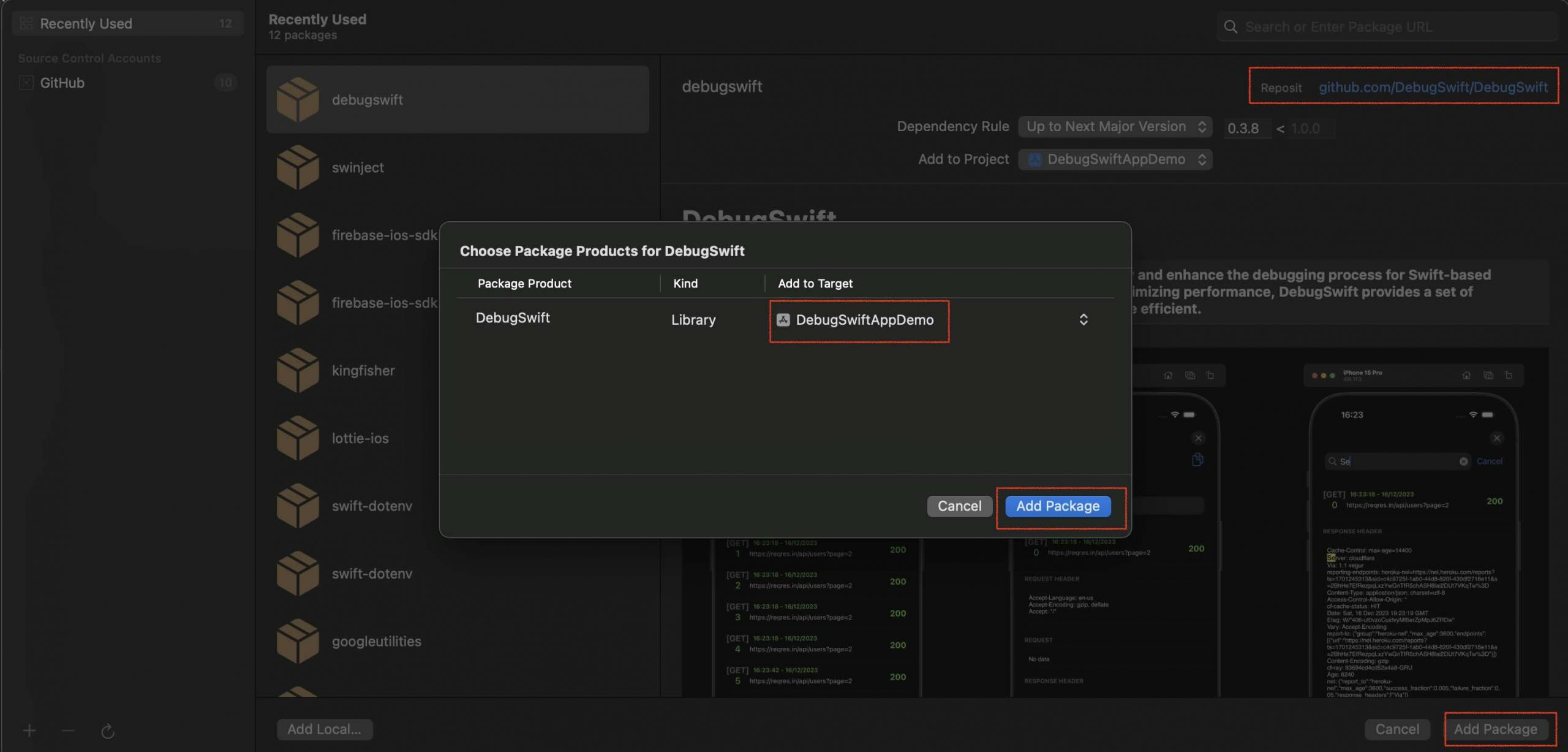
    The final step is incorporating the Firebase SDK using Swift Package Manager (SPM). To do this, select your project, go to Package Dependencies, and click Add Package Dependency.

    Enter the GitHub repository URL provided in Step 3 of the Firebase configuration into the search input box.

    Don’t forget to add FirebaseAuth to your target application.

    Continue through the Firebase configuration steps, and it will eventually provide the code you need to connect your app to Firebase.

    Incorporate this code into your iOS app project, then build and run the project to ensure everything is working properly.

    Implement authentication

    Get back to Firebase console to set up Authentication

    As you can see, there are many authentication methods, but for the purpose of this post, we will only work with the email and password method.

    As you can see, there are many authentication methods, but for the purpose of this post, we will only focus on the email and password method.

    For this post, I have implemented basic views for user registration, login, logout, and password recovery. All authentication functionality has been wrapped into a manager called AuthenticatorManager. The code is very basic but fully functional and compliant with Swift 6.0.

    Don’t worry if I go too fast; the link to the code repository is at the end of this post. You’ll see that the code is very easy to read. Simply run the project, register an account, and log in.

    You can find the project code at following repository.

    Conclusions

    Firebase provides a fast and efficient way to handle user authentication as your app scales.

  • keepin’ secrets on your pillow

    keepin’ secrets on your pillow

    The aim of this post is to provide one of the many available methods for keeping secrets, such as passwords or API keys, out of your base code while still ensuring they are accessible during the development phase.

    .env file

    One common approach is to create a text file, usually named by convention as .env, although you are free to name it as you prefer. This file will contain the secrets of your project.

    This is a keep-it-out-of-version-control

    This is a medicine; keep out of reach of children version control system. So be sure that it is included in .gitignore.

    Commit and push changes asap:

    An important consideration is where to place the folder. It must be located in the same root directory where the source code begins.

    If you have already committed and pushed the changes, anyone with access to your repository could potentially access that data. You have two alternatives:

    • Use git rebase: With git rebase, you can modify your commit history, allowing you to remove the problematic commit. This is a cleaner approach but requires careful handling to avoid conflicts.
    • Create a new repository: This option will result in the loss of your commit history but can be simpler if preserving history is not essential.


    Additionally, remember that your .env file is only stored locally on your machine. Ensure you keep it secure to prevent sensitive information from being exposed.

    Lets play with XCode

    Create a blank app project in XCode and be sure that following settings are set:

    Swift Language version to Swift 6 and …

    Strict Concurrency Checking is set to Complete, ensuring that our code, in addition to being secure and preventing disclosure of sensitive information, will also be free from data races. Finally, create a new file with the following component.

    import Foundation
    
    @globalActor
    actor GlobalManager {
        static var shared = GlobalManager()
    }
    
    @GlobalManager final class Env {
        static let env: [String: String] = loadEnvVariables()
        static let filename = ".env"
        private init() {
        }
    
        static func fetch(key: String) -> String? {
            env[key]
        }
    
        static func loadEnvVariables() -> [String: String] {
            var envVariables: [String: String] = [:]
            guard let path = Bundle.main.path(forResource: filename, ofType: nil) else {
                return [:]
            }
            do {
                let content = try String(contentsOfFile: path, encoding: .utf8)
                let lines = content.components(separatedBy: .newlines)
                for line in lines {
                    let components = line.components(separatedBy: "=")
                    if components.count == 2 {
                        let key = components[0].trimmingCharacters(in: .whitespaces)
                        let value = components[1].trimmingCharacters(in: .whitespaces)
                        envVariables[key] = value
                    }
                }
            } catch {
                print("Error reading .env: \(error)")
            }
            return envVariables
        }
    }

    Finally, use the Env component to fetch secret data from the .env file.

    struct ContentView: View {
        @State private var apiKey: String?
        var body: some View {
            VStack {
                Image(systemName: "globe")
                    .imageScale(.large)
                    .foregroundStyle(.tint)
                Text("API_KEY:\(apiKey ?? "Not set")")
            }
            .padding()
            .onAppear {
                Task {
                    apiKey = await Env.fetch(key: "API_KEY")
                }
            }
        }
    }

    This is the default ContentView generated in a blank project. We have added content using the .onAppear() modifier to fetch the secret, which is displayed with a Text view. Run the project, and the final result is as follows:

    Screenshot

    Conclusions

    This is a safe way to keep your project secrets away from indiscreet eyes. However, your secret file is only stored locally in your (or the developer team’s) project folder. On this repository is the source code that I have used for writing this post.

  • Streamlining Your Xcode Projects with GitHub Actions

    Streamlining Your Xcode Projects with GitHub Actions

    Having good practices is one of the key points for successfully steering your project to completion, especially when working as part of a team. In this post, I will explain how to implement these tasks in a CI/CD environment such as GitHub.

    First, we will set up essential tasks like unit testing and linting locally, and then apply these tasks as requirements for integration approvals.

    Executing unit test through command line console

    At this point, we assume that the unit test target is properly configured in your project. This section is important because we will need to use the command in the future.»

    xcodebuild is a command-line tool provided by Apple as part of Xcode, it allows developers to build and manage Xcode projects and workspaces from the terminal, providing flexibility for automating tasks, running continuous integration (CI) pipelines, and scripting.

    Simply execute the command to validate that everything is working correctly.

    Linting your code

    Linting your code not only improves quality, prevents errors, and increases efficiency, but it also facilitates team collaboration by reducing time spent on code reviews. Additionally, linting tools can be integrated into CI pipelines to ensure that checks are part of the build and deployment process.

    The tool we will use for linting is SwiftLint. Here, you will find information on how to install it on your system. Once it is properly installed on your system:

    Go to project root folder and create file .swiftlint.yml, this is default configuration, you can check following link to know more about the defined rules.

    disabled_rules:
    - trailing_whitespace
    opt_in_rules:
    - empty_count
    - empty_string
    excluded:
    - Carthage
    - Pods
    - SwiftLint/Common/3rdPartyLib
    line_length:
        warning: 150
        error: 200
        ignores_function_declarations: true
        ignores_comments: true
        ignores_urls: true
    function_body_length:
        warning: 300
        error: 500
    function_parameter_count:
        warning: 6
        error: 8
    type_body_length:
        warning: 300
        error: 500
    file_length:
        warning: 1000
        error: 1500
        ignore_comment_only_lines: true
    cyclomatic_complexity:
        warning: 15
        error: 25
    reporter: "xcode"
    

    Now, let’s integrate this in Xcode. Select your target, go to Build Phases, click the plus (+) button, and choose ‘New Run Script Phase’.

    Rename the script name to ‘swiftlint’ for readability, and make sure to uncheck ‘Based on…’ and ‘Show environment…’.

    Paste the following script.

    echo ">>>>>>>>>>>>>>>>>>>>>>>> SWIFTLINT (BEGIN) >>>>>>>>>>>>>>>>>>>>>>>>>>>>>>"
    if [[ "$(uname -m)" == arm64 ]]; then
        export PATH="/opt/homebrew/bin:$PATH"
    fi
    
    if which swiftlint > /dev/null; then
      swiftlint
    else
      echo "warning: SwiftLint not installed, download from https://github.com/realm/SwiftLint"
    fi
    echo "<<<<<<<<<<<<<<<<<<<<<<<<< SWIFTLINT (END) <<<<<<<<<<<<<<<<<<<<<<<<<<<<<<<<"

    Select the target and build (Cmd+B). If you review the build log, you will see a new warnings triggered.

    GitHub actions

    GitHub Actions is a powerful CI/CD  platform integrated within GitHub, allowing developers to automate, customize, and streamline their software workflows directly from their repositories. It uses YAML configuration files to define tasks or workflows that run in response to events, such as pushing code, opening pull requests, or setting schedules. With its flexibility, developers can automate building, testing or deploying applications.

    Workflow for executing unit test

    At this point, we assume that we are in the root folder of a repository cloned from GitHub. Navigate to (or create) the following folder: ./github/workflows. In that folder, we will place our first GitHub Action for executing the unit tests. In my case, it was a file called UTest.yml with the following content:

    name: utests-workflow
    
    on:
      pull_request:
        branches: [main, develop]
    jobs:
      utests-job:
        runs-on: macos-latest
    
        steps:
          - name: Check out the repository
            uses: actions/checkout@v4
    
          - name: Set to XCode 16.0
            uses: maxim-lobanov/setup-xcode@v1
            with:
               xcode-version: '16.0'
    
          - name: Execute Unit tessts (iOS target)
            run: xcodebuild test -scheme 'EMOM timers' -destination 'platform=iOS Simulator,name=iPhone 16,OS=latest'
    
          - name: Execute Unit tessts (AW target)
            run: xcodebuild test -scheme 'EMOM timers Watch App' -destination 'platform=watchOS Simulator,name=Apple Watch Series 10 (42mm),OS=latest'
    

    The first tag is name, which contains the given name for the workflow. Next, the on tag defines which event can trigger the workflow to run. In this case, we are interested in executing the workflow when a pull request targets the main or develop branch (for available events, please review the documentation).

    Finally, we find the jobs section, which describes the tasks we want to execute. utest-job is the designated name for this job, and the environment where it will be executed is specified as macos-latest.

    Next, we find the steps, which outline the sequence of actions to be executed. The first step is to check out the repository. In this step, we specify a shell command, but instead, we see an action being referenced. An action is a piece of code created by the community to perform specific tasks. It is highly likely that someone has already written the action you need, so be sure to review GitHub Actions or GitHub Actions Marketplace.  The checkout action was defined in the GitHub Actions   repositoty, and we can see that its popularity is good, so let’s give it a try.

    The second step is to set the Xcode version to one that is compatible with your project. My project is currently working with Xcode 16.0, so we need to set it to that version. I found this action in the GitHub Action marketplace.

    The final two steps involve executing unit tests for each target. Now, we can commit and push our changes.

    Create a pull request on GitHub for your project, and at the end, you should see that the workflow is being executed.

    After few minutes…

    I aim you to force fail some unit test and push changes. Did allow you to integrate branch?

    Workflow for linting

    We are going to create a second workflow to verify that static syntax analysis (linting) is correct. For this purpose, we have created the following .yml GitHub Action workflow script:

    name: lint
    
    # Especifica en qué ramas se ejecutará el workflow
    on:
      pull_request:
        branches: [main, develop]
    jobs:
      lint:
        runs-on: macos-latest
        steps:
          - name: Checkout code
            uses: actions/checkout@v4
    
          - name: Install SwiftLint
            run: brew install swiftlint
    
          - name: Run SwiftLint
            run: swiftlint

    In this workflow, the name and job refer to the linting process, with the only differences being in the last two steps.

    The first step, as in the previous workflow, is to check out the branch. The next step is to install SwiftLint via Homebrew, and the final step is to run SwiftLint. In this case, we will deliberately trigger a linting error.

    Once we commit and push the change, let’s proceed to review the pull request. The lint workflow has been executed, and a linting error has been triggered. However, it is still possible to merge the pull request, which is what we want to avoid. In the next section, we’ll address this issue.

    Setup branch rules

    Now it’s time to block any merges on the develop branch. Go to your repository settings.

    In the Branches section, click Add rule under Branch protection rules and select Add a classic branch protection rule.

    Enter the branch name where the rule applies. In this case, it is develop. Check «Require status checks to pass before merging» and «Require branch to be up to date before merging». In the search box below, type the workflow name. In this case, we want the unit tests and linting to succeed before proceeding with the pull request.

    When we return to the pull request page (and possibly refresh), we will see that we are not allowed to merge. This was our goal: to block any pull request that does not meet the minimum quality requirements.

    This rule has been applied to the development branch. I leave it to the reader to apply the same rule to the main branch.

    Conclusions

    By integrating GitHub Actions into our team development process, we can automate tasks that help us avoid increasing technical debt.

    Related links

  • Swift 6 migration recipes

    Swift 6 migration recipes

    Swift’s concurrency system, introduced in Swift 5.5, simplifies the writing and understanding of asynchronous and parallel code. In Swift 6, language updates further enhance this system by enabling the compiler to ensure that concurrent programs are free of data races. With this update, compiler safety checks, which were previously optional, are now mandatory, providing safer concurrent code by default.

    Sooner or later, this will be something every iOS developer will need to adopt in their projects. The migration process can be carried out incrementally and iteratively. The aim of this post is to present concrete solutions for addressing specific issues encountered while migrating code to Swift 6. Keep in mind that there are no silver bullets in programming.

    Step 0. Plan your strategy

    First, plan your strategy, and be prepared to roll back and re-plan as needed. That was my process, after two rollbacks 🤷:

    1. Set the «Strict Concurrency Checking» compiler flag on your target. This will bring up a myriad of warnings, giving you the chance to tidy up your project by removing or resolving as many warnings as possible before proceeding.
    2. Study Migration to Swift 6 (from swift.org), Don’t just skim through it; study it thoroughly. I had to roll back after missing details here. 
    3. Set the «Strict Concurrency Checking» compiler flag to Complete. This will trigger another round of warnings. Initially, focus on moving all necessary elements to @MainActor to reduce warnings. We’ll work on reducing the main-thread load later.
      1. Expect @MainActor propagation. As you apply @MainActor, it’s likely to propagate. Ensure you also mark the callee functions as @MainActor where needed
      2. In protocol delegate implementations, verify that code runs safely on @MainActor. In some cases, you may need to make a copy of parameters to prevent data races.
      3. Repeat the process until you’ve resolved all concurrency warnings.
      4. Check your unit tests, as they’ll likely be affected. If all is clear, change targets and repeat the process..
    4. Set the Swift Language Version to Swift 6 and run the app on a real device to ensure it doesn’t crash. I encountered a crash at this stage..
    5. Reduce @MainActor usage where feasible. Analyze your code to identify parts that could run in isolated domains instead. Singletons and API services are good candidates for offloading from the main thread.


    On following sections I will explain the issues that I had found and how I fix them.

    Issues with static content

    Static means that the property is shared across all instances of that type, allowing it to be accessed concurrently from different isolated domains. However, this can lead to the following issue:

    Static property ‘shared’ is not concurrency-safe because non-‘Sendable’ type ‘AppGroupStore’ may have shared mutable state; this is an error in the Swift 6 language mode

    The First-Fast-Fix approach here is to move all classes to @MainActor.

    @MainActor
    final class AppGroupStore {
        let defaults = UserDefaults(suiteName: "group.jca.EMOM-timers")
        static let shared = AppGroupStore()
        private init() {
        }
    }

    Considerations:

    Moving to @MainActor forces all calls to also belong to @MainActor, leading to a propagation effect throughout the codebase. Overusing @MainActor may be unnecessary, so in the future, we might consider transitioning to an actor instead.

    For now, we will proceed with this solution. Once the remaining warnings are resolved, we will revisit and optimize this approach if needed.


    Issues with protocol implementation in the system or third-party SDK.

    First step: focus on understanding not the origin, but how this data is being transported. How is the external dependency handling concurrency? On which thread is the data being dellivered? As a first step, check the library documentation — if you’re lucky, it will have this information. For instance:

    • CoreLocation: Review the delegate specification in the CLLocationManager documentation. At the end of the overview, it specifies that callbacks occur on the same thread where you initialized the CLLocationManager.
    • HealthKit: Consult the HKWorkoutSessionDelegate documentation. Here, the overview mentions that HealthKit calls these methods on an anonymous serial background queue.
     

    In my case, I was working with WatchKit and implementing the WCSessionDelegate. The documentation states that methods in this protocol are called on a background thread.

    Once I understand how the producer delivers data, I need to determine the isolated domain where this data will be consumed. In my case, it was the @MainActor due to recursive propagation from @MainActor.

    Now, reviewing the code, we encounter the following warning:

    Main actor-isolated instance method ‘sessionDidBecomeInactive’ cannot be used to satisfy nonisolated protocol requirement; this is an error in the Swift 6 language mode.

    In case this method had no implementation just mark it as nonisolated and move to next:

    nonisolated func session(_ session: WCSession, activationDidCompleteWith activationState: WCSessionActivationState, error: Error?) {
     }

    The next delegate method does have an implementation and runs on the @MainActor, while the data is delivered on a background queue, which is a different isolated domain. I was not entirely sure whether the SDK would modify this data.

    My adaptation at that point was create a deep copy of data received, and forward the copy to be consumed..

    nonisolated func session(_ session: WCSession, didReceiveUserInfo userInfo: [String: Any] = [:]) {
         doCopyAndCallUpdateInMainActor(userInfo)
    }
       
    private nonisolated func doCopyAndCallUpdateInMainActor(_ dictionary: [String: Any] = [:])  {
        nonisolated(unsafe) let dictionaryCopy =  dictionary.deepCopy()
            Task { @MainActor in
                await self.update(from: dictionaryCopy)
            }
    }

    Issues with default parameter function values

    I have a function that receives a singleton as a default parameter. The singletons are working in an isolated domain; in this case, it was under @MainActor. I encountered the following issue:

    Main actor-isolated static property ‘shared’ can not be referenced from a nonisolated context; this is an error in the Swift 6 language mode

    To remove this warning, I made it an optional parameter and handled its initialization:

    init(audioManager: AudioManagerProtocol? = nil,
             extendedRuntimeSessionDelegate: WKExtendedRuntimeSessionDelegate? = nil) {
            self.audioManager = audioManager ?? AudioManager.shared
            self.extendedRuntimeSessionDelegate = extendedRuntimeSessionDelegate
        }

    Decoupling non-UI logic from @MainActor for better performance.

    There are components in your application, such as singletons or APIs, that are isolated or represent the final step in an execution flow managed by the app. These components are prime candidates for being converted into actors.

    Actors provide developers with a means to define an isolation domain and offer methods that operate within this domain. All stored properties of an actor are isolated to the enclosing actor instance, ensuring thread safety and proper synchronization.

    Previously, to expedite development, we often annotated everything with @MainActor.

    @MainActor
    final class AppGroupStore {
        let defaults = UserDefaults(suiteName: "group.jca.XYZ")
        
        static let shared = AppGroupStore()
        
        private init() {
            
        }
    }

    Alright, let’s move on to an actor.

    actor AppGroupStore {
        let defaults = UserDefaults(suiteName: "group.jca.XYZ")
        
        static let shared = AppGroupStore()
        
        private init() {
            
        }
    }

    Compiler complains:

    Actor ‘AppGroupStore’ cannot conform to global actor isolated protocol ‘AppGroupStoreProtocol’

    That was because protocol definition was also @MainActor, so lets remove it:

    import Foundation
    //@MainActor
    protocol AppGroupStoreProtocol {
        func getDate(forKey: AppGroupStoreKey) -> Date?
        func setDate(date: Date, forKey: AppGroupStoreKey)
    }

    At this point, the compiler raises errors for two functions: one does not return anything, while the other does. Therefore, the approaches to fixing them will differ.

    We have to refactor them to async/await

    protocol AppGroupStoreProtocol {
        func getDate(forKey: AppGroupStoreKey) async -> Date?
        func setDate(date: Date, forKey: AppGroupStoreKey) async
    }

    There are now issues in the locations where these methods are called.

    This function call does not return any values, so enclosing its execution within Task { ... } is sufficient.

        func setBirthDate(date: Date) {
            Task {
                await AppGroupStore.shared.setDate(date: date, forKey: .birthDate)
            }
        }

    Next isssue is calling a function that in this case is returning a value, so the solution will be different.

    Next, the issue is calling a function that, in this case, returns a value, so the solution will be different.

        func getBirthDate() async -> Date {
            guard let date = await AppGroupStore.shared.getDate(forKey: .birthDate) else {
                return Calendar.current.date(byAdding: .year, value: -25, to: Date()) ?? Date.now
            }
            return date
        }

    Changing the function signature means that this change will propagate throughout the code, and we will also have to adjust its callers.

    Just encapsulate the call within a Task{...}, and we are done.

            .onAppear() {
                Task {
                    guard await AppGroupStore.shared.getDate(forKey: .birthDate) == nil else { return }
                    isPresentedSettings.toggle()
                }
            }

    Conclusions

    To avoid a traumatic migration, I recommend that you first sharpen your saw. I mean, watch the WWDC 2024 videos and study the documentation thoroughly—don’t read it diagonally. Once you have a clear understanding of the concepts, start hands-on work on your project. Begin by migrating the easiest issues, and as you feel more comfortable, move on to the more complicated ones.

    At the moment, it’s not mandatory to migrate everything at once, so you can start progressively. Once you finish, review if some components could be isolated into actors.

    Related links