Categoría: Swift

  • Dynamic Island: iOS Live Activities Guide

    Dynamic Island: iOS Live Activities Guide

    A Live Activity in iOS is a special type of interactive widget that displays real-time information from an app directly on the Lock Screen and, on iPhone 14 Pro models and later, in the Dynamic Island. They’re designed for short-lived, glanceable updates—like tracking a food delivery, following a sports score, or showing a running timer—so users don’t need to constantly reopen the app. Built with ActivityKit, Live Activities can be updated by the app itself or through push notifications, and they automatically end once the tracked task or event is complete.

    In this post, we’ll walk through an iOS app project that covers the entire flight reservation journey—from the moment your booking is confirmed to when your bags arrive at the baggage claim. At the end, you’ll find a link to the GitHub repository if you’d like to download the project and try it out yourself.

    Project Setup

    To carry out this project, we started with a blank iOS app template containing two targets: one for the main app itself and another for a Widget Extension.
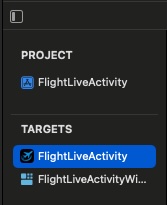
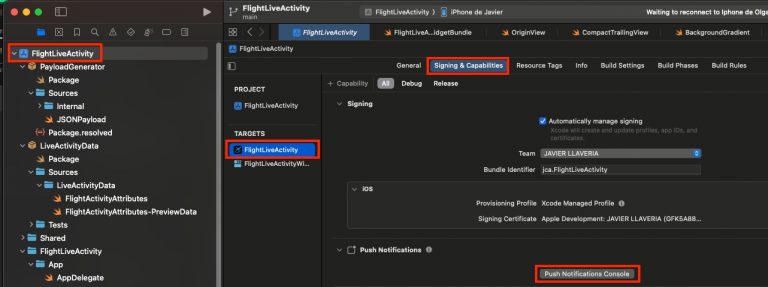
    Go to the Signing & Capabilities tab of your iOS app target and enable the Push Notifications capability.
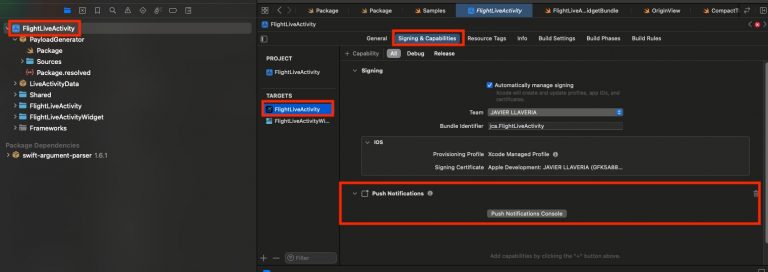
    We need this because Live Activity state changes are triggered by push notifications. Next, update the Info.plist to support Live Activities:
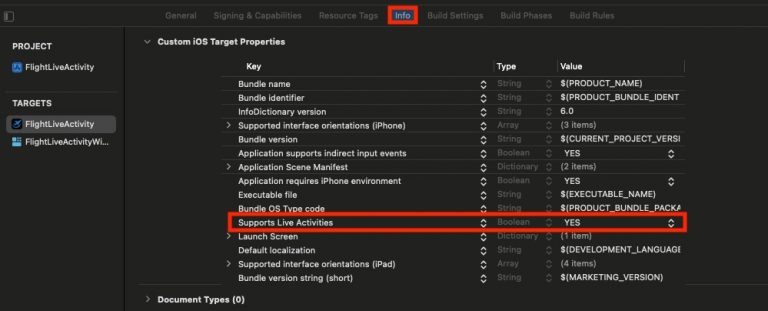
    Regarding Widget Extension Target, no extra setup is required. When we review project explorer we will face 2 packages:
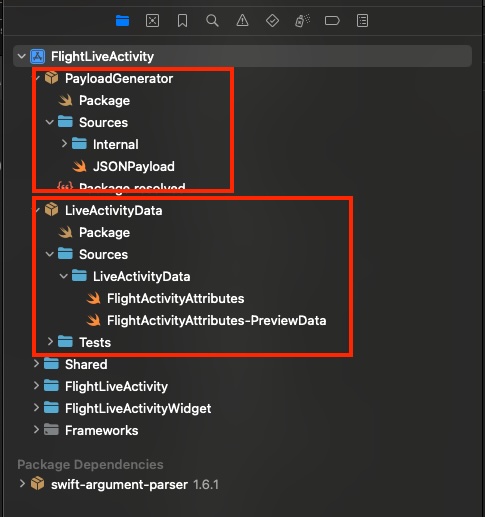
    Payload Generator is a small command-line tool that prints JSON payloads to the console, ready to be pasted directly into the push notifications console. LiveActivityData contains all data structures (and sample data) related to Live Activities. Including them in a package allows the module to be imported by the iOS app, the Widget Extension, and the Payload Generator

    Up to this point is all you need to know about the project, deploy the app on a real device:

    Screenshot

    In addition to handling Live Activity state changes through push notifications, we’ll also manage them internally from the app itself by triggering updates with a button.

    Create Booking

    For creating a new booking, we will create internally from the app just pressing the corresponding button. The app follows MVVM architecture pattern and the method for handling that in the View Model is following:

        func startActivity(initialState: FlightActivityAttributes.ContentState) {
            let attrs = FlightActivityAttributes.bookingActivity
            let content = ActivityContent(state: initialState, staleDate: nil)
    
            do {
                currentActivity = try Activity.request(
                    attributes: attrs,
                    content: content,
                    pushType: .token
                )
                refreshActivities()
            } catch {
                logger.error("Failed to start activity: \(error.localizedDescription, privacy: .public)")
            }
        }

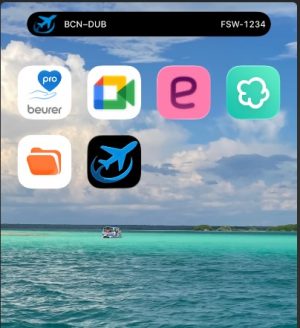
    If we move out from the app we will see dynamic island (left) and block screen (right) presenting a Widget with following content:
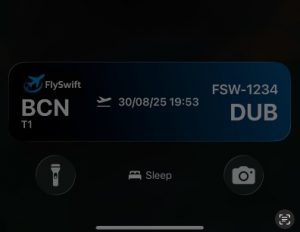
    Screenshot
    Screenshot

    Running out of seats

    To let our customers know about seat availability for their booking, we’ll send a push notification to the app with the updated seat information. The first step is to open the Push Notifications console:
    Log in with your Apple Developer account and open the Push Notifications dashboard. Verify that you’ve selected the correct team and Bundle ID, then click Send and choose New.
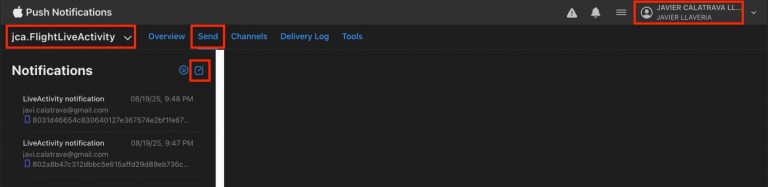
    Log in with your Apple Developer account and open the Push Notifications dashboard. Make sure you’ve selected the correct team and Bundle ID. Then click Send and choose New. For Name, enter a descriptive label to help you recognize the purpose of this push notification. Next, under Recipient, paste the last hex code that appeared in the logging console.
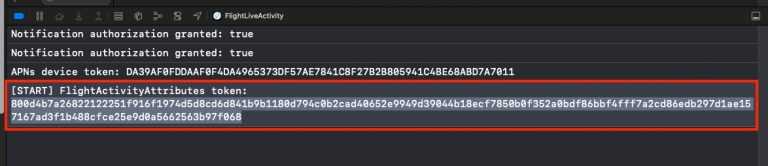
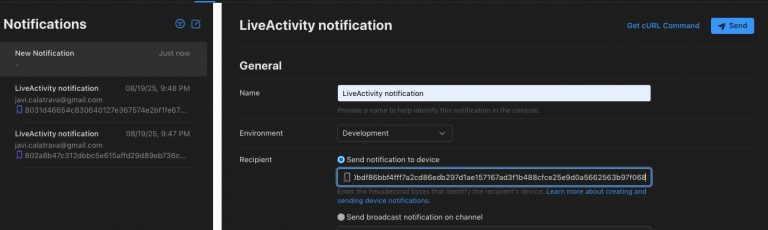
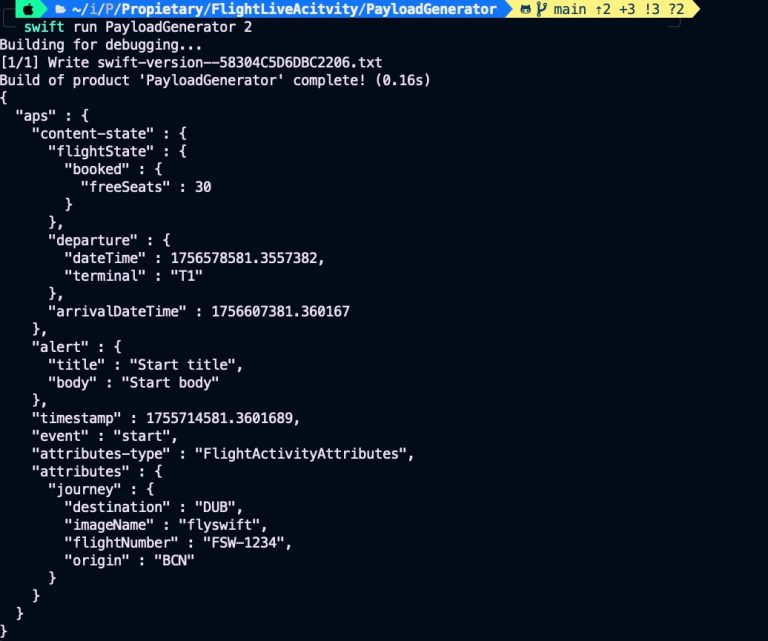
    To generate the JSON payload for the push notification, we’ll use our command-line tool. Run the following command:

    $swift run PayloadGenerator 2

    Here, 2 generates a sample template showing 30% of the available seats.»
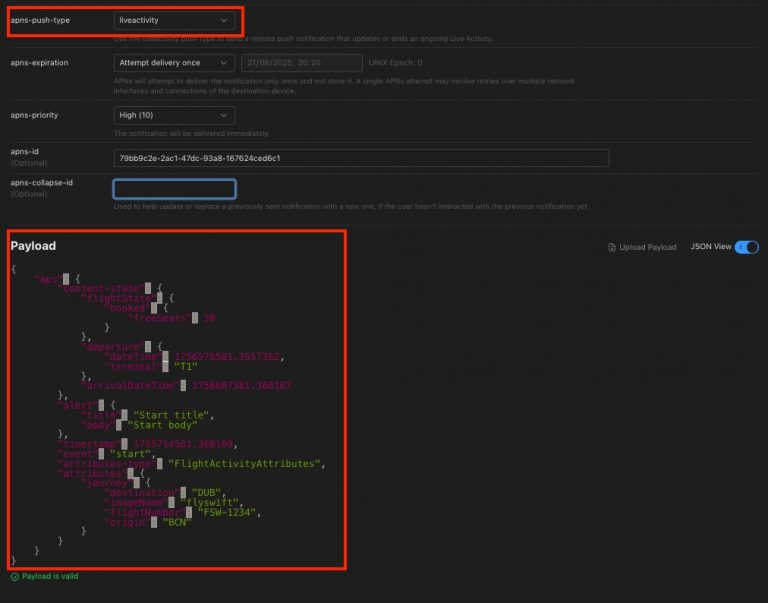
    On apns-push-type select liveactivity and paste previous generated download on payload:
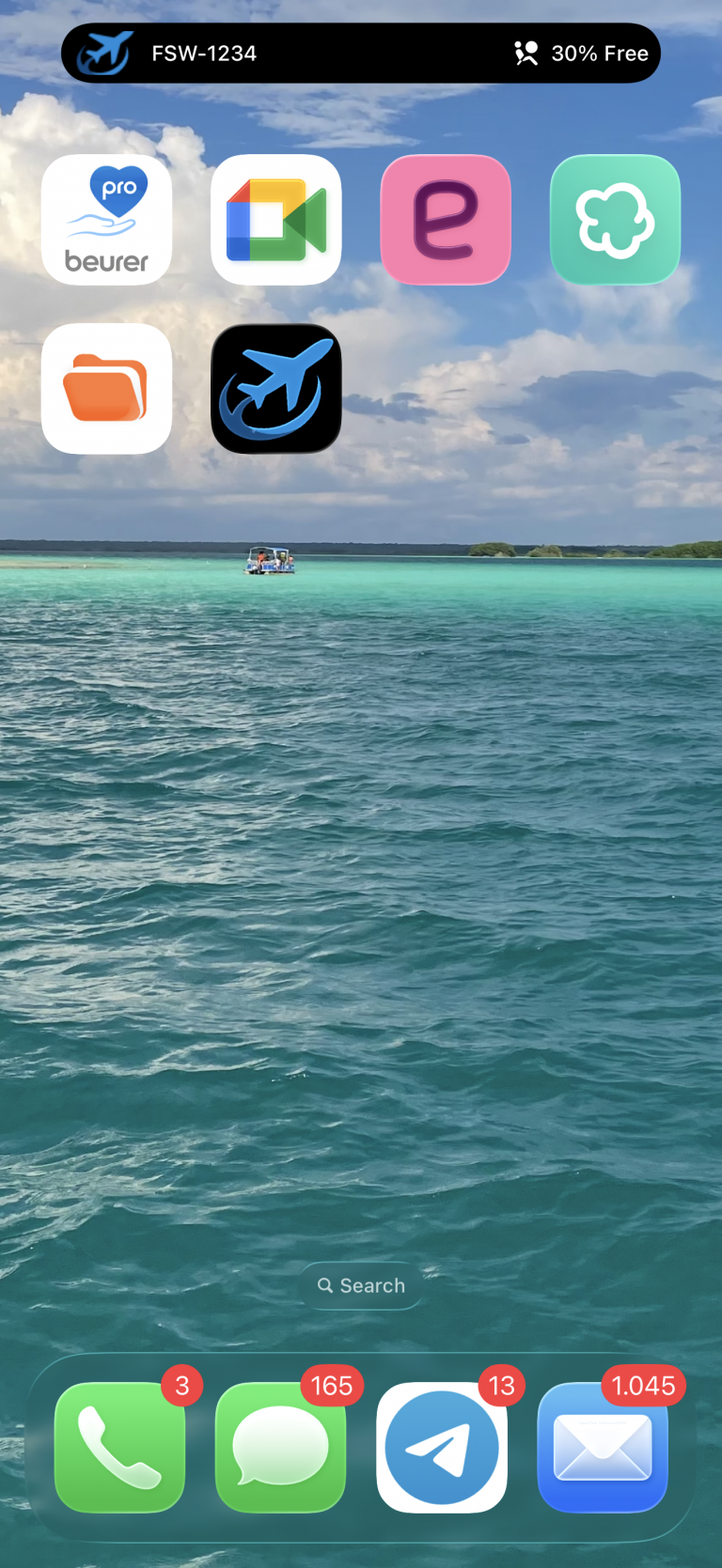
    Press the Send button, and you’ll see the following content displayed on the device—both in the Dynamic Island and on the Lock Screen widget:»
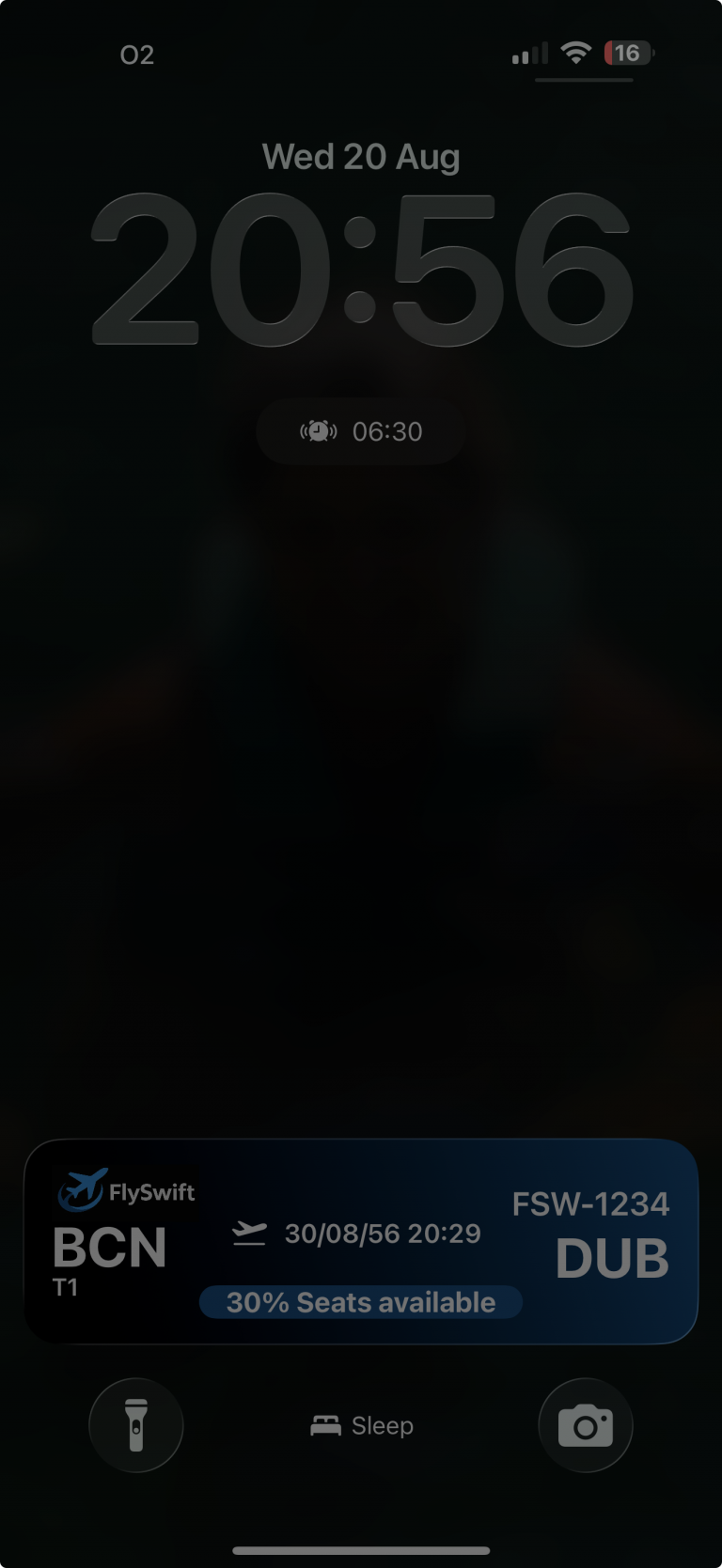
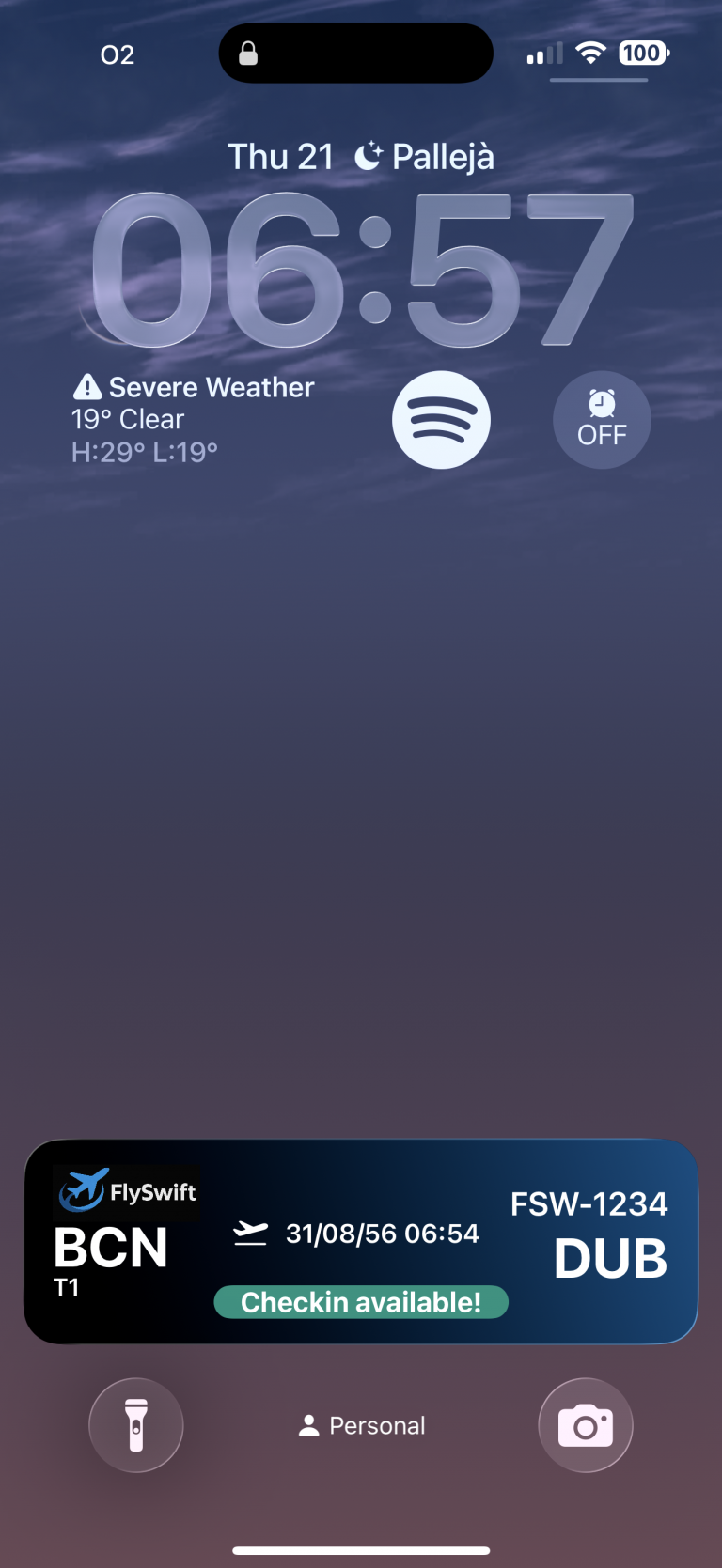
    Checkin available

    A few weeks before a flight departs, airlines usually allow users to check in online. To generate the payload for this scenario, run:

    $swift run PayloadGenerator 3

    Here, 3 generates a sample template that enables the user to perform online check-in. In the Push Notifications dashboard, update the token, paste the payload, and send the notification. You should then see the following:
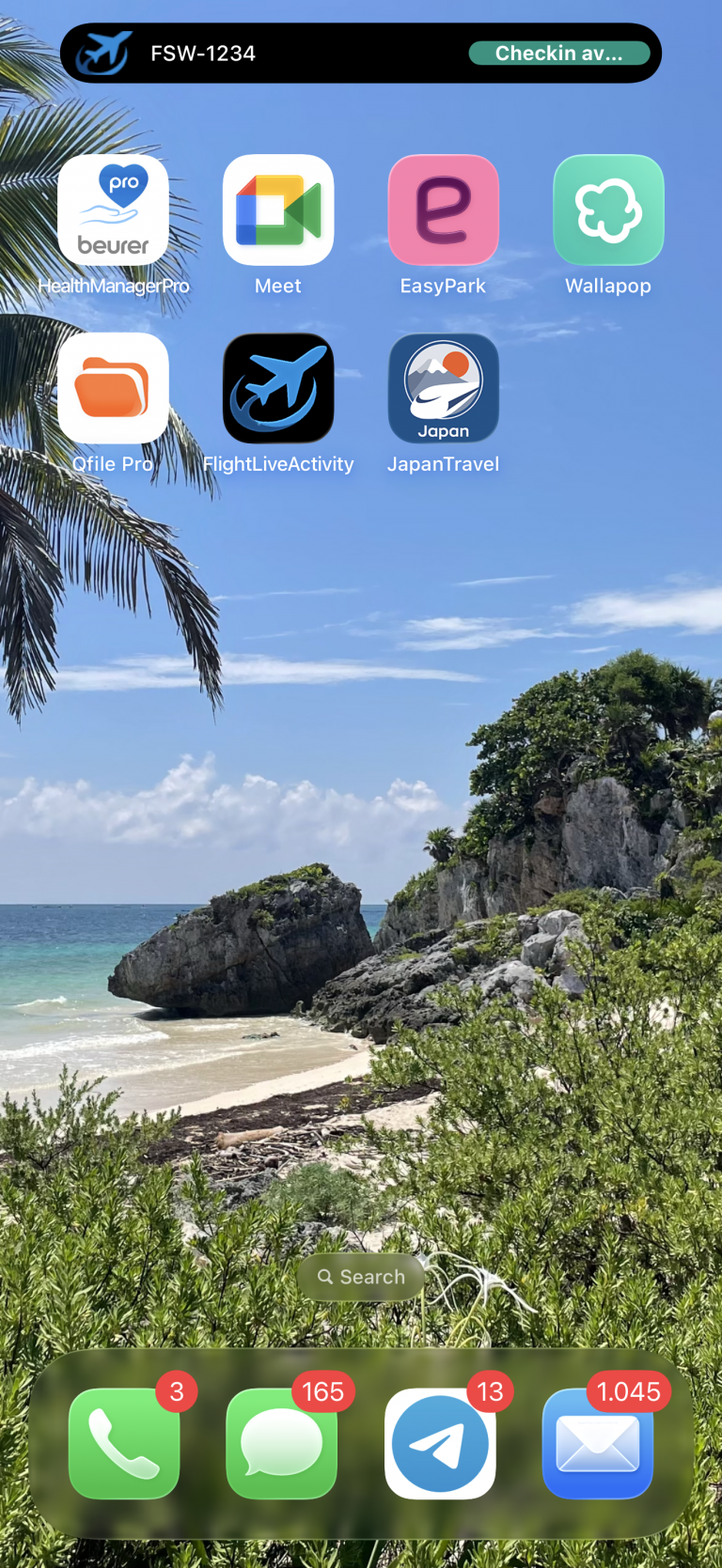
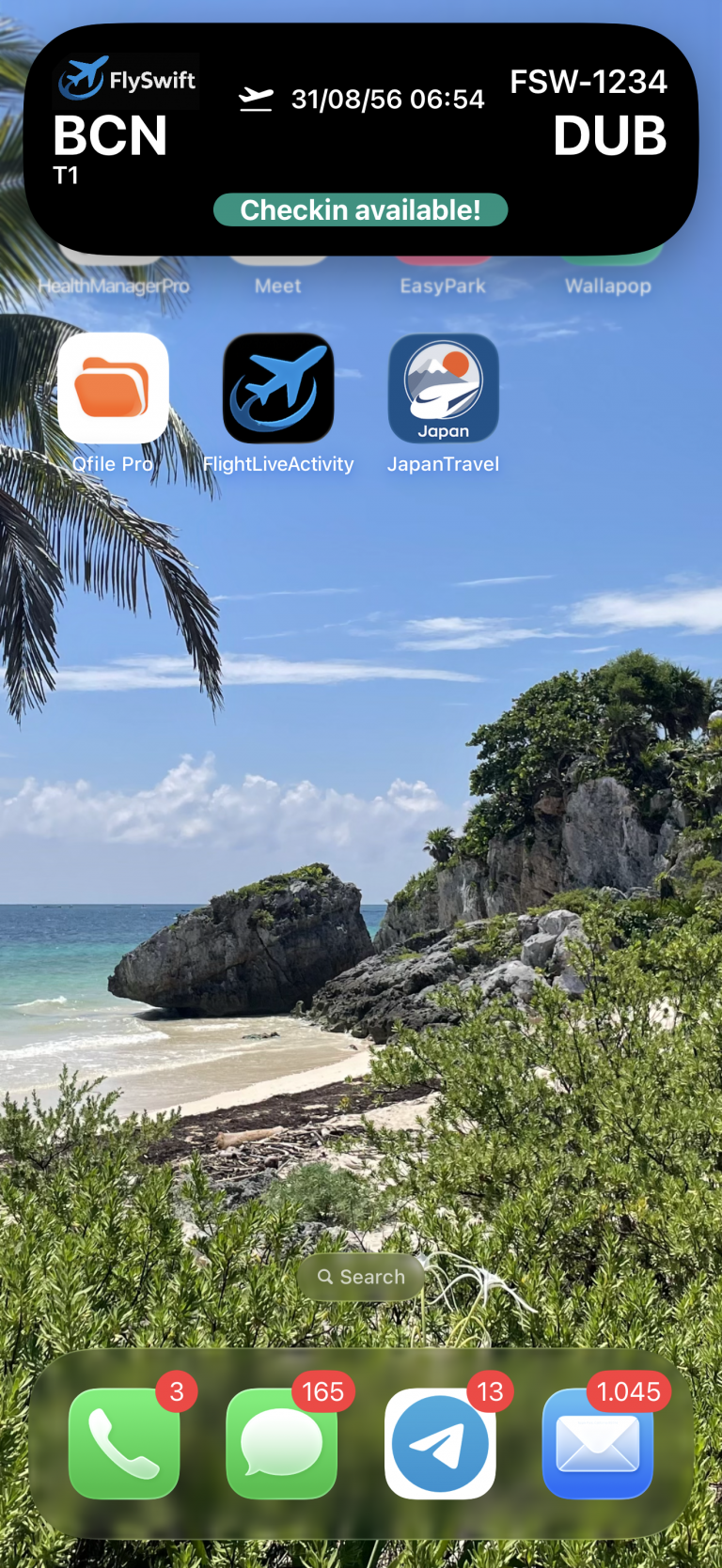
    When a push notification arrives, the Dynamic Island first appears in compact mode (left). If the user taps it, the Dynamic Island expands (center), and finally the widget is shown (right) when user blocks device. Notice that the widget displays a gradient background, while the Dynamic Island does not—this is because the Dynamic Island is designed to cover the area where the camera and sensors are physically located on the device screen.

    It’s important that the widget and the expanded Dynamic Island share the same composition to ensure maintainability and to simplify the addition or removal of new states. WidgeKit facilitates it by allowin developer implement it on the same class:

    struct BookingFlightLiveActivity: Widget {
        var body: some WidgetConfiguration {
            ActivityConfiguration(for: FlightActivityAttributes.self) { context in
                let attrs = context.attributes
                let state = context.state
    
                FlightWidgetView(attrs: attrs, state: state)
    
            } dynamicIsland: { context in
                let journey = context.attributes.journey
                let state = context.state
    
                return DynamicIsland {
                    DynamicIslandExpandedRegion(.leading) {
                        OriginView(
                            imageName: journey.imageName,
                            origin: journey.origin,
                            departure: state.departure,
                            flightState: state.flightState
                        )
                    }
    
                    DynamicIslandExpandedRegion(.trailing) {
                        DestinationView(
                            flightNumber: journey.flightNumber,
                            destination: journey.destination,
                            arrivalDateTime: state.arrivalDateTime,
                            flightState: state.flightState
                        )
                    }
    
                    DynamicIslandExpandedRegion(.center) {
                        CentralView(
                            departure: state.departure,
                            flightState: state.flightState
                        )
                    }
    
                    DynamicIslandExpandedRegion(.bottom) {
                        ExtraView(flightState: state.flightState)
                    }
                } compactLeading: {
                    CompactLeadingView(
                        origin: journey.origin,
                        destination: journey.destination,
                        flightNumber: journey.flightNumber,
                        flightState: state.flightState
                    )
                } compactTrailing: {
                    CompactTrailingView(
                        flightNumber: journey.flightNumber,
                        flightState: state.flightState
                    )
                } minimal: {
                    MinimalView()
                }
            }
            .supplementalActivityFamilies([.small, .medium])
        }
    }

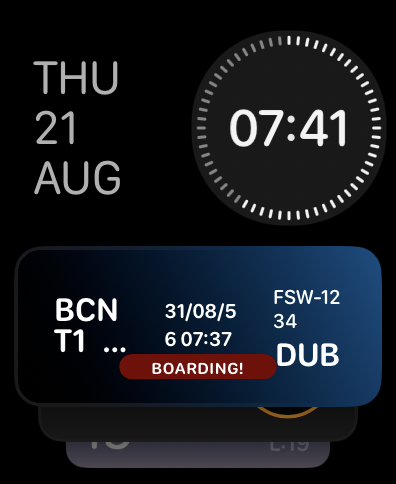
    This Swift code defines a Live Activity widget called BookingFlightLiveActivity for an iOS flight booking app. It uses ActivityConfiguration to display real-time flight information on the Lock Screen and within the Dynamic Island. On the Lock Screen (FlightWidgetView), it shows booking attributes and state (such as departure, arrival, and flight status). For the Dynamic Island, it customizes different regions: the leading side shows the origin airport, the trailing side shows destination details, the center highlights departure and status, and the bottom provides extra information. It also specifies how the widget appears in compact leading, compact trailing, and minimal Dynamic Island modes. Additionally, it declares support for extra widget sizes (.small and .medium) through supplementalActivityFamilies; for example, .small is used to present the widget on Apple Watch.

    Another important detail is the context, which holds the presentation data. This is divided into two groups: attributes, which are fixed values (such as journey details), and state, which contains variable information that changes as the Live Activity progresses.

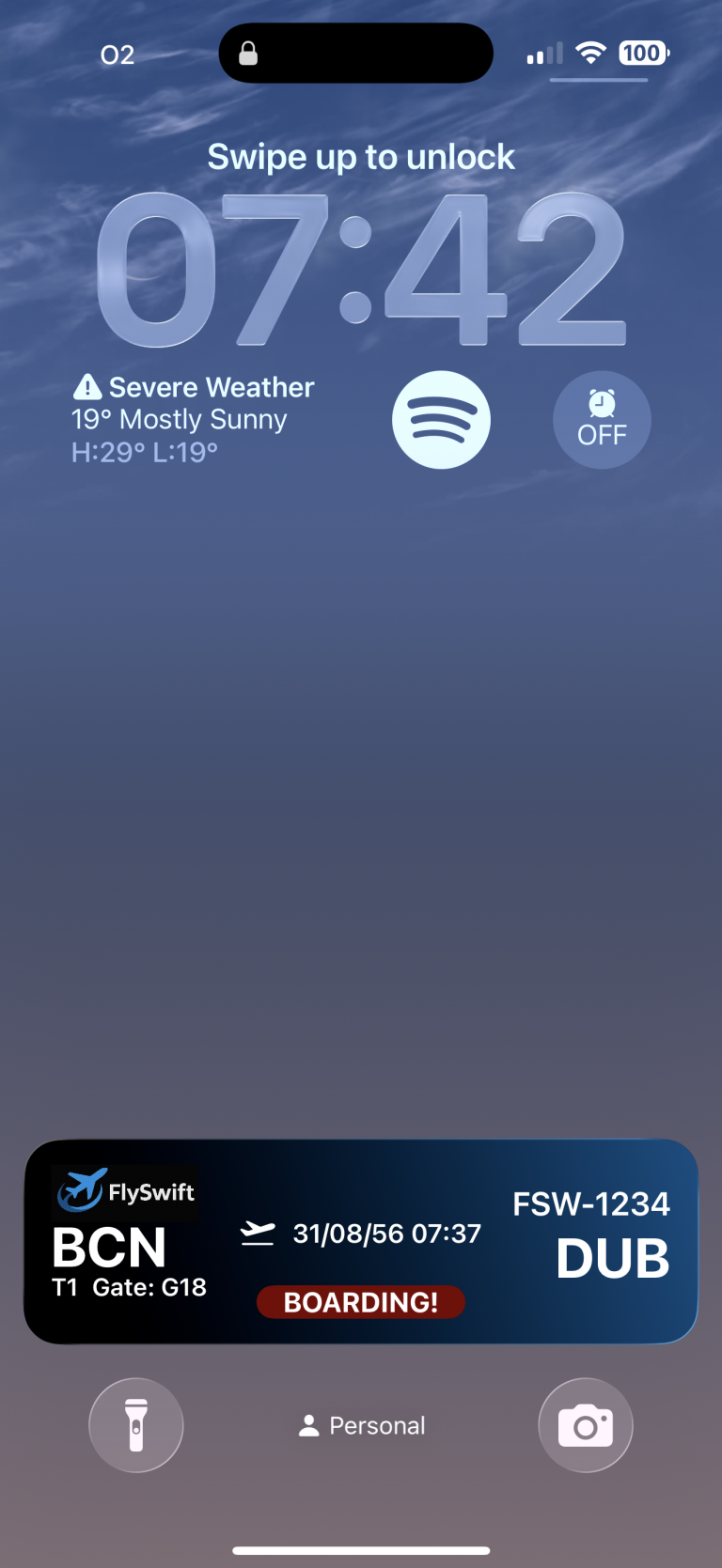
    Boarding

    Now, it gets time of boarding. At this stage we’re going to take a look at the command line tool that we have also developed and facilitates work for generating JSON payload for push notification. To generate the payload for this scenario, run:

    $swift run PayloadGenerator 4

    Here, 4 generates a sample payload template that enables the user be informed about the boarding gate.
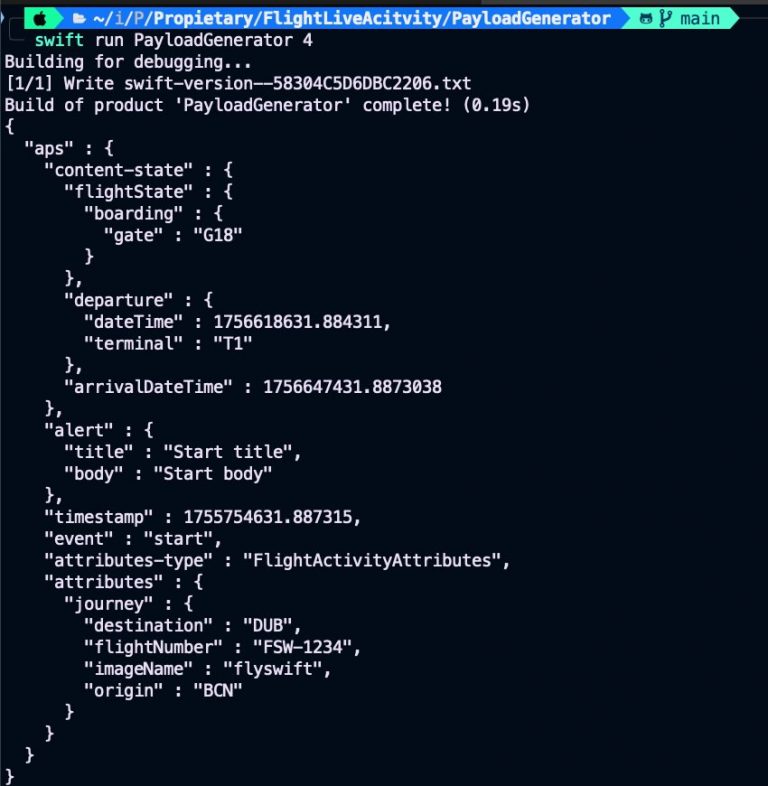
    JSONPaload command line tool just parses input atttirbutes and executes its function associated:

    import ArgumentParser
    
    @main
    struct JSONPayload: ParsableCommand {
        @Argument(help: "Which step of the live activity cycle to generate as JSON")
        var step: Int
    
        @Flag(help: "Prints date in a human-readable style")
        var debug: Bool = false
    
        mutating func run() throws {
            let jsonString = switch step {
            case 1: try bookedFlight(debug: debug)
            case 2: try bookedFlight30Available(debug: debug)
            case 3: try checkinAvailable(debug: debug)
            case 4: try boarding(debug: debug)
            case 5: try landed(debug: debug)
            default:
                fatalError("No step '\(step)' defined")
            }
            print(jsonString)
        }
    }

    JSONPaload command line tool just parses input atttirbutes and executes its function associated:

    func boarding(debug: Bool) throws -> String {
        let contentState = FlightActivityAttributes.ContentState.boarding
        let push = PushPayload(
            aps: StartApsContent(
                contentState: contentState,
                attributesType: "FlightActivityAttributes",
                attributes: FlightActivityAttributes.bookingActivity
            )
        )
        let data = try JSONEncoder.pushDecoder(debug: debug).encode(push)
        return try data.prettyPrintedJSONString
    }

    FlightActivityAttributes.ContentState.boarding is same sample data code used also in the app (and widget). Is packaged into LiveActivityData because in that way allows data structure being used by command line tool. This is how PayloadGenerator/Package file declare its dependency with LiveActivityData package:

    import PackageDescription
    
    let package = Package(
        name: "PayloadGenerator",
        platforms: [.macOS(.v15)],
        dependencies: [
            .package(url: "https://github.com/apple/swift-argument-parser.git", from: "1.2.0"),
            .package(path: "../LiveActivityData"),
        ],
        targets: [
            // Targets are the basic building blocks of a package, defining a module or a test suite.
            // Targets can depend on other targets in this package and products from dependencies.
            .executableTarget(
                name: "PayloadGenerator",
                dependencies: [
                    .product(name: "ArgumentParser", package: "swift-argument-parser"),
                    .product(name: "LiveActivityData", package: "LiveActivityData"),
                ]
            ),
        ]
    )
    

    And this is how is set this dependency on iOS app:
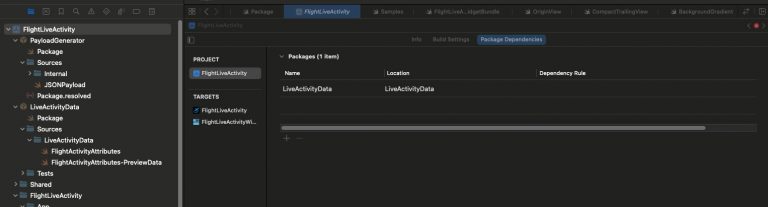
    Add package dependency to project, and the import  dependency at time of coding

    ...
    import LiveActivityData
    
    // MARK: - View
    
    struct BookingBoardView: View {
        @StateObject private var controller = BookingBoardViewModel()
    ...

    After sending notification user should have to see in device and also in Apple Watch following:
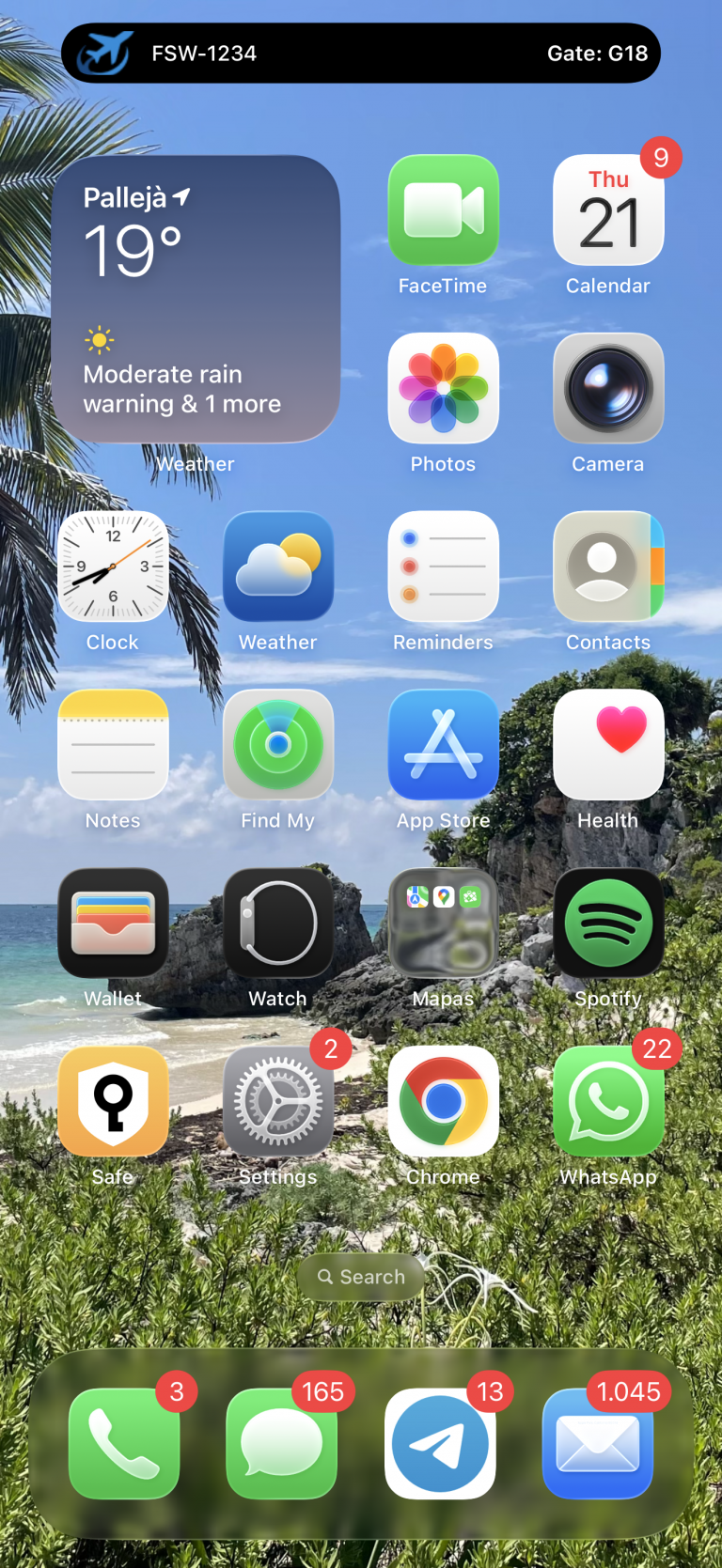
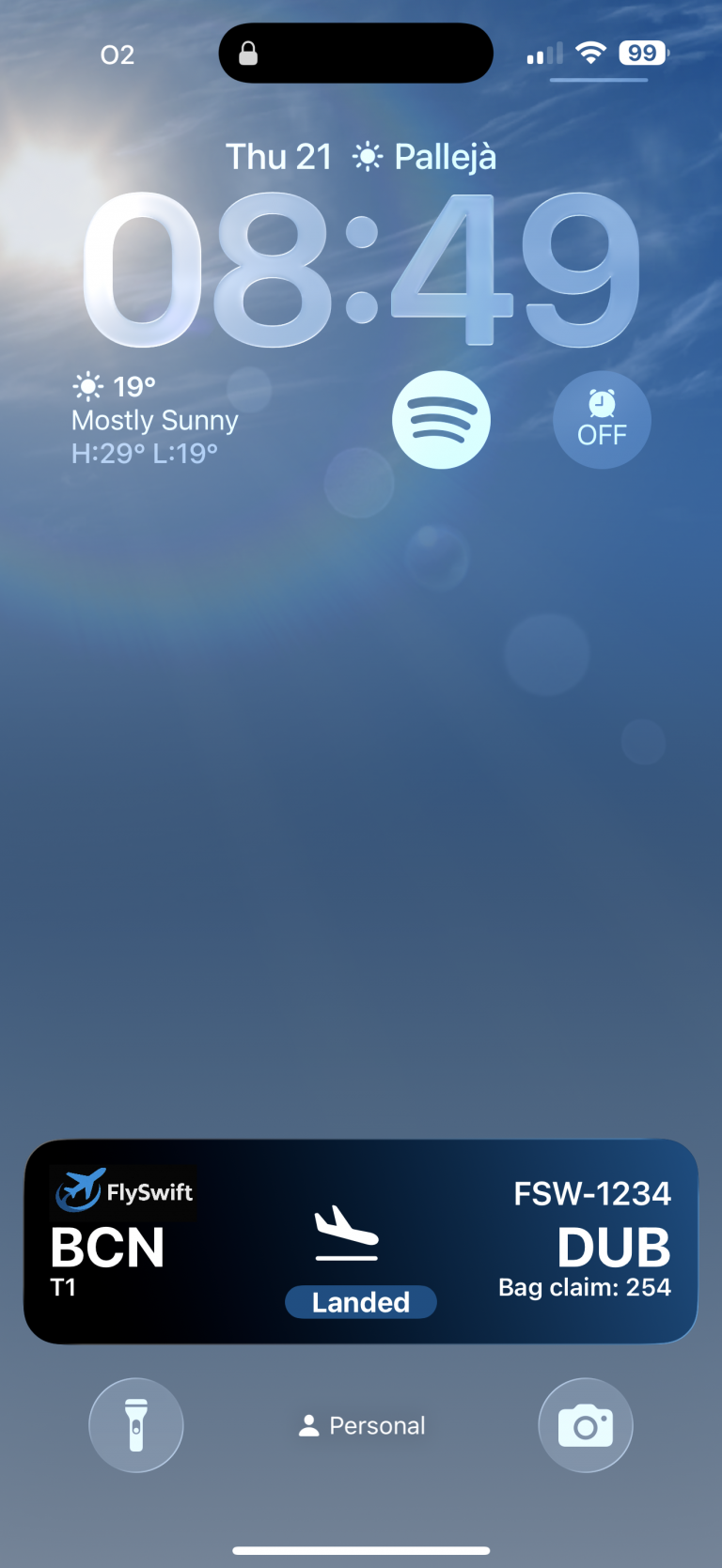
    Landing

    Your Live Activity for a flight reservation isn’t the only one running on the iOS device. In the following screen sequence, you can see that while a screen recording Live Activity is active, a push notification arrives with updated flight landing information.
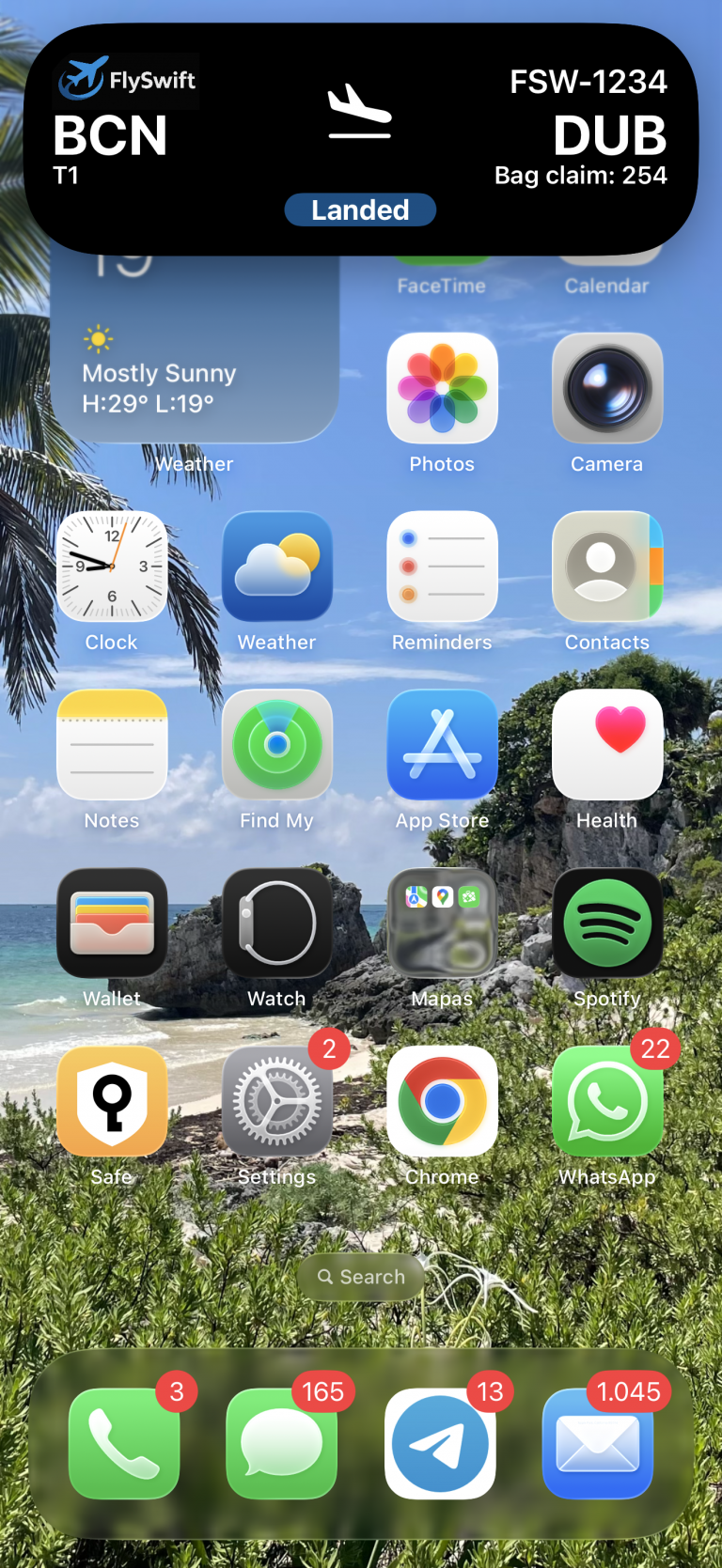
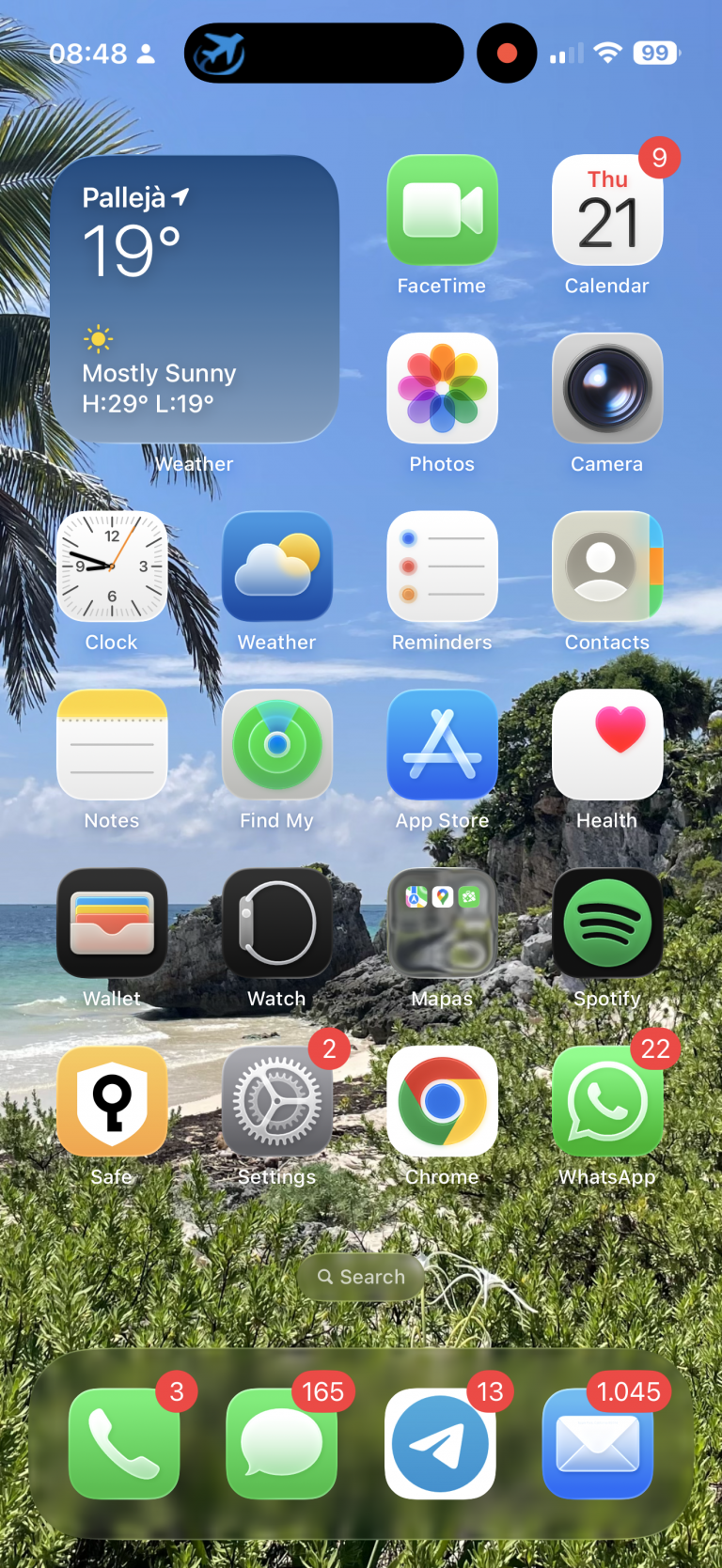
    When the push notification arrives, the Dynamic Island first presents it in expanded mode, but shortly after it switches to minimal mode (showing only the app icon). iOS itself decides the order and priority in which multiple Live Activities are presented.

    ...
    struct BookingFlightLiveActivity: Widget {
        var body: some WidgetConfiguration {
            ActivityConfiguration(for: FlightActivityAttributes.self) { context in
    ...
            } dynamicIsland: { context in
    ...
                return DynamicIsland {
                    ...
                } compactLeading: {
    ...
                } compactTrailing: {
    ...
                } minimal: {
                    MinimalView()
                }
            }
            .supplementalActivityFamilies([.small, .medium])
        }
    }

    When reviewing the Widget and Dynamic Island implementation, we can see that there is a section dedicated to defining the minimal view.

    Conclusions

    Implementing Live Activities in an iOS app enhances user experience by providing real-time, glanceable updates on the Lock Screen and Dynamic Island for ongoing, time-sensitive tasks like deliveries, rides, workouts,  live scores or your next flight information. Unlike notifications, which can clutter, Live Activities consolidate progress into a single, dynamic view, keeping users engaged without requiring repeated app opens. They complement widgets by handling short-lived, frequently changing processes while widgets cover persistent summaries. This leads to higher engagement, reduced notification fatigue, improved transparency, and stronger brand presence at high-attention moments—all while offering users quick actions and continuity across app surfaces.

    You can find source code that we have used for conducting this post in following GitHub repository.

    References

  • Visual Accessibilty in iOS

    Visual Accessibilty in iOS

    Accessibility in iOS apps is a powerful way to highlight the importance of inclusive design while showcasing the robust accessibility tools Apple provides, such as VoiceOver, Dynamic Type, and Switch Control. It not only helps fellow developers understand how to create apps that are usable by everyone, including people with disabilities, but also demonstrates professionalism, empathy, and technical depth. By promoting best practices and raising awareness.

    For this post, we will focus only on visual accessibility aspects. Interaction and media-related topics will be covered in a future post. As we go through this post, I will also provide the project along with the source code used to explain the concepts.

    Accessibility Nutrition Labels

    Accessibility Nutrition Labels in iOS are a developer-driven concept inspired by food nutrition labels, designed to provide a clear, standardized summary of an app’s accessibility features. They help users quickly understand which accessibility tools—such as VoiceOver, Dynamic Type, or Switch Control—are supported, partially supported, or missing, making it easier for individuals with disabilities to choose apps that meet their needs. Though not a native iOS feature, these labels are often included in app. Eventhought accessibility is supported in almost all Apple platforms, some accessibility labels aren’t available check here.

    They can be set at the moment that you upload a new app version on Apple Store.

    Sufficient contrast

    Users can increase or adjust the contrast between text or icons and the background to improve readability. Adequate contrast benefits users with reduced vision due to a disability or temporary condition (e.g., glare from bright sunlight). You can indicate that your app supports “Sufficient Contrast” if its user interface for performing common tasks—including text, buttons, and other controls—meets general contrast guidelines (typically, most text elements should have a contrast ratio of at least 4.5:1). If your app does not meet this minimum contrast ratio by default, it should offer users the ability to customize it according to their needs, either by enabling a high-contrast mode or by applying your own high-contrast color palettes. If your app supports dark mode, be sure to check that the minimum contrast ratio is met in both light and dark modes.

     We have prepared following  following screen, that clearly does not follow this nutrition label:

    Deploy in the simulator and present the screen to audit and open Accesibility Inspector:

    Screenshot

    Deploy in the simulator and present the screen to audit and open Accesibility Inspector, select simulator and Run Audit:

    Important point, only are audited visible view layers:

    Buid and run on a simulator for cheking that all is working fine:

    Dark mode

    Dark Mode in SwiftUI is a user interface style that uses a darker color palette to reduce eye strain and improve visibility in low-light environments. SwiftUI automatically supports Dark Mode by adapting system colors like .primary, .background, and .label based on the user’s system settings. You can customize your UI to respond to Dark Mode using the @Environment(\.colorScheme) property.

    Simulator Screenshot - iPhone 16 Pro - 2025-07-19 at 08.43.32
    Simulator Screenshot - iPhone 16 Pro - 2025-07-19 at 08.43.41

    We’ve designed our app to support Dark Mode, but to ensure full compatibility, we’ll walk through some common tasks. We’ll also test the app with Smart Invert enabled—an accessibility feature that reverses interface colors.

    Simulator Screenshot - iPhone 16 Pro - 2025-07-19 at 12.24.42
    Simulator Screenshot - iPhone 16 Pro - 2025-07-19 at 12.25.15

    Once smart invert is activated all colors are set in their oposite color. This is something that we to have to avoid in some components of our app such as images.

                        AsyncImage(url: URL(string: "https://www.barcelo.com/guia-turismo/wp-content/uploads/2022/10/yakarta-monte-bromo-pal.jpg")) { image in
                             image
                                 .resizable()
                                 .scaledToFit()
                                 .frame(width: 300, height: 200)
                                 .cornerRadius(12)
                                 .shadow(radius: 10)
                         } placeholder: {
                             ProgressView()
                                 .frame(width: 300, height: 200)
                         }
                         .accessibilityIgnoresInvertColors(isDarkMode)

    In case of images or videos we have to avoid color inversion, we can make this happen by adding accessibilityIgnoreInvertColors modifier.

    Simulator Screenshot - iPhone 16 Pro - 2025-07-19 at 08.43.32
    Simulator Screenshot - iPhone 16 Pro - 2025-07-19 at 08.43.41

    It’s important to verify that media elements, like images and videos, aren’t unintentionally inverted. Once we’ve confirmed that our app maintains a predominantly dark background, we can confidently include Dark Interface in our Accessibility Nutrition Labels.

    Larger Text

    In Swift, «Larger Text» under Accessibility refers to iOS’s Dynamic Type system, which allows users to increase text size across apps for better readability. When building a nutrition label UI, developers should support these settings by using Dynamic Type-compatible fonts (like .body, .title, etc.), enabling automatic font scaling (adjustsFontForContentSizeCategory in UIKit or .dynamicTypeSize(...) in SwiftUI), and ensuring layouts adapt properly to larger sizes. This ensures the nutrition label remains readable and accessible to users with visual impairments, complying with best practices for inclusive app design.

    You can increase dynamic type in simulator in two ways, first one is by using accesibilty inspector, second one is by opening device Settings, Accessibilty, Display & Text Size, Larger text:

    Simulator Screenshot - iPhone 16 Pro - 2025-07-19 at 13.00.31

    When se set the text to largest size we observe following:

    simulator_screenshot_F5937212-D584-449C-AE40-BFE3BEE486A3

    Only navigation title is being resized the rest of the content keeps the same size, this is not so much accessible!.

    When we execute accesibilty inspectoron this screen also complains.

    By replacing fixed font size by the type of font (.largeTitle, .title, .title2, .title3, .headline, .subheadline, .body, .callout, .footnote and .caption ). Remve also any frame fixed size that could cut any contained text. 

     func contentAccessible() -> some View {
            VStack(alignment: .leading, spacing: 8) {
                Text("Nutrition Facts")
                    .font(.title)
                    .bold()
                    .accessibilityAddTraits(.isHeader)
    
                Divider()
    
                HStack {
                    Text("Calories")
                        .font(.body)
                    Spacer()
                    Text("200")
                        .font(.body)
                }
    
                HStack {
                    Text("Total Fat")
                        .font(.body)
                    Spacer()
                    Text("8g")
                        .font(.body)
                }
    
                HStack {
                    Text("Sodium")
                        .font(.body)
                    Spacer()
                    Text("150mg")
                        .font(.body)
                }
            }
            .padding()
            .navigationTitle("Larger Text")
        }
    simulator_screenshot_80105F6D-0B6A-4899-ACEF-4CE44221E330

    We can observe how the view behaves when Dynamic Type is adjusted from the minimum to the maximum size. Notice that when the text «Nutrition Facts» no longer fits horizontally, it wraps onto two lines. The device is limited in horizontal space, but never vertically, as vertical overflow is handled by implementing a scroll view.

    Differentiate without color alone

    Let’s discuss color in design. It’s important to remember that not everyone perceives color the same way. Many apps rely on color—like red for errors or green for success—to convey status or meaning. However, users with color blindness might not be able to distinguish these cues. To ensure accessibility, always pair color with additional elements such as icons or text to communicate important information clearly to all users.

    Accessibility inspector, and also any color blinded person, will complain. For fixing use any shape or icon, apart from the color.l

    Simulator Screenshot - iPhone 16 Pro - 2025-07-19 at 16.59.40
    Simulator Screenshot - iPhone 16 Pro - 2025-07-19 at 16.59.46

    Reduced motion

    Motion can enhance the user experience of an app. However, certain types of motion—such as zooming, rotating, or peripheral movement—can cause dizziness or nausea for people with vestibular sensitivity. If your app includes these kinds of motion effects, make them optional or provide alternative animations.

    Lets review the code:

    struct ReducedMotionView: View {
        @Environment(\.accessibilityReduceMotion) var reduceMotion
        @State private var spin = false
        @State private var scale: CGFloat = 1.0
        @State private var moveOffset: CGFloat = -200
    
        var body: some View {
            NavigationView {
                ZStack {
                    // Background rotating spiral
                    Circle()
                        .strokeBorder(Color.purple, lineWidth: 10)
                        .frame(width: 300, height: 300)
                        .rotationEffect(.degrees(spin ? 360 : 0))
                        .animation(reduceMotion ? nil : .linear(duration: 3).repeatForever(autoreverses: false), value: spin)
    
                    // Scaling and bouncing circle
                    Circle()
                        .fill(Color.orange)
                        .frame(width: 100, height: 100)
                        .scaleEffect(scale)
                        .offset(x: reduceMotion ? 0 : moveOffset)
                        .animation(reduceMotion ? nil : .easeInOut(duration: 1).repeatForever(autoreverses: true), value: scale)
                }
                .onAppear {
                    if !reduceMotion {
                        spin = true
                        scale = 1.5
                        moveOffset = 200
                    }
                }
                .padding()
                .overlay(
                    Text(reduceMotion ? "Reduce Motion Enabled" : "Extreme Motion Enabled")
                        .font(.headline)
                        .padding()
                        .background(Color.black.opacity(0.7))
                        .foregroundColor(.white)
                        .cornerRadius(12)
                        .padding(),
                    alignment: .top
                )
            }
            .navigationTitle("Reduced motion")
        }
    }

    The ReducedMotionView SwiftUI view creates a visual demonstration of motion effects that adapts based on the user’s accessibility setting for reduced motion. It displays a rotating purple spiral in the background and an orange circle in the foreground that scales and moves horizontally. When the user has Reduce Motion disabled, the spiral continuously rotates and the orange circle animates back and forth while scaling; when Reduce Motion is enabled, all animations are disabled and the shapes remain static. A label at the top dynamically indicates whether motion effects are enabled or reduced, providing a clear visual contrast for accessibility testing.

    Reduce Motion accessibility is not about removing animations from your app, but disable them when user has disabled Reduce Motion device setting.


    Pending

    Yes, this post is not complete yet. There are two families of Nutrition accessibility labels: Interaction and Media. I will cover them in a future post.

    Conclusions

    Apart from the benefits that accessibility provides to a significant group of people, let’s not forget that disabilities are diverse, and as we grow older, sooner or later we will likely need to use accessibility features ourselves. Even people without disabilities may, at some point, need to focus on information under challenging conditions—like poor weather—which can make interaction more difficult. It’s clear that this will affect us as iOS developers in how we design and implement user interfaces in our apps.

    You can find source code that we have used for conducting this post in following GitHub repository.

    References

  • Maintain, Share, Repeat: iOS Component Distribution

    Maintain, Share, Repeat: iOS Component Distribution

    Distribute and easily maintain a component is valuable because it addresses a common challenge in scaling and collaborating on iOS projects. By sharing strategies for modularizing code, using Swift Package Manager, applying semantic versioning, and setting up proper documentation and CI/CD workflows, developers can create reusable, testable, and maintainable components that boost productivity across teams.

    Just as important as creating scalable components is defining a solid framework for maintaining and distributing them. In this post, we’ll focus on the infrastructure side of that process.

    The Alert Component

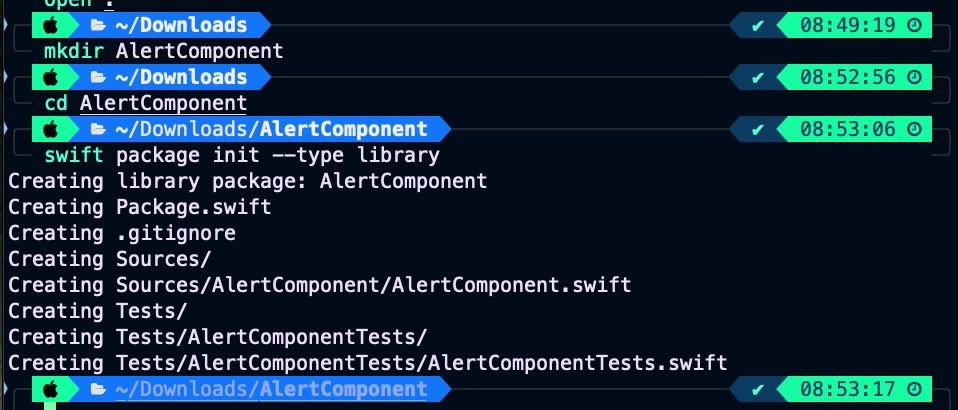
    First step is creating the package that will hold our component by typing following 3 commands:

    $ mkdir AlertComponent
    $ cd AlertComponent
    $ swift package init --type library
    Screenshot

    Once the package scaffold is created, implement the component. In this post, the focus is on distribution, not maintenance or component scalability — which are certainly important and will be covered in future posts.

    import SwiftUI
    
    @available(macOS 10.15, *)
    public struct AlertView: View {
        let title: String
        let message: String
        let dismissText: String
        let onDismiss: () -> Void
    
        public init(title: String, message: String, dismissText: String = "OK", onDismiss: @escaping () -> Void) {
            self.title = title
            self.message = message
            self.dismissText = dismissText
            self.onDismiss = onDismiss
        }
    
        public var body: some View {
            VStack(spacing: 20) {
                Text(title)
                    .font(.headline)
                    .padding(.top)
    
                Text(message)
                    .font(.body)
    
                Button(action: onDismiss) {
                    Text(dismissText)
                        .bold()
                        .frame(maxWidth: .infinity)
                        .padding()
                        .background(Color.blue)
                        .foregroundColor(.white)
                        .cornerRadius(8)
                }
            }
            .padding()
            .background(Color(.white))
            .cornerRadius(16)
            .shadow(radius: 10)
            .padding()
        }
    }
    

    It is a simple alert component. In a future post, we will explore how to improve its maintainability, scalability, and documentation. Most importantly, we will upload the code to a GitHub repository.

    generated

    Consume component

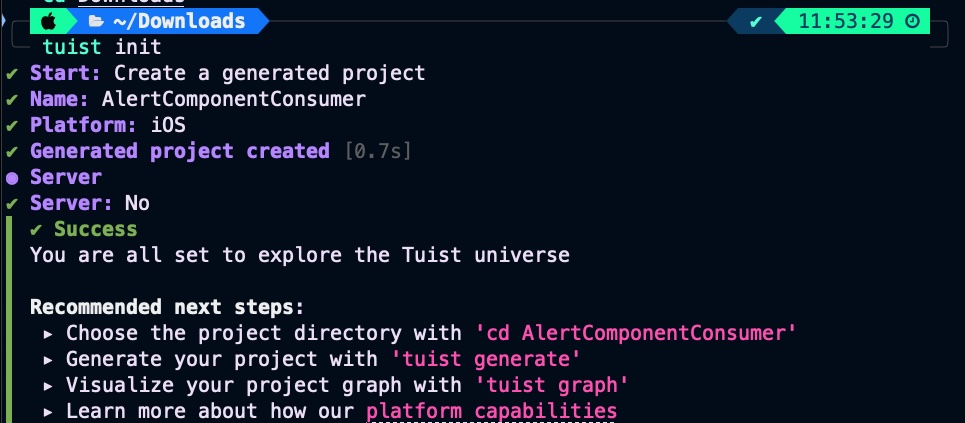
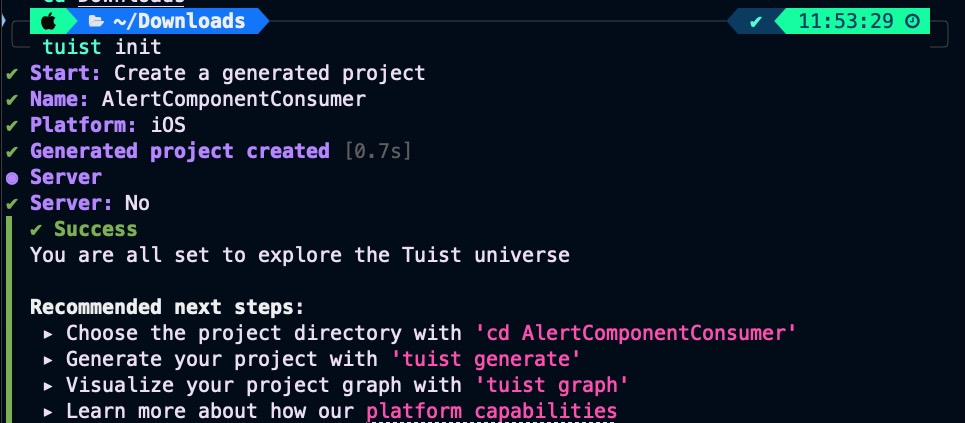
    For consume it this component we are going to create a simple iOS project, but this time via Tuist. Tuist is a powerful yet often underutilized tool that can greatly simplify project setup, modularization, and CI workflows, you can find an introduction to this technology in this post. At the end is clearer to track configuration changes in project by code.


    $ tuist init
    Screenshot

    Next is configuring SPM alert component package on Tuist:

    $ tuist edit

    Go to Project.swif, In packages add package url and version, and also in targets add package dependecy:

    import ProjectDescription
    
    let project = Project(
        name: "AlertComponentConsumer",
        packages: [
            .package(url: "https://github.com/JaCaLla/AlertComponent.git", from: "0.0.1")
        ],
        targets: [
            .target(
                name: "AlertComponentConsumer",
                ...
                dependencies: [
                    .package(product: "AlertComponent")
                ]
            ),
            .target(
                name: "AlertComponentConsumerTests",
              ...
                dependencies: [.target(name: "AlertComponentConsumer")]
            ),
        ]
    )
    

    Run twist generate and build de project for chacking that all is ok.

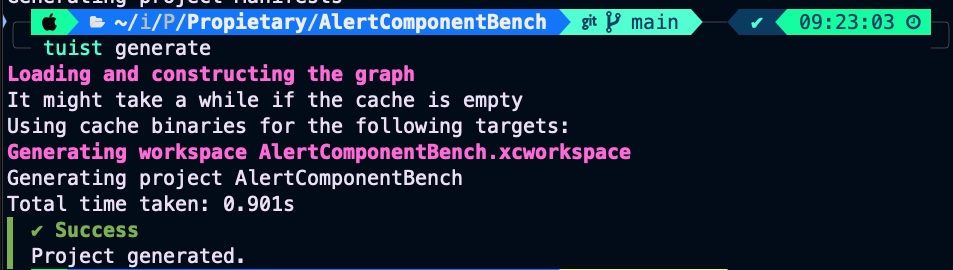
    $ tuist generate
    Screenshot

    Observe that component has been included as Package dependency:

    Update ContentView.swift for start playing with AlertComponent.

    import SwiftUI
    import AlertComponent
    
    struct ContentView: View {
        @State private var showAlert = false
    
        var body: some View {
            ZStack {
                Button("Show alert") {
                    showAlert = true
                }
    
                if showAlert {
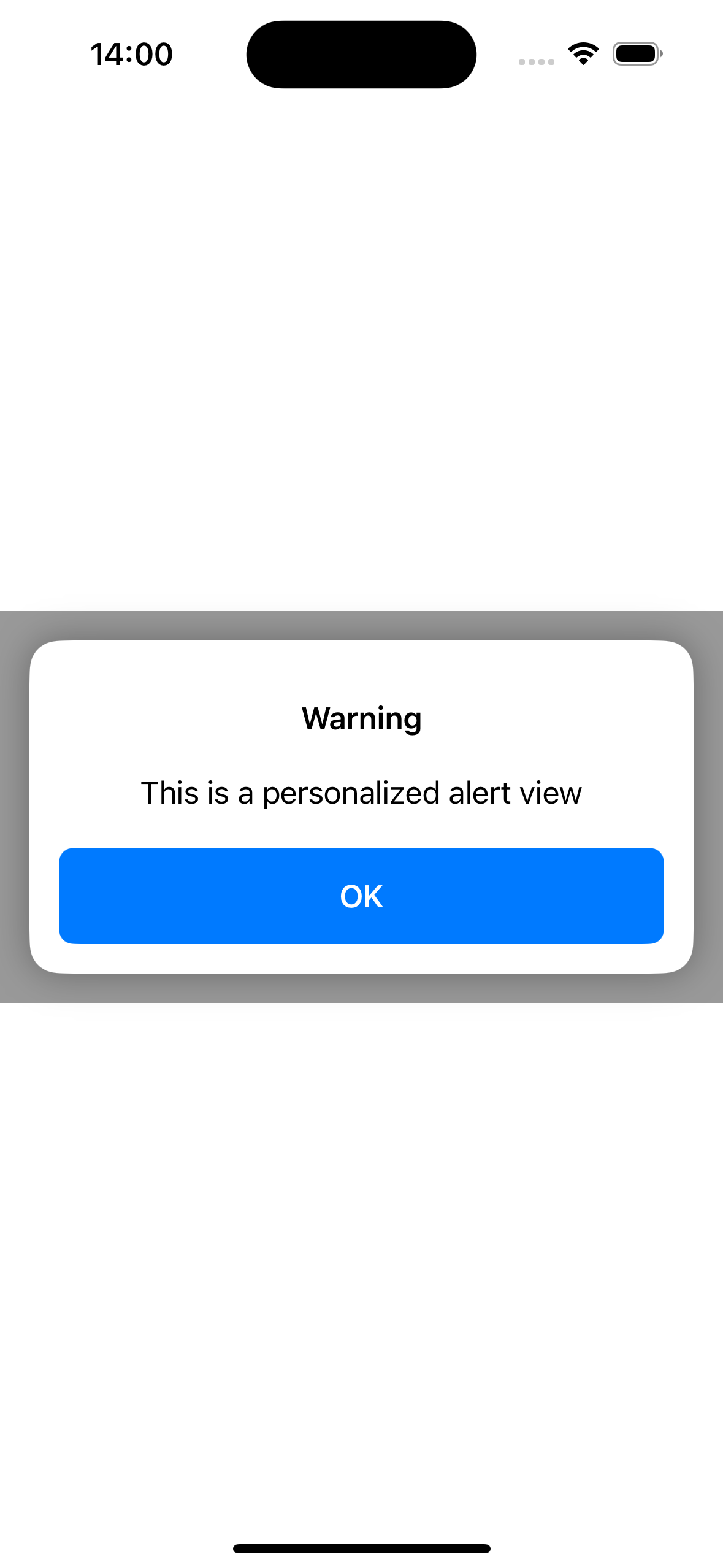
                    AlertView(
                        title: "Warning",
                        message: "This is a personalized alert view",
                        onDismiss: {
                            showAlert = false
                        }
                    )
                    .background(Color.black.opacity(0.4).ignoresSafeArea())
                }
            }
        }
    }

    Buid and run on a simulator for cheking that all is working fine:

    You can find the AlertComponentConsumer iOS project in our GitHub repository.

    Component maintenance

    From now on, we have both the component deployment and the final user component. Component developers not only write the source code, but also need to create a bench test project to properly develop and validate the component. This bench test project is also very useful for final developers, as it serves as documentation on how to integrate the component into their iOS projects.

    This project will be called ‘AlertComponentDemo’ and will be placed in a sibling folder from Alert Componet. This is not casuality because we add component source files to this project as a reference, so comopent developer in the same XCode project will be able to update component and bench test source code.

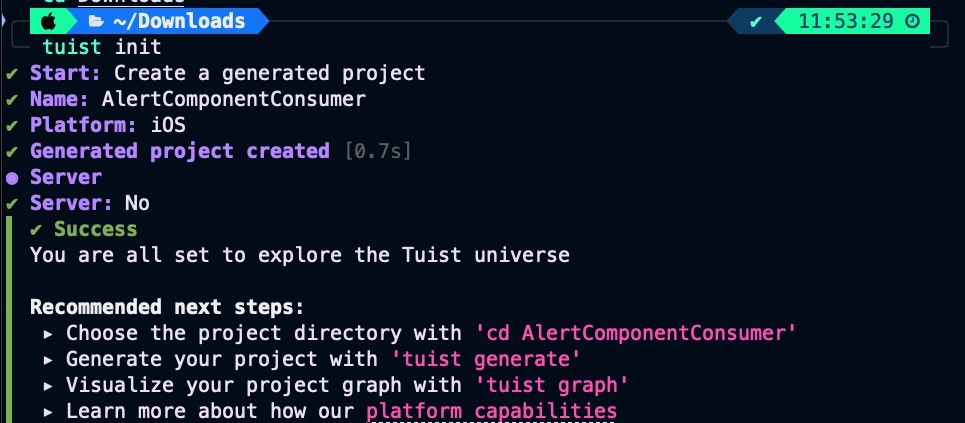
    We will use also Tuist for generating this project:

    $ tuist init
    Screenshot

    Remember, it is mandatory to know where we place the project folder because we will include component source files as references. In my case, I decided to keep the folder in the same parent directory as the siblings.

    Edit project with Tuist for including component source code references….

    let project = Project(
        name: "AlertComponentBench",
        targets: [
            .target(
                name: "AlertComponentBench",
               ...
                sources: ["AlertComponentBench/Sources/**",
                          "../AlertComponent/Sources/**"],
                ...
    )

    Genertate Xcode project with Tuist

    $ tuist generate
    Screenshot

    For simplicity, we will place the same code in ContentView.swift that we previously used in Consumer to verify that everything is properly integrated and functioning.

    Now the component is easier to maintain because, within the same project, the developer can manage both the component code and the code for starting to work with the component.

    Screenshot

    But code changes keept separately in two different reposiories:

    Screenshot

    This ensures that the component repository contains only the code specific to the component. You can find the AlertComponentBench iOS project in our GitHub repository.

    Component Control Version

    Having a version control is crucial for managing changes, ensuring stability, and supporting safe, modular development. It allows developers to track the evolution of the component, prevent breaking changes through semantic versioning, and let consumers lock to specific versions that are known to work. This setup fosters reliable updates, easier debugging, streamlined collaboration, and consistent integration in both personal and team projects. Ultimately, version control transforms a simple UI component into a maintainable, scalable, and production-ready package.

    As component is placed on GitHub we will implement a GitHub Action that will be triggered every time a pull request merges into main branch

    name: Tag on PR Merge to Main
    
    on:
      pull_request:
        types: [closed]
        branches:
          - main
    
    jobs:
      tag:
        if: github.event.pull_request.merged == true
        runs-on: ubuntu-latest
    
        steps:
          - name: Checkout repo
            uses: actions/checkout@v4
            with:
              fetch-depth: 0  # Needed to fetch tags
    
          - name: Set up Git
            run: |
              git config user.name "GitHub Actions"
              git config user.email "actions@github.com"
    
          - name: Get latest tag
            id: get_tag
            run: |
              latest=$(git describe --tags `git rev-list --tags --max-count=1` 2>/dev/null || echo "v0.0.0")
              echo "Latest tag: $latest"
              echo "tag=$latest" >> $GITHUB_OUTPUT
    
          - name: Determine bump type from PR title
            id: bump
            run: |
              title="${{ github.event.pull_request.title }}"
              echo "PR Title: $title"
              first_word=$(echo "$title" | awk '{print toupper($1)}')
              case $first_word in
                MAJOR)
                  echo "bump=major" >> $GITHUB_OUTPUT
                  ;;
                MINOR)
                  echo "bump=minor" >> $GITHUB_OUTPUT
                  ;;
                *)
                  echo "bump=patch" >> $GITHUB_OUTPUT
                  ;;
              esac
    
          - name: Calculate next version
            id: next_tag
            run: |
              tag="${{ steps.get_tag.outputs.tag }}"
              version="${tag#v}"
              IFS='.' read -r major minor patch <<< "$version"
    
              bump="${{ steps.bump.outputs.bump }}"
              case $bump in
                major)
                  major=$((major + 1))
                  minor=0
                  patch=0
                  ;;
                minor)
                  minor=$((minor + 1))
                  patch=0
                  ;;
                patch)
                  patch=$((patch + 1))
                  ;;
              esac
    
              next_tag="v$major.$minor.$patch"
              echo "Next tag: $next_tag"
              echo "next_tag=$next_tag" >> $GITHUB_OUTPUT
    
          - name: Create and push new tag
            run: |
              git tag ${{ steps.next_tag.outputs.next_tag }}
              git push origin ${{ steps.next_tag.outputs.next_tag }}

    This GitHub Actions workflow automatically creates and pushes a new semantic version tag whenever a pull request is merged into the main branch. It triggers on PR closures targeting main, and only proceeds if the PR was actually merged. It fetches the latest Git tag (defaulting to v0.0.0 if none exist), determines the version bump type based on the first word of the PR title (MAJOR, MINOR, or defaults to patch), calculates the next version accordingly, and pushes the new tag back to the repository. This enables automated versioning tied directly to PR titles.

    Now we are going to introduce some changes in the component.

    Commit changes in a separate branch:

    Prepare pull request:

    Create pull request

    Once you merge it, GitHub action will be executed.

    Let’s pull changes on main branch:

    main branch commit from pr has been tagged!

    Now let’s going to consume new component version, Tuist edit alert component consumer project:

    $ tuist edit
    import ProjectDescription
    
    let project = Project(
        name: "AlertComponentConsumer",
        packages: [
            .package(url: "https://github.com/JaCaLla/AlertComponent.git", from: "0.2.0")
        ],
      ...
    )
    
    $ tuist generate

    Build and deploy on simulator

    Simulator Screenshot - iPhone 16 - 2025-07-13 at 14.00.21

    Documentation

    Last but not least, having good documentation is a great starting point to encourage adoption and ensure a smooth integration process. It’s not about writing a myriad of lines — simply providing a well-written README.md file in the GitHub repository with clear and basic information is enough to help developers start using the component effectively.

    Conclusions

    Developing a component is not enough; it also requires providing a reusable and scalable architecture, along with delivery mechanisms that enable fast distribution and the ability to track which exact version of the component consumers are using.

    References

  • Seamless Keychain Data Migrations in iOS

    Seamless Keychain Data Migrations in iOS

    It’s a common but poorly documented challenge that many developers face, especially during device upgrades, app reinstallations, or when sharing data across app groups. Since the Keychain stores sensitive user information like credentials and tokens, handling its migration securely is critical for maintaining a seamless user experience and ensuring data integrity.

    This post explains how to implement a trial period for users in an iOS app. To prevent users from restarting the trial period by reinstalling the app, the controlling information should be securely stored in the Keychain.

    Keychain

    Keychain in iOS is a secure storage system provided by Apple that allows apps to store sensitive information such as passwords, cryptographic keys, and certificates securely. It uses strong encryption and is protected by the device’s hardware and the user’s authentication (e.g., Face ID, Touch ID, or passcode). The Keychain ensures that this data is safely stored and only accessible to the app that created it, unless explicitly shared through keychain access groups. It provides a convenient and secure way for developers to manage credentials and other private data without implementing their own encryption systems.

    When an app is removed (uninstalled) from an iOS device, most of its data—including files stored in its sandboxed file system—is deleted. However, data stored in the Keychain is not automatically deleted when the app is removed. This means that if the app is reinstalled later, it can still access its previously stored Keychain data (assuming the Keychain item was saved with the correct accessibility settings and not tied to a now-invalid access group). This behavior allows for features like remembering a user’s login after reinstalling an app.

    Persisted local data can change over the lifetime of an application, and apps distributed in the past may not always be updated to the latest version. To handle this, apps must implement a data migration mechanism to adapt old stored data to the new data model. Without proper migration, the app may crash when attempting to load outdated or incompatible data. When data is stored in UserDefaults, this issue can often be bypassed by simply reinstalling the app—since UserDefaults is part of the app’s sandbox and gets cleared upon uninstallation, the app starts fresh, and the user can continue using it. However, Keychain is not part of the app bundle; it is managed by the iOS operating system and persists even after the app is uninstalled. Therefore, if the app crashes while trying to parse outdated or incompatible data from the Keychain, it will continue to crash even after reinstallation. In such cases, the app developer will most likely need to release a new version with the necessary fixes.

    Sample App

    In this post, we will implement a sample app that includes a trial mechanism. This means the app will be freely usable for a limited period. After that, users will need to complete certain tasks to unlock continued usage. It’s highly likely you’ve encountered similar applications before.

    The data structure that controls the trial mechanism can only be stored in the keychain for two main reasons. First, it requires a secure storage location. Second—and equally important—it must be stored in a place that retains the information even if the app is uninstalled. Otherwise, users could simply reinstall the app to reset the trial period and continue using it without restriction.

    The structure that controls trial mechanism is following:

    typealias TrialInfoLatestModel = TrialInfo
    
    protocol TrialInfoMigratable:Codable {
        var version: Int { get }
        func migrate() -> TrialInfoMigratable?
    }
    
    // Current model (v0)
    struct TrialInfo: Codable, TrialInfoMigratable, Equatable {
        var version: Int = 0
        let startDate: Date
        
        static let defaultValue = TrialInfo(startDate: Date())
        
        func migrate() -> (any TrialInfoMigratable)? {
            nil
        }
    }

    This Swift code defines a versioned data model system for TrialInfo, where TrialInfoMigratable is a protocol that allows models to specify their version and migrate to newer versions. The TrialInfo struct represents version 0 of the model, contains a startDate, and conforms to Codable, Equatable, and TrialInfoMigratable. It includes a static default value and a migrate() method that returns nil, indicating no further migration is needed. The typealias TrialInfoLatestModel = TrialInfo serves as an alias for the latest version of the model, making future upgrades easier by allowing seamless substitution with newer model versions.

    Next is review the function that handles migration placed on viewModel:

    @Suite("TrialViewModelTest", .serialized) // Serialize for avoiding concurrent access to Keychain
    struct TrialViewModelTest {
    
        @Test("loadTrialInfo when nil")
        func loadTrialInfoWhenNil() async throws {
            // Given
            let sut = await TrialViewModel()
            await KeychainManager.shared.deleteKeychainData(for: sut.key)
            // When
            let info = await sut.loadTrialInfo(key: sut.key)
            // Then
            #expect(info == nil)
        }
       
        @Test("Load LatestTrialInfo when previous stored TrialInfo V0")
        func loadTrialInfoWhenV0() async throws {
            // Given
            let sut = await TrialViewModel()
            await KeychainManager.shared.deleteKeychainData(for: sut.key)
            let trialInfo = TrialInfo(startDate: Date.now)
            await sut.saveMigrated(object: trialInfo, key: sut.key)
            // When
            let trialInfoStored = await sut.loadTrialInfo(key: sut.key)
            // Then
            #expect(trialInfoStored?.version == 0)
        }
    }

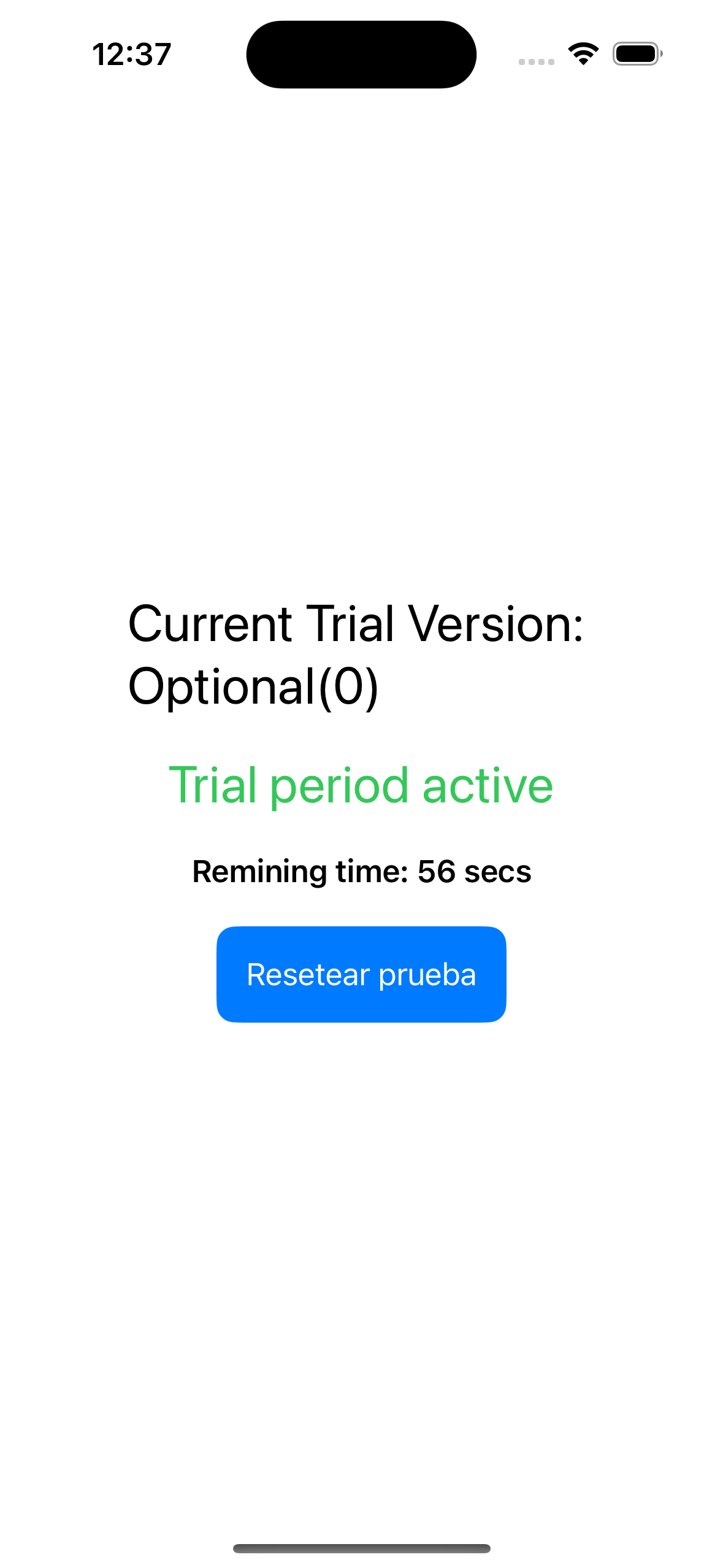
    Basically validate then trial data has not been and has been stored. Once, we are sure that tests pass then deploy the app into the simulator.

    review

    First change on Trial Data

    The core idea behind a migration mechanism is to keep incoming changes as simple as possible.
    We now propose updating the trial data structure with two new attributes (v1).
    Installing the app for the first time with v1 will not pose any problems. However, issues may arise when the app was initially installed with version 0 (v0) and later updated to v1.
    In such cases, the app must perform a migration from v0 to v1 upon startup.

    The following changes will be made to the Trial data structure:

    typealias TrialInfoLatestModel = TrialInfoV1
    
    .....
    
    // Current model (v1)
    struct TrialInfoV1: Codable, TrialInfoMigratable {
        var version: Int = 1
        let startDate: Date
        let deviceId: String
        let userId: String
        
        static let defaultValue = TrialInfoV1(startDate: Date(), deviceId: UUID().uuidString, userId: UUID().uuidString)
        
        init(startDate: Date, deviceId: String, userId: String) {
            self.startDate = startDate
            self.deviceId = deviceId
            self.userId = userId
        }
        
        func migrate() -> (any TrialInfoMigratable)? {
            nil
        }
    }
    
    // Current model (v0)
    struct TrialInfo: Codable, TrialInfoMigratable, Equatable {
        ...
        
        func migrate() -> (any TrialInfoMigratable)? {
            TrialInfoV1(startDate: self.startDate, deviceId: UUID().uuidString, userId: UUID().uuidString)
        }
    }

    Typealias has to be set to latest version type and we have to implement the migration function that converts v0 to v1. And in the migration new type also to migration function:

        func loadTrialInfo(key: String) async -> TrialInfoLatestModel? {
            ...
            let versionedTypes: [TrialInfoMigratable.Type] = [
                TrialInfo.self
            ]
            ...
        }

    No more migration changes, no execute unit tests:

    Screenshot

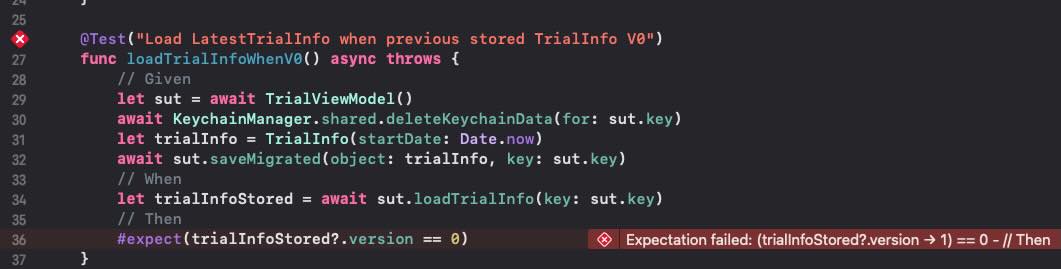
    Unit tests fails mainly because v0 stored was migrated to v1. Adapt unit test and new following test:

    @Suite("TrialViewModelTest", .serialized) // Serialize for avoiding concurrent access to Keychain
    struct TrialViewModelTest {
    ...
       
        @Test("Load LatestTrialInfo when previous stored TrialInfo V0")
        func loadTrialInfoWhenV0() async throws {
           ....
            // Then
            #expect(trialInfoStored?.version == 1)
        }
        
        @Test("Load LatestTrialInfo when previous stored TrialInfo V1")
        func loadTrialInfoWhenV1() async throws {
            // Given
            let sut = await TrialViewModel()
            await KeychainManager.shared.deleteKeychainData(for: sut.key)
            let trialInfo = TrialInfoV1(startDate: Date.now, deviceId: UUID().uuidString, userId: UUID().uuidString)
            await sut.saveMigrated(object: trialInfo, key: sut.key)
            // When
            let trialInfoStored = await sut.loadTrialInfo(key: sut.key)
            // Then
            #expect(trialInfoStored?.version == 1)
        }
    }

    Repeat test execution to ensure everything is operating safely and as expected.

    Next trial data

    Next change, v2, removes one of the attributes added in v1. Changes on trial data structure are following:

    typealias TrialInfoLatestModel = TrialInfoV2
    
    ...
    // Current model (v2)
    struct TrialInfoV2: Codable, TrialInfoMigratable {
        
        var version: Int = 2
        let startDate: Date
        let deviceId: String
        
        static let defaultValue = TrialInfoV2(startDate: Date(), deviceId: UUID().uuidString)
        
        init(startDate: Date, deviceId: String) {
            self.startDate = startDate
            self.deviceId = deviceId
        }
        
        func migrate() -> (any TrialInfoMigratable)? {
           nil
        }
    }
    
    // Current model (v1)
    struct TrialInfoV1: Codable, TrialInfoMigratable {
        ...
        func migrate() -> (any TrialInfoMigratable)? {
            TrialInfoV2(startDate: self.startDate, deviceId: self.deviceId)
        }
    }
    ...
    }


    Shift typealias to latest defined type and implement the migration function that transform v1 to v2. Adapt also viewmodel migration function and add v1 type to type array:

            let versionedTypes: [TrialInfoMigratable.Type] = [
                TrialInfoV1.self,
                TrialInfo.self
            ]

    Finally run the test, adapt them and add test case for v2:

        @Test("Load LatestTrialInfo when previous stored TrialInfo V2")
        func loadTrialInfoWhenV2() async throws {
            // Given
            let sut = await TrialViewModel()
            await KeychainManager.shared.deleteKeychainData(for: sut.key)
            let trialInfo = TrialInfoV2(startDate: Date.now, deviceId: UUID().uuidString)
            await sut.saveMigrated(object: trialInfo, key: sut.key)
            // When
            let trialInfoStored = await sut.loadTrialInfo(key: sut.key)
            // Then
            #expect(trialInfoStored?.version == 2)
        }

    Conclusions

    In this post, I presented a common issue encountered when working with persisted data, along with a possible solution for handling data migration.

    You can find source code used for writing this post in following repository

    References

  • Custom @propertyWrapper in Action

    Custom @propertyWrapper in Action

    @propertyWrapper is interesting because it demystifies an advanced Swift feature that helps encapsulate logic, reduce boilerplate, and improve code maintainability. Many developers may not fully utilize property wrappers, despite their practical applications in areas like UserDefaults management, data validation, and SwiftUI state handling (@State, @Published, etc.). By providing clear explanations, real-world examples, and best practices we will present a pair of examples where it could be interesting approach implementation by using @properyWrapper.

    Custom @propertyWrapper

    A custom property wrapper in Swift is a specialized type that allows you to add custom behavior or logic to properties without cluttering the main class or struct code. It’s a powerful feature introduced in Swift 5 that enables developers to encapsulate common property-related functionality, such as validation, transformation, or persistence, in a reusable manner.

    Custom property wrappers are particularly useful for:

    1. Encapsulating repetitive code patterns.

    2. Adding validation or transformation logic to properties1.

    3. Implementing persistence mechanisms, such as UserDefaults storage.

    4. Creating SwiftUI-compatible state management solutions.

    Clamped type example

    First example is a clamped type, that means an int ranged value:

    @propertyWrapper
    struct Clamped<Value: Comparable> {
        private var value: Value
        let range: ClosedRange<Value>
    
        init(wrappedValue: Value, _ range: ClosedRange<Value>) {
            self.range = range
            self.value = range.contains(wrappedValue) ? wrappedValue : range.lowerBound
        }
    
        var wrappedValue: Value {
            get { value }
            set { value = min(max(newValue, range.lowerBound), range.upperBound) }
        }
    }
    
    // Uso del Property Wrapper
    struct Player {
        @Clamped(wrappedValue: 50, 0...100) var health: Int
    }
    
    var player = Player()
    player.health = 120
    print(player.health) // Output: 100 (se ajusta al máximo del rango)

    The Clamped property wrapper ensures that a property’s value remains within a specified range. It takes a ClosedRange<Value> as a parameter and clamps the assigned value to stay within the defined bounds. When a new value is set, it uses min(max(newValue, range.lowerBound), range.upperBound) to ensure the value does not go below the lower bound or exceed the upper bound. If the initial value is outside the range, it is automatically set to the lower bound. This makes Clamped useful for maintaining constraints on variables that should not exceed predefined limits.

    In the Player struct, the health property is wrapped with @Clamped(wrappedValue: 50, 0...100), meaning its value will always stay between 0 and 100. If we set player.health = 120, it gets clamped to 100 because 120 exceeds the maximum allowed value. When printed, player.health outputs 100, demonstrating that the wrapper effectively enforces the constraints. This approach is particularly useful in scenarios like game development (e.g., keeping player health within a valid range) or UI elements (e.g., ensuring opacity remains between 0.0 and 1.0).

    UserDefaults example

    Second example is a UserDefaults sample:

    @propertyWrapper
    struct UserDefault<T> {
        let key: String
        let defaultValue: T
    
        var wrappedValue: T {
            get {
                return UserDefaults.standard.object(forKey: key) as? T ?? defaultValue
            }
            set {
                UserDefaults.standard.set(newValue, forKey: key)
            }
        }
    }
    
    @MainActor
    struct Settings {
        @UserDefault(key: "username", defaultValue: "Guest")
        static var username: String
    }
    
    Settings.username = "SwiftUser"
    print(Settings.username) // Output: "SwiftUser"

    This code defines a property wrapper, UserDefault<T>, which allows easy interaction with UserDefaults in Swift. The wrapper takes a generic type T, a key for storage, and a defaultValue to return if no value is found in UserDefaults. The wrappedValue property is used to get and set values in UserDefaults: when getting, it retrieves the stored value (if available) or falls back to the default; when setting, it updates UserDefaults with the new value.

    The Settings struct defines a static property username using the @UserDefault wrapper. This means Settings.username reads from and writes to UserDefaults under the key "username". When Settings.username = "SwiftUser" is set, the value is stored in UserDefaults. The subsequent print(Settings.username) retrieves and prints "SwiftUser" since it was saved, demonstrating persistent storage across app launches.

    Conclusions

    By using custom property wrappers, you can significantly reduce boilerplate code and improve the modularity and reusability of your Swift projects

    You can find source code used for writing this post in following repository

    References

  • From Zero to SOAP

    From Zero to SOAP

    SOAP (Simple Object Access Protocol) is often chosen over REST or GraphQL for scenarios requiring high security, reliability, and formal contracts, particularly in enterprise environments. Its built-in support for WS-Security, strong typing, and detailed error handling makes it ideal for industries like finance or healthcare that demand strict compliance and complex, stateful transactions. SOAP’s WSDL provides a clear, formal contract between client and server, ensuring interoperability across different platforms and legacy systems. However, REST and GraphQL are generally preferred for modern web applications due to their simplicity, flexibility, and lower overhead, making them more suitable for mobile or web-based services where performance and ease of use are prioritized. The choice ultimately depends on the specific requirements of the project, with SOAP excelling in structured, secure, and complex use cases.

    In previous post we have explores API REST, GraphQL and Websocket network aplicatuib interfaces, now is turn of SOAP. In this post we are going to develop a simple dockerized NodeJS SOAP server that offers an add callculation service.

    Addition SOAP Server

    First step is to build a SOAP server that will implement arithmethic add operation. The server technology used by its simpicity is a Dockerized NodeJS server. Let’s create a nodeJS server from scratch

    npm init -y

    Next install server dependencies for soap and express

    npm install soap express

    This is SOAP server itself:

    const express = require('express');
    const soap = require('soap');
    const http = require('http');
    
    const app = express();
    
    const service = {
      MyService: {
        MyPort: {
          AddNumbers: function (args) {
            const aValue = parseInt(args.a , 10);
            const bValue = parseInt(args.b , 10);
            console.log(' args.a + args.b',  aValue + bValue);
            return { result: aValue + bValue };
          },
        },
      },
    };
    
    const xml = `
    <definitions name="MyService"
      targetNamespace="http://example.com/soap"
      xmlns="http://schemas.xmlsoap.org/wsdl/"
      xmlns:soap="http://schemas.xmlsoap.org/wsdl/soap/"
      xmlns:tns="http://example.com/soap"
      xmlns:xsd="http://www.w3.org/2001/XMLSchema">
    
      <message name="AddNumbersRequest">
        <part name="a" type="xsd:int"/>
        <part name="b" type="xsd:int"/>
      </message>
      
      <message name="AddNumbersResponse">
        <part name="result" type="xsd:int"/>
      </message>
    
      <portType name="MyPort">
        <operation name="AddNumbers">
          <input message="tns:AddNumbersRequest"/>
          <output message="tns:AddNumbersResponse"/>
        </operation>
      </portType>
    
      <binding name="MyBinding" type="tns:MyPort">
        <soap:binding style="rpc" transport="http://schemas.xmlsoap.org/soap/http"/>
        <operation name="AddNumbers">
          <soap:operation soapAction="AddNumbers"/>
          <input>
            <soap:body use="encoded" encodingStyle="http://schemas.xmlsoap.org/soap/encoding/"/>
          </input>
          <output>
            <soap:body use="encoded" encodingStyle="http://schemas.xmlsoap.org/soap/encoding/"/>
          </output>
        </operation>
      </binding>
    
      <service name="MyService">
        <port name="MyPort" binding="tns:MyBinding">
          <soap:address location="http://localhost:8000/wsdl"/>
        </port>
      </service>
    </definitions>
    `;
    
    const server = http.createServer(app);
    server.listen(8000, () => {
      console.log('SOAP server running on http://localhost:8000/wsdl');
    });
    
    soap.listen(server, '/wsdl', service, xml);
    

    This Node.js script creates a SOAP web service using the express and soap libraries. The service, named MyService, exposes a single operation called AddNumbers, which takes two integer arguments (a and b), adds them together, and returns the result. The WSDL (Web Services Description Language) XML definition specifies how clients can interact with this service, including the request and response message structures, binding details, and the service endpoint (http://localhost:8000/wsdl). The server listens on port 8000, and when a SOAP request is received, it executes the AddNumbers operation and logs the sum to the console.

    The soap.listen() function attaches the SOAP service to the HTTP server, making it accessible to clients that send SOAP requests. The AddNumbers function extracts and parses the input arguments from the request, computes their sum, and returns the result in a SOAP response. This setup enables interoperability with SOAP-based clients that conform to the specified WSDL schema.

    Lets dockerize server:

    # Official image for Node.js
    FROM node:18
    
    # Fix working directory
    WORKDIR /app
    
    # Copy necessary files
    COPY package.json package-lock.json ./
    RUN npm install
    
    # Copy rest of files
    COPY . .
    
    # Expose server port
    EXPOSE 8000
    
    # Command for executing server
    CMD ["node", "server.js"]

    This Dockerfile sets up a containerized environment for running a Node.js application. It starts with the official Node.js 18 image as the base. The working directory inside the container is set to /app. It then copies the package.json and package-lock.json files into the container and runs npm install to install dependencies. After that, it copies the rest of the application files into the container. The file exposes port 8000, which is likely used by the Node.js server. Finally, it specifies the command to run the server using node server.js when the container starts.

    Build the image from command line:

    docker build -t soap-server .

    … and execute the image:

    docker run -p 8000:8000 soap-server

    Server ready, now is turn of Swift iOS App client.

    iOS SOAP Client

    iOS app client UI interface is just two textfield for fill in the input operator for the addition, a button for executing the operation and finally a text labed that presents the results.

    import SwiftUI
    
    struct ContentView: View {
        @State private var result: String = ""
        @State private var aStr: String = ""
        @State private var bStr: String = ""
    
        var body: some View {
            VStack {
                Group {
                    TextField("a", text: $aStr)
                    TextField("b", text: $bStr)
                }
                .textFieldStyle(RoundedBorderTextFieldStyle())
                .padding()
    
                Button("Do remote addition") {
                    guard let aInt = Int(aStr), let bInt = Int(bStr) else {
                        return
                    }
                    callSoapService(a: aInt, b: bInt) { response in
                        DispatchQueue.main.async {
                            self.result = response
                        }
                    }
                }            .padding()
                    .background(Color.blue)
                    .foregroundColor(.white)
                    .cornerRadius(15)
                
                Text("a+b= \(result)")
                    .font(.title)
                    .padding()
            }
        }

    When button is tapped then callSoaService  function is being called:

    import SwiftUI
    
    struct ContentView: View {
        @State private var result: String = ""
        @State private var aStr: String = ""
        @State private var bStr: String = ""
    
        var body: some View {
            VStack {
                Group {
                    TextField("a", text: $aStr)
                    TextField("b", text: $bStr)
                }
                .textFieldStyle(RoundedBorderTextFieldStyle())
                .padding()
    
                Button("Do remote addition") {
                    guard let aInt = Int(aStr), let bInt = Int(bStr) else {
                        return
                    }
                    callSoapService(a: aInt, b: bInt) { response in
                        DispatchQueue.main.async {
                            self.result = response
                        }
                    }
                }            .padding()
                    .background(Color.blue)
                    .foregroundColor(.white)
                    .cornerRadius(15)
                
                Text("a+b= \(result)")
                    .font(.title)
                    .padding()
            }
        }

    This Swift function callSoapService(a:b:completion:) sends a SOAP request to a web service at http://localhost:8000/wsdl, passing two integers (a and b) to the AddNumbers method. It constructs an XML SOAP message, sends it via an HTTP POST request, and processes the response asynchronously using URLSession. The response is parsed to extract the result from the <tns:result> tag using a regular expression in the extractResult(from:) function, returning it via a completion handler.

    If the web service is running correctly, it should return the sum of a and b. However, the function may fail if the server is unavailable, the response format changes, or if the SOAP service requires additional headers. Also, the regular expression parsing method may not be robust against namespace variations.

    Build and run iOS app:


    Conclusions

    SOAP does not provide the flexibility that provides a regular API REST or GraphQL, but for those scenarios wher do we need a very strict API contracts is quite suitable technology.

    You can find source code used for writing this post in following repository

  • Seamless Apple Sign-In for iOS Apps with a Node.js Backend

    Seamless Apple Sign-In for iOS Apps with a Node.js Backend

    Implementing Sign in with Apple in a client-server setup is valuable because it addresses a real-world need that many developers face, especially as Apple requires apps offering third-party login to support it. While Apple’s documentation focuses mainly on the iOS side, there’s often a gap in clear explanations for securely validating Apple ID tokens on the backend — a critical step to prevent security vulnerabilities.

    Since Node.js is a widely used backend for mobile apps, providing a practical, end-to-end guide would help a large audience, fill a common knowledge gap, and position you as an expert who understands both mobile and server-side development, making the post highly useful, shareable, and relevant.

    Apple Sign in

    Apple Sign In is a secure authentication service introduced by Apple in 2019, allowing users to log in to apps and websites using their Apple ID. It emphasizes privacy by minimizing data sharing with third parties, offering features like hiding the user’s real email address through a unique, auto-generated proxy email. Available on iOS, macOS, and web platforms, it provides a fast and convenient alternative to traditional social logins like Google or Facebook.

    Advantages of Apple Sign In
    One of the biggest advantages is enhanced privacy—Apple does not track user activity across apps, and the «Hide My Email» feature protects users from spam and data leaks. It also simplifies the login process with Face ID, Touch ID, or device passcodes, reducing password fatigue. Additionally, Apple Sign In is mandatory for apps that offer third-party logins on iOS, ensuring wider adoption and consistent security standards.
    Inconveniences of Apple Sign In
    A major drawback is its limited availability, as it only works on Apple devices, excluding Android and Windows users. Some developers also criticize Apple for forcing its use on iOS apps while restricting competitor login options. Additionally, if a user loses access to their Apple ID, account recovery can be difficult, potentially locking them out of linked services. Despite these issues, Apple Sign In remains a strong choice for privacy-focused users.

    Dockerized Node.JS server side

    Start by setting up a blank Node.js server using Express.js to handle HTTP requests.

    npm init -y

    Server.js code is following:

    const express = require('express');
    const jwt = require('jsonwebtoken');
    const jwksClient = require('jwks-rsa');
    require('dotenv').config();
    
    const app = express();
    const PORT = process.env.PORT || 3000;
    
    // Middleware for parsing JSON
    app.use(express.json());
    
    // Client for look up public keys at Apple
    const client = jwksClient({
        jwksUri: 'https://appleid.apple.com/auth/keys'
    });
    
    // Function for getting public key
    function getAppleKey(header, callback) {
        client.getSigningKey(header.kid, function (err, key) {
            if (err) {
                callback(err);
            } else {
                const signingKey = key.getPublicKey();
                callback(null, signingKey);
            }
        });
    }
    
    // Route for authenticate
    app.post('/auth/apple', (req, res) => {
        const { identityToken } = req.body;
    
        if (!identityToken) {
            return res.status(400).json({ error: 'identityToken missing' });
        }
    
        jwt.verify(identityToken, getAppleKey, {
            algorithms: ['RS256']
        }, (err, decoded) => {
            if (err) {
                console.error('Error verifying token:', err);
                return res.status(401).json({ error: 'Invalid token' });
            }
    
            // decoded contains user data
            console.log('Token verified:', decoded);
    
            res.json({
                success: true,
                user: {
                    id: decoded.sub,
                    email: decoded.email,
                    email_verified: decoded.email_verified
                }
            });
        });
    });
    
    app.listen(PORT, () => {
        console.log(`Server listening on port ${PORT}`);
    });
    

    server.js sets up an Express server that listens for authentication requests using Apple’s Sign-In service. It imports necessary modules like express for routing, jsonwebtoken for verifying JSON Web Tokens (JWTs), and jwks-rsa for retrieving Apple’s public keys used to validate tokens. The server is configured to parse incoming JSON payloads and uses environment variables (loaded via dotenv) to optionally define a custom port.

    The core logic resides in the /auth/apple POST route. When a client sends a request to this endpoint with an identityToken in the body (typically issued by Apple after a successful login), the server first checks if the token is present. It then verifies the token using jsonwebtoken.verify(), passing a custom key retrieval function (getAppleKey). This function uses the jwksClient to fetch the appropriate public key from Apple’s JWKS (JSON Web Key Set) endpoint based on the kid (Key ID) found in the token header.

    If the token is valid, the decoded payload—which includes user-specific data like sub (user ID), email, and email_verified—is extracted and returned in the response as JSON. If token verification fails, an error response with HTTP 401 status is sent. This setup allows backend applications to securely validate Apple identity tokens without hardcoding public keys, keeping the authentication mechanism both dynamic and secure.

    Server is dockerized:

    FROM node:20
    WORKDIR /usr/src/app
    COPY package*.json ./
    RUN npm install
    COPY . .
    EXPOSE 3000
    CMD ["npm", "start"]

    This Dockerfile sets up a Node.js environment using the node:20 base image, creates a working directory at /usr/src/app, copies package.json and package-lock.json (if present) into it, installs dependencies with npm install, copies the rest of the application files, exposes port 3000 for the container, and finally runs the npm start command to launch the application.

    For building the app just type:

    docker build -t apple-signin-server .

    Finally execute the container:

    docker run -p 3000:3000 apple-signin-server

    Server ready for receiving requests…

    Client iOS Apple Sign in app

    After creating a simple iOS app project, go to the target settings and add the ‘Sign in with Apple’ capability. Then, start by creating a blank Node.js server.

    The next step is the client code itself:

    import SwiftUI
    import AuthenticationServices
    
    struct ContentView: View {
        @State private var userID: String?
        @State private var userEmail: String?
        @State private var userName: String?
        
        var body: some View {
            VStack(spacing: 20) {
                if let userID = userID {
                    Text("Welcome 🎉")
                        .font(.title)
                    Text("User ID: \(userID)")
                    if let name = userName {
                        Text("Name: \(name)")
                    }
                    if let email = userEmail {
                        Text("Email: \(email)")
                    }
                } else {
                    SignInWithAppleButton(
                        .signIn,
                        onRequest: { request in
                            request.requestedScopes = [.fullName, .email]
                        },
                        onCompletion: { result in
                            switch result {
                            case .success(let authorization):
                                handleAuthorization(authorization)
                            case .failure(let error):
                                print("Authentication error: \(error.localizedDescription)")
                            }
                        }
                    )
                    .signInWithAppleButtonStyle(.black)
                    .frame(width: 280, height: 50)
                    .cornerRadius(8)
                    .padding()
                }
            }
            .padding()
        }
        
        private func handleAuthorization(_ authorization: ASAuthorization) {
            if let appleIDCredential = authorization.credential as? ASAuthorizationAppleIDCredential {
                userID = appleIDCredential.user
                userEmail = appleIDCredential.email
                if let fullName = appleIDCredential.fullName {
                    userName = [fullName.givenName, fullName.familyName]
                        .compactMap { $0 }
                        .joined(separator: " ")
                }
                
                if let identityToken = appleIDCredential.identityToken,
                   let tokenString = String(data: identityToken, encoding: .utf8) {
                    authenticateWithServer(identityToken: tokenString)
                }
            }
        }
        
        private func authenticateWithServer(identityToken: String) {
            guard let url = URL(string: "http://localhost:3000/auth/apple") else { return }
            
            var request = URLRequest(url: url)
            request.httpMethod = "POST"
            request.addValue("application/json", forHTTPHeaderField: "Content-Type")
            
            let body = ["identityToken": identityToken]
            
            request.httpBody = try? JSONSerialization.data(withJSONObject: body, options: [])
            
            URLSession.shared.dataTask(with: request) { data, response, error in
                if let data = data,
                   let json = try? JSONSerialization.jsonObject(with: data) {
                    print("Server response:", json)
                } else {
                    print("Error communicating with server:", error?.localizedDescription ?? "Unknown error")
                }
            }.resume()
        }
    }
    
    
    #Preview {
        ContentView()
    }
    

    It defines a user interface for an iOS app that integrates Sign in with Apple. The core logic is built into the ContentView struct, which maintains state variables to store the signed-in user’s ID, name, and email. When the view is rendered, it checks whether the user is already signed in (i.e., if userID is not nil). If the user is authenticated, it displays a welcome message along with the retrieved user details. If not, it shows a «Sign in with Apple» button that initiates the authentication process when tapped.

    When the «Sign in with Apple» button is pressed, it triggers a request for the user’s full name and email. The result of this action is handled in the onCompletion closure. If the sign-in is successful, the handleAuthorization method is called. This function extracts the user’s credentials from the ASAuthorizationAppleIDCredential object, including their user ID, email, and full name (if provided). It also extracts the identity token (a JSON Web Token), which is used to authenticate the user on the app’s backend server.

    The authenticateWithServer function handles the server-side communication. It sends a POST request to http://localhost:3000/auth/apple, passing the identityToken in the JSON body. This token can be verified on the backend to ensure the identity is legitimate and secure. The response from the server (or any error encountered) is printed to the console. This architecture supports secure, privacy-preserving user login using Apple’s authentication services, commonly used in modern iOS apps.

    Apple Sign in integration

    Deploy iOS app with Apple Sign-In in a simulator (not on a real device).

    review

    Simply sign in using your personal iCloud credentials. Once Apple Sign-In is successful on the client side, it sends a request and provides the identityToken.

    Even if you uninstall the app from the device, the identityToken remains unchanged. Therefore, it can reliably be used as a user identifier.

    Conclusions

    From a programming perspective, implementing Apple Sign-In in your apps is straightforward and enhances privacy, as users can choose whether to share their email.

    You can find source code used for writing this post in following repository

    References

  • Storing in the Sky: iCloud Integration for iOS

    Storing in the Sky: iCloud Integration for iOS

    This post.demystifies a powerful yet often underused feature in the Apple ecosystem. Many developers find iCloud integration—whether through CloudKit, key-value storage, or iCloud Drive—intimidating due to scattered documentation and complex setup. By offering a clear, beginner-friendly guide with a working example, you not only fill a common knowledge gap but also empower others to build more seamless, cloud-synced experiences across devices. It’s a great way to share practical knowledge, boost your credibility, and contribute to best practices in the iOS dev community.

    iCloud

    iCloud is Apple’s cloud-based storage and computing service that allows users to securely store data such as documents, photos, music, app data, and backups across all their Apple devices. It provides a seamless way to keep content in sync, making it accessible from iPhones, iPads, Macs, and even Windows PCs. With services like iCloud Drive, iCloud Photos, and iCloud Backup, users benefit from automatic data management and recovery options, which enhances their overall experience with Apple’s ecosystem.

    For app developers, integrating iCloud offers a range of benefits that can significantly improve user engagement and satisfaction. By using iCloud technologies such as CloudKit, developers can enable real-time data synchronization and seamless transitions between devices. For instance, a note taken on an iPhone can instantly appear on a Mac or iPad without requiring manual uploads or additional login steps. This functionality not only enhances user convenience but also opens doors for multi-device collaboration and continuity in usage.

    Moreover, iCloud integration can simplify backend infrastructure for developers. With CloudKit, developers don’t need to manage their own servers for syncing user data — Apple handles the storage, security, and data transfer. This reduces development time and operational overhead, while still providing users with fast, secure, and reliable cloud features. It also adds credibility to the app by aligning it with Apple’s high standards for privacy and performance, making iCloud integration a smart and strategic choice for apps within the Apple ecosystem.

    Setup iCloud on simulator

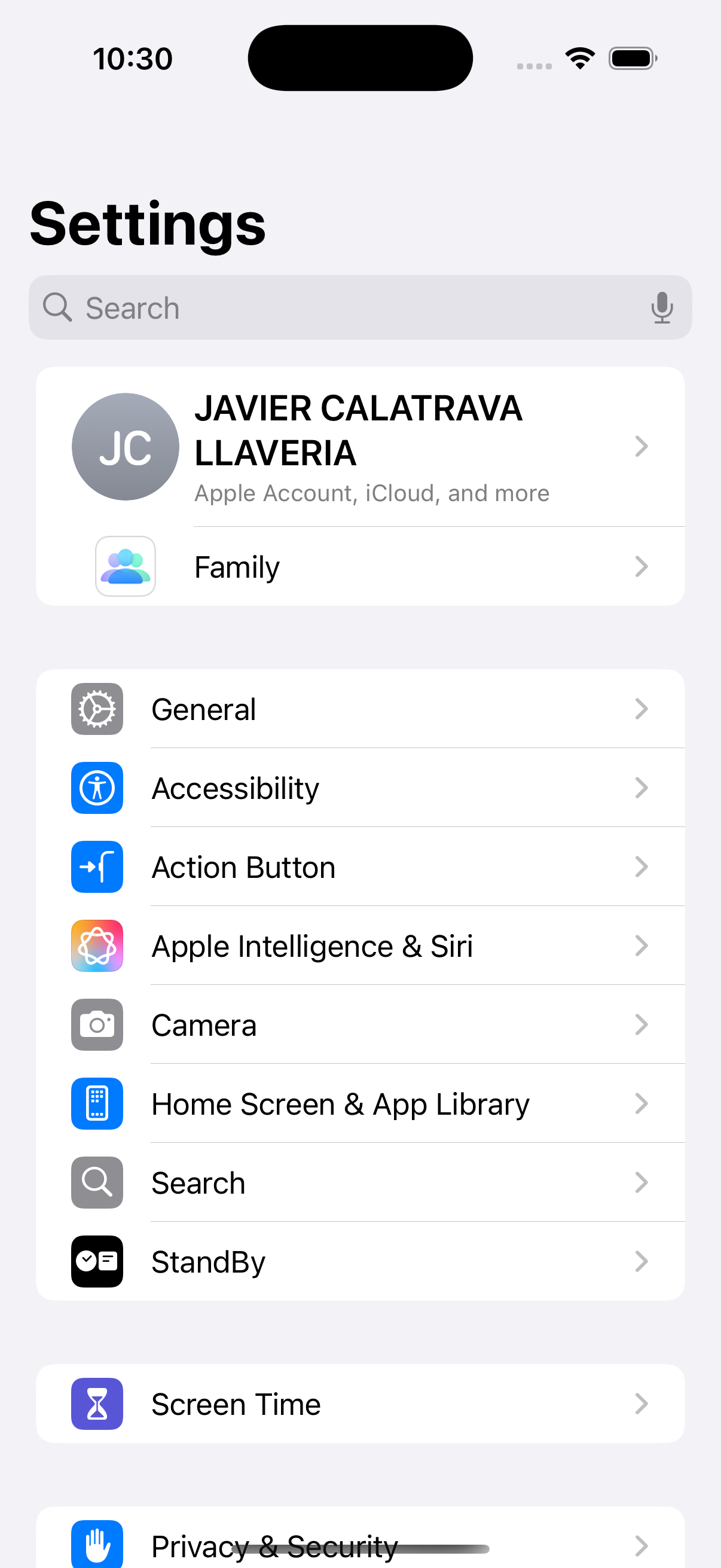
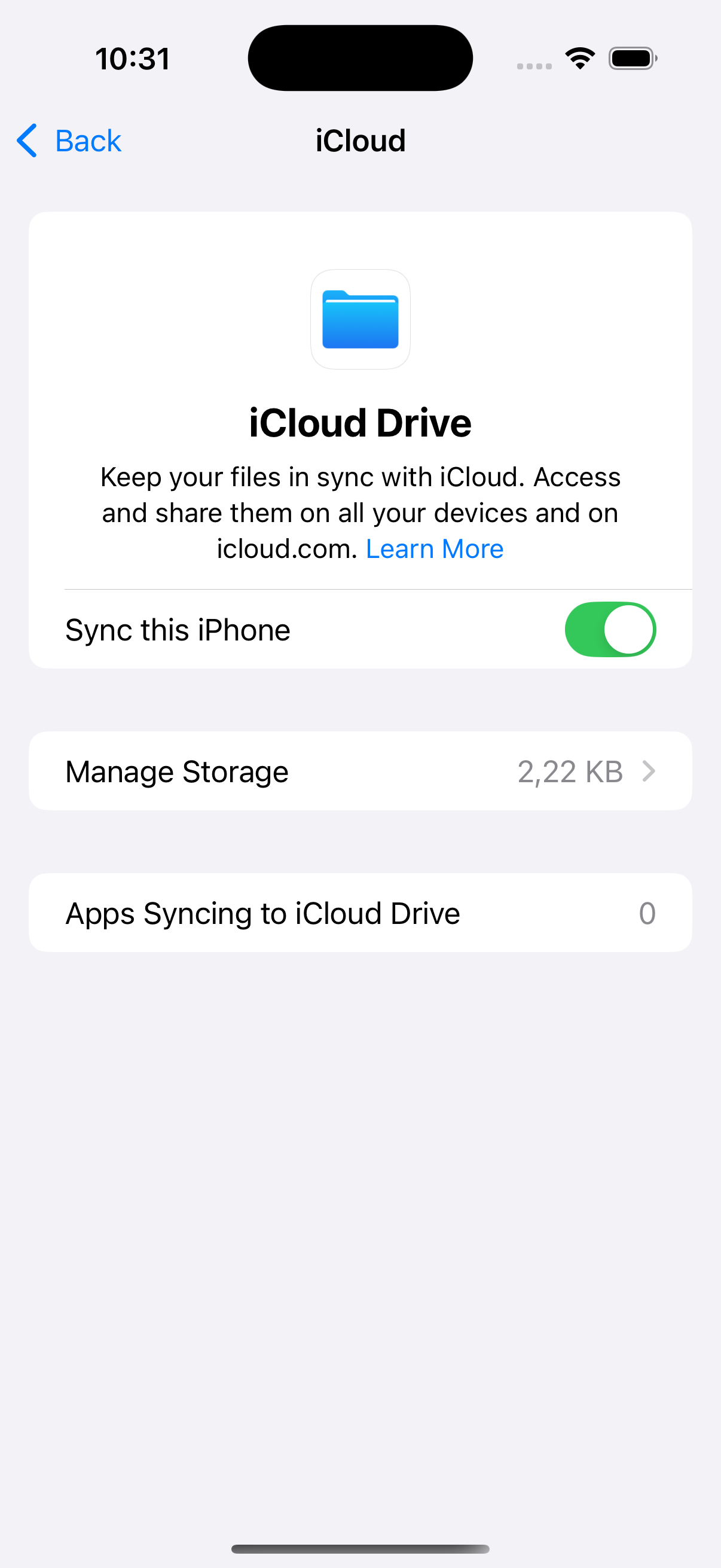
    For start working we need to fulfill 2 basic requirement: First one is having an iOS Development (or Enterprise) account for having access to iCloud console and second in iOS Simulator (or real device) be sure that you have sign in your Apple development account:

    Simulator Screenshot - iPhone 16 Pro - 2025-04-24 at 10.30.52

    Last but not least, be sure that iCloud Drive, Sync this iPhone switch is on:

    Simulator Screenshot - iPhone 16 Pro - 2025-04-24 at 10.31.29

    iOS Ranking app

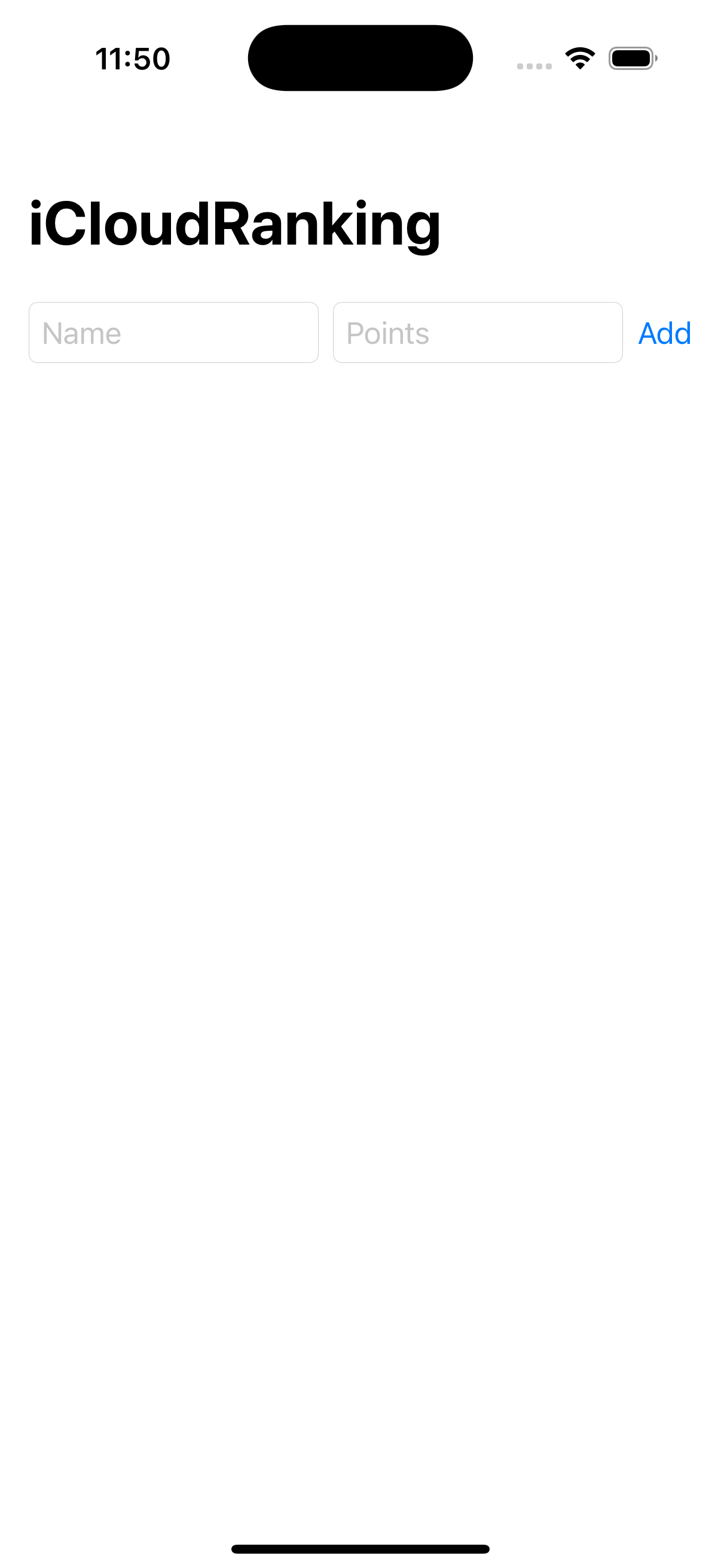
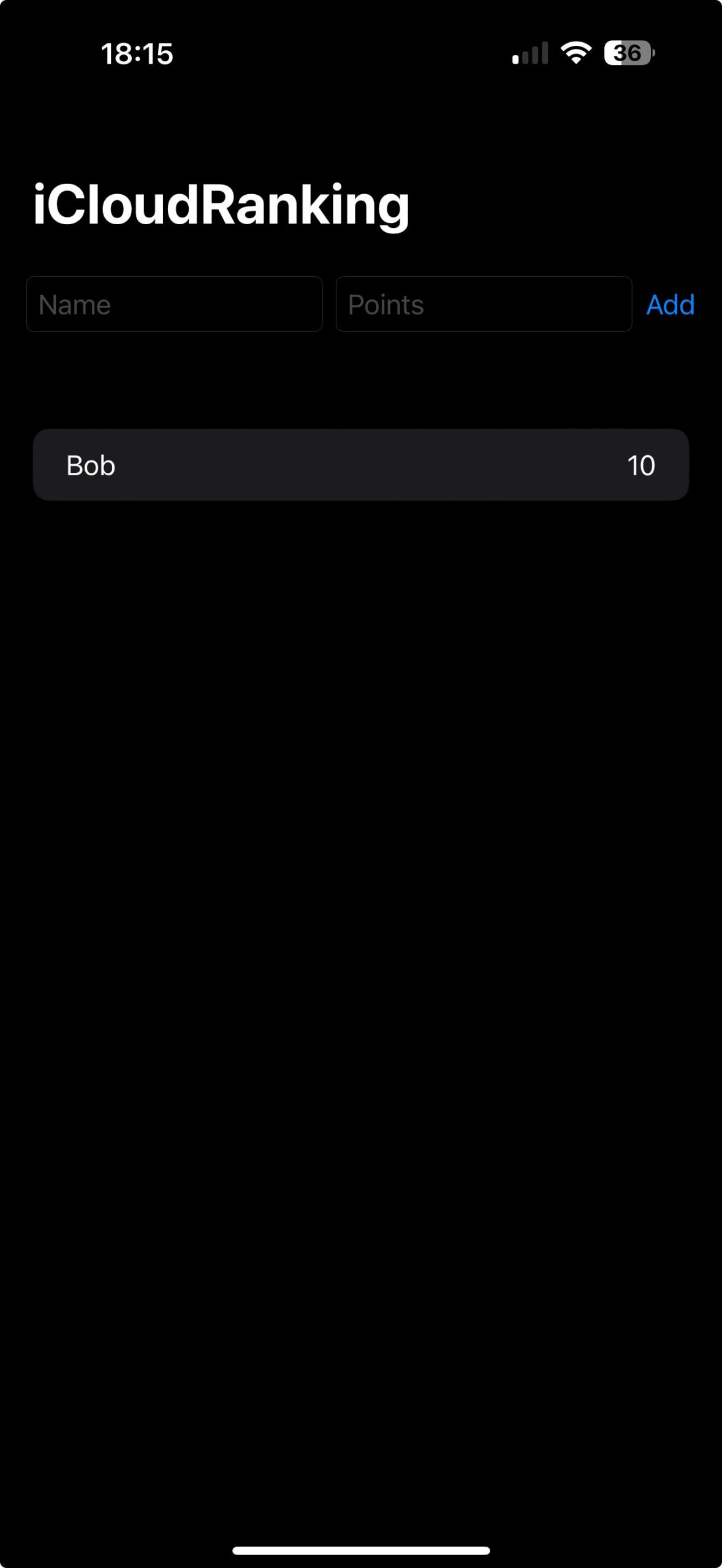
    The app we are going to implement to demonstrate iCloud usage will allow users to enter their name and a point value. This app will be distributed across multiple user devices, enabling each user to submit their name and score. It will also display a global ranking based on the collected data.

    Once we have created our blank iOS project, on target signing & capabilities add iCloud:

    Add a new container:

    Type its container name, has to be prefixed by iCloud. :

    Ready:

    To update your app when changes occur in iCloud, you need to handle silent push notifications. By default, enabling the iCloud capability also includes Push Notifications. However, Background Modes are not enabled automatically—so be sure to add the Background Modes capability and check the «Remote notifications» option.

    For source code app we are going to focus only in CloudkitManager, view is very simple and doest apport too much. Nevertheless you will find code respository GitHub link at the end of the post:

    import CloudKit
    import Foundation
    
    
    class RankingViewModel: ObservableObject {
        @Published var scores: [PlayerScore] = []
        private var database = CKContainer(identifier: "iCloud.jca.iCloudRanking").publicCloudDatabase
        
        init() {
            fetchScores()
            setupSubscription()
    
            NotificationCenter.default.addObserver(
                forName: .cloudKitUpdate,
                object: nil,
                queue: .main
            ) { _ in
                self.fetchScores()
            }
        }
    
        func fetchScores() {
            let query = CKQuery(recordType: "Score", predicate: NSPredicate(value: true))
            let sort = NSSortDescriptor(key: "points", ascending: false)
            query.sortDescriptors = [sort]
    
            database.perform(query, inZoneWith: nil) { records, error in
                DispatchQueue.main.async {
                    if let records = records {
                        self.scores = records.map { PlayerScore(record: $0) }.sorted { $0.points > $1.points }
                        print("Fetching successfull")
                    } else if let error = error {
                        print("Error fetching scores: \(error.localizedDescription)")
                    }
                }
            }
        }
    
        func addScore(name: String, points: Int) {
            let record = CKRecord(recordType: "Score")
            record["name"] = name as CKRecordValue
            record["points"] = points as CKRecordValue
    
            database.save(record) { _, error in
                if let error = error {
                    print("Error saving score: \(error.localizedDescription)")
                } else {
                    print("Saving successfull")
                    DispatchQueue.main.async { [weak self] in
                        self?.localAddScore(record: record)
                    }
                }
            }
        }
        
        private func localAddScore(record: CKRecord) {
            
            scores.append(PlayerScore(record: record))
            scores = scores.sorted { $0.points > $1.points }
        }
        
        func setupSubscription() {
            let subscriptionID = "ranking-changes"
    
            let predicate = NSPredicate(value: true)
            let subscription = CKQuerySubscription(
                recordType: "Score",
                predicate: predicate,
                subscriptionID: subscriptionID,
                options: [.firesOnRecordCreation, .firesOnRecordUpdate, .firesOnRecordDeletion]
            )
    
            let notificationInfo = CKSubscription.NotificationInfo()
            notificationInfo.shouldSendContentAvailable = true  // Silent
            subscription.notificationInfo = notificationInfo
    
            database.save(subscription) { returnedSub, error in
                if let error = error {
                    print("❌ Subscription error: \(error.localizedDescription)")
                } else {
                    print("✅ Subscription saved!")
                }
            }
        }
    }

    This Swift code defines a RankingViewModel class that interfaces with Apple’s CloudKit to manage a leaderboard-style ranking system. It fetches, updates, and stores player scores in an iCloud public database (iCloud.jca.iCloudRanking) using CloudKit. When the class is initialized, it automatically retrieves existing scores from CloudKit and sets up a subscription to receive real-time updates when scores are added, modified, or deleted. It also listens for a custom cloudKitUpdate notification and refetches scores when triggered. All fetched scores are stored in the @Published array scores, allowing SwiftUI views observing this view model to update dynamically.

    The fetchScores() function queries the CloudKit database for records of type «Score», sorting them by the number of points in descending order. These records are converted into PlayerScore instances (assumed to be a custom data model) and stored in the scores array. The addScore() function allows new scores to be submitted to the database. Once saved, the new score is locally appended and sorted in the scores array via localAddScore(). Additionally, the setupSubscription() method ensures the app receives silent push notifications when there are any changes to the «Score» records in CloudKit, keeping the leaderboard data synchronized across devices.

    When we deploy:

    Simulator Screenshot - iPhone 16 Pro - 2025-04-24 at 11.50.47

    Issue, new ranking is not updated and we can read on Console log:

    For fixing that we have to make a few adjustments on iCloud Console.

    iCloud Console

    For having access to iCloud Console, just type ‘https://icloud.developer.apple.com/dashboard’ on your favourite browser and login with your Apple Developer (or Enterprise) account. Later on select the the iCloud containter that the app is being used:

    First step is creating a Record Type for taking a look at the recently uploaded user data:

    Next step is adding record fields (name and points):

    For being able to retrieve data from console we have to create a Querable Index on recordName field from Score Record Type:

    Now is time for checking previous stored data:

    For retrieve data from device, we have to create a Sortable Index for points filed in Score Record Type:

    When we deploy iOS app on a real device:

    screenshot

    Finally…

    For final validation of the iOS app concept, I deployed the app on two different physical devices. As demonstrated in the video, when a ranking is submitted on one device, the ranking list is updated almost instantly on the other device.

    Conclusions

    From a programming point of view, working with iCloud is relatively straightforward. What I’ve found a bit cumbersome, however, is setting up the iCloud Console. Overall, though, using iCloud is a good idea if you need to share data across all instances of your app.

    You can find source code used for writing this post in following repository

    References

    • iCloud

      Apple Developer Documentation

  • Less Fetching, More Speed: NSCache in Action

    Less Fetching, More Speed: NSCache in Action

    Implementing image caching with NSCache in iOS addresses a common real-world challenge: efficiently loading images without compromising performance or user experience. It’s a lightweight, native solution that avoids third-party dependencies—ideal for developers building lean apps. Additionally, it serves as a natural introduction to memory management concepts, such as how NSCache automatically evicts objects under memory pressure.

    This approach helps newer developers avoid common pitfalls like UI flicker or image reloads in scrollable views and sets the stage for more advanced caching strategies, including disk storage or custom loaders.

    In this guide, we’ll walk you through a simple iOS app implementation to demonstrate the process step by step.

    NSCache

    NSCache is a specialized caching class in Apple’s Foundation framework that provides a convenient way to temporarily store key-value pairs in memory. It functions similarly to a dictionary but is optimized for situations where you want the system to manage memory usage more intelligently. One of its biggest advantages is that it automatically evicts stored items when the system is under memory pressure, helping to keep your app responsive and efficient without needing manual intervention.

    Unlike regular dictionaries, NSCache is thread-safe, which means you can access and modify it from different threads without adding synchronization logic. It’s designed to work well with class-type keys, such as NSString or NSURL, and object-type values like UIImage or custom model classes. Additionally, you can set limits on how many objects it holds or how much memory it should use, and even assign a «cost» to each object (like its file size) to help the cache prioritize what to keep or remove.

    NSCache is especially useful in cases like image loading in SwiftUI apps, where images fetched from the network can be reused rather than redownloaded. However, it only stores data temporarily in memory and doesn’t support expiration dates out of the box, so you’d need to add your own logic if you want time-based invalidation. For long-term storage or persistent caching, developers often combine NSCache with disk storage strategies to create a hybrid caching system.

    This is our NSCache wrapping implementation:

    import UIKit
    
    actor DiskImageCache {
        static let shared = DiskImageCache()
        
        private let memoryCache = NSCache<NSURL, UIImage>()
        private let fileManager = FileManager.default
        private let cacheDirectory: URL
        private let expiration: TimeInterval = 12 * 60 * 60 // 12 hours
        
        init() {
            let directory = fileManager.urls(for: .cachesDirectory, in: .userDomainMask).first!
            cacheDirectory = directory.appendingPathComponent("ImageCache", isDirectory: true)
    
            if !fileManager.fileExists(atPath: cacheDirectory.path) {
                try? fileManager.createDirectory(at: cacheDirectory, withIntermediateDirectories: true)
            }
        }
        
        func image(for url: URL) -> UIImage? {
            // 1. Check memory cache
            if let memoryImage = memoryCache.object(forKey: url as NSURL) {
                return memoryImage
            }
            
            // 2. Check disk cache
            let path = cachePath(for: url)
            guard fileManager.fileExists(atPath: path.path) else { return nil }
    
            // Check expiration
            if let attributes = try? fileManager.attributesOfItem(atPath: path.path),
               let modifiedDate = attributes[.modificationDate] as? Date {
                if Date().timeIntervalSince(modifiedDate) > expiration {
                    try? fileManager.removeItem(at: path)
                    return nil
                }
            }
            
            // Load from disk
            guard let data = try? Data(contentsOf: path),
                  let image = UIImage(data: data) else {
                return nil
            }
    
            memoryCache.setObject(image, forKey: url as NSURL)
            return image
        }
        
        func store(_ image: UIImage, for url: URL) async {
            memoryCache.setObject(image, forKey: url as NSURL)
            
            let path = cachePath(for: url)
            if let data = image.pngData() {
                try? data.write(to: path)
            }
        }
    
        private func cachePath(for url: URL) -> URL {
            let fileName = url.absoluteString.addingPercentEncoding(withAllowedCharacters: .alphanumerics) ?? UUID().uuidString
            return cacheDirectory.appendingPathComponent(fileName)
        }
    }

    Making DiskImageCache an actor is all about thread safety — especially when you’re doing I/O (disk reads/writes) and managing a shared resource (the cache itself).

    The code defines a DiskImageCache actor that manages a two-level cache system for images, combining in-memory and disk storage to efficiently store and retrieve images. The actor is implemented as a singleton (shared), ensuring thread-safe access to its caching mechanisms. It uses NSCache for fast in-memory storage of UIImage objects keyed by their URLs, while also maintaining a disk-based cache in the app’s Caches directory under an «ImageCache» subfolder. The disk cache includes an expiration mechanism (12 hours) that automatically removes stale files based on their modification date.

    The actor provides two main methods: image(for:) to retrieve an image and store(_:for:) to save an image. When retrieving an image, it first checks the memory cache, then falls back to disk if needed, while also handling cache expiration. When storing an image, it saves to both memory and disk. The disk cache uses URL-encoded filenames derived from the image URLs to maintain unique file paths. This implementation balances performance (with quick memory access) and persistence (with disk storage), while managing resource usage through expiration and proper file system organization.

    The viewmodel for AsyncImage View component

    The ViewModel is responsible for requesting an image from ImageCache and providing it to the view via @Published. Note that the entire class is executed on the @MainActor, whereas DiskImageCache runs in a separate actor.

    The target (and project) is configured for Swift 6 with Strict Concurrency Checking set to Complete. Since the cache operates in a different isolated domain, even though the image function is not explicitly marked as async, the compiler still requires the use of the await keyword when calling it.

    import SwiftUI
    
    @MainActor
    class AsyncImageLoader: ObservableObject {
        @Published var image: UIImage?
        
        private var url: URL
    
        init(url: URL) {
            self.url = url
        }
    
        func load() async {
            if let cached = await DiskImageCache.shared.image(for: url) {
                self.image = cached
                return
            }
    
            do {
                let (data, _) = try await URLSession.shared.data(from: url)
                guard let downloaded = UIImage(data: data) else { return }
    
                self.image = downloaded
                await DiskImageCache.shared.store(downloaded, for: url)
            } catch {
                print("Image load failed:", error)
            }
        }
    }
    

    AsyncImageView struct defines a custom view for asynchronously loading and displaying an image from a URL using an AsyncImageLoader (assumed to handle the async fetching logic). It uses a placeholder image while the actual image is being fetched, and applies a customizable image styling closure to either the loaded image or the placeholder. The loading is triggered when the view appears, using Swift’s concurrency features (Task and await). It leverages @StateObject to maintain the image loader’s lifecycle across view updates, ensuring image state persists appropriately in the SwiftUI environment.

    The AsyncImage view component

    Refactored AsyncImageLoader into a standalone component to enable better reusability.

    import SwiftUI
    
    struct AsyncImageView: View {
        @StateObject private var loader: AsyncImageLoader
        let placeholder: Image
        let imageStyle: (Image) -> Image
    
        init(
            url: URL,
            placeholder: Image = Image(systemName: "photo"),
            imageStyle: @escaping (Image) -> Image = { $0 }
        ) {
            _loader = StateObject(wrappedValue: AsyncImageLoader(url: url))
            self.placeholder = placeholder
            self.imageStyle = imageStyle
        }
    
        var body: some View {
            Group {
                if let uiImage = loader.image {
                    imageStyle(Image(uiImage: uiImage).resizable())
                } else {
                    imageStyle(placeholder.resizable())
                        .onAppear {
                            Task {
                                await loader.load()
                            }
                        }
                }
            }
        }
    }

    AsyncImageView struct defines a custom view that asynchronously loads and displays an image from a given URL. It uses an AsyncImageLoader to manage the image fetching logic. Upon initialization, the view sets up the loader with the provided URL and stores a placeholder image and an optional styling closure for the image. In the view’s body, it conditionally displays the downloaded image if available, or the placeholder image otherwise. When the placeholder is shown, it triggers the asynchronous loading of the image via a Task inside onAppear. The imageStyle closure allows the caller to customize how the image (or placeholder) is displayed, such as adding modifiers like .aspectRatio or .frame.

    The View

    Finally AsyncImageView component is integrated in ContentView in following way:

    struct ContentView: View {
        var body: some View {
            AsyncImageView(url: URL(string: "https://picsum.photos/510")!)
                .frame(width: 200, height: 200)
                .clipShape(RoundedRectangle(cornerRadius: 20))
                .shadow(radius: 5)
        }
    }

    When we deploy iOS app on a real device:

    When the app starts up, it displays a placeholder image while the actual image is being fetched. Once the image is displayed, the app is terminated. On the second startup, the app directly shows the previously fetched image.

    Conclusions

    With that post, I just intended to show how to cache images, or any other resource for making your apps more fluid.

    You can find source code used for writing this post in following repository

    References

  • Inside the iOS Sandbox: Managing Files and Folders

    Inside the iOS Sandbox: Managing Files and Folders

    Sandboxing in iOS is a foundational security mechanism that isolates each app in its own secure environment. This isolation prevents unauthorized access to system resources and user data, ensuring that apps cannot interfere with one another.

    For developers, understanding how to manage files and directories within this sandbox is crucial. It determines how and where persistent data, user-generated content, and temporary files are stored—directly affecting app functionality, user privacy, and compliance with App Store requirements.

    The goal of this post is to demystify these concepts. By doing so, it empowers developers to build secure, reliable, and user-friendly applications that align with iOS’s strict security model while effectively leveraging the available file system APIs.

    The Sandbox

    In iOS, a sandbox is a security mechanism that restricts apps to their own designated area, preventing them from accessing files, resources, or data belonging to other apps or the system without explicit permission. This isolation ensures stability, security, and privacy for users.

    Key Features of iOS Sandbox:

    1. App Isolation

      • Each app runs in its own sandboxed environment with its own directory for files.

      • Apps cannot directly read or modify files from other apps.

    2. Controlled Access to System Resources

      • Apps must request permissions (via entitlements or user consent) to access sensitive data like:

        • Contacts (Contacts.framework)

        • Photos (PHPhotoLibrary)

        • Location (CoreLocation)

        • Camera & Microphone (AVFoundation)

    3. File System Restrictions

      • Apps can only write files in their own sandbox directories, such as:

        • Documents/ (user-generated content, backed up by iTunes/iCloud)

        • Library/ (app support files, some backed up)

        • Caches/ (temporary files, can be purged by the system)

        • tmp/ (short-lived files, not backed up)

    4. No Direct Hardware or Kernel Access

      • Apps interact with hardware (e.g., GPU, sensors) only through Apple’s frameworks.

      • No root-level system modifications are allowed (unlike jailbroken devices).

    5. Inter-App Communication (Limited & Controlled)

      • Apps can share data only via:

        • URL Schemes (custom deep links like myapp://)

        • App Groups (shared containers for related apps)

        • UIActivityViewController (share sheets)

        • Universal Clipboard (limited-time data sharing)

    Why Does iOS Use a Sandbox?

    • Security: Prevents malware from spreading or tampering with other apps.

    • Privacy: Ensures apps access only permitted user data.

    • Stability: Crashes or bugs in one app don’t affect others.

    Example: Accessing the Sandbox in Code

    To get an app’s sandbox directory in Swift:

    struct PeopleView: View {
        @StateObject var viewModel = PeopleViewModel()
        
        var body: some View {
            NavigationView {
                ...
            }.onAppear {
                if let documentsPath = FileManager.default.urls(for: .documentDirectory, in: .userDomainMask).first {
                    print("📂 Document Directory: \(documentsPath.path)")
                }
            }
        }
    }

    The snippet is used to retrieve and print the path to the app’s Documents directory on an iOS or macOS device. Its parent folder is the sandbox root folder for your current app.

    Exceptions to the Sandbox:

    • System apps (e.g., Messages, Mail) have broader privileges.

    • Jailbroken devices bypass sandbox restrictions (but violate Apple’s policies).

    The sandbox is a core reason iOS is considered more secure than open platforms. Developers must work within its constraints while using Apple’s APIs for permitted interactions.

    Our privacy is compromised the moment a malicious app can access another app’s sandbox. Theoretically, this kind of sandbox breach hasn’t been documented on iOS—at least not to my knowledge. However, the video «Broken Isolation – Draining Your Credentials from Popular macOS Password Managers« by Wojciech Reguła (NSSpain 2024) demonstrates how, on macOS, a malicious app can gain access to the sandboxes of other apps that store user passwords—such as NordPass, KeePass, Proton Pass, and even 1Password.

    Sandbox data container folders

    Each iOS app has its own container directory with several subdirectories. Here’s a breakdown of the key folders and their purposes:

    1. Documents

    • Path: .../Documents/

    • Purpose: Stores user-generated content or data that should persist and be backed up to iCloud.

    • Example: Saved notes, PDFs, exported data.

    • Backup: ✅ Included in iCloud/iTunes backups.

    • Access: Read/Write.

    2. Library

    • Path: .../Library/

    • Purpose: Stores app-specific files and configuration data.

      It has two main subfolders:

      • Preferences

        • .../Library/Preferences/

        • Stores user settings (e.g., using UserDefaults).

        • Managed automatically by the system.

      • Caches

        • .../Library/Caches/

        • Used for data that can be regenerated (e.g., image cache).

        • Not backed up, and iOS may delete files here when space is low.

        • ⚠️ Don’t store critical data here.

    4. tmp

    • Path: .../tmp/

    • Purpose: Temporary files your app doesn’t need to persist between launches.

    • Backup: ❌ Not backed up.

    • Auto-clean: iOS may clean this directory at any time.

    • Access: Read/Write.

    Summary Table

    FolderPurposePersistentBacked UpiOS May Delete
    App BundleApp code and resources
    DocumentsUser data/files
    Library/PreferencesApp settings (UserDefaults)
    Library/CachesCached data (non-critical)
    tmpTemporary files


    Files operations

    For this section, we have developed a sample iOS application that performs storage operations using files. The app displays an empty list with an «Add» button in the navigation bar. Each time the button is pressed, a new person is added to the list. The list of people serves as the model and is persisted as a .json file.

    When we deploy on simulator (or real device):

    The component that handles files operations:

    class FileManagerHelper {
        static let shared = FileManagerHelper()
        
        private let fileName = "people.json"
        
        private var fileURL: URL {
            let documents = FileManager.default.urls(for: .documentDirectory, in: .userDomainMask).first!
            return documents.appendingPathComponent(fileName)
        }
    
        func save(_ people: [Person]) {
            do {
                let data = try JSONEncoder().encode(people)
                try data.write(to: fileURL)
            } catch {
                print("Error saving file: \(error)")
            }
        }
        
        func load() -> [Person] {
            do {
                let data = try Data(contentsOf: fileURL)
                let people = try JSONDecoder().decode([Person].self, from: data)
                return people
            } catch {
                print("Error reading file: \(error)")
                return []
            }
        }
        
        func deleteFile() {
            do {
                try FileManager.default.removeItem(at: fileURL)
            } catch {
                print("Error deleting file: \(error)")
            }
        }
    }

    FileManagerHelper is a singleton utility that manages saving, loading, and deleting a JSON file named people.json in the app’s documents directory. It provides methods to encode an array of Person objects into JSON and save it to disk (save), decode and return the array from the saved file (load), and remove the file entirely (deleteFile). It handles errors gracefully by catching exceptions and printing error messages without crashing the app.

    Conclusions

    With that post, I just intended to give you an overview and demonstrate how easy it is to deal with file persistence as well.

    You can find source code used for writing this post in following repository

    References