Categoría: Uncategorized

  • Maximizing enum in Swift Development

    Maximizing enum in Swift Development

    Maximizing enum usage in Swift is compelling because it moves beyond treating them as simple lists of constants and showcases their power as first-class citizens. This approach not only makes a codebase more expressive and readable but also teaches developers how to leverage Swift’s robust type system to model complex business logic with minimal overhead.

    default and @unknown default

    To set the stage, let’s warm up by distinguishing between default and @unknown default. While both serve as a safety net for unlisted cases in a switch statement, they play very different roles.

    The default Case

    The default keyword is a «catch-all» that silences the compiler’s requirement for exhaustiveness. It tells Swift: «I don’t care what else might be in this enum; treat everything else the same way.»

    • When to use it: Use default when you genuinely want to group a large number of existing cases together, or when you are switching over types that aren’t enums (like Strings or Ints).

    • The Risk: If you add a new case to your enum later, the compiler will not warn you. The new case will simply fall into the default block, which can lead to «silent» logic bugs.

    enum UserRole {
        case admin, editor, viewer, guest
    }
    
    let role = UserRole.guest
    
    switch role {
    case .admin:
        print("Full Access")
    default: 
        // Covers editor, viewer, and guest identically
        print("Limited Access")
    }
    @unknown

    @unknown default is a «cautionary» catch-all. It handles any cases that aren’t explicitly defined, but it triggers a compiler warning if you haven’t accounted for all known cases.

    • When to use it: Use it when dealing with enums that might change in the future (especially those from Apple’s frameworks like UNAuthorizationStatus).

    • The Benefit: It provides the best of both worlds: your code still compiles if a new case is added (preventing a crash), but the compiler warns you that you need to go back and handle that specific new case properly.

    import NotificationCenter
    
    let status: UNAuthorizationStatus = .authorized
    
    switch status {
    case .authorized:
        print("Authorized")
    case .denied:
        print("Denied")
    case .notDetermined:
        print("Not Determined")
    case .provisional, .ephemeral:
        print("Trial/Limited")
    @unknown default:
        // If Apple adds a new status in iOS 20, this code still runs,
        // but the compiler will show a warning saying: 
        // "Switch implies matching of 'newFutureCase'..."
        print("Handle unknown future state")
    }

    Beyond Swift.Result switching…

    While Swift.Result is typically handled by switching over basic .success and .failure cases, we can unlock more power by inspecting the data within those cases. In the following example, we take it a step further: we handle the .failure state while splitting the .success state into two distinct logic paths—one for a populated list of items and another for when no data is received.

    Here is how you can implement this using pattern matching to keep your code clean and expressive:

    public func processFeedRequest() {
        fetchFeed() { result in
            switch result {
            case .success(.some(let feedResponse)):
                print("Feed Response: \(String(describing: feedResponse))")
            case .success(.none):
                print("No feed response")
            case .failure(let error):
                print("Error: \(error)")
            }
        }
    }

    In Swift, an Optional is actually an enum under the hood! When you write FeedResponse?, the compiler sees it as Optional<FeedResponse>.

    • .none: This is exactly the same as nil. It represents the absence of a value.

    • .some(let value): This represents the presence of a value. The value is «wrapped» inside the enum, and the let feedResponse syntax «unwraps» it so you can use it directly.

    Switching Tuples

    Actually, you have been able to evaluate tuples in Swift’s switch statements since Swift 1.0, released in 2014.

    Swift was designed from the ground up with Pattern Matching as a core feature. This allows the switch statement to decompose complex data structures, like tuples and enums with associated values, very easily.

    You can combine an enum and another variable into a tuple right inside the switch statement. This is incredibly useful for conditional logic that depends on two different factors.

    Using tuples in your enum logic is a «pro move» because it allows you to avoid nested if statements. Instead of checking the enum and then checking a secondary condition, you can express the entire business rule in a single, readable line.

        func testExample() throws {
            let expectedResult: ResultImageURL = .success(aFeed)
            let exp = expectation(description: "Wait for cache retrieval")
            
            fetchFeed { retrievedResult in
                switch (expectedResult, retrievedResult) {
                case (.success(.none), .success(.none)),
                     (.failure, .failure):
                    break
                    
                case let (.success(.some(expected)), .success(.some(retrieved))):
                    XCTAssertEqual(retrieved.feeds, expected.feeds)
                    XCTAssertEqual(retrieved.timestamp, expected.timestamp)
                    
                default:
                    XCTFail("Expected to retrieve \(expectedResult), got \(retrievedResult) instead")
                }
                exp.fulfill()
            }
            
            wait(for: [exp], timeout: 1.0)
        }

    This asynchronous XCTest verifies that fetchFeed completes with the expected Result by waiting on an expectation, comparing the retrieved result against a predefined expected one, and asserting correct behavior for all valid cases: both being failures, both being successful with no cached value, or both being successful with a cached value whose contents (feeds and timestamp) are validated for equality; any mismatch between expected and retrieved outcomes causes the test to fail explicitly, ensuring both correctness of the async flow and the integrity of the returned data.

    Of course, this function could be refactored into a helper not only to validate the happy-path scenario, but also to cover the empty and error cases as well.

    where clause in case

    In Swift, a where clause in a case branch adds an additional boolean condition that must be satisfied for that pattern to match, allowing you to refine or differentiate the same enum case based on contextual rules (such as values, ranges, or predicates) without introducing nested if statements; this makes the control flow more declarative, improves readability, and keeps the conditional logic tightly coupled to the pattern being matched.

    enum NetworkResult {
        case success(Data, HTTPURLResponse)
        case failure(Error)
    
        var isValid: Bool {
            switch self {
            case let .success(_, response)
                where (200..<300).contains(response.statusCode):
                return true
    
            case let .success(_, response)
                where response.statusCode == 401:
                return false
    
            case .failure:
                return false
    
            default:
                return false
            }
        }
    }

    This code defines an enum NetworkResult with a computed property isValid that uses a switch on self to derive a Boolean value based on both the enum case and associated values: when the result is .success, the switch further refines the match using where clauses to inspect the HTTP status code, returning true for successful 2xx responses and false for an unauthorized 401, while any .failure or other non-matching success cases also return false, making isValid a calculated variable that encapsulates response-validation logic directly within the enum.

    Conclusions

    Switch enum structures in Swift are more than a control-flow construct that selects and executes a specific block of code based on matching a value against a set of predefined patterns or cases. In this post, I have presented a few examples to illustrate that.

    You can find the source code for this example in the following GitHub repository.

    References

  • Xcode 16: Alternate App Icons in iOS

    Xcode 16: Alternate App Icons in iOS

    Changing an iOS app icon can create both user and business value by offering personalization, seasonal or event-based marketing opportunities, and fresh ways to engage users without requiring an App Store resubmission. It allows apps to feel dynamic and relevant—whether through holiday icons, unlockable rewards for loyal users, or collectible designs tied to achievements. This flexibility also supports monetization strategies (e.g., premium icons for subscribers), strengthens community connection (such as sports teams or fan apps), and enables practical use cases like localization or representing different brands. In short, dynamic icons turn the app’s presence on the home screen into a living extension of the product experience. In this post, we’ll build a sample iOS app that demonstrates how to implement app icon switching.

    Project Setup

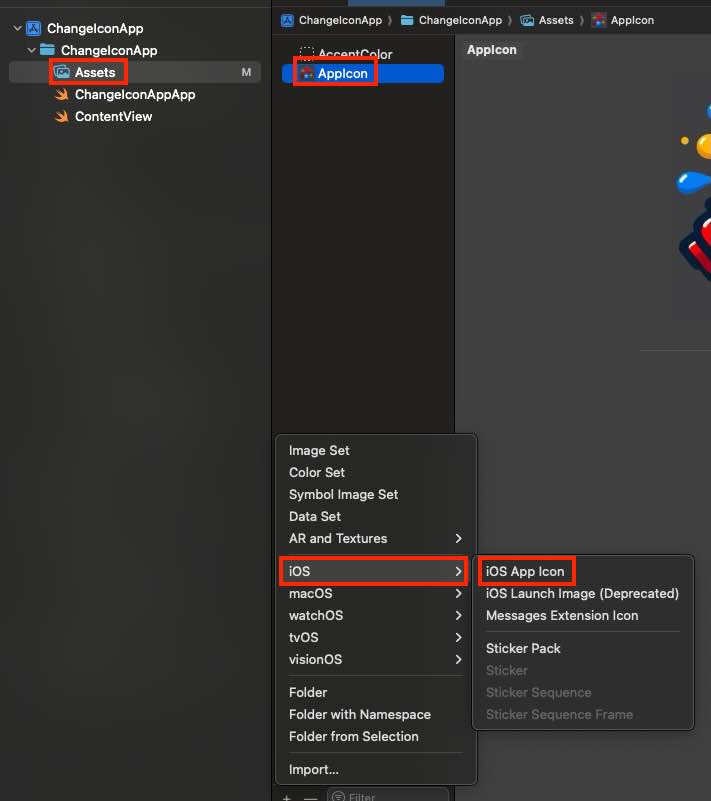
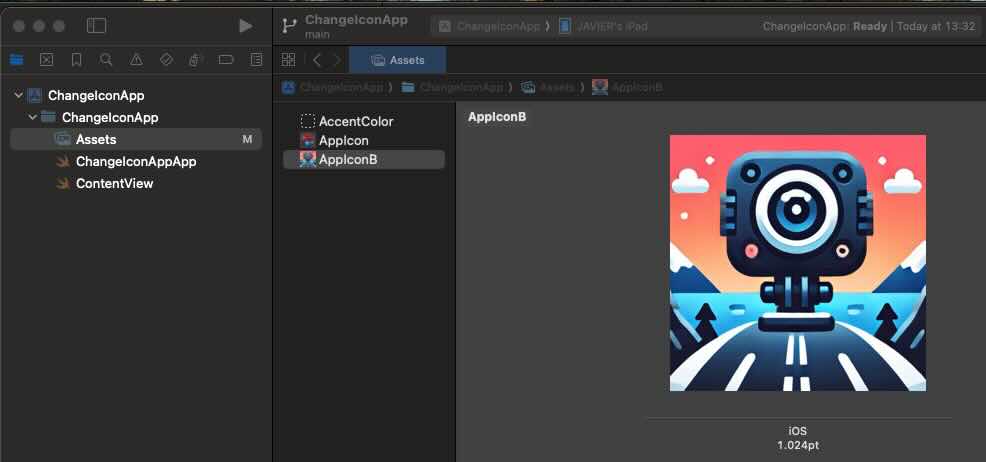
    First step is create a new App Icon:

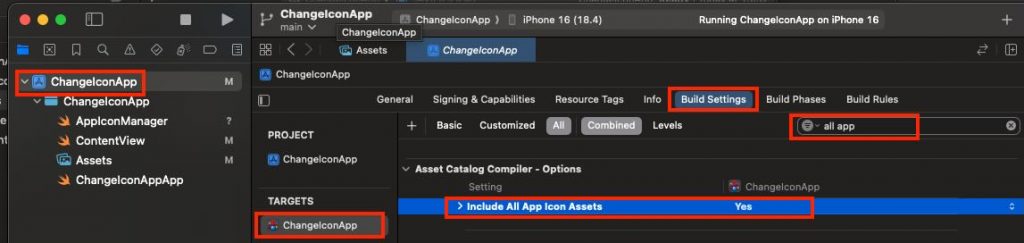
    After adding a second app icon asset, select your app target, open Build Settings, and set Include All App Icon Assets to Yes. Note: verify your Xcode version—I’m using Xcode 16, and earlier versions configure this slightly differently.

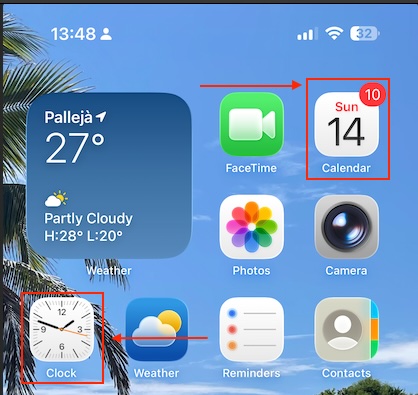
    At that point, you might be tempted to create an app with a live icon—like Calendar or Clock.


    Unfortunately, third-party apps can’t do this—dynamic icons are a system-only capability enabled by Apple’s private entitlements. For everyone else, the app icon is a static resource in the signed bundle and can only be swapped for another prepackaged icon via setAlternateIconName(_:).

    App Icon Manager

    The component that where all icon changeability will be centered is following:

    import UIKit
    
    enum AppIconName: String {
        case primary = ""          // Default icon
        case dark = "AppIconB"     // exact name for the alternative icon (no extension)
    }
    
    enum AppIconManager {
        static var supportsAlternateIcons: Bool {
            UIApplication.shared.supportsAlternateIcons
        }
    
        static var currentAlternateIconName: String? {
            UIApplication.shared.alternateIconName
        }
    
        static func setAppIcon(_ icon: AppIconName, completion: ((Error?) -> Void)? = nil) {
            guard supportsAlternateIcons else {
                completion?(NSError(domain: "AppIcon", code: -1, userInfo: [NSLocalizedDescriptionKey: "This device does not support alternative icons"]))
                return
            }
    
            let nameToSet: String? = (icon == .primary) ? nil : icon.rawValue
    
            if UIApplication.shared.alternateIconName == nameToSet {
                completion?(nil)
                return
            }
    
            UIApplication.shared.setAlternateIconName(nameToSet) { error in
                completion?(error)
            }
        }
    }
    

    The AppIconName enum represents the available icons (the default primary and an alternate one named AppIconB). The AppIconManager enum provides helper properties and a method: it checks if the device supports alternate icons, retrieves the currently active icon, and lets you switch to a new icon with setAppIcon. If the device doesn’t support icon changes or if the requested icon is already active, it gracefully exits, otherwise it uses UIApplication.shared.setAlternateIconName to apply the new icon and calls the completion handler with either an error or success.

    View

    This SwiftUI ContentView provides a simple UI that lets users toggle between the app’s default and alternative icons. It shows a large sun or moon symbol depending on the selected icon, and includes a switch labeled “Use alternative icon” that triggers AppIconManager to change the app icon when toggled. If the device doesn’t support alternate icons, the toggle is disabled and a warning message is displayed. The view also shows which icon is currently active, updates the user with a status message after each change (or error), and ensures the correct icon is applied when the view first appears.

    struct ContentView: View {
        @AppStorage("useAltIcon") private var useAltIcon: Bool = false
        @State private var statusMsg: String = ""
    
        var body: some View {
            VStack(spacing: 20) {
                Image(systemName: useAltIcon ? "moon.fill" : "sun.max.fill")
                    .font(.system(size: 56))
                    .symbolRenderingMode(.hierarchical)
    
                Toggle("Use alternative icon", isOn: $useAltIcon)
                    .onChange(of: useAltIcon) { _, newValue in
                        AppIconManager.setAppIcon(newValue ? .dark : .primary) { err in
                            if let err = err {
                                statusMsg = "It was not possible replacie icon: \(err.localizedDescription)"
                                // revertir el toggle si algo falla
                                useAltIcon.toggle()
                            } else {
                                statusMsg = newValue ? "Alternative icon activated." : "Default icon restored."
                            }
                        }
                    }
                    .disabled(!AppIconManager.supportsAlternateIcons)
                    .padding(.horizontal)
    
                if !AppIconManager.supportsAlternateIcons {
                    Text("This device does not support alternative icons.")
                        .font(.footnote)
                        .foregroundStyle(.secondary)
                }
    
                if let current = AppIconManager.currentAlternateIconName {
                    Text("Current icon: \(current)")
                        .font(.footnote)
                        .foregroundStyle(.secondary)
                } else {
                    Text("Curent icon: default")
                        .font(.footnote)
                        .foregroundStyle(.secondary)
                }
    
                if !statusMsg.isEmpty {
                    Text(statusMsg)
                        .font(.footnote)
                        .foregroundStyle(.secondary)
                        .multilineTextAlignment(.center)
                        .padding(.top, 4)
                }
    
                Spacer()
            }
            .padding()
            .onAppear {
                let shouldBeAlt = useAltIcon
                AppIconManager.setAppIcon(shouldBeAlt ? .dark : .primary) { _ in }
            }
        }
    }

    Deploy the code on a simulator to validate its behavior (or real device):

    review

    The app icon is being replaced by the app itself.

    Conclusions

    In this post, I’ve shared a quick and easy feature you can implement to make your app more engaging. You can find source code that we have used for conducting this post in following GitHub repository.

    References

  • Goodbye Raw Strings, Hello swift-tagged

    Goodbye Raw Strings, Hello swift-tagged

    There is a subtle but common problem in Swift development: relying on raw types like String or UUID for identifiers leads to fragile code where values can be accidentally swapped or misused without the compiler noticing. By explaining how swift-tagged introduces zero-cost, strongly typed wrappers, I wanted to show you how other iOS developers how to prevent whole categories of bugs at compile time, while keeping APIs clean, expressive, and fully compatible with Codable, Hashable, and other Swift protocols. It’s a practical, easy-to-adopt tool that makes codebases more robust, and many developers may not even realize how much type safety they’re leaving on the table until they see a real-world example.

    The problem

    The following code is syntactically correct, but semantically wrong.

        struct UserRaw { let id: UUID }
        struct ProductRaw { let id: UUID }
    
        func registerPurchaseRaw(userID: UUID, productID: UUID) {
            log("✅ Purchase registered (RAW): user=\(userID) product=\(productID)")
        }
    
        func demoRaw() {
            log("— RAW demo —")
            let rawUser = UserRaw(id: UUID())
            let rawProduct = ProductRaw(id: UUID())
    
            // ❌ Compiles, BUT CODE SEMANTICALLY IS WRONG (crossed arguments)
            registerPurchaseRaw(userID: rawProduct.id, productID: rawUser.id)
            log("")
        }

    This code defines two structs, UserRaw and ProductRaw, each holding an id of type UUID, and a function registerPurchaseRaw(userID:productID:) that logs a message about a registered purchase. In demoRaw(), it creates a user and a product, then mistakenly calls registerPurchaseRaw with the arguments swapped (userID is given the product’s ID and productID is given the user’s ID). The key issue is that both IDs are plain UUIDs, so the compiler cannot distinguish between them—this compiles without error even though it is logically wrong. The problem is a lack of type safety, which can lead to subtle bugs where mismatched identifiers are passed to functions unnoticed until runtime.

    swift-tagged library

    The swift-tagged library is a lightweight Swift package from Point-Free that lets you create strongly typed wrappers around existing primitive types like String, Int, or UUID. Instead of passing around raw values (e.g. using plain UUID for both UserID and OrderID), you can “tag” them with distinct types so the compiler enforces correct usage—preventing accidental mix-ups that would otherwise compile but cause logic bugs. It’s a zero-cost abstraction, meaning it adds no runtime overhead, and it integrates seamlessly with protocols like Codable, Hashable, and Equatable. In practice, swift-tagged helps make Swift code more expressive, self-documenting, and safer, especially when modeling identifiers and domain-specific values in iOS or server-side Swift apps.

    This is new proposal with swift-tagged library:

        struct UserTag {}
        struct ProductTag {}
    
        typealias UserID = Tagged<UserTag, UUID>
        typealias ProductID = Tagged<ProductTag, UUID>
    
        struct User {
            let id: UserID
        }
        struct Product {
            let id: ProductID
        }
    
        func registerPurchase(userID: UserID, productID: ProductID) {
            log("✅ Purchase registered (Tagged): user=\(userID) product=\(productID)")
        }
    
        func demoTagged() {
            log("— Tagged demo —")
            let user = User(id: UserID(UUID()))
            let product = Product(id: ProductID(UUID()))
            registerPurchase(userID: user.id, productID: product.id)
    
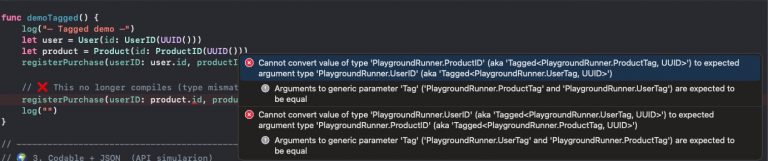
            // ❌ This no longer compiles (type mismatch): // registerPurchase(userID: product.id, productID: user.id
            registerPurchase(userID: product.id, productID: user.id)
            log("")
        }

    Now at compile time, semantic error is being detected:

    Codable types

    swift-tagged works with Codable types because its Tagged wrapper is designed to forward encoding and decoding responsibilities to the underlying raw type (such as String, Int, or UUID) that already conforms to Codable. This means when you use a Tagged<User, UUID> as a property in a model, Swift’s Codable machinery simply encodes or decodes the inner UUID as usual, while still preserving the type-safe distinction at compile time. As a result, you get the safety of strongly typed identifiers without having to write custom Codable implementations or change how your models interact with JSON or other encoded data.

            log("— Codable + JSON —")
    
            let user = User(id: UserID(UUID()))
            let product = Product(id: ProductID(UUID()))
            let request = PurchaseRequest(userID: user.id, productID: product.id)
    
            // Encode → JSON
            do {
                let encoder = JSONEncoder()
                encoder.outputFormatting = [.prettyPrinted, .sortedKeys]
                let jsonData = try encoder.encode(request)
                if let jsonString = String(data: jsonData, encoding: .utf8) {
                    log("📤 JSON sent to server:")
                    log(jsonString)
                }
            } catch {
                log("Encoding error:", error.localizedDescription)
            }
    
            // Decode ← JSON
            let jsonInput = """
            {
                "userID": "\(UUID())",
                "productID": "\(UUID())"
            }
            """.data(using: .utf8)!
    
            do {
                let decoded = try JSONDecoder().decode(PurchaseRequest.self, from: jsonInput)
                log("📥 JSON received and decoded to Swift struct:")
                log("userID: \(decoded.userID)")
                log("productID: \(decoded.productID)")
            } catch {
                log("Decoding error:", error.localizedDescription)
            }
    
            log("")

    This code demonstrates how a PurchaseRequest that uses swift-tagged identifiers can be seamlessly encoded to and decoded from JSON. First, it creates a User and a Product, builds a PurchaseRequest with their strongly typed IDs, and then uses JSONEncoder to serialize it into a nicely formatted JSON string, simulating data being sent to a server. Next, it constructs a JSON string containing new random UUIDs for userID and productID, converts it to Data, and decodes it back into a PurchaseRequest instance with JSONDecoder. The output shows that although the code benefits from type safety at compile time, the wrapped values still encode and decode just like plain UUIDs, ensuring compatibility with standard JSON APIs.

    Hashable

    Yes—swift-tagged works with Hashable types because its Tagged<Tag, RawValue> wrapper automatically conforms to Hashable whenever the underlying RawValue does (e.g., UUID, String, Int). This means tagged IDs like UserID or ProductID can be used directly in Sets to enforce uniqueness, as keys in Dictionarys, or inside other Hashable models without extra boilerplate. In practice, you get the benefits of type safety and domain clarity while still leveraging Swift’s built-in hashing behavior, all with zero runtime overhead.

            // ---------------------------------------------------------
            // 🔢 4. Using swift-tagged with Hashable collections
            // ---------------------------------------------------------
    
            // Sets of tagged IDs
            let user = User(id: UserID(UUID()))
            var seenUsers = Set<UserID>()
            seenUsers.insert(user.id)                 // from earlier code
            seenUsers.insert(UserID(UUID()))          // a different user
            seenUsers.insert(user.id)                 // duplicate; Set ignores it
    
            log("👥 Seen users (unique count): \(seenUsers.count)")
    
            // Dictionaries with tagged IDs as keys
            let product = Product(id: ProductID(UUID()))
            var productStock: [ProductID: Int] = [:]
            productStock[product.id] = 10             // from earlier code
            let anotherProductID = ProductID(UUID())
            productStock[anotherProductID] = 5
    
            log("📦 Product stock:")
            for (pid, qty) in productStock {
                log(" - \(pid): \(qty)")
            }
    
            // Using tagged IDs inside Hashable models
            struct CartItem: Hashable {
                let productID: ProductID
                let quantity: Int
            }
    
            var cart = Set<CartItem>()
            cart.insert(CartItem(productID: product.id, quantity: 1))
            cart.insert(CartItem(productID: product.id, quantity: 1)) // duplicate CartItem; Set ignores it
            cart.insert(CartItem(productID: product.id, quantity: 2)) // different (quantity), so distinct
            cart.insert(CartItem(productID: anotherProductID, quantity: 1))
    
            log("🛒 Cart unique items: \(cart.count)")

    This code shows how swift-tagged identifiers can be used in Swift collections that rely on Hashable. First, it creates a Set<UserID> and demonstrates that inserting the same tagged ID twice does not create duplicates, while a new tagged ID is treated as unique. Next, it builds a dictionary [ProductID: Int] to associate stock counts with product IDs, proving that tagged IDs work seamlessly as dictionary keys. Finally, it defines a CartItem struct containing a tagged ProductID and makes it Hashable, then inserts several items into a Set<CartItem>—duplicates with identical values collapse into one entry, while items that differ in quantity or product ID remain distinct. Overall, the snippet illustrates how swift-tagged provides type-safe IDs that integrate naturally with Set and Dictionary without extra work.

    Conclusions

    Swift’s capabilities are growing year by year. I’m not a big fan of using third-party libraries, but to avoid the problem presented here I would highly recommend this one.


    You can find the source code from this example in the following GitHub repository link.

    References

  • Visual Accessibilty in iOS

    Visual Accessibilty in iOS

    Accessibility in iOS apps is a powerful way to highlight the importance of inclusive design while showcasing the robust accessibility tools Apple provides, such as VoiceOver, Dynamic Type, and Switch Control. It not only helps fellow developers understand how to create apps that are usable by everyone, including people with disabilities, but also demonstrates professionalism, empathy, and technical depth. By promoting best practices and raising awareness.

    For this post, we will focus only on visual accessibility aspects. Interaction and media-related topics will be covered in a future post. As we go through this post, I will also provide the project along with the source code used to explain the concepts.

    Accessibility Nutrition Labels

    Accessibility Nutrition Labels in iOS are a developer-driven concept inspired by food nutrition labels, designed to provide a clear, standardized summary of an app’s accessibility features. They help users quickly understand which accessibility tools—such as VoiceOver, Dynamic Type, or Switch Control—are supported, partially supported, or missing, making it easier for individuals with disabilities to choose apps that meet their needs. Though not a native iOS feature, these labels are often included in app. Eventhought accessibility is supported in almost all Apple platforms, some accessibility labels aren’t available check here.

    They can be set at the moment that you upload a new app version on Apple Store.

    Sufficient contrast

    Users can increase or adjust the contrast between text or icons and the background to improve readability. Adequate contrast benefits users with reduced vision due to a disability or temporary condition (e.g., glare from bright sunlight). You can indicate that your app supports “Sufficient Contrast” if its user interface for performing common tasks—including text, buttons, and other controls—meets general contrast guidelines (typically, most text elements should have a contrast ratio of at least 4.5:1). If your app does not meet this minimum contrast ratio by default, it should offer users the ability to customize it according to their needs, either by enabling a high-contrast mode or by applying your own high-contrast color palettes. If your app supports dark mode, be sure to check that the minimum contrast ratio is met in both light and dark modes.

     We have prepared following  following screen, that clearly does not follow this nutrition label:

    Deploy in the simulator and present the screen to audit and open Accesibility Inspector:

    Screenshot

    Deploy in the simulator and present the screen to audit and open Accesibility Inspector, select simulator and Run Audit:

    Important point, only are audited visible view layers:

    Buid and run on a simulator for cheking that all is working fine:

    Dark mode

    Dark Mode in SwiftUI is a user interface style that uses a darker color palette to reduce eye strain and improve visibility in low-light environments. SwiftUI automatically supports Dark Mode by adapting system colors like .primary, .background, and .label based on the user’s system settings. You can customize your UI to respond to Dark Mode using the @Environment(\.colorScheme) property.

    Simulator Screenshot - iPhone 16 Pro - 2025-07-19 at 08.43.32
    Simulator Screenshot - iPhone 16 Pro - 2025-07-19 at 08.43.41

    We’ve designed our app to support Dark Mode, but to ensure full compatibility, we’ll walk through some common tasks. We’ll also test the app with Smart Invert enabled—an accessibility feature that reverses interface colors.

    Simulator Screenshot - iPhone 16 Pro - 2025-07-19 at 12.24.42
    Simulator Screenshot - iPhone 16 Pro - 2025-07-19 at 12.25.15

    Once smart invert is activated all colors are set in their oposite color. This is something that we to have to avoid in some components of our app such as images.

                        AsyncImage(url: URL(string: "https://www.barcelo.com/guia-turismo/wp-content/uploads/2022/10/yakarta-monte-bromo-pal.jpg")) { image in
                             image
                                 .resizable()
                                 .scaledToFit()
                                 .frame(width: 300, height: 200)
                                 .cornerRadius(12)
                                 .shadow(radius: 10)
                         } placeholder: {
                             ProgressView()
                                 .frame(width: 300, height: 200)
                         }
                         .accessibilityIgnoresInvertColors(isDarkMode)

    In case of images or videos we have to avoid color inversion, we can make this happen by adding accessibilityIgnoreInvertColors modifier.

    Simulator Screenshot - iPhone 16 Pro - 2025-07-19 at 08.43.32
    Simulator Screenshot - iPhone 16 Pro - 2025-07-19 at 08.43.41

    It’s important to verify that media elements, like images and videos, aren’t unintentionally inverted. Once we’ve confirmed that our app maintains a predominantly dark background, we can confidently include Dark Interface in our Accessibility Nutrition Labels.

    Larger Text

    In Swift, «Larger Text» under Accessibility refers to iOS’s Dynamic Type system, which allows users to increase text size across apps for better readability. When building a nutrition label UI, developers should support these settings by using Dynamic Type-compatible fonts (like .body, .title, etc.), enabling automatic font scaling (adjustsFontForContentSizeCategory in UIKit or .dynamicTypeSize(...) in SwiftUI), and ensuring layouts adapt properly to larger sizes. This ensures the nutrition label remains readable and accessible to users with visual impairments, complying with best practices for inclusive app design.

    You can increase dynamic type in simulator in two ways, first one is by using accesibilty inspector, second one is by opening device Settings, Accessibilty, Display & Text Size, Larger text:

    Simulator Screenshot - iPhone 16 Pro - 2025-07-19 at 13.00.31

    When se set the text to largest size we observe following:

    simulator_screenshot_F5937212-D584-449C-AE40-BFE3BEE486A3

    Only navigation title is being resized the rest of the content keeps the same size, this is not so much accessible!.

    When we execute accesibilty inspectoron this screen also complains.

    By replacing fixed font size by the type of font (.largeTitle, .title, .title2, .title3, .headline, .subheadline, .body, .callout, .footnote and .caption ). Remve also any frame fixed size that could cut any contained text. 

     func contentAccessible() -> some View {
            VStack(alignment: .leading, spacing: 8) {
                Text("Nutrition Facts")
                    .font(.title)
                    .bold()
                    .accessibilityAddTraits(.isHeader)
    
                Divider()
    
                HStack {
                    Text("Calories")
                        .font(.body)
                    Spacer()
                    Text("200")
                        .font(.body)
                }
    
                HStack {
                    Text("Total Fat")
                        .font(.body)
                    Spacer()
                    Text("8g")
                        .font(.body)
                }
    
                HStack {
                    Text("Sodium")
                        .font(.body)
                    Spacer()
                    Text("150mg")
                        .font(.body)
                }
            }
            .padding()
            .navigationTitle("Larger Text")
        }
    simulator_screenshot_80105F6D-0B6A-4899-ACEF-4CE44221E330

    We can observe how the view behaves when Dynamic Type is adjusted from the minimum to the maximum size. Notice that when the text «Nutrition Facts» no longer fits horizontally, it wraps onto two lines. The device is limited in horizontal space, but never vertically, as vertical overflow is handled by implementing a scroll view.

    Differentiate without color alone

    Let’s discuss color in design. It’s important to remember that not everyone perceives color the same way. Many apps rely on color—like red for errors or green for success—to convey status or meaning. However, users with color blindness might not be able to distinguish these cues. To ensure accessibility, always pair color with additional elements such as icons or text to communicate important information clearly to all users.

    Accessibility inspector, and also any color blinded person, will complain. For fixing use any shape or icon, apart from the color.l

    Simulator Screenshot - iPhone 16 Pro - 2025-07-19 at 16.59.40
    Simulator Screenshot - iPhone 16 Pro - 2025-07-19 at 16.59.46

    Reduced motion

    Motion can enhance the user experience of an app. However, certain types of motion—such as zooming, rotating, or peripheral movement—can cause dizziness or nausea for people with vestibular sensitivity. If your app includes these kinds of motion effects, make them optional or provide alternative animations.

    Lets review the code:

    struct ReducedMotionView: View {
        @Environment(\.accessibilityReduceMotion) var reduceMotion
        @State private var spin = false
        @State private var scale: CGFloat = 1.0
        @State private var moveOffset: CGFloat = -200
    
        var body: some View {
            NavigationView {
                ZStack {
                    // Background rotating spiral
                    Circle()
                        .strokeBorder(Color.purple, lineWidth: 10)
                        .frame(width: 300, height: 300)
                        .rotationEffect(.degrees(spin ? 360 : 0))
                        .animation(reduceMotion ? nil : .linear(duration: 3).repeatForever(autoreverses: false), value: spin)
    
                    // Scaling and bouncing circle
                    Circle()
                        .fill(Color.orange)
                        .frame(width: 100, height: 100)
                        .scaleEffect(scale)
                        .offset(x: reduceMotion ? 0 : moveOffset)
                        .animation(reduceMotion ? nil : .easeInOut(duration: 1).repeatForever(autoreverses: true), value: scale)
                }
                .onAppear {
                    if !reduceMotion {
                        spin = true
                        scale = 1.5
                        moveOffset = 200
                    }
                }
                .padding()
                .overlay(
                    Text(reduceMotion ? "Reduce Motion Enabled" : "Extreme Motion Enabled")
                        .font(.headline)
                        .padding()
                        .background(Color.black.opacity(0.7))
                        .foregroundColor(.white)
                        .cornerRadius(12)
                        .padding(),
                    alignment: .top
                )
            }
            .navigationTitle("Reduced motion")
        }
    }

    The ReducedMotionView SwiftUI view creates a visual demonstration of motion effects that adapts based on the user’s accessibility setting for reduced motion. It displays a rotating purple spiral in the background and an orange circle in the foreground that scales and moves horizontally. When the user has Reduce Motion disabled, the spiral continuously rotates and the orange circle animates back and forth while scaling; when Reduce Motion is enabled, all animations are disabled and the shapes remain static. A label at the top dynamically indicates whether motion effects are enabled or reduced, providing a clear visual contrast for accessibility testing.

    Reduce Motion accessibility is not about removing animations from your app, but disable them when user has disabled Reduce Motion device setting.


    Pending

    Yes, this post is not complete yet. There are two families of Nutrition accessibility labels: Interaction and Media. I will cover them in a future post.

    Conclusions

    Apart from the benefits that accessibility provides to a significant group of people, let’s not forget that disabilities are diverse, and as we grow older, sooner or later we will likely need to use accessibility features ourselves. Even people without disabilities may, at some point, need to focus on information under challenging conditions—like poor weather—which can make interaction more difficult. It’s clear that this will affect us as iOS developers in how we design and implement user interfaces in our apps.

    You can find source code that we have used for conducting this post in following GitHub repository.

    References

  • Tired of Repeating Configs in Every Target?

    Tired of Repeating Configs in Every Target?

    Centralizing configuration parameters across multiple iOS targets is a valuable approach, especially in larger or modularized projects. Maintaining separate settings for each target often leads to duplication, inconsistency, and errors. Developers frequently struggle to keep build settings, API endpoints, feature flags, and environment variables in sync across targets such as staging, production, or app extensions.

    By demonstrating how to structure and manage these settings in a clean, scalable way—using tools like xcconfig files or centralized Swift structs—you can enhance maintainability, reduce bugs, and promote best practices in professional iOS development.

    In this post, we’ll walk through an example of centralizing the project and build version across multiple targets.

    Note: The goal here is not to convince you to centralize all configurations, but to show you how to do it effectively if your project requires it.

    Multiple version values

    One common problem when having more than one target app is managing multiple version values across different targets for the same app version.

    In this case, MARKETING_VERSION and CURRENT_PROJECT_VERSION are defined in three places: the project build settings and each target’s build settings. We want to define them at the project level, and have each target inherit these values from the project.

    To do this, select the CenterXCodeConfigs target:

    And replace 1 by $(CURRENT_PROJECT_VERSION), and also

    1.0 by $(MARKETING_VERSION). Switch to project build settings:

    Now, fill in the current project version and marketing version with the desired values, then switch back to the CenterXCodeConfigs target’s build settings.

    Voilà! Values are now inherited from the project settings. Repeat the same operation for the AlternativeApp target.

    Conclusions

    In this post, I presented how to centralize common settings values across all targets. You can find source code used for writing this post in following repository

  • Breaking Retain Cycles in Swift

    Breaking Retain Cycles in Swift

    Detecting and preventing retain cycles is crucial, as they lead to memory leaks, degrade app performance, and cause unexpected behaviors. Many developers, especially those new to Swift and UIKit, struggle with understanding strong reference cycles in closures, delegates, and class relationships.

    We will present two classic retain cycle bugs in a sample iOS app, explore the tools that Xcode provides for detecting them, and share some advice on how to avoid them.

    Memory Graph Debuger

    The sample application consists of two view screens. The pushed screen contains injected retain cycles, leading to memory leaks. A memory leak occurs when memory references cannot be deallocated. In this app, the leak happens when the pushed screen is popped back but remains in memory.

    Build and deploy app on simulator (or real device): 

    Open Memory Graph Debuger

    In this case is clear where do we have a retain cycle.

    class MyViewModel: ObservableObject {
        @Published var count: Int = 0
        var classA: ClassA  = ClassA()
        
        var incrementClosure: (() -> Void)?
        
        init() {
    ...
            
            #if true
            incrementClosure = {
                self.count += 1
            }
            #else
    ...
            }
            #endif
        }
        
        deinit {
            print("MyViewModel is being deallocated")
        }
    }
    
    struct SecondView: View {
        @StateObject private var viewModel = MyViewModel()
        var body: some View {

    In SecondView, MyViewModel is referenced using viewModel, MyViewModel.incrementalClosure, and self, which also references MyViewModel indirectly. When the view is popped, this class cannot be removed from memory because it is retained due to an internal reference from self.count.

    If you set a breakpoint in the deinit method, you will notice that it is never triggered. This indicates that the class is still retained, leading to a memory leak. As a result, the memory allocated for MyViewModel will never be deallocated or reused, reducing the available memory for the app. When the app runs out of memory, iOS will forcefully terminate it.

    The only way to break this retain cycle is to make one of these references weak. Using a weak reference ensures that it is not counted toward the retain count. When the view is popped, SecondView holds the only strong reference, allowing iOS to deallocate MyViewModel and free up memory.

    This is the correct solution:

    class MyViewModel: ObservableObject {
        @Published var count: Int = 0
        var classA: ClassA  = ClassA()
        
        var incrementClosure: (() -> Void)?
        
        init() {
            ...
            
            #if false
          ....
            #else
            incrementClosure = { [weak self] in
                self?.count += 1
            }
            #endif
        }
        
        deinit {
            print("MyViewModel is being deallocated")
        }
    }

    Set a breakpoint in deinit to verify that the debugger stops when the view is popped. This confirms that the class has been properly deallocated

    Next retain cycle is a memory reference cycle, when we have a chain of refenced classes and once of them is referencing back it generates a loop of references. For implementing this memory leak we have created a classA that references a classB that references a classC that finally refences back to classA.

    Here we can see clear that same memory address is referenced. But if we take a look at Debug Memory Inspector

    It is not as clear as the previous case. This is a prepared sample app, but in a real-world application, the graph could become messy and make detecting memory leaks very difficult. Worst of all, with this kind of memory leak, when the view is removed, the deinit method is still being executed.

    For detecting such situations we will have to deal with another tool.

    Insruments

    Xcode Instruments is a powerful performance analysis and debugging tool provided by Apple for developers to profile and optimize their iOS, macOS, watchOS, and tvOS applications. It offers a suite of tools that allow developers to track memory usage, CPU performance, disk activity, network usage, and other system metrics in real-time. Instruments work by collecting data through time-based or event-based profiling, helping identify performance bottlenecks, memory leaks, and excessive resource consumption. Integrated within Xcode, it provides visual timelines, graphs, and detailed reports, making it an essential tool for fine-tuning app efficiency and responsiveness.

    In XCode Product menu select Profile:

    For measuring memory leaks select ‘Leaks»:

    Press record button for deploying on simulator and start recording traces.

    In following video, you will see that when view is pushed back then memory leak is detected:

    Is programed  to check memory every 10 seconds, when we click on red cross mark then bottom area shows the classes affected:

    Conclusions

    In this post, I have demonstrated how to detect memory leaks using the Memory Graph Debugger and Inspector. However, in my opinion, preventing memory leaks through good coding practices is even more important than detecting them.

    In Swift, memory leaks typically occur due to retain cycles, especially when using closures and strong references. To avoid memory leaks, you can use weak references where appropriate.

    You can find source code used for writing this post in following repository

    References

  • Dynamic Forms in SwiftUI for variable section type

    Dynamic Forms in SwiftUI for variable section type

    When programming a form in SwiftUI, the typical case involves forms with a fixed number of fields. These are forms like the ones you use when registering on a website. However, this is not the only type of form you might encounter. Sometimes, you may need to create forms that collect data for multiple entities, and these entities might not always be of the same type. For example, consider forms for booking a train or flight ticket, where different sections might be required for passengers, payment, and additional services.

    The approach to implementing dynamic, variable-section forms is quite different, as it involves working with Dynamic Bindings. In this post, you’ll learn how to handle this complexity effectively. By the end of the post, you’ll find a link to a GitHub repository containing the base code for this project.

    Dynamic sample SwiftUI app

    The sample app follows the MVVM architecture and implements a form for managing multiple persons. Each person is represented as a separate section in the form, and they can either be an Adult or a Child. Adults have fields for name, surname, and email, while Children have fields for name, surname, and birthdate. Validation rules are implemented, such as ensuring that a child’s age is under 18 years and that email addresses follow the correct syntax.

    We are going to create a person form for 2 adults and 1 child:
    struct ContentView: View {
        @StateObject private var viewModel = DynamicFormViewModel(persons: [
            .adult(Adult(name: "Juan", surename: "Pérez", email: "juan.perez@example.com")),
            .child(Child(name: "Carlos", surename: "Gomez", birthdate: Date(timeIntervalSince1970: 1452596356))),
            .adult(Adult(name: "Ana", surename: "Lopez", email: "ana.lopez@example.com"))
        ])
        
        var body: some View {
            DynamicFormView(viewModel: viewModel)
        }
    }
    At this point in view model we start to see different things
    class DynamicFormViewModel: ObservableObject {
        @Published var persons: [SectionType]
    ...
        init(persons: [SectionType]) {
            self.persons = persons
        }
    ...
    }
    Instead of having one @published attribute per field we have have an array of SectionType. 
    struct Adult: Identifiable {
        var id = UUID()
        var name: String
        var surename: String
        var email: String
    }
    
    struct Child: Identifiable {
        var id = UUID()
        var name: String
        var surename: String
        var birthdate: Date
    }
    
    enum SectionType {
        case adult(Adult)
        case child(Child)
    }

    SectionType is an enum (struct)  that could be Adult or a Child. Our job in the View now will be to create a new binding to attach to the current form field that is being rendered:

    struct DynamicFormView: View {
        @StateObject var viewModel: DynamicFormViewModel
    
        var body: some View {
            Form {
                ForEach(Array(viewModel.persons.enumerated()), id: \.offset) { index, persona in
                    Section {
                        if let adultoBinding = adultBinding(for: index) {
                            AdultForm(adulto: adultoBinding)
                                .environmentObject(viewModel)
                        }
                        if let niñoBinding = childBinding(for: index) {
                            ChildForm(niño: niñoBinding)
                                .environmentObject(viewModel)
                        }
                    }
                }
            }
        }
    
        private func adultBinding(for index: Int) -> Binding<Adult>? {
            guard case .adult(let adult) = viewModel.persons[index] else { return nil }
            return Binding<Adult>(
                get: { adult },
                set: { newAdult in viewModel.persons[index] = .adult(newAdult) }
            )
        }
    
        private func childBinding(for index: Int) -> Binding<Child>? {
            guard case .child(let child) = viewModel.persons[index] else { return nil }
            return Binding<Child>(
                get: { child },
                set: { newChild in viewModel.persons[index] = .child(newChild) }
            )
        }
    }

    The DynamicFormView dynamically renders a SwiftUI form where each section corresponds to a person from a DynamicFormViewModel‘s persons array, which contains enums distinguishing adults and children. Using helper methods, it creates Binding objects to provide two-way bindings for either an AdultForm or ChildForm based on the person’s type. These forms allow editing of the Adult or Child data directly in the view model. By leveraging SwiftUI’s ForEach, conditional views, and @EnvironmentObject, the view efficiently handles heterogeneous collections and updates the UI in response to changes.

    struct DynamicFormView: View {
        @StateObject var viewModel: DynamicFormViewModel
    
        var body: some View {
            Form {
                ForEach(Array(viewModel.persons.enumerated()), id: \.offset) { index, persona in
                    Section {
                        if let adultoBinding = adultBinding(for: index) {
                            AdultForm(adulto: adultoBinding)
                                .environmentObject(viewModel)
                        }
                        if let niñoBinding = childBinding(for: index) {
                            ChildForm(niño: niñoBinding)
                                .environmentObject(viewModel)
                        }
                    }
                }
            }
        }
    
        private func adultBinding(for index: Int) -> Binding<Adult>? {
            guard case .adult(let adult) = viewModel.persons[index] else { return nil }
            return Binding<Adult>(
                get: { adult },
                set: { newAdult in viewModel.persons[index] = .adult(newAdult) }
            )
        }
    
        private func childBinding(for index: Int) -> Binding<Child>? {
            guard case .child(let child) = viewModel.persons[index] else { return nil }
            return Binding<Child>(
                get: { child },
                set: { newChild in viewModel.persons[index] = .child(newChild) }
            )
        }
    }

    Finally, the implementation of AdultSectionForm (and ChildSectionForm) is nothing special and not commonly encountered in standard SwiftUI form development.

    struct AdultSectionForm: View {
        @Binding var adulto: Adult
        @EnvironmentObject var viewModel: DynamicFormViewModel
        
        var body: some View {
            VStack(alignment: .leading) {
                TextField("Name", text: $adulto.name)
                    .onChange(of: adulto.name) { newValue, _ in
                        viewModel.validateName(adultoId: adulto.id, nombre: newValue)
                    }
                if let isValid = viewModel.validName[adulto.id], !isValid {
                    Text("Name cannot be empty.")
                        .foregroundColor(.red)
                }
                
                TextField("Surename", text: $adulto.surename)
                
                TextField("Email", text: $adulto.email)
                    .onChange(of: adulto.email) { newValue, _ in
                        viewModel.validateEmail(adultoId: adulto.id, email: newValue)
                    }
                if let isValido = viewModel.validEmail[adulto.id], !isValido {
                    Text("Not valid email")
                        .foregroundColor(.red)
                }
            }
        }
    }

    Conclusions

    Handling dynamic forms in SwiftUI is slightly different from what is typically explained in books or basic tutorials. While it isn’t overly complicated, it does require a clear understanding, especially when implementing a form with such characteristics.

    In this post, I have demonstrated a possible approach to implementing dynamic forms. You can find the source code used for this post in the repository linked below.

    References

  • Crafting a Simple iOS App Using GraphQL APIs

    Crafting a Simple iOS App Using GraphQL APIs

    Using GraphQL instead of REST offers greater flexibility and efficiency. It allows clients to request precisely the data they need through a single endpoint, avoiding issues like over-fetching or under-fetching. Its strongly-typed schema enhances the developer experience by providing built-in documentation and easy introspection. Additionally, GraphQL’s real-time capabilities, enabled through subscriptions, support features such as live updates. It also excels at aggregating data from multiple sources into a unified API, making it an excellent choice for complex systems. However, it can introduce added server-side complexity and may not be necessary for simple or static applications where REST is sufficient.

    In this post, we will create a minimal, dockerized GraphQL server and implement an iOS client app that performs a request. At the end of the post, you will find a link to a GitHub repository containing the source code for further review.

    Setup a graphQL Server

    In this section, we will develop a minimal GraphQL dockerized server. The purpose of this post is not to dive deeply into GraphQL or Docker. However, I recommend spending some time exploring tutorials on these topics. At the end of the post, you will find links to the tutorials I followed.

    The server code fetches data from hardcoded sources for simplicity. In a typical scenario, the data would be retrieved from a database or other data source:

    import { ApolloServer, gql } from 'apollo-server';
    
    // Sample data
    const users = [
        { id: '1', name: 'Brandon Flowers', email: 'brandon.flowers@example.com' },
        { id: '2', name: 'Dave Keuning', email: 'dave.keuning@example.com' },
        { id: '3', name: 'Ronnie Vannucci Jr.', email: 'ronnie.vannuccijr@example.com' },
        { id: '4', name: 'Mark Stoermer', email: 'mark.stoermer@example.com' },
      ];
    
    // Schema
    const typeDefs = gql`
      type Query {
        getUser(id: ID!): User
      }
    
      type User {
        id: ID!
        name: String!
        email: String!
      }
    `;
    
    // Resolver
    const resolvers = {
      Query: {
        getUser: (_, { id }) => {
          const user =  users.find(user => user.id === id);
          if (!user) {
            throw new Error(`User with ID ${id} not found`);
          }
          return user;
        },
      },
    };
    
    // Setup server
    const server = new ApolloServer({ typeDefs, resolvers });
    
    // Start up server
    server.listen().then(({ url }) => {
      console.log(`🚀 Servidor listo en ${url}`);
    });
    The server is containerized using Docker, eliminating the need to install npm on your local machine. It will be deployed within a Linux-based image preconfigured with Node.js:
    # Usamos una imagen oficial de Node.js
    FROM node:18
    
    # Establecemos el directorio de trabajo
    WORKDIR /usr/src/app
    
    # Copiamos los archivos del proyecto a la imagen
    COPY . .
    
    # Instalamos las dependencias del proyecto
    RUN npm install
    
    # Exponemos el puerto 4000
    EXPOSE 4000
    
    # Ejecutamos el servidor
    CMD ["node", "server.js"]

    This Dockerfile packages a Node.js application into a container. When the container is run, it performs the following actions:

    1. Sets up the application directory.
    2. Installs the required dependencies.
    3. Starts the Node.js server located in server.js, making the application accessible on port 4000.

    To build the Docker image, use the following command:

    docker build -t graphql-server .
    Once the image is built, simply run the container image
    docker run -p 4000:4000 graphql-server
    Type ‘http://localhost:4000/’ URL on your favourite browser:
    The GraphQL server is now online. To start querying the server, simply click ‘Query your server,’ and the Sandbox will open for you to begin querying. The sample query that we will execute is as follows:
    query  {
      getUser(id: "4") {
        id
        name
        email
      }
    }
    Up to this point, the server is ready to handle requests. In the next section, we will develop an iOS sample app client.

    Sample iOS graphQL client app

    For the sample iOS GraphQL client app, we will follow the MVVM architecture. The app will use Swift 6 and have Strict Concurrency Checking enabled. The app’s usage is as follows:

    The user enters an ID (from 1 to 4), and the app prompts for the user’s name. The server then responds with the name associated with that ID. I will skip the view and view model components, as there is nothing new to discuss there. However, if you’re interested, you can find a link to the GitHub repository.

    The key aspect of the implementation lies in the GraphQLManager, which is responsible for fetching GraphQL data. Instead of using a GraphQL SPM component like Apollo-iOS, I chose to implement the data fetching using URLSession. This decision was made to avoid introducing a third-party dependency. At this level, the code remains simple, and I will not expand further on this in the post.

    Regarding Swift 6 compliance, the code is executed within a @GlobalActor to avoid overloading the @MainActor.

    import SwiftUI
    import Foundation
    
    @globalActor
    actor GlobalManager {
        static var shared = GlobalManager()
    }
    
    @GlobalManager
    protocol GraphQLManagerProtocol {
        func fetchData(userId: String) async -> (Result<User, Error>)
    }
    
    @GlobalManager
    class GraphQLManager: ObservableObject {
    
        @MainActor
        static let shared = GraphQLManager()
    
    }
    
    extension GraphQLManager: GraphQLManagerProtocol {
    
        func fetchData(userId: String) async -> (Result<User, Error>) {
            
            let url = URL(string: "http://localhost:4000/")!
            let query = """
            query  {
              getUser(id: "\(userId)") {
                id
                name
              }
            }
            """
            
            let body: [String: Any] = [
                "query": query
            ]
            guard let jsonData = try? JSONSerialization.data(withJSONObject: body) else {
                return .failure(NSError(domain: "Invalid JSON", code: 400, userInfo: nil))
            }
            
            var request = URLRequest(url: url)
            request.httpMethod = "POST"
            request.addValue("application/json", forHTTPHeaderField: "Content-Type")
            request.httpBody = jsonData
            
            do {
                let (data, response) = try await URLSession.shared.data(for: request)
                guard let httpResponse = response as? HTTPURLResponse,
                    (200...299).contains(httpResponse.statusCode) else {
                    return .failure(ErrorService.invalidHTTPResponse)
                }
                do {
                    let graphQLResponse = try JSONDecoder().decode(GraphQLResponse<GraphQLQuery>.self, from: data)
                    return .success(graphQLResponse.data.user)
                } catch {
                    return .failure(ErrorService.failedOnParsingJSON)
                }
            } catch {
                return .failure(ErrorService.errorResponse(error))
            }
        }
      
    }

    Conclusions

    GraphQL is another alternative for implementing client-server requests. It does not differ significantly from the REST approach. You can find source code used for writing this post in following repository.

    References

  • iOS NFC Development: From URLs to Deeplinks

    iOS NFC Development: From URLs to Deeplinks

    Writing a URL or deep link into an NFC tag enables seamless integration between the physical and digital worlds. It offers instant access to online content and enhanced user experiences. Additionally, it creates automation opportunities, simplifying interactions such as opening web pages, accessing app-specific features, or triggering IoT actions. These capabilities make NFC tags valuable for marketing, smart environments, and personalization. This technology finds applications in retail, events, tourism, and healthcare, bringing convenience, innovation, and a modern touch.

    In this post, we will continue evolving the app created in the “Harnessing NFC Technology in Your iOS App” post by adding two more functionalities: one for storing a regular web URL and another for adding a deep link to open the same app. By the end of this guide, you’ll be equipped to expand your app’s NFC capabilities and create an even more seamless user experience.

    Storing web url into NFC tag

    Add a new function to handle the write URL operation:
        func startWritingURL() async {
            nfcOperation = .writeURL
            startSesstion()
        }
        
        private func startSesstion() {
            nfcSession = NFCNDEFReaderSession(delegate: self, queue: nil, invalidateAfterFirstRead: false)
            nfcSession?.begin()
        }
    We ran out of Boolean operations, so I created an enum to implement the three current NFC operations: read, write, and write URL. For this process, we set the operation to perform and initiate an NFC session.
    The readerSession delegate function handles connecting to the NFC tag and querying its status.
    func readerSession(_ session: NFCNDEFReaderSession, didDetect tags: [NFCNDEFTag]) {
            guard let tag = tags.first else { return }
            
            session.connect(to: tag) { error in
                if let error = error {
                    session.invalidate(errorMessage: "Connection error: \(error.localizedDescription)")
                    return
                }
                
                tag.queryNDEFStatus { status, capacity, error in
                    guard error == nil else {
                        session.invalidate(errorMessage: "Error checking NDEF status")
                        return
                    }
                    
                    switch status {
                    case .notSupported:
                        session.invalidate(errorMessage: "Not compatible tat")
                    case  .readOnly:
                        session.invalidate(errorMessage: "Tag is read-only")
                    case .readWrite:
                        switch self.nfcOperation {
                        case .read:
                            self.read(session: session, tag: tag)
                        case .write:
                            self.write(session: session, tag: tag)
                        case .writeURL:
                            self.writeUrl(session: session, tag: tag)
                        }
                        
                    @unknown default:
                        session.invalidate(errorMessage: "Unknown NDEF status")
                    }
                }
            }
        }
    When a writable NFC tag is detected and the operation is set to .writeURL, the method responsible for writing the URL to the tag will be called.
        private func writeUrl(session: NFCNDEFReaderSession, tag: NFCNDEFTag) {
            guard let url = URL(string: "https://javios.eu/portfolio/"),
                let payload = NFCNDEFPayload.wellKnownTypeURIPayload(string: url.absoluteString) else {
                session.invalidate(errorMessage: "No se pudo crear el payload NDEF.")
                return
            }
    
            write(session, tag, payload) { error in
                guard  error == nil else { return }
                print(">>> Write: \(url.absoluteString)")
            }
        }
        
        private func write(_ session: NFCNDEFReaderSession,
                           _ tag: NFCNDEFTag,
                           _ nfcNdefPayload: NFCNDEFPayload, completion: @escaping ((Error?) -> Void)) {
            
            let NDEFMessage = NFCNDEFMessage(records: [nfcNdefPayload])
            tag.writeNDEF(NDEFMessage) { error in
                if let error = error {
                    session.invalidate(errorMessage: "Writing error: \(error.localizedDescription)")
                    completion(error)
                } else {
                    session.alertMessage = "Writing succeeded"
                    session.invalidate()
                    completion(nil)
                }
            }
        }
    
    This Swift code facilitates writing a URL as an NFC NDEF payload onto an NFC tag. The writeUrl function generates an NDEF payload containing a well-known type URI record that points to the URL «https://javios.eu/portfolio/«. If the payload is valid, the function invokes the write method, passing the NFC session, tag, and payload as parameters. The write function then creates an NFC NDEF message containing the payload and writes it to the NFC tag.
    Once the URL is placed within the tag, you can use the tag to open the web link, functioning similarly to scanning a QR code that redirects you to a website.

    Deeplinks

    A deeplink in iOS is a type of link that directs users to a specific location within an app, rather than just opening the app’s home screen. This helps enhance the user experience by providing a direct path to particular content or features within the app.

    In this example, we will create a deeplink that will open our current NFCApp directly:

    When iOS detects the ‘nfcreader://jca.nfcreader.open’ deep link, it will open the currently post development app on iOS.

    @main
    struct NFCAppApp: App {
        var body: some Scene {
            WindowGroup {
                ContentView()
                    .onOpenURL { url in
                    handleDeeplink(url: url)
                }
            }
        }
    
        func handleDeeplink(url: URL) {
            // Maneja el deeplink aquí
            print("Se abrió la app con el URL: \(url)")
        }
    }

    By adding the .onOpenURL modifier, the app will be able to detect when it is launched (or awakened) via a deep link.

    Finally, implement the deep link writing functionality by adapting the previously created writeUrl method:

        private func writeUrl(session: NFCNDEFReaderSession, tag: NFCNDEFTag, urlString: String) {
            guard let url = URL(string: urlString),
                let payload = NFCNDEFPayload.wellKnownTypeURIPayload(string: url.absoluteString) else {
                session.invalidate(errorMessage: "No se pudo crear el payload NDEF.")
                return
            }
    
            write(session, tag, payload) { error in
                guard  error == nil else { return }
                print(">>> Write: \(url.absoluteString)")
            }
        }

    It would be called in the following way for creating deeplink

                    case .readWrite:
                        switch self.nfcOperation {
                        case .read:
                            self.read(session: session, tag: tag)
                        case .write:
                            self.write(session: session, tag: tag)
                        case .writeURL:
                            self.writeUrl(session: session, tag: tag, urlString: "https://javios.eu/portfolio/")
                        case .writeDeeplink:
                            self.writeUrl(session: session, tag: tag, urlString: "nfcreader://jca.nfcreader.open")
                        }
                        

    Deploy project on a real device for validating behaviour

    Once the tag is written, when the deep link is triggered, the app will be closed and then reopened. You will be prompted to open the app again.

    Conclusions

    In this post, I have extended the functionalities we can implement with NFC tags by using URLs. You can find source code used for writing this post in following repository.

    References

  • DebugSwift: Streamline Your Debugging Workflow

    DebugSwift: Streamline Your Debugging Workflow

    Developing an iOS app using DebugSwift is highly beneficial, as it provides powerful debugging tools specifically designed for Swift developers. This tool simplifies the debugging process by offering an intuitive interface to inspect variables, view complex data structures, and debug Swift code more efficiently. By making runtime debugging more accessible and improving code visibility during execution, DebugSwift helps reduce development time and is especially valuable for resolving issues in complex Swift applications.

    In this post, we will demonstrate how to configure the tool, track API REST service calls, and explore some additional utilities.

    Base project


    Here’s a revised version of your text for improved clarity, grammar, and flow:


    The base code for this project is a straightforward iOS list-detail application. It makes a request to the Rick and Morty API to retrieve character information and fetches their corresponding images. It’s as simple as that:

    For installing DebugSwift SPM package just go to project settings, package dependencies: 

    We need a sample user gesture to trigger the tool, the most common event is shake, so we will creat a new modifier for controlling this event on any view:

    import SwiftUI
    #if DEBUG
        import DebugSwift
    #endif
    
    @main
    struct DebugSwiftAppDemoApp: App {
    
        var body: some Scene {
            WindowGroup {
                CharacterView()
                    .onAppear {
                    #if DEBUG
                        setupDebugSwift()
                    #endif
                }
                .onShake {
                    #if DEBUG
                        DebugSwift.show()
                    #endif
                }
            }
        }
    
        fileprivate func setupDebugSwift() {
            DebugSwift
                .setup()
            // MARK: - Enable/Disable Debugger
            DebugSwift.Debugger.logEnable = true
            DebugSwift.Debugger.feedbackEnable = true
        }
    }

    This SwiftUI app integrates the DebugSwift framework for debugging purposes, enabled only in DEBUG mode. It displays a CharacterView in its main scene and includes features for debugging during development. When the view appears, it initializes the DebugSwift setup, enabling logging and user feedback. Additionally, a shake gesture triggers the display of the DebugSwift debugging interface, offering developers a quick way to access debugging tools.

    The use of conditional compilation (#if DEBUG) ensures that all DebugSwift functionality is included only in development builds and excluded from production (RELEASE mode). This approach allows for powerful debugging capabilities during development while maintaining a clean and secure production build.

    .onShake is a custom modifier that executes an action when a shake event is detected. The focus of this post is not to explain its implementation, but you can find a link to the repository at the end of the post.


    Let’s debug…

    All setup is ready, if you deployed:

    • On a real device, just share once the app is presente.
    • On simulator, Simulator, Device, Shake:


    It will appear an small button at the center left of the screen:

    The number «21» displayed in the middle of the button represents the total number of API requests made so far. You can perform either a short press or a long press on the button. A long press opens the Debug View Hierarchy, which will be discussed in the upcoming sections, specifically in the context of using a device or simulator. For now, just perform a short press.

    Network

    The first screen presented is the Network view, which I personally use the most. It allows you to review API requests and responses, making it easier to determine whether a communication issue originates upstream (backend), downstream (frontend), or even both!

    This is the ordered list of requests made by the app. The first request retrieves the characters, while the subsequent ones primarily fetch the .jpeg images for these characters. If we tap on the first element:

    We can see detailed API headers, request, response, response times, and more. On the navigation bar, from left to right, there are three interesting options:

    1. Share this information
    2. Get the cURL command to execute the same request in the command line:
      bash:
      curl -X GET -H "" -d "" https://rickandmortyapi.com/api/character
    3. Copy this information to paste elsewhere.

    Performance

    It allows you to monitor CPU usage, memory usage, frames per second, and memory leaks in real-time.

    User interface

    There are many utilities related to the user interface, such as:

    • Colorized view borders (as shown in the picture below)
    • Slow animations
    • Show touches
    • Switch to dark mode

    There is also a grid overlay utility that displays a grid, which can be quite useful for adjusting margins. In the screenshot below, I have set the grid to 20×20:

    App resources

    Is possible also review app resources, such as:

    • App folders (Document,  Library, SystemData, tmp) and its files
    • App user defalts
    • App secured data stored in Keychain

    Extend debug tool

    You heard well you can extend, the tool for presentin specific information from current App,  impelemnting actions that are specific on your app. In configuration section is where  the magic takes place:

    fileprivate func setupDebugSwift() {
            DebugSwift
                .setup()
            // MARK: - Custom Info
    
            DebugSwift.App.customInfo = {
                [
                        .init(
                        title: "Info 1",
                        infos: [
                                .init(title: "title 1", subtitle: "subtitle 1")
                        ]
                    )
                ]
            }
    
            // MARK: - Custom Actions
    
            DebugSwift.App.customAction = {
                [
                        .init(
                        title: "Action 1",
                        actions: [
                                .init(title: "action 1") { // [weak self] in
                                print("Action 1")
                            }
                        ]
                    )
                ]
            }
    
            // MARK: Leak Detector
    
            DebugSwift.Performance.LeakDetector.onDetect { data in
                // If you send data to some analytics
                print(data.message)
            }
    
            // MARK: - Custom Controllers
    
             DebugSwift.App.customControllers = {
                 let controller1 = UITableViewController()
                 controller1.title = "Custom TableVC 1"
    
                 let controller2 = UITableViewController()
                 controller2.title = "Custom TableVC 2"
    
                 return [controller1, controller2]
             }
    
            // MARK: - Enable/Disable Debugger
            DebugSwift.Debugger.logEnable = true
            DebugSwift.Debugger.feedbackEnable = true
        }

    This is presented in the following way:

    If your custom debug data is too complex, you can dedicate an entire view to it:

    Just one more thing…

    I mentioned at the beginning that you can also perform a long press after shaking to trigger the DebugSwift tool interface. Please try it now. You should see the View Hierarchy:

    But also Debug View Hierarchy:

    Conclusions

    I hope that you have enjoyed same as me discovering succh useful tool. You can find the source code used in this post in the following repository.

    References