Categoría: Swift

  • Boosting iOS App Flexibility with Firebase Remote Config

    Boosting iOS App Flexibility with Firebase Remote Config

    This post demonstrates how developers can dynamically update app behavior, UI elements, and features without requiring an App Store update. This capability is especially valuable for A/B testing, feature flagging, and personalized user experiences, making apps more adaptable and data-driven. Despite its benefits, many developers underutilize Remote Config. A step-by-step guide covering Firebase setup, SDK integration, fetching configurations, and best practices would offer significant value.

    In this post, we’ll walk through creating a sample iOS app that reads a feature flag and, based on its value, displays a different UI message.

    Setup Firebase and XCode

    In a previous post, Unlocking Firebase iOS Push Notifications, we explained how to set up a Firebase project for iOS from scratch. During this process, you obtained a file called GoogleService-Info.plist.

    You have to include it on your project, next step is include SPM Firebase Library.

    Add FirebaseCore and FirebaseRemoteConfig to your target.

    Create a Firebase Configuration Flag

    From your Firebase project side bar:

    Select ‘Remote Config’. And add a new parameter:

    In our implementation, ‘NewTentativeFeatureFlag’ will be a boolean (false) parameter. Once set, ensure that it is properly published.

    The iOS Remote Configuration App

    The Main ContentView retrieves the newTentativeFeatureFlag @Published attribute from the RemoteConfigManager component in Firebase:

    struct ContentView: View {
        @State private var showNewFeature = false
        @StateObject var remoteConfigManager = appSingletons.remoteConfigManager
        var body: some View {
            VStack {
                if remoteConfigManager.newTentativeFeatureFlag {
                    Text("New Feature is Enabled!")
                        .font(.largeTitle)
                        .foregroundColor(.green)
                } else {
                    Text("New Feature is Disabled.")
                        .font(.largeTitle)
                        .foregroundColor(.red)
                }
            }
        }
    }

    Depending on the value obtained, a different text is printed with a different color. This is a very simplistic example, but it could represent an A/B test, a new feature, or any functionality you want to run live.

    An alternative valid implementation could be to call getBoolValue inside the .onAppear modifier instead of using the @published attribute from RemoteConfigManager.

    RemoteConfigManager is the component that wraps Firebase Remote Config functionality.

    import Foundation
    import Firebase
    
    @globalActor
    actor GlobalManager {
        static var shared = GlobalManager()
    }
    
    @GlobalManager
    class RemoteConfigManager: ObservableObject {
        @MainActor
        @Published var newTentativeFeatureFlag: Bool = false
        
        private var internalNewTentativeFeatureFlag = false {
            didSet {
                Task { @MainActor [internalNewTentativeFeatureFlag]  in
                    newTentativeFeatureFlag = internalNewTentativeFeatureFlag
                }
            }
        }
        
        private var remoteConfig: RemoteConfig =  RemoteConfig.remoteConfig()
        private var configured = false
    
        @MainActor
        init() {
            Task { @GlobalManager in
                await self.setupRemoteConfig()
            }
        }
        
        private func setupRemoteConfig() async {
            guard !configured else { return }
            
            let settings = RemoteConfigSettings()
            settings.minimumFetchInterval = 0
            remoteConfig.configSettings = settings
            
            fetchConfig { [weak self] result in
                guard let self else { return }
                Task { @GlobalManager [result] in
                    configured = result
                    self.internalNewTentativeFeatureFlag = self.getBoolValue(forKey: "NewTentativeFeatureFlag")
                }
            }
        }
    
        private func fetchConfig(completion: @escaping @Sendable (Bool) -> Void) {
            remoteConfig.fetch { status, error in
                if status == .success {
                    Task { @GlobalManager in
                        self.remoteConfig.activate { changed, error in
                            completion(true)
                        }
                    }
                } else {
                    completion(false)
                }
            }
        }
        
        func getBoolValue(forKey key: String) -> Bool {
            return remoteConfig[key].boolValue
        }
        
        func getStringValue(forKey key: String) -> String {
            return remoteConfig[key].stringValue
        }
    }

    The code is already compatible with Swift 6 and defines a RemoteConfigManager class responsible for fetching and managing Firebase Remote Config values in a SwiftUI application. To ensure thread safety, all operations related to Remote Config are handled within a global actor (GlobalManager).

    The RemoteConfigManager class conforms to ObservableObject, allowing SwiftUI views to react to changes in its properties. The newTentativeFeatureFlag property is marked with @Published and updated safely on the main actor to maintain UI responsiveness.

    The class initializes Remote Config settings, fetches values asynchronously, and updates internalNewTentativeFeatureFlag accordingly. This design ensures efficient Remote Config value retrieval while maintaining proper concurrency handling in a Swift application.

    Build and run

    As title suggests, build and run:

    In Firebase Remote Config, ‘NewTentativeFeatureFlag’ is set to true, and the view is displaying the correct message. Now, let’s switch the value to false and restart the application. Yes, I said restart, because when the value is changed in the console, Firebase Remote Config has no mechanism to notify the app. The app must periodically fetch the value to detect any changes in its state.

    Now turn ‘NewTentativeFeatureFlag’  to false and re-start the app.

    Conclusions

    Firebase Remote Config is essential for implementing A/B tests and serves as a great mechanism for disabling immature functionalities that might fail in production (e.g., a new payment method).

    You can find source code used for writing this post in following repository

    References

  • Boost Your iOS Development with Preprocessing Directives

    Boost Your iOS Development with Preprocessing Directives

    Preprocessor directives such as #if, #else, #endif, and #define are powerful tools in Objective-C and Swift. They enable developers to conditionally compile code, manage different build configurations, and optimize apps for various platforms or environments. Understanding these concepts helps streamline code, improve debugging, and create more flexible, maintainable projects.
    In the following post, I will present code snippets that demonstrate the use of preprocessing directives. I hope you find them useful!

    Preprocessing directives

    Preprocessing directives in Swift are instructions that are interpreted by the Swift compiler before the actual compilation of the code begins. These directives allow developers to include or exclude portions of code based on certain conditions, such as the target operating system, compiler flags, or custom-defined conditions. Common preprocessing directives in Swift include #if#elseif#else, and #endif, which are used for conditional compilation. For example, you can use these directives to write platform-specific code, ensuring that only the relevant code for a particular platform (like iOS or macOS) is compiled. This helps in maintaining a single codebase for multiple platforms while still accommodating platform-specific requirements.

    The concept of preprocessing directives originates from the C programming language, where the C preprocessor (cpp) is used to manipulate the source code before it is compiled. Swift, being influenced by C and Objective-C, adopted a similar mechanism but with some differences. Unlike C, Swift does not have a separate preprocessor; instead, these directives are handled directly by the Swift compiler. This integration simplifies the build process and avoids some of the complexities and pitfalls associated with traditional preprocessors. The use of preprocessing directives in Swift reflects the language’s goal of providing modern, safe, and efficient tools for developers while maintaining compatibility with existing practices from its predecessor languages.

    #if, #elsif, #else and #endif

    Platform-Specific Code

    You can use #if to write code that compiles only for specific platforms, such as iOS, macOS, or Linux. This is useful for handling platform-specific APIs or behavior.

    #if os(iOS)
        print("Running on iOS")
    #elseif os(macOS)
        print("Running on macOS")
    #elseif os(Linux)
        print("Running on Linux")
    #else
        print("Running on an unknown platform")
    #endif

    Custom Compiler Flags

    Also you can define custom compiler flags in your build settings and use them to conditionally compile code. For example, you might want to include debug-only code or feature toggles.

    #if DEBUG
        print("Debug mode is enabled")
    #elseif RELEASE
        print("Release mode is enabled")
    #else
        print("Unknown build configuration")
    #endif

    Feature Toggles

    Use conditional compilation to enable or disable features based on custom conditions.

            #if EXPERIMENTAL_FEATURE
                print("Experimental feature is enabled")
            #else
                print("Experimental feature is disabled")
            #endif
     

    Open the target settings and add -DEXPERIMENTAL_FEATURE on Other Swift Flags

    Checking Swift Version

    You can use conditional compilation to check the Swift version being used.

    #if swift(>=5.0)
        print("Using Swift 5.0 or later")
    #else
        print("Using an older version of Swift")
    #endif
     

    #available

    The #available directive in Swift is used to check the availability of APIs at runtime based on the operating system version or platform. This is particularly useful when you want to use newer APIs while maintaining compatibility with older versions of the operating system.

    Purpose of #available is ensure that your app does not crash when running on older versions of the operating system that do not support certain APIs. Also it allows you to provide fallback behavior for older OS versions.

    if #available(iOS 15, macOS 12.0, *) {
        // Use APIs available on iOS 15 and macOS 12.0 or later
        let sharedFeature = SharedFeatureClass()
        sharedFeature.doSomething()
    } else {
        // Fallback for older versions
        print("This feature requires iOS 15 or macOS 12.0.")
    }

    If your code runs on multiple platforms (e.g., iOS and macOS), you can check availability for each platform.

    #warning and #error:

    The #warning and #error directives in Swift are used to emit custom warnings or errors during compilation. These are helpful for:

    1. Marking incomplete or problematic code.

    2. Enforcing coding standards or requirements.

    3. Providing reminders for future work.

    4. Preventing compilation if certain conditions are not met.

    Unlike runtime warnings or errors, these directives are evaluated at compile time, meaning they can catch issues before the code is even run.

    The #warning directive generates a compile-time warning. It does not stop the compilation process but alerts the developer to potential issues or tasks that need attention.

    func fetchData() {
        #warning("Replace with network call once API is ready")
        let data = mockData()
    }

    The #error directive generates a compile-time error. It stops the compilation process entirely, ensuring that the code cannot be built until the issue is resolved.

    func newFeature() {
        #error("This feature is not yet implemented.")
    }

    Conclusions

    In this post, I have provide you a few preprocessiong directives that I have considered most usefull. You can find source code used for writing this post in following repository

  • Unlocking Firebase iOS Push Notifications

    Unlocking Firebase iOS Push Notifications

    This post covers setting up and running push notifications, addressing a common yet often confusing aspect of app development. Many developers, especially beginners, struggle with configuring Apple Push Notification Service (APNs), handling authentication keys, and managing payloads. A well-structured guide can simplify these steps, offer troubleshooting insights, and help developers avoid common pitfalls.

    Push notifications are crucial for user engagement, making it essential to implement them effectively. This tutorial aims to provide a clear, step-by-step approach to help developers integrate push notifications, ultimately improving app retention and user experience.

    In this post, we will set up push notifications using Firebase and implement a basic iOS app that receives them.

    The blank iOS Push Notifications ready app project

    Create a blank project:

    I stop at this point just to notice de ‘Bundle Identifier’ because we will nee it further on. Open target settings:

    Add Push Notifications and Background Modes:

    And check ‘Remote notifications:

    Generating keys on Apple Developer portal

    For generating keys, it is mandatory to have an Apple Developer Account (or higher-tier subscriptions). Go to Certificates, Identifiers & Profiles section

    Add a new key (+). Fill in a key name:

    And check ‘Apple Push Notifications service (APNs).

    Continue

    Important: Two things to note: keep track of the Key ID and download the .p8 key; you will need both later. And last but not least:

    Take note of your Team ID by visiting your Apple Developer Account. For the next step, you will need the following:

    • App Bundle ID
    • .p8 key file
    • Key ID
    • Team ID

    Firebase

    To continue, you will need a Firebase account and create a new project.

    Fulfill Google Analytics account and location:

    Setup iOS app Configuration

    Time to fill iOS App bundle:

    Next step will present us SPM GitHub url:

    Add SPM package in XCode:

    Add FirebaseMessaging to your target:

    In this case, since we are only using Firebase’s Push Notification service, we only need FirebaseCore as a base and FirebaseMessaging itself. The final step involves the Firebase wizard providing the code to start working with the iOS app.

    During this process, you will be provided with the GoogleService-Info.plist file. Keep it, as you will need to incorporate it into your iOS app’s source code.

    iOS app ready to receive pushes

    Add the GoogleService-Info.plist configuration file generated in the previous Firebase configuration step. For security reasons, the GoogleService-Info.plist file will not be uploaded to the GitHub repository.

    This is AppDelegate implementation:

    import SwiftUI
    import FirebaseCore
    import UserNotifications
    import FirebaseMessaging
    
    class AppDelegate: UIResponder, UIApplicationDelegate, UNUserNotificationCenterDelegate, MessagingDelegate {
    
        func application(_ application: UIApplication, didFinishLaunchingWithOptions launchOptions: [UIApplication.LaunchOptionsKey: Any]?) -> Bool {
            FirebaseApp.configure()
            
            UNUserNotificationCenter.current().delegate = self
            Messaging.messaging().delegate = self
            
            UNUserNotificationCenter.current().requestAuthorization(options: [.alert, .badge, .sound]) { granted, error in
                if granted {
                    print("Graned permission for receiving notifications")
                    DispatchQueue.main.async {
                        UIApplication.shared.registerForRemoteNotifications()
                    }
                } else {
                    print("Permision denied for receiving notifications")
                }
            }
            
            return true
        }
        
        func application(_ application: UIApplication, didRegisterForRemoteNotificationsWithDeviceToken deviceToken: Data) {
            let tokenParts = deviceToken.map { data in String(format: "%02.2hhx", data) }
            let token = tokenParts.joined()
            print("APNs Token: \(token)")
    
            Messaging.messaging().apnsToken = deviceToken
        }
        
        func messaging(_ messaging: Messaging, didReceiveRegistrationToken fcmToken: String?) {
            if let fcmToken = fcmToken {
                print("FCM Token: \(fcmToken)")
            }
        }
    
        func userNotificationCenter(_ center: UNUserNotificationCenter, willPresent notification: UNNotification, withCompletionHandler completionHandler: @escaping (UNNotificationPresentationOptions) -> Void) {
            completionHandler([.banner, .sound])
        }
        
        func userNotificationCenter(_ center: UNUserNotificationCenter, didReceive response: UNNotificationResponse, withCompletionHandler completionHandler: @escaping () -> Void) {
            completionHandler()
        }
    }
    
    @main
    struct PushNotificationsSampleApp: App {
        @UIApplicationDelegateAdaptor(AppDelegate.self) var appDelegate
    
        var body: some Scene {
            WindowGroup {
                ContentView()
            }
        }
      }

    This SwiftUI code configures an iOS app to handle push notifications using Firebase Cloud Messaging (FCM). It initializes Firebase, requests user permission for notifications, and registers the app with Apple Push Notification service (APNs) to receive device tokens. The AppDelegate class handles FCM token updates, displays notifications when the app is in the foreground, and manages user interactions with those notifications. The app’s main entry point links the AppDelegate to the SwiftUI lifecycle and sets up the initial view. This setup enables the app to receive and display push notifications, making it suitable for use cases such as messaging, social media, or e-commerce apps.

    When building the app for the first time, the user will be prompted to allow notifications.

    Please say Allow, if all was setup ok in the logs you will find FCM token printed:

    The FCM token (Firebase Cloud Messaging token) is a unique identifier assigned by Firebase to each device instance of your app. It is used to reliably deliver push notifications to specific devices. Be sure to keep track of this value, as you’ll need it later.

    Send Push Notification

    Now it’s time to check if everything was set up correctly by sending a push notification. Go back to the Firebase Console.

    Open project settings menu option and select Messaging tab.

    Upload the .p8 key file generated from the Apple Developer portal, along with the Key ID and Team ID values. Then, navigate to the ‘Messaging’ sidebar option.

    Fill in notification title and text and press send message:

    Fill in notification title and text and press send message:

    Finally paste FCM token that you got from XCode log, press Test and:

    Voila! here you go!

    Conclusions

    Setting up push notifications is typically a one-time implementation with minimal ongoing maintenance. However, it’s easy to make mistakes. The intention of this post is to present a simple way to set up push notifications if you’ve never encountered them before.

    You can find the source code used for this post in the repository linked below.

    References

  • Real-Time Speed Limit Detection in iOS Using Vision

    Real-Time Speed Limit Detection in iOS Using Vision

    iOS development focused on detecting text in a video recording scene using Vision and AVFoundation is incredibly valuable for developers interested in building apps with real-time image processing or OCR capabilities. This post provides hands-on guidance on how to combine AVFoundation’s video capture features with Vision’s powerful text recognition capabilities, allowing developers to create apps that automatically extract and analyze text from videos. It is especially useful for building innovative apps in fields such as accessibility, document scanning, or interactive media, offering both technical insights and practical code examples to help developers implement advanced text detection in their projects.

    In this post, we will walk through creating a sample iOS app that detects speed limit traffic signs. At the end of the post, you will find a GitHub repository link to the source code.

    iOS Speed signal detection app

    The app basically detects and filter those ones that could fit with a speed limit:

    The View

    Main ContentView retrieves possible speed detection text and just prints a speed limit traffic signal with detected speed value on it:

    struct ContentView: View {
        @State private var detectedSpeed: String = ""
        var body: some View {
            ZStack {
                CameraView(detectedSpeed: $detectedSpeed)
                    .edgesIgnoringSafeArea(.all)
                
                trafficLimitSpeedSignalView(detectedSpeed)
            }
        }
        
        func trafficLimitSpeedSignalView(_ detectedText: String ) -> some View {
            if !detectedText.isEmpty {
                return AnyView(
                ZStack {
                     Circle()
                         .stroke(Color.red, lineWidth: 15)
                         .frame(width: 150, height: 150)
                     Circle()
                         .fill(Color.white)
                         .frame(width: 140, height: 140)
                     
                     Text("\(detectedText)")
                         .font(.system(size: 80, weight: .heavy))
                         .foregroundColor(.black)
                 }
                )
            } else {
                return AnyView(EmptyView())
            }
        }
    }

    CameraView, where all magic takes place…

    Key library frameworks have been the following:

    • AVCaptureSession: Captures video data from the device camera.
    • VNRecognizeTextRequest: Part of Apple’s Vision framework used for Optical Character Recognition (OCR) to recognize text in images.
     
    This code defines a SwiftUI CameraView component that uses the device’s camera to capture video, and processes the video feed to detect and extract speed values from any visible text (e.g., road signs with speed limits).
    struct CameraView: UIViewControllerRepresentable {
        @Binding var detectedSpeed: String
    • UIViewControllerRepresentable structure integrates a UIViewController (specifically a camera view) into a SwiftUI-based application. SwiftUI is future, but not for this applications context yet.
    • @Binding var detectedSpeed: String: A binding to a string that will hold the detected speed from the camera feed. Changes on this property wraper will update main ContentView.
       func makeCoordinator() -> Coordinator {
            return Coordinator(detectedSpeed: $detectedSpeed)
        }
    
        func makeUIViewController(context: Context) -> UIViewController {
            let controller = UIViewController()
            let captureSession = AVCaptureSession()
            captureSession.sessionPreset = .high
    
            guard let videoDevice = AVCaptureDevice.default(.builtInWideAngleCamera, for: .video, position: .back),
                let videoInput = try? AVCaptureDeviceInput(device: videoDevice) else {
                return controller
            }
            captureSession.addInput(videoInput)
    
            let previewLayer = AVCaptureVideoPreviewLayer(session: captureSession)
            previewLayer.videoGravity = .resizeAspectFill
            previewLayer.frame = controller.view.layer.bounds
            controller.view.layer.addSublayer(previewLayer)
    
            let videoOutput = AVCaptureVideoDataOutput()
            videoOutput.setSampleBufferDelegate(context.coordinator, queue: DispatchQueue(label: "videoQueue"))
            captureSession.addOutput(videoOutput)
    
            Task { @GlobalManager in
                captureSession.startRunning()
            }
    
            return controller
        }
    
        func updateUIViewController(_ uiViewController: UIViewController, context: Context) { }

    Next, Methods in CameraView:

    • makeCoordinator(): Creates an instance of the Coordinator class that manages the camera’s data output and processes the video feed.

    • makeUIViewController(context:): This method sets up and configures the camera session:

      • AVCaptureSession: A session to manage the input from the camera and output to process the captured video.
      • AVCaptureDevice: Selects the device’s rear camera (.back).
      • AVCaptureDeviceInput: Creates an input from the rear camera.
      • AVCaptureVideoPreviewLayer: Displays a live preview of the video feed on the screen.
      • AVCaptureVideoDataOutput: Captures video frames for processing by the Coordinator class.
      • captureSession.startRunning(): Starts the video capture.
    • updateUIViewController(_, context:): This method is required by the UIViewControllerRepresentable protocol but is left empty in this case because no updates to the view controller are needed after initial setup.

    class Coordinator: NSObject, AVCaptureVideoDataOutputSampleBufferDelegate {
    
            @Binding var detectedSpeed: String
    
            init(detectedSpeed: Binding<String>) {
                _detectedSpeed = detectedSpeed
            }
    
            func captureOutput(_ output: AVCaptureOutput, didOutput sampleBuffer: CMSampleBuffer, from connection: AVCaptureConnection) {
                guard let pixelBuffer = CMSampleBufferGetImageBuffer(sampleBuffer) else { return }
                recognizeText(in: pixelBuffer)
            }
    
            private func recognizeText(in image: CVPixelBuffer) {
                let textRequest = VNRecognizeTextRequest { [weak self] (request, error) in
                    guard let self,
                        let observations = request.results as? [VNRecognizedTextObservation],
                        let topCandidate = self.getCandidate(from: observations) else {
                        return
                    }
                    if let speedCandidate = Int(topCandidate),
                        (10...130).contains(speedCandidate),
                        speedCandidate % 10 == 0 {
                        print("Speed candidate: \(speedCandidate)")
                        detectedSpeed = "\(speedCandidate)"
                    }
                }
    
                let requestHandler = VNImageRequestHandler(cvPixelBuffer: image, options: [:])
                try? requestHandler.perform([textRequest])
            }
    
            private func getCandidate(from observations: [VNRecognizedTextObservation]) -> String? {
                var candidates = [String]()
                for observation in observations {
                    for candidate in observation.topCandidates(10) {
                        if candidate.confidence > 0.9,
                            let speedCandidate = Int(candidate.string),
                            (10...130).contains(speedCandidate),
                            speedCandidate % 10 == 0 {
                            candidates.append(candidate.string)
                        }
                    }
                }
                return candidates.firstMostCommonItemRepeated()
            }
        }

    Coordinator class is responsible for handling the video feed and extracting relevant text (i.e., speed values) from the camera image.

    • Properties:
      • @Binding var detectedSpeed: String: A binding to update the detected speed from the camera feed.
    • Methods:
      1. captureOutput(_:didOutput:from:): This delegate method is called whenever a new video frame is captured. It gets the pixel buffer from the frame and passes it to the recognizeText(in:) method to detect text.

      2. recognizeText(in:): This method uses Vision framework (VNRecognizeTextRequest) to perform text recognition on the captured video frame. The recognized text is checked to see if it contains a valid speed value (a number between 10 and 130, divisible by 10).

        • If a valid speed is detected, it updates the detectedSpeed binding to show the recognized speed.
      3. getCandidate(from:): This method processes multiple recognized text candidates and selects the most likely speed value based on:

        • High confidence (over 90%).
        • Speed range (10 to 130, divisible by 10).
        • Returning the most common speed value if multiple candidates are found.

    Conclusions

    This example dips our feet in the huge broad posibilites that will bring Vision Framework, not only limited to text detection but shapes also are possible.

    You can find source code used for writing this post in following repository. Also can play with this implementation in an app called Car Clip Camera placed at Apple Store.

    References

  • The MVVM-C Blueprint for iOS Apps

    The MVVM-C Blueprint for iOS Apps

    The MVVM-C pattern, which combines the Model-View-ViewModel (MVVM) architecture with a Coordinator layer, offers a structured approach to building scalable and maintainable iOS apps. It effectively separates concerns, making the codebase more modular and easier to test.

    In this tutorial, we will implement a sample focused solely on its navigation components. At the end of the post, you will find the GitHub repository where you can access the sample project used for this tutorial.

    The coordinator component

    In the MVVM-C (Model-View-ViewModel-Coordinator) pattern, the Coordinator is responsible for managing navigation and application flow, ensuring that the View and ViewModel remain focused on UI presentation and business logic, respectively, without being concerned with navigation and flow management. It handles the creation and configuration of View and ViewModel instances, determines which screen to display next based on user actions or app logic, and manages transitions between screens. By centralizing navigation logic, the Coordinator promotes modularity, reusability, and testability, maintaining a clean and scalable architecture.

    Depending on the complexity of the app, the Coordinator can be implemented in different ways:

    • Whole App Coordinator – Best for small apps with a few screens, where a single component can effectively manage the navigation flow.
    • Flow Coordinator – In larger apps, a single coordinator becomes difficult to manage. Grouping screens by business flow improves modularity and maintainability.
    • Screen Coordinator – Each screen has its own dedicated coordinator, making it useful for reusable components, such as a payment screen appearing in different user journeys. This approach is often used in architectures like VIPER, where each module operates independently.

    Ultimately, the choice of implementation depends on the app’s complexity and business requirements; no single pattern fits all use cases.

    The sample app

    The app we are going to implement is a Tab View app. Each tab represents a different navigation flow:

    flowtab1
    Screenshot

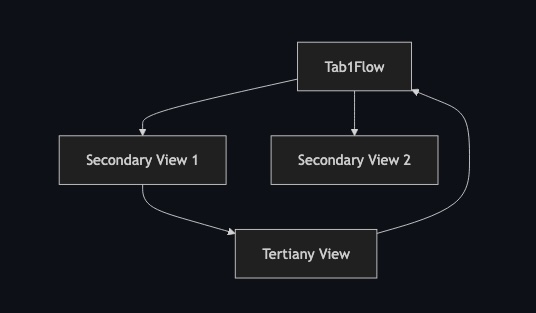
    The First Tab Flow is a flow coordinator that presents a Primary View with two buttons. These buttons navigate to either Secondary View 1 or Secondary View 2.

    • When Secondary View 2 appears, it includes a button that allows navigation to Tertiary View 1.
    • In Tertiary View 1, there is a button that returns directly to the Primary View or allows navigation back to the previous screen using the back button.
    • Secondary View 2 does not lead to any additional views; users can only return to the previous screen using the back button.

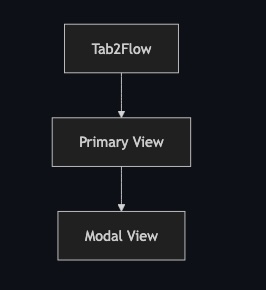
    The Second Tab Flow is managed by a Screen Coordinator, which presents a single screen with a button that opens a view model.

    • In this context, we consider the modal to be part of the view.
    • However, depending on the app’s design, the modal might instead be managed by the coordinator.

    Main Tab View

    This is the entry view point from the app:

    struct MainView: View {
        @StateObject private var tab1Coordinator = Tab1Coordinator()
        @StateObject private var tab2Coordinator = Tab2Coordinator()
    
        var body: some View {
            TabView {
                NavigationStack(path: $tab1Coordinator.path) {
                    tab1Coordinator.build(page: .primary)
                        .navigationDestination(for: Tab1Page.self) { page in
                            tab1Coordinator.build(page: page)
                        }
                }
                .tabItem {
                    Label("Tab 1", systemImage: "1.circle")
                }
    
                NavigationStack(path: $tab2Coordinator.path) {
                    tab2Coordinator.build(page: .primary)
                        .navigationDestination(for: Tab2Page.self) { page in
                            tab2Coordinator.build(page: page)
                        }
                }
                .tabItem {
                    Label("Tab 2", systemImage: "2.circle")
                }
            }
        }
    }

    The provided SwiftUI code defines a MainView with a TabView containing two tabs, each managed by its own coordinator (Tab1Coordinator and Tab2Coordinator). Each tab uses a NavigationStack bound to the coordinator’s path property to handle navigation. The coordinator’s build(page:) method constructs the appropriate views for both the root (.primary) and subsequent pages.

    The navigationDestination(for:) modifier ensures dynamic view creation based on the navigation stack, while the tabItem modifier sets the label and icon for each tab. This structure effectively decouples navigation logic from the view hierarchy, promoting modularity and ease of maintenance.

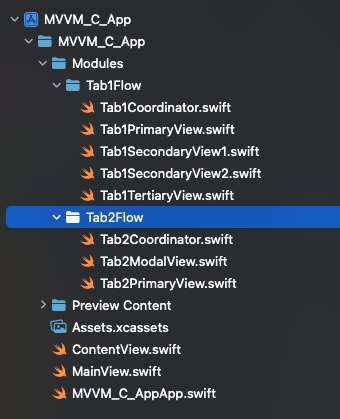
    Another key aspect is selecting an appropriate folder structure. The one I have chosen is as follows:

    Screenshot

    This may not be the best method, but it follows a protocol to prevent getting lost when searching for files.

    The flow coordinator

    The first structure we need to create is an enum that defines the screens included in the flow:

    enum Tab1Page: Hashable {
        case primary
        case secondary1
        case secondary2
        case tertiary
    }

    Hashable is not free; we need to push and pop those cases into a NavigationPath. The body of the coordinator is as follows:

    class Tab1Coordinator: ObservableObject {
        @Published var path = NavigationPath()
    
        func push(_ page: Tab1Page) {
            path.append(page)
        }
    
        func pop() {
            path.removeLast()
        }
    
        func popToRoot() {
            path.removeLast(path.count)
        }
    
        @ViewBuilder
           func build(page: Tab1Page) -> some View {
               switch page {
               case .primary:
                   Tab1PrimaryView(coordinator: self)
               case .secondary1:
                   Tab1SecondaryView1(coordinator: self)
               case .secondary2:
                   Tab1SecondaryView2()
               case .tertiary:
                   Tab1TertiaryView(coordinator: self)
               }
           }
    }

    The Tab1Coordinator class is an ObservableObject that manages navigation within a SwiftUI view hierarchy for a specific tab (Tab1). It uses a NavigationPath to track the navigation stack, allowing views to be pushed onto or popped from the stack through methods such as push(_:), pop(), and popToRoot(). The @Published property path ensures that any changes to the navigation stack are automatically reflected in the UI.

    The build(page:) method, marked with @ViewBuilder, constructs and returns the appropriate SwiftUI view (e.g., Tab1PrimaryView, Tab1SecondaryView1, Tab1SecondaryView2, or Tab1TertiaryView) based on the provided Tab1Page enum case. This approach enables dynamic navigation between views while maintaining a clean separation of concerns.

    The last section of the coordinator is the protocol implementation for the views presented by the coordinator. When a view has completed its work, it delegates the decision of which screen to present next to the coordinator. The coordinator is responsible for managing the navigation logic, not the view.

    extension Tab1Coordinator: Tab1PrimaryViewProtocol {
        func goToSecondary1() {
            push(.secondary1)
        }
        func goToSecondary2() {
            push(.secondary2)
        }
    }
    
    extension Tab1Coordinator: Tab1SecondaryView1Protocol {
        func goToTertiaryView() {
            push(.tertiary)
        }
    }
    
    extension Tab1Coordinator: Tab1TertiaryViewProtocol {
        func backToRoot() {
            self.popToRoot()
        }
    }
    

    This is the code from one of the views:

    import SwiftUI
    
    protocol Tab1PrimaryViewProtocol: AnyObject {
        func goToSecondary1()
        func goToSecondary2()
    }
    
    struct Tab1PrimaryView: View {
         let coordinator: Tab1PrimaryViewProtocol
        
            var body: some View {
                
                VStack {
                    Button("Go to Secondary 1") {
                        coordinator.goToSecondary1()
                    }
                    .padding()
    
                    Button("Go to Secondary 2") {
                        coordinator.goToSecondary2()
                    }
                    .padding()
                }
                .navigationTitle("Primary View")
            }
    }

    When the view doesn’t know how to proceed, it should call its delegate (the Coordinator) to continue.

    The screen coordinator

    The first structure we need to create is an enum that defines the screens in the flow:

    enum Tab2Page: Hashable {
        case primary
    }
    
    class Tab2Coordinator: ObservableObject {
        @Published var path = NavigationPath()
        
        @ViewBuilder
        func build(page: Tab2Page) -> some View {
            switch page {
            case .primary:
                Tab2PrimaryView(coordinator: self)
            }
        }
    }

    Hashable is not free; we need to push/pop these cases into a NavigationPath. The body of the coordinator is simply as follows:

    class Tab1Coordinator: ObservableObject {
        @Published var path = NavigationPath()
    
        func push(_ page: Tab1Page) {
            path.append(page)
        }
    
        func pop() {
            path.removeLast()
        }
    
        func popToRoot() {
            path.removeLast(path.count)
        }
    
        @ViewBuilder
           func build(page: Tab1Page) -> some View {
               switch page {
               case .primary:
                   Tab1PrimaryView(coordinator: self)
               case .secondary1:
                   Tab1SecondaryView1(coordinator: self)
               case .secondary2:
                   Tab1SecondaryView2()
               case .tertiary:
                   Tab1TertiaryView(coordinator: self)
               }
           }
    }

    The provided code defines a SwiftUI-based navigation structure for a tabbed interface. The Tab2Coordinator class is an ObservableObject that manages the navigation state using a NavigationPath, which is a state container for navigation in SwiftUI. The @Published property path allows the view to observe and react to changes in the navigation stack. The build(page:) method is a ViewBuilder that constructs the appropriate view based on the Tab2Page enum case. Specifically, when the page is .primary, it creates and returns a Tab2PrimaryView, passing the coordinator itself as a dependency.

    This approach is commonly used in SwiftUI apps to handle navigation between different views within a tab, promoting a clean separation of concerns and state management. The Tab2Page enum is marked as Hashable, which is required for it to work with NavigationPath.

    Conclusions

    Coordinator is a key component that allows to unload ViewModel or ViewModel logic for controlling navigation logic. I hope this post will help you to understand better this pattern.

    You can find the source code used for this post in the repository linked below.

    References

  • WebSockets Made Easy: Create a Simple Chat App in iOS

    WebSockets Made Easy: Create a Simple Chat App in iOS

    In this post, I will highlight how WebSockets enable real-time communication with minimal complexity. By leveraging WebSockets, developers can implement instant message delivery without relying on complex polling or delayed responses. This is crucial for providing a smooth user experience in chat applications. With iOS’s native support for WebSockets—such as URLSessionWebSocketTask—this post will demonstrate a simple, modern, and efficient solution for real-time messaging, while teaching developers essential skills like asynchronous communication and network management.

    In this tutorial, we will create a server using a Dockerized Node.js environment and two client applications: a simple HTML-JavaScript client and an iOS app WebSocket client.

    Websocket chat server

    To avoid confusion, let’s create a server folder to store all the necessary files. The first step is to create a new, blank Node.js project

    npm init -y
    Next setup library dependencies required.
    npm install ws express cors
    The libraries ws, express, and cors are installed on the server-side to provide essential functionalities for a modern web application. The ‘ws’ library enables WebSocket implementation in Node.js, allowing real-time bidirectional communication between clients and the server, which is crucial for chat applications. Express is a web application framework for Node.js that simplifies the creation of HTTP servers and route handling, making it easier to set up and manage the web application. Lastly, the ‘cors’ library is used to enable Cross-Origin Resource Sharing (CORS), a security mechanism that controls access to resources from different domains, ensuring that the server can safely interact with clients from various origins. Together, these libraries create a robust server capable of handling WebSocket connections, efficient HTTP routing, and secure cross-origin resource sharing.
    ‘server.js’ will contain our server code:
    const WebSocket = require('ws');
    const express = require('express');
    const cors = require('cors');
    
    const app = express();
    app.use(cors());
    
    const server = app.listen(8080, () => {
      console.log('Servidor HTTP escuchando en el puerto 8080');
    });
    
    const wss = new WebSocket.Server({ server });
    
    wss.on('connection', (ws) => {
      console.log('Cliente conectado');
    
      ws.on('message', (message) => {
        console.log(`Mensaje recibido: ${message}`);
        
        // Enviar el mensaje a todos los clientes conectados
        wss.clients.forEach((client) => {
          if (client.readyState === WebSocket.OPEN) {
            client.send(message.toString());
          }
        });
      });
    
      ws.on('close', () => {
        console.log('Cliente desconectado');
      });
    });
    
    This code sets up a WebSocket server integrated with an Express HTTP server running on port 8080. It allows real-time communication between the server and connected WebSocket clients. The server uses CORS middleware to handle cross-origin requests. When a client connects to the WebSocket server, a connection event is logged. The server listens for messages from the client, logs received messages, and broadcasts them to all connected clients that have an open WebSocket connection. It also logs when a client disconnects. This code facilitates bidirectional, real-time message distribution among multiple WebSocket clients.
    Lets dockerize the server, create ‘Dockerfile’:
    FROM node:14
    WORKDIR /usr/src/app
    COPY package*.json ./
    RUN npm install
    COPY . .
    EXPOSE 8080
    CMD ["node", "server.js"]
    This Dockerfile sets up a containerized environment for a Node.js application using the Node.js 14 image. It configures the working directory, copies application files and dependencies, installs the required Node.js packages, exposes port 8080 for the application, and specifies that server.js should run using Node.js when the container starts.
    Now is time to create docker image:
    docker build -t websocket-chat-server .

    Finally run the image:

    docker run -p 8080:8080 -d websocket-chat-server
    Screenshot

    For validating websocket server we will create an small html-javascript client:

    <!DOCTYPE html>
    <html>
    <body>
      <ul id="messages"></ul>
      <input type="text" id="messageInput" placeholder="Write a message">
      <button onclick="sendMessage()">Send</button>
    
      <script>
        const socket = new WebSocket('ws://localhost:8080');
    
        socket.onopen = function(event) {
          console.log('Setup connection', event);
        };
    
        socket.onmessage = function(event) {
          const messages = document.getElementById('messages');
          const li = document.createElement('li');
          li.textContent = event.data;
          messages.appendChild(li);
        };
    
        function sendMessage() {
          const input = document.getElementById('messageInput');
          const message = input.value;
          socket.send(message);
          input.value = '';
        }
      </script>
    </body>
    </html>

    This HTML code creates a basic web-based chat interface using WebSocket for real-time communication. It consists of an unordered list (<ul>) to display messages, an input field (<input>) for entering messages, and a «Send» button. The script establishes a WebSocket connection to a server at ws://localhost:8080. When the connection opens, a log message is displayed in the console. Incoming messages from the WebSocket server are dynamically added as list items (<li>) to the message list. When the «Send» button is clicked, the sendMessage function retrieves the user’s input, sends it to the server via the WebSocket, and clears the input field.

    Open file with your favourite browser:

    Screenshot

    Console log show that is properly connected and messages written are properly broadcasted

    websocket iOS Client

    We will follow the same design as we did with HTML and JavaScript:

    struct ContentView: View {
        @StateObject private var webSocketManager = WebSocketManager()
        @State private var messageText = ""
        
        var body: some View {
            VStack {
                List(webSocketManager.messages, id: \.self) { message in
                    Text(message)
                }
                
                HStack {
                    TextField("Enter message", text: $messageText)
                        .textFieldStyle(RoundedBorderTextFieldStyle())
                    
                    Button("Send") {
                        webSocketManager.send(messageText)
                        messageText = ""
                    }
                }.padding()
            }
            .onAppear {
                webSocketManager.connect()
            }
        }
    }
    Code defines a ContentView that interacts with a WebSocket connection to display and send messages in a real-time chat interface. It uses a WebSocketManager (assumed to handle WebSocket connections and messaging) as a @StateObject, ensuring it persists across view updates. The body consists of a VStack with a List that dynamically displays messages received via the WebSocket, and an input section with a TextField for composing messages and a Button to send them. When the button is pressed, the typed message is sent via the webSocketManager, and the input field is cleared. The onAppear modifier ensures that the WebSocket connection is initiated when the view appears on screen.
    Finally WebSocketManager is where all magic takes place:
    class WebSocketManager: ObservableObject {
        private var webSocketTask: URLSessionWebSocketTask?
        @Published var messages: [String] = []
        
        func connect() {
            let url = URL(string: "ws://localhost:8080")!
            webSocketTask = URLSession.shared.webSocketTask(with: url)
            webSocketTask?.resume()
            receiveMessage()
        }
        
        func send(_ message: String) {
            webSocketTask?.send(.string(message)) { error in
                if let error = error {
                    print("Error sending message: \(error)")
                }
            }
        }
        
        private func receiveMessage() {
            webSocketTask?.receive { result in
                switch result {
                case .failure(let error):
                    print("Error receiving message: \(error)")
                case .success(let message):
                    switch message {
                    case .string(let text):
                        DispatchQueue.main.async {
                            self.messages.append(text)
                        }
                    default:
                        break
                    }
                    self.receiveMessage()
                }
            }
        }
    }
    The WebSocketManager class manages a WebSocket connection and handles sending and receiving messages. It uses URLSessionWebSocketTask to connect to a WebSocket server at a specified URL (ws://localhost:8080) and maintains an observable array of received messages, messages, for use in SwiftUI or other reactive contexts. The connect method establishes the connection and starts listening for incoming messages using the private receiveMessage method, which recursively listens for new messages and appends them to the messages array on the main thread. The send method allows sending a string message over the WebSocket, with error handling for failures. This class encapsulates WebSocket communication in a way that supports reactive UI updates.
    Finally, place both front ends (iPhone and web client) side by side. If you followed the instructions, you should have a chat between them.

    Conclusions

    WebSocket is a server technology, distinct from REST APIs or GraphQL, that is particularly well-suited for real-time, bidirectional communication. It’s ideal for applications that require fast, continuous interactions, such as real-time chats, online games, and collaborative tools (e.g., Figma, Google Docs). I hope you enjoyed reading this as much as I enjoyed writing and programming it.

    You can find the source code used for this post in the repository linked below.

    References

  • Dynamic Forms in SwiftUI for variable section type

    Dynamic Forms in SwiftUI for variable section type

    When programming a form in SwiftUI, the typical case involves forms with a fixed number of fields. These are forms like the ones you use when registering on a website. However, this is not the only type of form you might encounter. Sometimes, you may need to create forms that collect data for multiple entities, and these entities might not always be of the same type. For example, consider forms for booking a train or flight ticket, where different sections might be required for passengers, payment, and additional services.

    The approach to implementing dynamic, variable-section forms is quite different, as it involves working with Dynamic Bindings. In this post, you’ll learn how to handle this complexity effectively. By the end of the post, you’ll find a link to a GitHub repository containing the base code for this project.

    Dynamic sample SwiftUI app

    The sample app follows the MVVM architecture and implements a form for managing multiple persons. Each person is represented as a separate section in the form, and they can either be an Adult or a Child. Adults have fields for name, surname, and email, while Children have fields for name, surname, and birthdate. Validation rules are implemented, such as ensuring that a child’s age is under 18 years and that email addresses follow the correct syntax.

    We are going to create a person form for 2 adults and 1 child:
    struct ContentView: View {
        @StateObject private var viewModel = DynamicFormViewModel(persons: [
            .adult(Adult(name: "Juan", surename: "Pérez", email: "juan.perez@example.com")),
            .child(Child(name: "Carlos", surename: "Gomez", birthdate: Date(timeIntervalSince1970: 1452596356))),
            .adult(Adult(name: "Ana", surename: "Lopez", email: "ana.lopez@example.com"))
        ])
        
        var body: some View {
            DynamicFormView(viewModel: viewModel)
        }
    }
    At this point in view model we start to see different things
    class DynamicFormViewModel: ObservableObject {
        @Published var persons: [SectionType]
    ...
        init(persons: [SectionType]) {
            self.persons = persons
        }
    ...
    }
    Instead of having one @published attribute per field we have have an array of SectionType. 
    struct Adult: Identifiable {
        var id = UUID()
        var name: String
        var surename: String
        var email: String
    }
    
    struct Child: Identifiable {
        var id = UUID()
        var name: String
        var surename: String
        var birthdate: Date
    }
    
    enum SectionType {
        case adult(Adult)
        case child(Child)
    }

    SectionType is an enum (struct)  that could be Adult or a Child. Our job in the View now will be to create a new binding to attach to the current form field that is being rendered:

    struct DynamicFormView: View {
        @StateObject var viewModel: DynamicFormViewModel
    
        var body: some View {
            Form {
                ForEach(Array(viewModel.persons.enumerated()), id: \.offset) { index, persona in
                    Section {
                        if let adultoBinding = adultBinding(for: index) {
                            AdultForm(adulto: adultoBinding)
                                .environmentObject(viewModel)
                        }
                        if let niñoBinding = childBinding(for: index) {
                            ChildForm(niño: niñoBinding)
                                .environmentObject(viewModel)
                        }
                    }
                }
            }
        }
    
        private func adultBinding(for index: Int) -> Binding<Adult>? {
            guard case .adult(let adult) = viewModel.persons[index] else { return nil }
            return Binding<Adult>(
                get: { adult },
                set: { newAdult in viewModel.persons[index] = .adult(newAdult) }
            )
        }
    
        private func childBinding(for index: Int) -> Binding<Child>? {
            guard case .child(let child) = viewModel.persons[index] else { return nil }
            return Binding<Child>(
                get: { child },
                set: { newChild in viewModel.persons[index] = .child(newChild) }
            )
        }
    }

    The DynamicFormView dynamically renders a SwiftUI form where each section corresponds to a person from a DynamicFormViewModel‘s persons array, which contains enums distinguishing adults and children. Using helper methods, it creates Binding objects to provide two-way bindings for either an AdultForm or ChildForm based on the person’s type. These forms allow editing of the Adult or Child data directly in the view model. By leveraging SwiftUI’s ForEach, conditional views, and @EnvironmentObject, the view efficiently handles heterogeneous collections and updates the UI in response to changes.

    struct DynamicFormView: View {
        @StateObject var viewModel: DynamicFormViewModel
    
        var body: some View {
            Form {
                ForEach(Array(viewModel.persons.enumerated()), id: \.offset) { index, persona in
                    Section {
                        if let adultoBinding = adultBinding(for: index) {
                            AdultForm(adulto: adultoBinding)
                                .environmentObject(viewModel)
                        }
                        if let niñoBinding = childBinding(for: index) {
                            ChildForm(niño: niñoBinding)
                                .environmentObject(viewModel)
                        }
                    }
                }
            }
        }
    
        private func adultBinding(for index: Int) -> Binding<Adult>? {
            guard case .adult(let adult) = viewModel.persons[index] else { return nil }
            return Binding<Adult>(
                get: { adult },
                set: { newAdult in viewModel.persons[index] = .adult(newAdult) }
            )
        }
    
        private func childBinding(for index: Int) -> Binding<Child>? {
            guard case .child(let child) = viewModel.persons[index] else { return nil }
            return Binding<Child>(
                get: { child },
                set: { newChild in viewModel.persons[index] = .child(newChild) }
            )
        }
    }

    Finally, the implementation of AdultSectionForm (and ChildSectionForm) is nothing special and not commonly encountered in standard SwiftUI form development.

    struct AdultSectionForm: View {
        @Binding var adulto: Adult
        @EnvironmentObject var viewModel: DynamicFormViewModel
        
        var body: some View {
            VStack(alignment: .leading) {
                TextField("Name", text: $adulto.name)
                    .onChange(of: adulto.name) { newValue, _ in
                        viewModel.validateName(adultoId: adulto.id, nombre: newValue)
                    }
                if let isValid = viewModel.validName[adulto.id], !isValid {
                    Text("Name cannot be empty.")
                        .foregroundColor(.red)
                }
                
                TextField("Surename", text: $adulto.surename)
                
                TextField("Email", text: $adulto.email)
                    .onChange(of: adulto.email) { newValue, _ in
                        viewModel.validateEmail(adultoId: adulto.id, email: newValue)
                    }
                if let isValido = viewModel.validEmail[adulto.id], !isValido {
                    Text("Not valid email")
                        .foregroundColor(.red)
                }
            }
        }
    }

    Conclusions

    Handling dynamic forms in SwiftUI is slightly different from what is typically explained in books or basic tutorials. While it isn’t overly complicated, it does require a clear understanding, especially when implementing a form with such characteristics.

    In this post, I have demonstrated a possible approach to implementing dynamic forms. You can find the source code used for this post in the repository linked below.

    References

  • Agnostic Swift Data

    Agnostic Swift Data

    One of the most shocking experiences I encountered as an iOS developer was working with Core Data, now known as Swift Data. While there are many architectural patterns for software development, I have rarely seen an approach that combines view logic with database access code. Separating data access from the rest of the application has several advantages: it centralizes all data operations through a single access point, facilitates better testing, and ensures that changes to the data access API do not impact the rest of the codebase—only the data access layer needs adaptation.

    Additionally, most applications I’ve worked on require some level of data processing before presenting information to users. While Apple excels in many areas, their examples of how to use Core Data or Swift Data do not align well with my daily development needs. This is why I decided to write a post demonstrating how to reorganize some components to better suit these requirements.

    In this post, we will refactor a standard Swift Data implementation by decoupling Swift Data from the View components.

    Custom Swift Data

    The Starting Point sample app is an application that manages a persisted task list using Swift Data.
    import SwiftUI
    import SwiftData
    
    struct TaskListView: View {
        @Environment(\.modelContext) private var modelContext
        @Query var tasks: [TaskDB]
    
        @State private var showAddTaskView = false
    
        var body: some View {
            NavigationView {
                List {
                    ForEach(tasks) { task in
                        HStack {
                            Text(task.title)
                                .strikethrough(task.isCompleted, color: .gray)
                            Spacer()
                            Button(action: {
                                task.isCompleted.toggle()
                                try? modelContext.save()
                            }) {
                                Image(systemName: task.isCompleted ? "checkmark.circle.fill" : "circle")
                            }
                            .buttonStyle(BorderlessButtonStyle())
                        }
                    }
                    .onDelete(perform: deleteTasks)
                }
                .navigationTitle("Tasks")
                .toolbar {
                    ToolbarItem(placement: .navigationBarTrailing) {
                        Button(action: { showAddTaskView = true }) {
                            Image(systemName: "plus")
                        }
                    }
                }
                .sheet(isPresented: $showAddTaskView) {
                    AddTaskView()
                }
            }
        }
    
        private func deleteTasks(at offsets: IndexSet) {
            for index in offsets {
                modelContext.delete(tasks[index])
            }
            try? modelContext.save()
        }
    }

    As observed in the code above, the view code is intertwined with data access logic (Swift Data). While the code is functioning correctly, there are several concerns:

    1. Framework Dependency: If the framework changes, will all the views using this framework need to be updated?
    2. Unit Testing: Are there existing unit tests to validate CRUD operations on the database?
    3. Debugging Complexity: If I need to debug when a record is added, do I need to set breakpoints across all views to identify which one is performing this task?
    4. Code Organization: Is database-related logic spread across multiple project views?

    Due to these reasons, I have decided to refactor the code.

    Refactoring the app

    This is a sample app, so I will not perform a strict refactor. Instead, I will duplicate the views to include both approaches within the same app, allowing cross-CRUD operations between the two views.

    @main
    struct AgnosticSwiftDataApp: App {
        var body: some Scene {
            WindowGroup {
                TabView {
                    TaskListView()
                        .tabItem {
                        Label("SwiftData", systemImage: "list.dash")
                    }
                        .modelContainer(for: [TaskDB.self])
                    AgnosticTaskListView()
                        .tabItem {
                        Label("Agnostic", systemImage: "list.dash")
                    }
                }
            }
        }
    }
    

    First of all we are going to create a component that handles all DB operations:

    import SwiftData
    import Foundation
    
    @MainActor
    protocol DBManagerProtocol {
        func addTask(_ task: Task)
        func updateTask(_ task: Task)
        func removeTask(_ task: Task)
        func fetchTasks() -> [Task]
    }
    
    @MainActor
    class DBManager: NSObject, ObservableObject {
    
        @Published var tasks: [Task] = []
    
    
        static let shared = DBManager()
    
        var modelContainer: ModelContainer? = nil
    
        var modelContext: ModelContext? {
            modelContainer?.mainContext
        }
    
        private init(isStoredInMemoryOnly: Bool = false) {
            let configurations = ModelConfiguration(isStoredInMemoryOnly: isStoredInMemoryOnly)
            do {
                modelContainer = try ModelContainer(for: TaskDB.self, configurations: configurations)
            } catch {
                fatalError("Failed to initialize ModelContainer: \(error)")
            }
        }
    }
    
    extension DBManager: DBManagerProtocol {
    
        func removeTask(_ task: Task) {
            guard let modelContext,
                let taskDB = fetchTask(by: task.id) else { return }
    
            modelContext.delete(taskDB)
    
            do {
                try modelContext.save()
            } catch {
                print("Error on deleting task: \(error)")
            }
        }
    
        func updateTask(_ task: Task) {
            guard let modelContext,
                let taskDB = fetchTask(by: task.id) else { return }
    
            taskDB.title = task.title
            taskDB.isCompleted = task.isCompleted
    
            do {
                try modelContext.save()
            } catch {
                print("Error on updating task: \(error)")
            }
            return
        }
    
        private func fetchTask(by id: UUID) -> TaskDB? {
            guard let modelContext else { return nil }
    
            let predicate = #Predicate<TaskDB> { task in
                task.id == id
            }
    
            let descriptor = FetchDescriptor<TaskDB>(predicate: predicate)
    
            do {
                let tasks = try modelContext.fetch(descriptor)
                return tasks.first
            } catch {
                print("Error fetching task: \(error)")
                return nil
            }
        }
    
        func addTask(_ task: Task) {
            guard let modelContext else { return }
            let taskDB = task.toTaskDB()
            modelContext.insert(taskDB)
            do {
                try modelContext.save()
                tasks = fetchTasks()
            } catch {
                print("Error addig tasks: \(error.localizedDescription)")
            }
        }
    
        func fetchTasks() -> [Task] {
            guard let modelContext else { return [] }
    
            let fetchRequest = FetchDescriptor<TaskDB>()
    
            do {
                let tasksDB = try modelContext.fetch(fetchRequest)
                tasks = tasksDB.map { .init(taskDB: $0) }
                return tasks 
            } catch {
                print("Error fetching tasks: \(error.localizedDescription)")
                return []
            }
        }
    
        func deleteAllData() {
            guard let modelContext else { return }
            do {
                try modelContext.delete(model: TaskDB.self)
            } catch {
                print("Error on removing all data: \(error)")
            }
            tasks = fetchTasks()
        }
    }
    

    In a single, dedicated file, all database operations are centralized. This approach offers several benefits:

    • If the framework changes, only the function responsible for performing the database operations needs to be updated.
    • Debugging is simplified. To track when a database operation occurs, you only need to set a single breakpoint in the corresponding function.
    • Unit testing is more effective. Each database operation can now be tested in isolation.
    import Foundation
    import Testing
    import SwiftData
    @testable import AgnosticSwiftData
    
    extension DBManager {
        func setMemoryStorage(isStoredInMemoryOnly: Bool) {
            let configurations = ModelConfiguration(isStoredInMemoryOnly: isStoredInMemoryOnly)
            do {
                modelContainer = try ModelContainer(for: TaskDB.self, configurations: configurations)
            } catch {
                fatalError("Failed to initialize ModelContainer: \(error)")
            }
        }
    }
    
    @Suite("DBManagerTests", .serialized)
    struct DBManagerTests {
        
        func getSUT() async throws -> DBManager {
            let dbManager = await DBManager.shared
            await dbManager.setMemoryStorage(isStoredInMemoryOnly: true)
            await dbManager.deleteAllData()
            return dbManager
        }
        
        @Test("Add Task")
        func testAddTask() async throws {
            let dbManager = try await getSUT()
            let task = Task(id: UUID(), title: "Test Task", isCompleted: false)
            
            await dbManager.addTask(task)
            
            let fetchedTasks = await dbManager.fetchTasks()
            #expect(fetchedTasks.count == 1)
            #expect(fetchedTasks.first?.title == "Test Task")
            
            await #expect(dbManager.tasks.count == 1)
            await #expect(dbManager.tasks[0].title == "Test Task")
            await #expect(dbManager.tasks[0].isCompleted == false)
        }
        
        @Test("Update Task")
        func testUpateTask() async throws {
            let dbManager = try await getSUT()
            let task = Task(id: UUID(), title: "Test Task", isCompleted: false)
            await dbManager.addTask(task)
            
            let newTask = Task(id: task.id, title: "Updated Task", isCompleted: true)
            await dbManager.updateTask(newTask)
            
            let fetchedTasks = await dbManager.fetchTasks()
            #expect(fetchedTasks.count == 1)
            #expect(fetchedTasks.first?.title == "Updated Task")
            #expect(fetchedTasks.first?.isCompleted == true)
            
            await #expect(dbManager.tasks.count == 1)
            await #expect(dbManager.tasks[0].title == "Updated Task")
            await #expect(dbManager.tasks[0].isCompleted == true)
        }
        
        @Test("Delete Task")
        func testDeleteTask() async throws {
            let dbManager = try await getSUT()
            let task = Task(id: UUID(), title: "Test Task", isCompleted: false)
            await dbManager.addTask(task)
            
            await dbManager.removeTask(task)
            
            let fetchedTasks = await dbManager.fetchTasks()
            #expect(fetchedTasks.isEmpty)
            
            await #expect(dbManager.tasks.isEmpty)
        }


        @Test("Fetch Tasks")
        func testFetchTasks() async throws {
            let dbManager = try await getSUT()
            let task1 = Task(id: UUID(), title: "Task 1", isCompleted: false)
            let task2 = Task(id: UUID(), title: "Task 2", isCompleted: true)
            
            await dbManager.addTask(task1)
            await dbManager.addTask(task2)
            
            let fetchedTasks = await dbManager.fetchTasks()
            #expect(fetchedTasks.count == 2)
            #expect(fetchedTasks.contains { $0.title == "Task 1" })
            #expect(fetchedTasks.contains { $0.title == "Task 2" })
            
            await #expect(dbManager.tasks.count == 2)
            await #expect(dbManager.tasks[0].title == "Task 1")
            await #expect(dbManager.tasks[0].isCompleted == false)
            await #expect(dbManager.tasks[1].title == "Task 2")
            await #expect(dbManager.tasks[1].isCompleted == true)
        }
    
        @Test("Delete All Data")
        func testDeleteAllData() async throws {
            let dbManager = try await getSUT()
            let task = Task(id: UUID(), title: "Test Task", isCompleted: false)
            
            await dbManager.addTask(task)
            await dbManager.deleteAllData()
            
            let fetchedTasks = await dbManager.fetchTasks()
            #expect(fetchedTasks.isEmpty)
            
            await #expect(dbManager.tasks.isEmpty)
        }
        
        @Test("Model Context Nil")
        @MainActor
        func testModelContextNil() async throws {
            let dbManager = try await getSUT()
            dbManager.modelContainer = nil
            
            dbManager.addTask(Task(id: UUID(), title: "Test", isCompleted: false))
            #expect(try dbManager.fetchTasks().isEmpty)
            
            #expect(dbManager.tasks.count == 0)
        }
        
    }
    

    And this is the view:

    import SwiftUI
    
    struct AgnosticTaskListView: View {
        @StateObject private var viewModel: AgnosticTaskLlistViewModel = .init()
        
        @State private var showAddTaskView = false
        
        var body: some View {
            NavigationView {
                List {
                    ForEach(viewModel.tasks) { task in
                        HStack {
                            Text(task.title)
                                .strikethrough(task.isCompleted, color: .gray)
                            Spacer()
                            Button(action: {
                                viewModel.toogleTask(task: task)
                            }) {
                                Image(systemName: task.isCompleted ? "checkmark.circle.fill" : "circle")
                            }
                            .buttonStyle(BorderlessButtonStyle())
                        }
                    }
                    .onDelete(perform: deleteTasks)
                }
                .navigationTitle("Tasks")
                .toolbar {
                    ToolbarItem(placement: .navigationBarTrailing) {
                        Button(action: { showAddTaskView = true }) {
                            Image(systemName: "plus")
                        }
                    }
                }
                .sheet(isPresented: $showAddTaskView) {
                    AddTaskViewA()
                        .environmentObject(viewModel)
                }
            }.onAppear {
                viewModel.fetchTasks()
            }
        }
        
        private func deleteTasks(at offsets: IndexSet) {
            viewModel.removeTask(at: offsets)
        }
    }

    SwiftData is not imported, nor is the SwiftData API used in the view. To refactor the view, I adopted the MVVM approach. Here is the ViewModel:

    import Foundation
    
    @MainActor
    protocol AgnosticTaskLlistViewModelProtocol {
        func addTask(title: String)
        func removeTask(at offsets: IndexSet)
        func toogleTask(task: Task)
    }
    
    @MainActor
    final class AgnosticTaskLlistViewModel: ObservableObject {
        @Published var tasks: [Task] = []
        
        let dbManager = appSingletons.dbManager
        
        init() {
            dbManager.$tasks.assign(to: &$tasks)
        }
    }
    
    extension AgnosticTaskLlistViewModel: AgnosticTaskLlistViewModelProtocol {
        func addTask(title: String) {
            let task = Task(title: title)
            dbManager.addTask(task)
        }
        
        func removeTask(at offsets: IndexSet) {
            for index in offsets {
                dbManager.removeTask(tasks[index])
            }
        }
        
        func toogleTask(task: Task) {
            let task = Task(id: task.id, title: task.title, isCompleted: !task.isCompleted)
            dbManager.updateTask(task)
        }
        
        func fetchTasks() {
            _ = dbManager.fetchTasks()
        }
    }

    The ViewModel facilitates database operations to be consumed by the view. It includes a tasks list, a published attribute that is directly linked to the @Published DBManager.tasks attribute.

    Finally the resulting sample project looks like:

    Conclusions

    In this post, I present an alternative approach to handling databases with Swift Data, different from what Apple offers. Let me clarify: Apple creates excellent tools, but this framework does not fully meet my day-to-day requirements for local data persistence in a database.

    You can find source code used for writing this post in following repository.

    References

  • watchOS App for Health Monitoring Essentials

    watchOS App for Health Monitoring Essentials

    Creating a WatchOS app that initiates workout sessions and retrieves heart rate and calories burned is an exciting opportunity to bridge the gap between health tech and software development. With the growing interest in wearable technology and fitness tracking, such a guide provides practical value by teaching developers how to leverage WatchOS-specific APIs like HealthKit and WorkoutKit. It offers a hands-on project that appeals to diverse audiences, from aspiring developers to fitness entrepreneurs, while showcasing real-world applications and fostering innovation in health monitoring. By sharing this knowledge, you not only empower readers to build functional apps but also inspire them to explore new possibilities in the intersection of technology and wellness

    Blank watchOS app

    We are going to create a blank, ready-to-deploy watchOS app. A very essential point is to have access to an Apple Watch for validating the steps explained in this post. In my case, I am using an Apple Watch Series 9. Now, open Xcode and create a new blank project.

    And select ‘watchOS’ and ‘App’. To avoid overloading the sample project with unnecessary elements for the purpose of this post, choose ‘Watch-only App’.
    Add signing capabilities for using Healthkit.

    The CaloriesBurner target serves as the main wrapper for your project, enabling you to submit it to the App Store. The CaloriesBurner Watch App target is specifically designed for building the watchOS app. This app bundle includes the watchOS app’s code and assets.

    Finally, navigate to the Build Settings for the CaloriesBurner Watch App target and set the HealthShareUsageDescription and HealthUpdateUsageDescription fields with appropriate description messages.

    We must not forget to prepare the app for Swift 6.0. Set ‘Swift Concurrency Checking’ to ‘Complete’.

    … and set Swift Language Version.

    Before proceeding with deployment and verifying that the app is displayed properly on a real Apple Watch device, ensure that development mode is enabled on the device.

    Request authorization

    HealthKit requires explicit user consent to access or share specific types of health information, ensuring users have full control over their data and its usage. It requests user permission to read data such as heart rate and active energy burned, and to write workout data to HealthKit.

        func requestAuthorization() async {
            let typesToShare: Set = [HKObjectType.workoutType()]
            let typesToRead: Set = [HKObjectType.quantityType(forIdentifier: .heartRate)!, HKObjectType.quantityType(forIdentifier: .activeEnergyBurned)!]
    
            do {
                try await healthStore.requestAuthorization(toShare: typesToShare, read: typesToRead)
                internalWorkoutSessionState = .notStarted
            } catch {
                internalWorkoutSessionState = .needsAuthorization
            }
        }

    If authorization succeeds, the internal state (internalWorkoutSessionState) is updated to .notStarted, indicating readiness for a workout session.

    Ensure that requestAuthorization is called when the view is presented, but only once.

    struct ContentView: View {
        @StateObject var healthkitManager = appSingletons.healthkitManager
        var body: some View {
            VStack {
               ...
            }
            .padding()
            .task {
                Task {
                    await healthkitManager.requestAuthorization()
                }
            }
        }
    }

    Build and deploy…

    On starting the app, watchOS will request your permission to access the app, your heart rate, and calories burned during workouts.

    Workout sample application

    Once the app is properly configured and granted all the necessary permissions to request health data, it is ready to start a workout session. To initiate a session, the app provides a button labeled «Start». When the user presses this button, the session begins, displaying the user’s heart rate and tracking the calories burned in real time.

    When the user presses the Start button, the HealthkitManager.startWorkoutSession method is called:

        func startWorkoutSession() async {
            guard session == nil, timer == nil else { return }
    
            guard HKHealthStore.isHealthDataAvailable() else {
                print("HealthKit is not ready on this device")
                return
            }
    
            let configuration = HKWorkoutConfiguration()
            configuration.activityType = .running
            configuration.locationType = .outdoor
    
            do {
                session = try HKWorkoutSession(healthStore: healthStore, configuration: configuration)
                session?.delegate = self
    
                builder = session?.associatedWorkoutBuilder()
                builder?.dataSource = HKLiveWorkoutDataSource(healthStore: healthStore, workoutConfiguration: configuration)
                builder?.delegate = self
                session?.startActivity(with: Date())
    
                do {
                    try await builder?.beginCollection(at: Date())
                } catch {
                    print("Error starting workout collection: \(error.localizedDescription)")
                    session?.end()
                    internalWorkoutSessionState = .needsAuthorization
                }
    
                internalWorkoutSessionState = .started
            } catch {
                print("Error creating session or builder: \(error.localizedDescription)")
                session = nil
            }
        }

    To retrieve the heart rate and calories burned, the HealthKitManager must implement the HKLiveWorkoutBuilderDelegate protocol.

    extension HealthkitManager: HKLiveWorkoutBuilderDelegate {
        nonisolated func workoutBuilderDidCollectEvent(_ workoutBuilder: HKLiveWorkoutBuilder) {
            print("Workout event collected.")
        }
    
        func workoutBuilder(_ workoutBuilder: HKLiveWorkoutBuilder, didCollectDataOf types: Set<HKSampleType>) {
            for type in types {
                if let quantityType = type as? HKQuantityType, quantityType == HKQuantityType.quantityType(forIdentifier: .heartRate) {
                    handleHeartRateData(from: workoutBuilder)
                }
                if let quantityType = type as? HKQuantityType, quantityType == HKQuantityType.quantityType(forIdentifier: .activeEnergyBurned) {
                    handleActiveEnergyData(from: workoutBuilder)
                }
            }
        }
    
        private func handleHeartRateData(from builder: HKLiveWorkoutBuilder) {
            if let statistics = builder.statistics(for: HKQuantityType.quantityType(forIdentifier: .heartRate)!) {
                let heartRateUnit = HKUnit(from: "count/min")
                if let heartRate = statistics.mostRecentQuantity()?.doubleValue(for: heartRateUnit) {
                    print("Heart rate: \(heartRate) BPM")
                    internalHeartRate = "\(heartRate) BPM"
                }
            }
        }
    
        private func handleActiveEnergyData(from builder: HKLiveWorkoutBuilder) {
            if let statistics = builder.statistics(for: HKQuantityType.quantityType(forIdentifier: .activeEnergyBurned)!) {
                let energyUnit = HKUnit.kilocalorie()
                if let activeEnergy = statistics.sumQuantity()?.doubleValue(for: energyUnit) {
                    print("Active Energy Burned: \(activeEnergy) kcal")
                    internalCaloriesBurned = String(format: "%.2f kcal", activeEnergy)
                }
            }
        }
    }

    This code defines a HealthkitManager that integrates with Apple HealthKit to track live workout data, specifically heart rate and active energy burned during a workout. It uses the HKLiveWorkoutBuilderDelegate to monitor real-time workout events and data collection. The delegate method workoutBuilder(_:didCollectDataOf:) processes types of health data, focusing on heart rate and active energy burned, which are handled by respective private methods (handleHeartRateData and handleActiveEnergyData). These methods retrieve and print the latest values from HealthKit and store them internally. A workout session is configured for running (outdoor) using HKWorkoutConfiguration, and a live workout builder is initialized to collect data. The session and builder are started with error handling for initialization and data collection failures, and internal states are updated to track the workout’s progress. This setup enables live monitoring and analysis of health metrics during a workout.

    For stoping workout session responsible code is folloing:

        func stopWorkoutSession() async {
            guard let session else { return }
            session.end()
            do {
                try await builder?.endCollection(at: Date())
            } catch {
                print("Error on ending data collection: \(error.localizedDescription)")
            }
            do {
                try await builder?.finishWorkout()
            } catch {
                print("Error on ending training: \(error.localizedDescription)")
            }
    
            internalWorkoutSessionState = .ended
        }

    The stopWorkoutSession function is a method that terminates a workout session by first ensuring the session object is non-nil and calling its end method. It then attempts to asynchronously stop data collection (endCollection) and finish the workout (finishWorkout) using the optional builder object, handling any errors in do-catch blocks to log failures without interrupting execution. Finally, it updates the internal state (internalWorkoutSessionState) to .ended, ensuring the session is marked as concluded within the app’s logic. This function manages state, error handling, and asynchronous operations crucial for gracefully ending a workout session in a fitness tracking app.

    To see all of this in action, I have prepared the following video:

    After requesting permission for having access to health data and press start button, heart beat is presented along with the calories burned since user pressed the button.

    Conclusions

    In this post, I have demonstrated how to set up a watchOS app and configure HealthKit to display heart rate and calories burned. You can find the source code used for this post in the repository linked below.

    References

  • Bridging  Data Transfer from WKWebView to iOS

    Bridging Data Transfer from WKWebView to iOS

    The aim of this post is to bridge the gap between web technologies and native iOS development by enabling data transfer from the web side to the app. In some native apps, it is common to have a WebView control rendering web content, and it is not unusual for the app to require data from the web content for further tasks.

    In this post, we simulate a local web server using a Docker container running an HTML+JavaScript page that displays a button. When the button is pressed, a message is sent and captured by the app.

    Web content and web server

    Web content is basically this HTML+JavaScript code:
    <!DOCTYPE html>
    <html lang="en">
    <head>
        <meta charset="UTF-8">
        <meta name="viewport" content="width=device-width, initial-scale=1.0">
        <title>Communication with SwiftUI</title>
    </head>
    <body>
        <h1>Hello world!</h1>
        <p>This is a HTML page served from a Docker container with Nginx.</p>
        <button id="sendDataBtn">Send Data to App</button>
    
        <script>
            document.getElementById("sendDataBtn").addEventListener("click", function() {
                var data = "Hello from JavaScript!";
                // Send data to the native app
                window.webkit.messageHandlers.callbackHandler.postMessage(data);
            });
        </script>
    </body>
    </html>

     When the button is pressed, a message such as «Hello from JavaScript!» or any custom text of your choice is sent to the app.

    To serve this page, I have chosen Docker. Docker is an open-source platform that allows developers to automate the deployment, scaling, and management of applications within lightweight, portable containers. Containers encapsulate an application and its dependencies, ensuring consistent behavior across different environments, from development to production.

    By providing an isolated and reproducible environment, Docker resolves the classic «it works on my machine» issue. It enhances development efficiency, simplifies deployment processes, and streamlines testing, making it easier to scale and maintain applications across various systems or cloud infrastructures.

    Docker is a fascinating topic! If you’re unfamiliar with it, I highly recommend exploring some tutorials. At the end of this post, I’ve included a list of helpful references.

    Below is the Dockerfile we created to build the Docker image:

    # Nginx base image
    FROM nginx:alpine
    
    # Copy HTML file into container
    COPY index.html /usr/share/nginx/html/index.html
    
    # Expose port 80 (defect port for Nginx)
    EXPOSE 80
    

    This Dockerfile creates a Docker image that serves an HTML file using Nginx on a lightweight Alpine Linux base. Here’s a breakdown of each line:

    1. FROM nginx:alpine:
      This line specifies the base image to use for the Docker container. It uses the official nginx image with the alpine variant, which is a minimal version of Nginx built on the Alpine Linux distribution. This results in a small and efficient image for running Nginx.

    2. COPY index.html /usr/share/nginx/html/index.html:
      This line copies the index.html file from your local directory (where the Dockerfile is located) into the container’s filesystem. Specifically, it places the index.html file into the directory where Nginx serves its static files (/usr/share/nginx/html/). This file will be accessible when the container runs, and Nginx will serve it as the default webpage.

    3. EXPOSE 80:
      This instruction tells Docker that the container will listen on port 80, which is the default port for HTTP traffic. It doesn’t actually publish the port but serves as documentation for which port the container expects to use when run. This is helpful for networking and linking with other containers or exposing the container’s services to the host machine.

    To create the Docker image, open a terminal window in the directory containing the Dockerfile and run:

    $ docker build -t web-server .

    The command docker build -t web-server . builds a Docker image from the Dockerfile in the current directory (.). The resulting image is tagged with the name web-server.

    The web content has been embedded within the image. Therefore, if you modify the content, you will need to recreate the image.

    The next step is to run the container. In the context of programming, a container can be likened to creating an instance of an object.
    $ docker run -d -p 8080:80 web-server

    The command runs a Docker container in detached mode (-d) using the image web-server. It maps port 8080 on the host machine to port 80 inside the container (-p 8080:80)

    The container is now running. Open your favorite web browser and navigate to the following URL: ‘http://localhost:8080‘. The web content should load and be displayed.

    The iOS app

    iOS App basically presents a WebView controller:

    struct ContentView: View {
        @State private var messageFromJS: String = ""
        @State private var showAlert = false
        
        var body: some View {
            VStack {
                
                WebView(url: URL(string: "http://localhost:8080/")!) { message in
                    messageFromJS = message
                }
                .frame(maxWidth: .infinity, maxHeight: .infinity)
            }
            .onChange(of: messageFromJS) {
                showAlert.toggle()
            }
            .alert(isPresented: $showAlert) {
                Alert(
                    title: Text("Message from JavaScript:"),
                    message: Text("\(messageFromJS)"),
                    dismissButton: .default(Text("OK"))
                )
            }
        }
    }

    If we take a look at WebView:

    import SwiftUI
    import WebKit
    
    struct WebView: UIViewRepresentable {
        var url: URL
        var onMessageReceived: (String) -> Void // Closure to handle messages from JS
    
        class Coordinator: NSObject, WKScriptMessageHandler {
            var parent: WebView
    
            init(parent: WebView) {
                self.parent = parent
            }
    
            // This method is called when JS sends a message to native code
            func userContentController(_ userContentController: WKUserContentController, didReceive message: WKScriptMessage) {
                if message.name == "callbackHandler" {
                    if let messageBody = message.body as? String {
                        parent.onMessageReceived(messageBody)
                    }
                }
            }
        }
    
        func makeCoordinator() -> Coordinator {
            return Coordinator(parent: self)
        }
    
        func makeUIView(context: Context) -> WKWebView {
            let configuration = WKWebViewConfiguration()
            configuration.userContentController.add(context.coordinator, name: "callbackHandler")
    
            let webView = WKWebView(frame: .zero, configuration: configuration)
            webView.load(URLRequest(url: url))
            return webView
        }
    
        func updateUIView(_ uiView: WKWebView, context: Context) {
            // No need to update the WebView in this case
        }
    }

    The code defines a WebView struct that integrates a WKWebView (a web view) into a SwiftUI interface. The WebView struct conforms to the UIViewRepresentable protocol, allowing it to present UIKit components within SwiftUI. A custom coordinator class (Coordinator) is set up to handle messages sent from JavaScript running inside the web view. Specifically, when JavaScript sends a message using the name "callbackHandler", the userContentController(_:didReceive:) method is triggered. This method passes the message to a closure (onMessageReceived) provided by the WebView, enabling custom handling of the message.

    The makeUIView method creates and configures the WKWebView, including loading a specified URL to display the desired web content. When the project is deployed in a simulator, the web content is rendered properly, demonstrating the effectiveness of this integration.

    This implementation provides a powerful way to integrate web content into a SwiftUI application, enabling dynamic interaction between SwiftUI and JavaScript.

    When we press the ‘Send Data to App’ button:

    Is presented an alert with the message sent from web content.

    Conclusions

    In this post, I have preseted a way to pass information from web to iOS App. In this app we have transfered non-sensitive information because passing information from web content in a WebView to an iOS app poses several security risks, including Cross-Site Scripting (XSS) attacks, data leakage, injection attacks, unauthorized file system access, URL scheme abuse, and mixed content issues. These vulnerabilities can lead to unauthorized access to user data, compromise of app integrity, and exposure of sensitive information. To mitigate these risks, developers should use WKWebView, implement input sanitization, enforce content security policies, use HTTPS, disable unnecessary JavaScript execution, and properly configure WebView restrictions. By adhering to these security practices, developers can significantly reduce the attack surface and enhance the overall security of their iOS applications.

    You can find source code used for writing this post in following repository.

    References