Etiqueta: Architecture

  • Dockerizing a C Component with Vapor

    Dockerizing a C Component with Vapor

    In our previous posts, we explained how to run an ANSI C component on iOS and Android. This time, we are moving to a backend platform using Vapor.

    This post covers the necessary add-ons for the C code and details how to configure a Vapor project to implement a service that consumes the exported component functionality. This setup will allow you to develop and debug the backend locally. Finally, I will explain how to deploy the backend using Docker.

    The Core ANSI C Functionality

    Our goal is to cross-compile and export this ANSI C functionality beyond iOS and Android to include a Vapor-based backend server.

    #include "core_component.h"
    #include <stdio.h>
    
    /**
     * Gets the version in X.Y.Z format.
     * * @param out_version Pointer to the buffer where the version string will be stored.
     * @param max_len     Maximum size of the buffer.
     * @return            0 if successful, or -1 if the buffer is too small.
     */
    int getVersion(char *out_version, size_t max_len) {
        /* Simulated version numbers */
        int major = 1;
        int minor = 4;
        int patch = 12;
        
        /* Safely format the string and prevent buffer overflows */
        int written = snprintf(out_version, max_len, "%d.%d.%d", major, minor, patch);
    
        /* Check if the string was truncated or if an encoding error occurred */
        if (written < 0 || (size_t)written >= max_len) {
            return VERSION_ERR_INSUFFICIENT_BUF; 
        }
    
        return VERSION_SUCCESS; 
    }

    Create a blank Vapor Backend project

    To create a blank Vapor sample project, follow these steps:
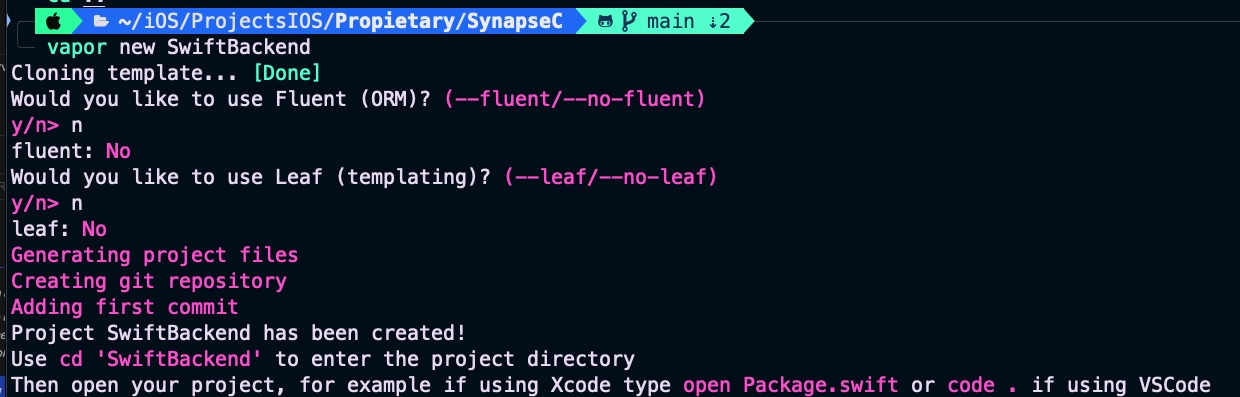
    Screenshot

    For our purposes, we do not need an ORM, database support, or Leaf HTML rendering.

    Setting Up the ANSI C Component for Vapor

    The philosophy behind this series of posts is to share the same functionality across multiple platforms without ever sharing the underlying source code. The following script provides the ANSI C binaries for the Vapor backend server:

    #!/bin/bash
    
    # Stop the script if any error occurs
    set -e
    
    echo "🚀 Starting compilation of core_component for Vapor..."
    
    # 1. Define relative paths
    SCRIPT_DIR="$( cd "$( dirname "${BASH_SOURCE[0]}" )" && pwd )"
    OUTPUT_DIR="$SCRIPT_DIR/build_vapor"
    BACKEND_DIR="$SCRIPT_DIR/../SwiftBackend"
    
    # NEW: Target paths following the native SPM standard
    BACKEND_LIBS_DIR="$BACKEND_DIR/Libs"
    BACKEND_INCLUDE_DIR="$BACKEND_DIR/Sources/SwiftBackend/include"
    
    # 2. Create output folders if they do not exist
    mkdir -p "$OUTPUT_DIR"
    mkdir -p "$BACKEND_LIBS_DIR"
    mkdir -p "$BACKEND_INCLUDE_DIR" # 👈 NEW: Creates the 'include' folder inside Vapor's source code
    
    # 3. Compile the C code into an object file (.o)
    echo "📦 Compiling core_component.c..."
    gcc -c "$SCRIPT_DIR/core_component.c" -o "$OUTPUT_DIR/core_component.o" -fPIC
    
    # 4. Package the object file into a static library (.a)
    echo "📚 Creating static library libcore_component.a..."
    ar rcs "$OUTPUT_DIR/libcore_component.a" "$OUTPUT_DIR/core_component.o"
    
    # 5. Copy the required files to the Vapor project
    echo "🚚 Copying binaries to the libraries directory..."
    cp "$OUTPUT_DIR/libcore_component.a" "$BACKEND_LIBS_DIR/"
    
    echo "📂 Copying header (.h) to the native Target structure (Sources/.../include)..."
    cp "$SCRIPT_DIR/core_component.h" "$BACKEND_INCLUDE_DIR/"
    
    echo "✅ Process completed successfully!"
    echo "Binary copied to: $BACKEND_LIBS_DIR"
    echo "Header copied to: $BACKEND_INCLUDE_DIR"

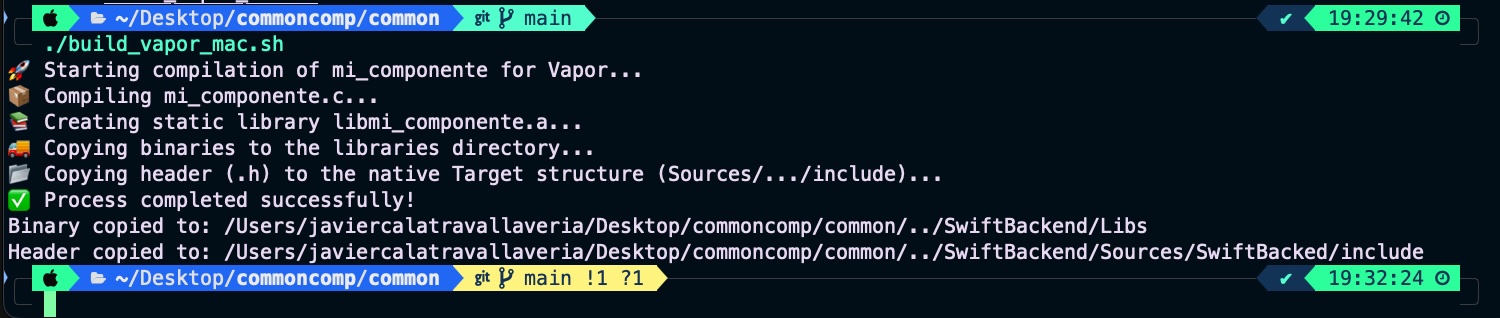
    Run the script form coreC folder and check that all is working fine:
    Screenshot

    Consuming the ANSI C Component in Vapor

    The first file we need to update in the Vapor project is Package.swift:

    // swift-tools-version:6.0
    import PackageDescription
    import Foundation
    
    let package = Package(
        name: "SwiftBackend",
        platforms: [
           .macOS(.v13)
        ],
        dependencies: [
            // 💧 A server-side Swift web framework.
            .package(url: "https://github.com/vapor/vapor.git", from: "4.115.0"),
            // 🔵 Non-blocking, event-driven networking for Swift. Used for custom executors
            .package(url: "https://github.com/apple/swift-nio.git", from: "2.65.0"),
        ],
        targets: [
            .executableTarget(
                name: "SwiftBackend",
                dependencies: [
                    .product(name: "Vapor", package: "vapor"),
                    .product(name: "NIOCore", package: "swift-nio"),
                    .product(name: "NIOPosix", package: "swift-nio"),
                ],
                swiftSettings: swiftSettings,
                linkerSettings: [
                    .unsafeFlags([
                        "-L", "\(URL(fileURLWithPath: #filePath).deletingLastPathComponent().path)/Libs"
                    ]),
                    .linkedLibrary("core_component")
                ]
            ),
            .testTarget(
                name: "SwiftBackendTests",
                dependencies: [
                    .target(name: "SwiftBackend"),
                    .product(name: "VaporTesting", package: "vapor"),
                ],
                swiftSettings: swiftSettings
            )
        ]
    )
    
    var swiftSettings: [SwiftSetting] { [
        .enableUpcomingFeature("ExistentialAny"),
    ] }

    It defines a Swift Package Manager (Package.swift) configuration for a server-side backend application named SwiftBackend, setting up a macOS executable that depends on the Vapor web framework and SwiftNIO networking libraries. Specifically, the linkerSettings block instructs the compiler where to find and how to integrate external binaries not written in Swift; the .unsafeFlags line dynamically determines the absolute path to a local directory named Libs relative to this configuration file and passes it via the -L search flag so the linker knows where to look, while .linkedLibrary("core_component") explicitly tells the linker to bind the precompiled static or dynamic library file (such as libcore_component.a) located inside that folder into the final executable.

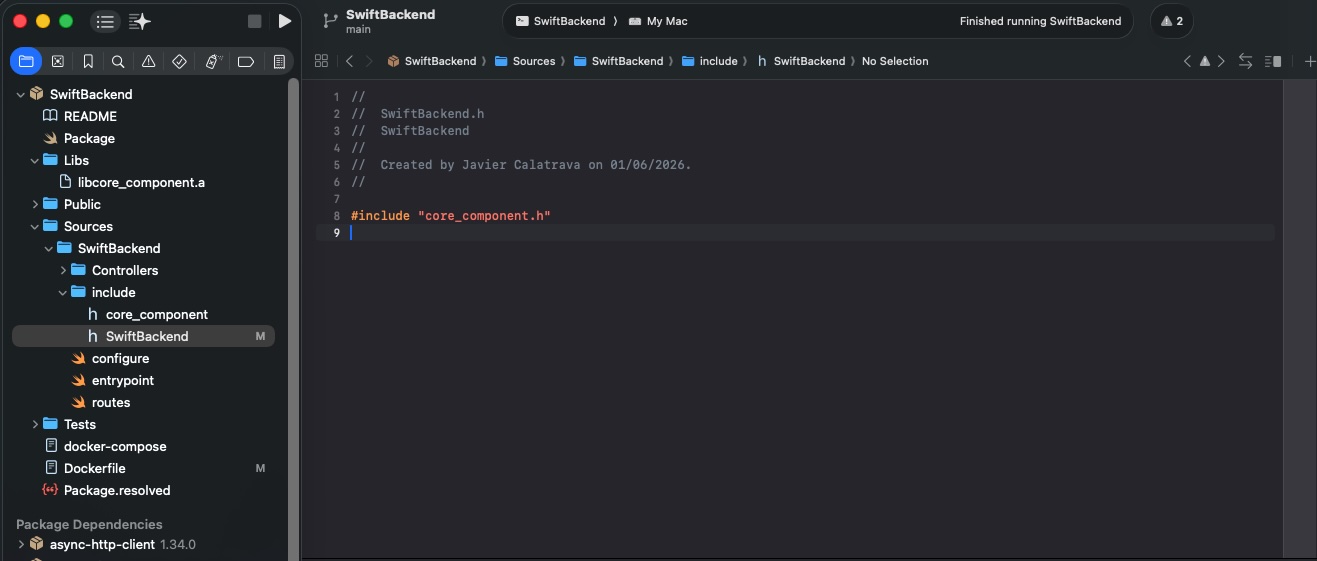
    Next is bridging header file:
    Screenshot

    The SwiftBackend.h file is necessary because it serves as the umbrella header required by Swift Package Manager (SPM) to bridge C and Swift. SPM strictly mandates that a mixed-language target contains a header file matching the exact name of the target (SwiftBackend) inside its include directory to define the module’s public C interface. By writing #include "mi_componente.h" inside it, this file acts as the official gateway that exposes your underlying C functions and the compiled static library (libcore_component.a) to your Swift code, allowing them to interface seamlessly without compilation errors.

    Finally, implement the service that provides access to the ANSI C component:

        app.get("version") { req -> String in
            // Allocate an output buffer array safe for an X.Y.Z string
            let bufferSize = 32
            var outputBuffer = [Int8](repeating: 0, count: bufferSize)
            
            // Execute the mapped global C function
            let statusCode = c_getVersion(&outputBuffer, bufferSize)
            
            // Process the return code matching your C macro definitions
            switch statusCode {
            case 0: // VERSION_SUCCESS
                return String(cString: outputBuffer)
            case -1: // VERSION_ERR_INSUFFICIENT_BUF
                throw Abort(.internalServerError, reason: "Error from C: Insufficient buffer size")
            default:
                throw Abort(.internalServerError, reason: "Unknown native version fetching error")
            }
        }

    This code defines a Vapor HTTP GET route handler at the /version endpoint that safely exposes an underlying C function to the web. It allocates a fixed-size, 32-byte integer array (outputBuffer) to safely receive a string from the C function, then executes c_getVersion by passing a reference to this buffer and its maximum size. Finally, it evaluates the returned status code using a switch statement: if successful (case 0), it converts the null-terminated C string buffer into a native Swift String and returns it as the HTTP response, whereas if an error occurs (such as an insufficient buffer size or an unknown failure), it throws a structured HTTP 500 Internal Server Error using Vapor’s Abort mechanism.

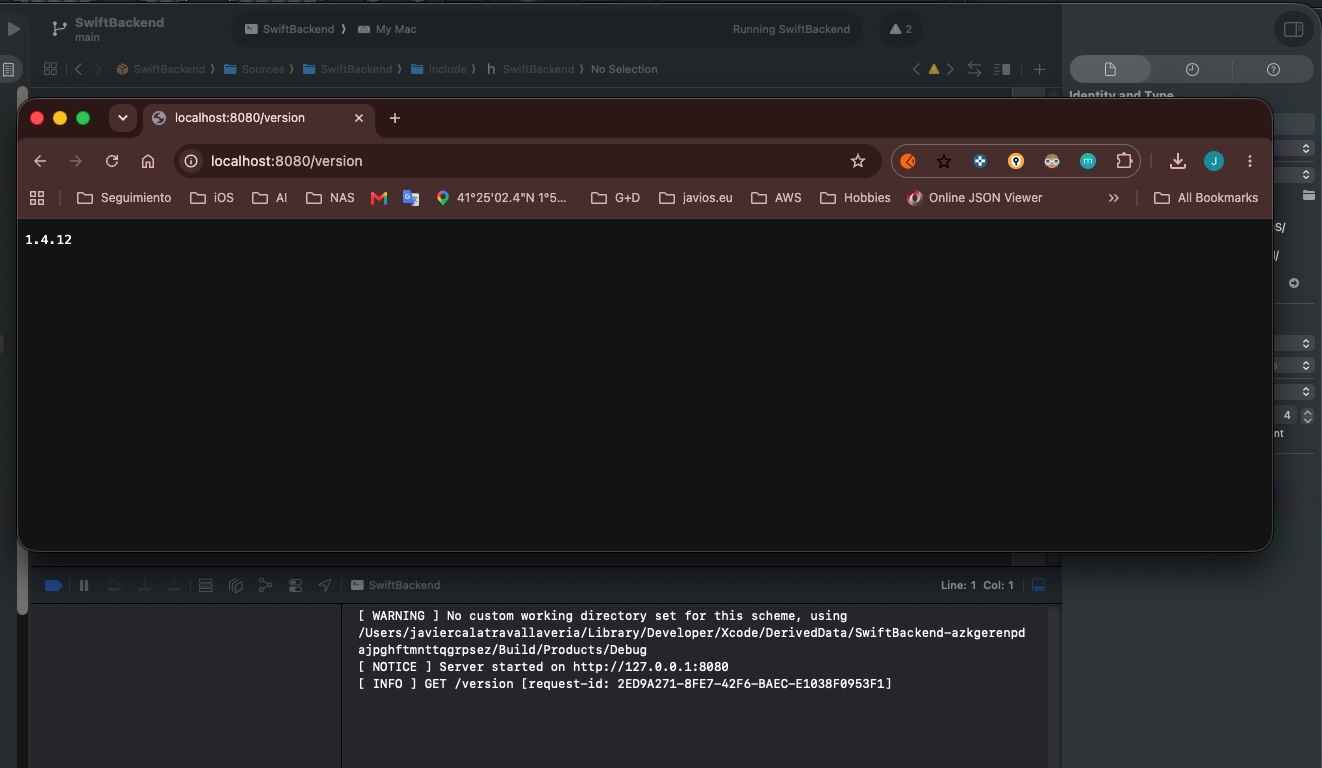
    Finally check in any browser the service response:
    Screenshot

    This is a debugable Vapor project, but not deployable yet.

    Dockerizing the Vapor Server

    Once the Vapor backend server is ready for release, let’s build the Docker image:

    # ================================
    # Build image
    # ================================
    FROM swift:6.1-noble AS build
    
    # Install OS updates and build tools
    RUN export DEBIAN_FRONTEND=noninteractive DEBCONF_NONINTERACTIVE_SEEN=true \
        && apt-get -q update \
        && apt-get -q dist-upgrade -y \
        && apt-get install -y libjemalloc-dev build-essential
    
    # Set base root folder
    WORKDIR /build
    
    # 1. Copy manifest respecting the project structure
    COPY ./SwiftBackend/Package.* ./SwiftBackend/
    
    # We are going the fix dependencies for doing that we move to project folder
    WORKDIR /build/SwiftBackend
    RUN swift package resolve \
            $([ -f ./Package.resolved ] && echo "--force-resolved-versions" || true)
    
    # 2. Get back to the compilation folder for pouring real code
    WORKDIR /build
    COPY ./coreC ./coreC
    COPY ./SwiftBackend ./SwiftBackend
    
    # 3. Provide execution permission and run the script
    RUN chmod +x ./coreC/build_linux.sh && ./coreC/build_linux.sh
    
    # 4. Get back to SwiftBackend for executiong oficial vapor compilation
    WORKDIR /build/SwiftBackend
    
    RUN mkdir /staging
    
    # Build the application, with optimizations, with static linking, and using jemalloc
    RUN --mount=type=cache,target=/build/SwiftBackend/.build \
        swift build -c release \
            --product SwiftBackend \
            --static-swift-stdlib \
            -Xlinker -ljemalloc && \
        # Copy main executable to staging area
        cp "$(swift build -c release --show-bin-path)/SwiftBackend" /staging && \
        # Copy resources bundled by SPM to staging area
        find -L "$(swift build -c release --show-bin-path)" -regex '.*\.resources$' -exec cp -Ra {} /staging \;
    
    
    # Switch to the staging area
    WORKDIR /staging
    
    # Copy static swift backtracer binary to staging area
    RUN cp "/usr/libexec/swift/linux/swift-backtrace-static" ./
    
    # Adjust verification resource routes because we are into/build/SwiftBackend
    RUN [ -d /build/SwiftBackend/Public ] && { mv /build/SwiftBackend/Public ./Public && chmod -R a-w ./Public; } || true
    RUN [ -d /build/SwiftBackend/Resources ] && { mv /build/SwiftBackend/Resources ./Resources && chmod -R a-w ./Resources; } || true
    
    # ================================
    # Run image
    # ================================
    FROM ubuntu:noble
    
    RUN export DEBIAN_FRONTEND=noninteractive DEBCONF_NONINTERACTIVE_SEEN=true \
        && apt-get -q update \
        && apt-get -q dist-upgrade -y \
        && apt-get -q install -y \
          libjemalloc2 \
          ca-certificates \
          tzdata \
        && rm -r /var/lib/apt/lists/*
    
    RUN useradd --user-group --create-home --system --skel /dev/null --home-dir /app vapor
    
    WORKDIR /app
    
    COPY --from=build --chown=vapor:vapor /staging /app
    
    ENV SWIFT_BACKTRACE=enable=yes,sanitize=yes,threads=all,images=all,interactive=no,swift-backtrace=./swift-backtrace-static
    
    USER vapor:vapor
    
    EXPOSE 8080
    
    ENTRYPOINT ["./SwiftBackend"]
    CMD ["serve", "--env", "production", "--hostname", "0.0.0.0", "--port", "8080"]
    

    This Dockerfile implements a multi-stage build tailored to securely and efficiently compile and run your Vapor backend while incorporating your external C component. The first stage (build) utilizes a full Swift 6.1 environment on Ubuntu Noble to install required compilation tools (like build-essential and libjemalloc-dev), resolve Swift package dependencies, and fetch cache layers. It intentionally copies your proprietary source code (./coreC and ./SwiftBackend), grants execution permissions to run your standalone compilation script (build_linux.sh) to build the C binaries safely in isolation, and compiles the final Vapor executable optimized for production (-c release) with memory-efficient static linking (--static-swift-stdlib, -ljemalloc). All necessary runtime assets, public resources, and the static backtracer are then consolidated into a temporary /staging directory.

    The second stage (run) creates a stripped-down, secure production image starting from a clean Ubuntu Noble base, completely throwing away the compiler tools and your original .c and .swift source code to minimize the final container size and protect your intellectual property. It installs only minimal required runtime libraries (libjemalloc2, certificates, and timezone data) and sets up an unprivileged, isolated system user named vapor. The final steps pull exclusively the compiled binaries and public assets from the first stage’s /staging area into the /app folder under strict vapor user ownership, configures production environment variables for safety and crash-tracking, exposes port 8080, and commands the container to run the production Vapor server on 0.0.0.0:8080.

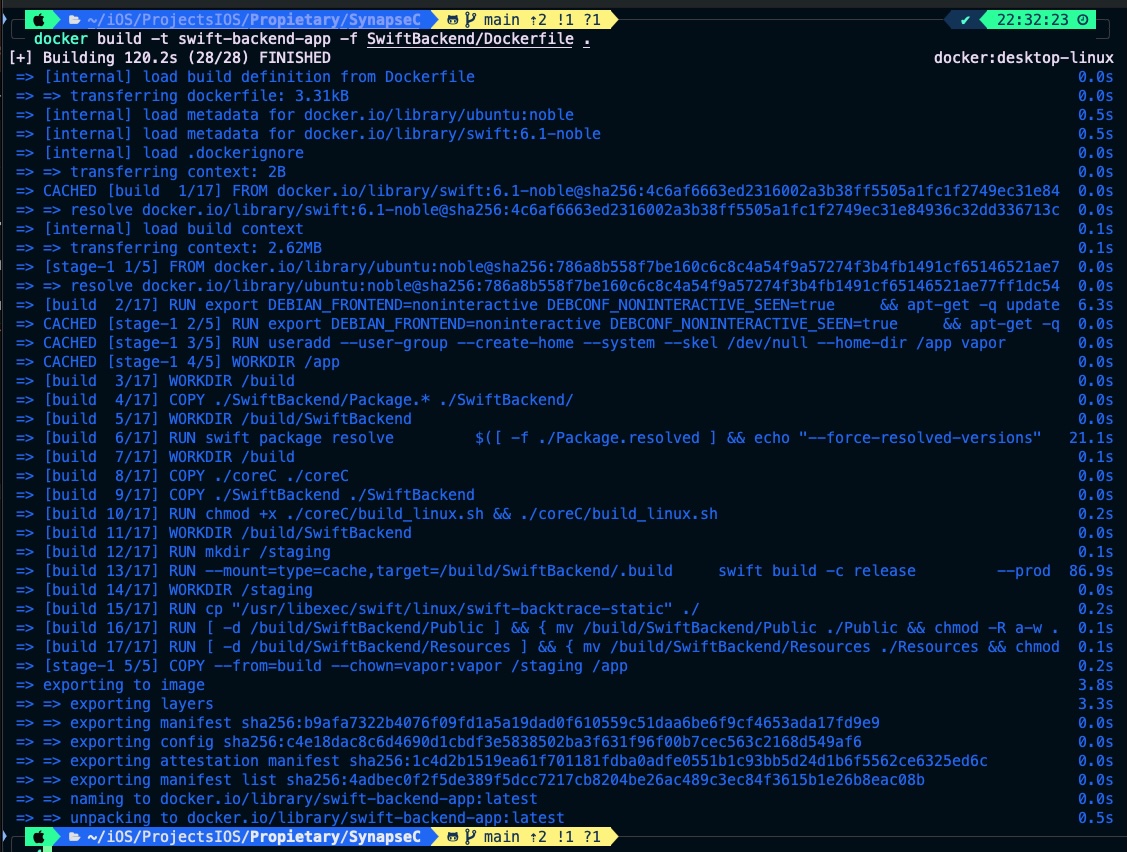
    Let’s build the Docker image:

    docker build -t swift-backend-app -f SwiftBackend/Dockerfile .
    Screenshot

    Deploy a docker container with the image generated:

    docker run -d -p 8080:8080 --name mi-servidor-vapor swift-backend-app

    Screenshot

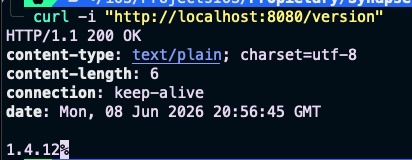
    This time, instead of using a web browser, we will test the service using the curl command:

    curl -i "http://localhost:8080/version"
    Screenshot
    docker run -d -p 8080:8080 --name mi-servidor-vapor swift-backend-app

    Conclusions

    n this post, we successfully migrated our ANSI C functionality to a backend platform. Throughout this three-part series, we have demonstrated how to reuse a single binary component across iOS, Android, and a server-side framework like Vapor.

    You can find source code used for writing this post in following repository

  • Multiplatform ANSI C on Android

    Multiplatform ANSI C on Android

    In our previous post, we explained how to run an ANSI C component on iOS. In this second part, we will walk through the exact same process for an Android app.

    Building on that foundation, this post covers the necessary add-ons for the ANSI C code, how to configure Android Studio, and how to implement an Android app that seamlessly utilizes the ANSI C component.

    The Core ANSI C Functionality

    Here is the function we exported to iOS:

    #include "core_component.h"
    #include <stdio.h>
    
    /**
     * Gets the version in X.Y.Z format.
     * * @param out_version Pointer to the buffer where the version string will be stored.
     * @param max_len     Maximum size of the buffer.
     * @return            0 if successful, or -1 if the buffer is too small.
     */
    int getVersion(char *out_version, size_t max_len) {
        /* Simulated version numbers */
        int major = 1;
        int minor = 4;
        int patch = 12;
        
        /* Safely format the string and prevent buffer overflows */
        int written = snprintf(out_version, max_len, "%d.%d.%d", major, minor, patch);
    
        /* Check if the string was truncated or if an encoding error occurred */
        if (written < 0 || (size_t)written >= max_len) {
            return VERSION_ERR_INSUFFICIENT_BUF; 
        }
    
        return VERSION_SUCCESS; 
    }

    Configuring Android Studio for a New App

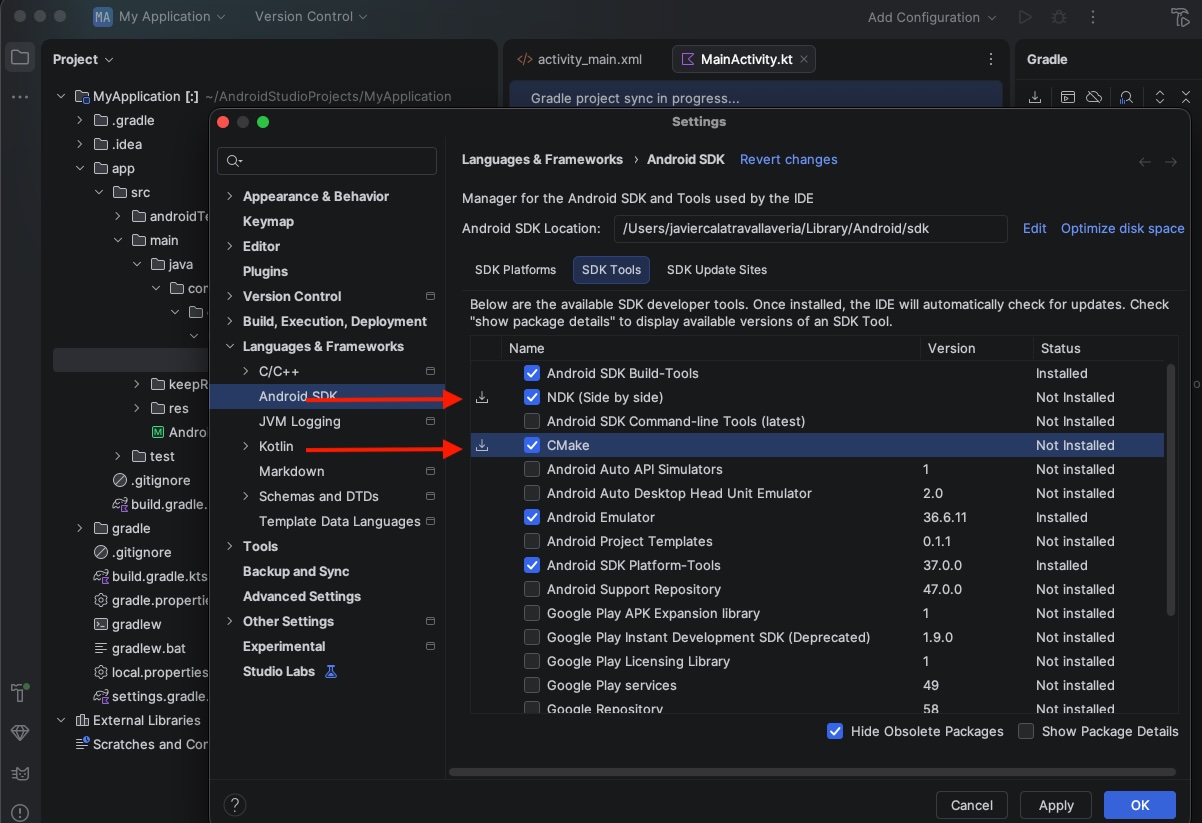
    As an iOS developer, this is my first post exploring Android technology. We will be using Android Studio as our IDE. Once you download it, a bit of extra configuration is required: specifically, you will need to install the NDK and CMake SDK tools within Android Studio.

    Screenshot

    These tools are not utilized directly by Android Studio, but are required by the build script to compile the ANSI C code for the Android application.

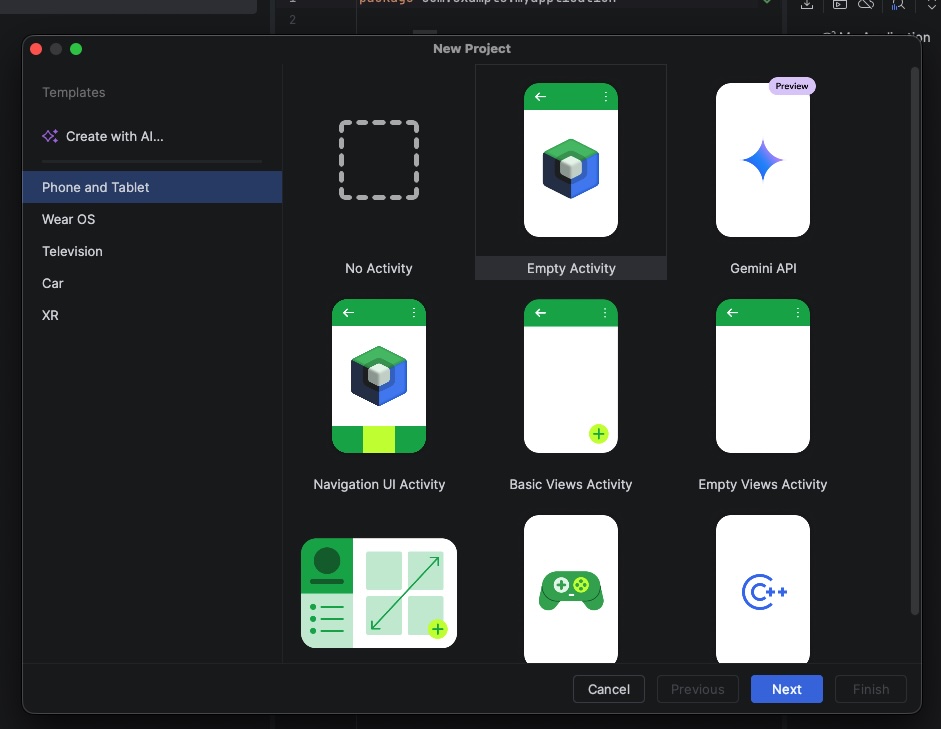
    Next, create a new project and choose the Empty Activity template:

    Screenshot

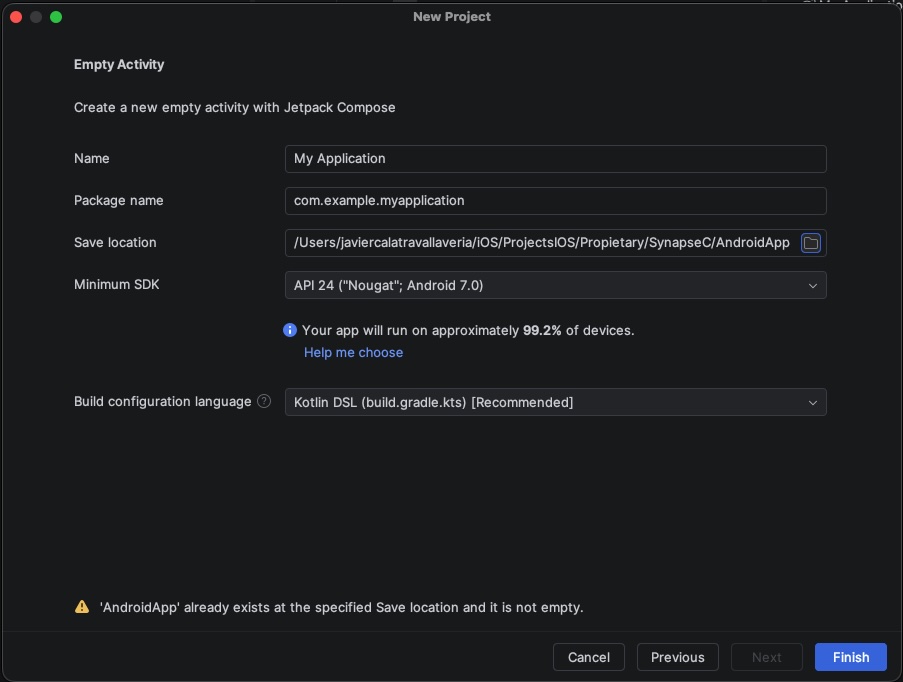
    Next are the project settings:

    Screenshot

    Make sure to pay close attention to the Package name—our upcoming code and scripts are going to depend on it!

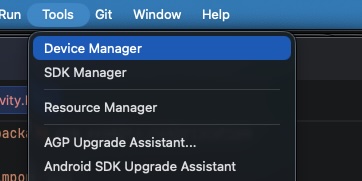
    Because the Android ecosystem is so huge, you won’t see any devices listed the first time you try to run your app. To get a device set up, just head over to Tools -> Device Manager:

    Screenshot

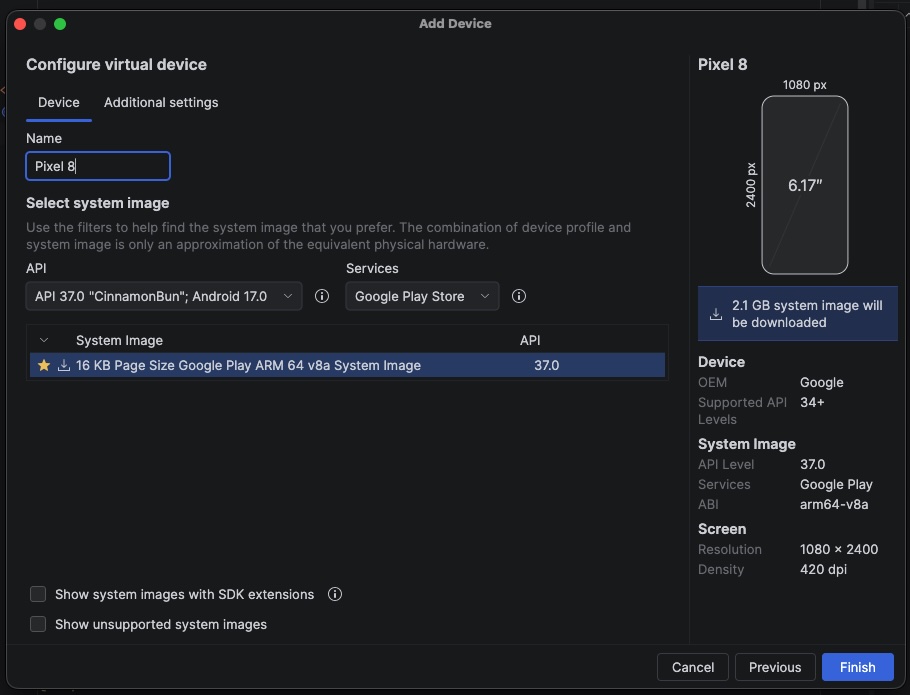
    For this case I have selected ‘Pixel 8’:

    Screenshot

    Now, you should have no problem running the app on the emulator.

    Setting Up the ANSI C Component for Android

    First, we will implement the bridge file between the two technologies. This file is called core_component_jni.c and should be placed alongside the rest of your .c files:

    #include <jni.h>
    #include <stdlib.h>
    #include "core_component.h"
    
    // Replace "com_example_myapp" with your Android app's actual package (using underscores)
    JNIEXPORT jstring JNICALL
    Java_com_example_myapplication_NativeCore_getNativeVersion(JNIEnv *env, jobject thiz) {
    
        char buffer[32]; // Buffer to store "X.Y.Z"
        
        // We call your original ANSI C function
        int result = getVersion(buffer, sizeof(buffer));
        
        if (result == VERSION_SUCCESS) {
            // We convert the C char* to a Java/Kotlin jstring
            return (*env)->NewStringUTF(env, buffer);
        } else {
            return (*env)->NewStringUTF(env, "Error: Insufficient buffer");
        }
    }

    This C code acts as a JNI (Java Native Interface) bridge that allows an Android application written in Kotlin or Java to safely communicate with your underlying ANSI C library. Specifically, it defines a native function named getNativeVersion mapped to the NativeCore object inside the com.example.myapplication package. When invoked from the Android side, the function allocates a local 32-byte character buffer and executes your core C function, getVersion(), to write the software’s version numbers into it. Finally, it evaluates the operation’s success: if successful, it safely converts the standard C string (char*) into a Java-compatible string object (jstring) using the JNI environment pointer (*env), and if it fails, it gracefully returns an error message string back to Kotlin.

    Next, we have the build_android.sh script, which compiles and packages the ANSI C component so it can be consumed by Android:

    #!/bin/bash
    set -e
    
    # 1. Define the base path of the Android SDK on your Mac
    SDK_PATH="$HOME/Library/Android/sdk"
    
    # 2. Automatically detect the highest installed NDK version
    if [ -d "$SDK_PATH/ndk" ]; then
        NDK_VERSION=$(ls -1 "$SDK_PATH/ndk" | sort -V | tail -n 1)
        NDK_PATH="$SDK_PATH/ndk/$NDK_VERSION"
    else
        echo "❌ Error: 'ndk' folder not found at $SDK_PATH/ndk"
        exit 1
    fi
    
    TOOLCHAIN="$NDK_PATH/build/cmake/android.toolchain.cmake"
    
    echo "🤖 NDK Automatically detected at: $NDK_PATH"
    echo "📄 Toolchain: $TOOLCHAIN"
    
    # 3. Path configuration for the Multiplatform Project
    # Since the script runs from 'common/', we go up one level and enter AndroidApp
    ANDROID_APP_JNI_DIR="../AndroidApp/app/src/main/jniLibs"
    
    ARCHS=("armeabi-v7a" "arm64-v8a" "x86" "x86_64")
    ANDROID_API=21
    
    echo "🧹 Cleaning up previous local builds and target directories in AndroidApp..."
    rm -rf build_android jniLibs
    rm -rf "$ANDROID_APP_JNI_DIR"
    
    # Ensure target folders exist
    mkdir -p jniLibs
    mkdir -p "$ANDROID_APP_JNI_DIR"
    
    for ARCH in "${ARCHS[@]}"
    do
        echo "------------------------------------------------"
        echo "🤖 Generating environment for: $ARCH..."
        mkdir -p "build_android/$ARCH"
        
        cmake -B "build_android/$ARCH" \
              -DCMAKE_TOOLCHAIN_FILE="$TOOLCHAIN" \
              -DANDROID_ABI="$ARCH" \
              -DANDROID_PLATFORM=android-$ANDROID_API \
              -DCMAKE_BUILD_TYPE=Release > /dev/null 2>&1
    
        echo "🛠️ Compiling private binary ($ARCH)..."
        cmake --build "build_android/$ARCH" --target core_component_c_shared --config Release > /dev/null 2>&1
        
        # Locate the newly created .so file
        SO_FILE=$(find "build_android/$ARCH" -name "libcore_component_c_shared.so" | head -n 1)
        
        if [ -z "$SO_FILE" ]; then
            echo "❌ Error: The .so file was not generated for $ARCH"
            exit 1
        fi
        
        # Copy 1: Local backup in the 'coreC/jniLibs' folder
        mkdir -p "jniLibs/$ARCH"
        cp "$SO_FILE" "jniLibs/$ARCH/"
        
        # Copy 2: Direct deployment into the AndroidApp directory structure
        mkdir -p "$ANDROID_APP_JNI_DIR/$ARCH"
        cp "$SO_FILE" "$ANDROID_APP_JNI_DIR/$ARCH/"
        
        echo "✅ Binary for $ARCH successfully copied to AndroidApp."
    done
    
    echo "------------------------------------------------"
    echo "🎉 ABSOLUTE VICTORY! Process completed."
    echo "🚀 The private binaries are ready at: $ANDROID_APP_JNI_DIR"

    This Bash script automates the multi-architecture compilation and deployment of your native C library so it can be consumed by an Android application. It begins by locating your Mac’s Android SDK path, dynamically detecting the highest installed Android NDK version to extract the required CMake toolchain file, and cleaning up any legacy build directories. Then, it loops through a predefined array of target CPU architectures (armeabi-v7a, arm64-v8a, x86, and x86_64), invoking CMake for each one to configure and compile the Release binary (libcore_component_c_shared.so) specifically tailored to Android API level 21. Finally, it locates each freshly generated .so file and copies it to two destinations: a local backup directory (jniLibs) and directly into the Android project’s source tree (app/src/main/jniLibs), ensuring that the Android app has all the native binaries it needs for cross-platform hardware compatibility.

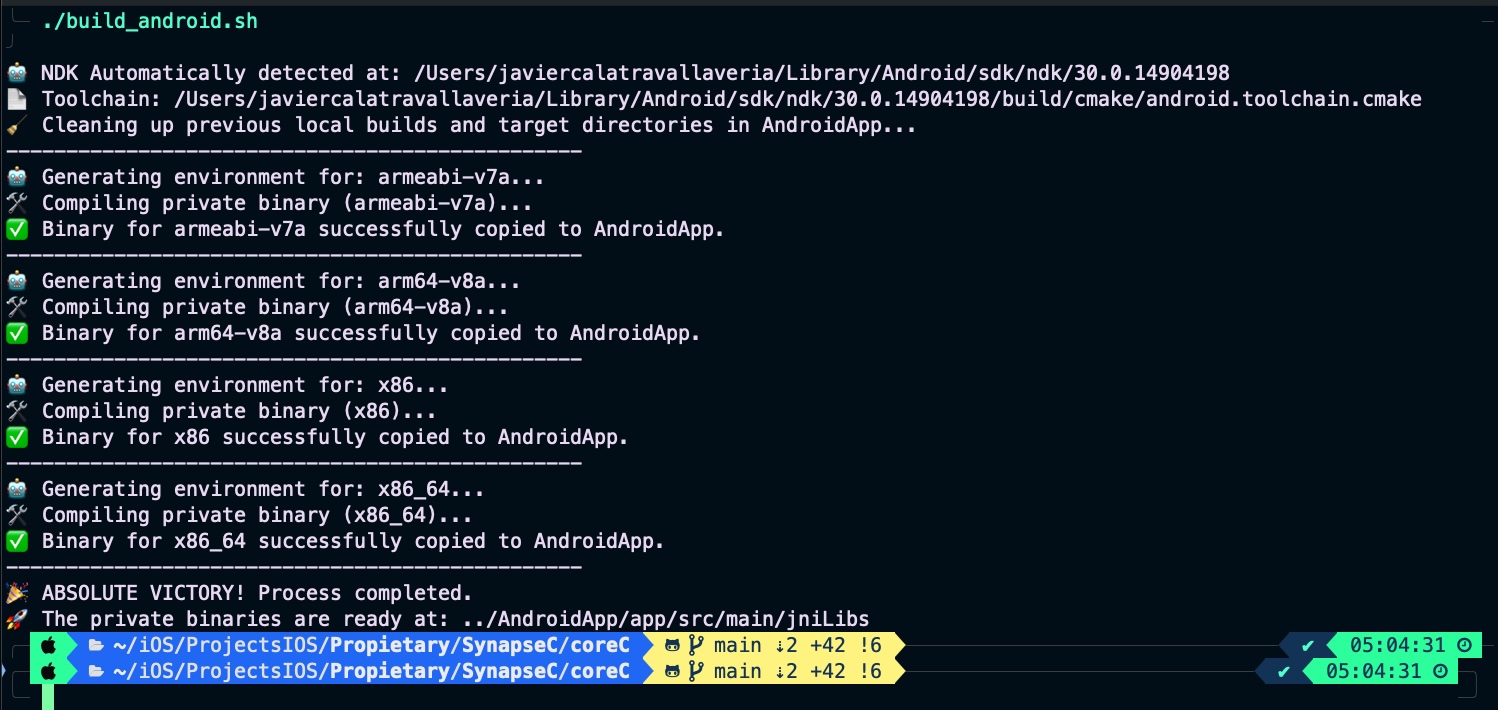
    Run the script to verify that everything is working correctly:

    Screenshot

    Consuming the ANSI C Component in Android

    Now, let’s make the final adjustments to run the component inside our Android app. To ensure that Android Studio correctly packages the .so files your script copied into jniLibs, open the app-level build.gradle.kts file and verify that the source path is mapped inside the android block:

    android {
        ...
    
        sourceSets {
            getByName("main") {
                // Le dice a Gradle que busque los .so en la carpeta que llenó tu script
                jniLibs.srcDirs("src/main/jniLibs")
            }
        }
    }

    Just as we did in the iOS tutorial (Part 1), we will create a Kotlin wrapper for the ANSI C functionality. Create a file named NativeCore.kt under the com.example.myapp package:

    package com.example.myapplication
    
    object NativeCore {
        init {
            // Loads the .so library. Note that the "lib" prefix and the ".so" extension are omitted
            System.loadLibrary("core_component_c_shared")
        }
    
        /**
         * Declares the native method. The 'external' keyword indicates
         * to Kotlin that the implementation is in native code (C/C++).
         */
        external fun getNativeVersion(): String
    }

    The final step is to update the MainActivity to call the exported function and display the version:

    package com.example.myapplication
    
    import android.app.Activity
    import android.os.Bundle
    import android.widget.TextView
    
    class MainActivity : Activity() {
        override fun onCreate(savedInstanceState: Bundle?) {
            super.onCreate(savedInstanceState)
            setContentView(R.layout.activity_main)
    
            val versionDesdeC = NativeCore.getNativeVersion()
    
            findViewById<TextView>(R.id.myTextView).text = "Version CoreC: $versionDesdeC"
        }
    }

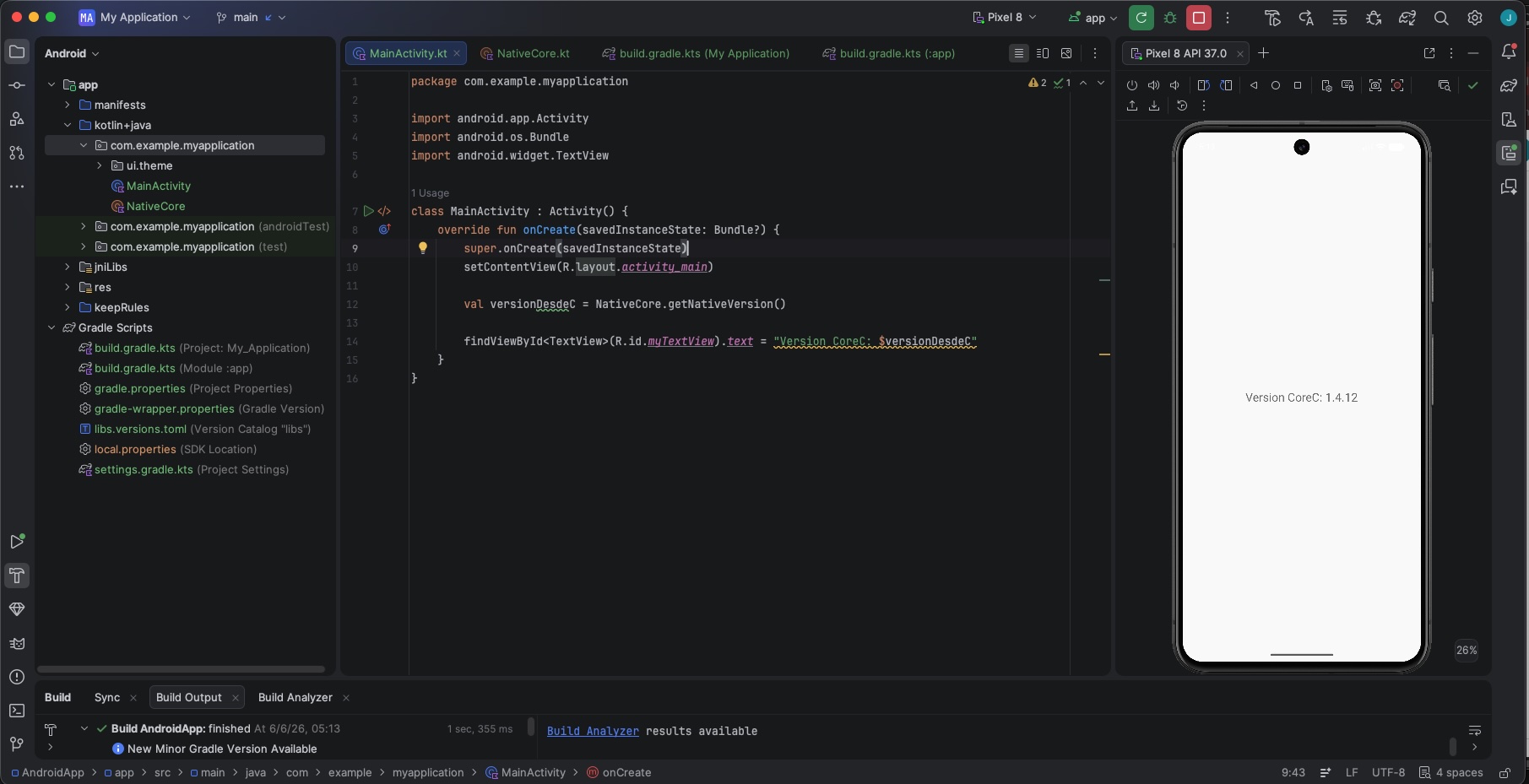
    Deploy app on simulator:

    Screenshot

    Conclusions

    Now, our cross-platform architecture is truly taking form! We officially have a shared ANSI C core powering both our iOS and Android apps. Frameworks like Flutter, React Native, or Kotlin Multiplatform are fantastic for building user interfaces and high-level business logic, but ANSI C is still King when it comes to raw performance, heavy lifting, and total portability.

    Implementing a common ANSI C component is incredibly valuable for scenarios like:

    • High-Performance Computation & Math

    • Protecting Proprietary Algorithms

    • Low-Level Audio & Video Processing

    • Reusing Massive, Pre-Existing Open Source Libraries

    • Establishing a Single Source of Truth

    In our next and final post of this series, we’re going to take this a step further. We will move this exact same ANSI C component to the backend and deploy it inside a dockerized Vapor application!

    You can find source code used for writing this post in following repository

  • Multiplatform ANSI C on iOS

    Multiplatform ANSI C on iOS

    SynapseC is the heart of this post. The main idea here is to connect different frontend and backend worlds using a central «nervous system» written in ANSI C. We are going to build a simple native C component that acts as the shared core logic for iOS, Android, and a Dockerized Vapor server. One of the best parts about this approach? We never expose the raw ANSI C code to other platforms. The end consumer will only ever deal with a clean binary, never the source code.

    In this first part of our three-part series, we’ll kick things off by building that common ANSI C core and plugging it into an iOS app as an SPM package.

    Core ANSI C component

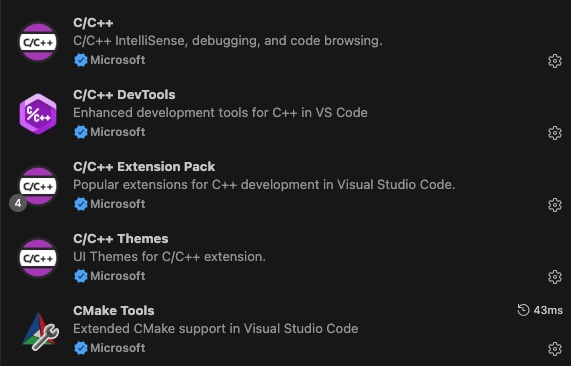
    The IDE of choice for this ANSI C project is Visual Studio Code. To build and run the code seamlessly, these are the essential extensions I used:

    As a starting point, we will create a simple function that returns the component’s version. This will be highly useful for future troubleshooting and tracking as the project grows.

    #include "core_component.h"
    #include <stdio.h>
    
    /**
     * Gets the version in X.Y.Z format.
     * * @param out_version Pointer to the buffer where the version string will be stored.
     * @param max_len     Maximum size of the buffer.
     * @return            0 if successful, or -1 if the buffer is too small.
     */
    int getVersion(char *out_version, size_t max_len) {
        /* Simulated version numbers */
        int major = 1;
        int minor = 4;
        int patch = 12;
        
        /* Safely format the string and prevent buffer overflows */
        int written = snprintf(out_version, max_len, "%d.%d.%d", major, minor, patch);
    
        /* Check if the string was truncated or if an encoding error occurred */
        if (written < 0 || (size_t)written >= max_len) {
            return VERSION_ERR_INSUFFICIENT_BUF; 
        }
    
        return VERSION_SUCCESS; 
    }

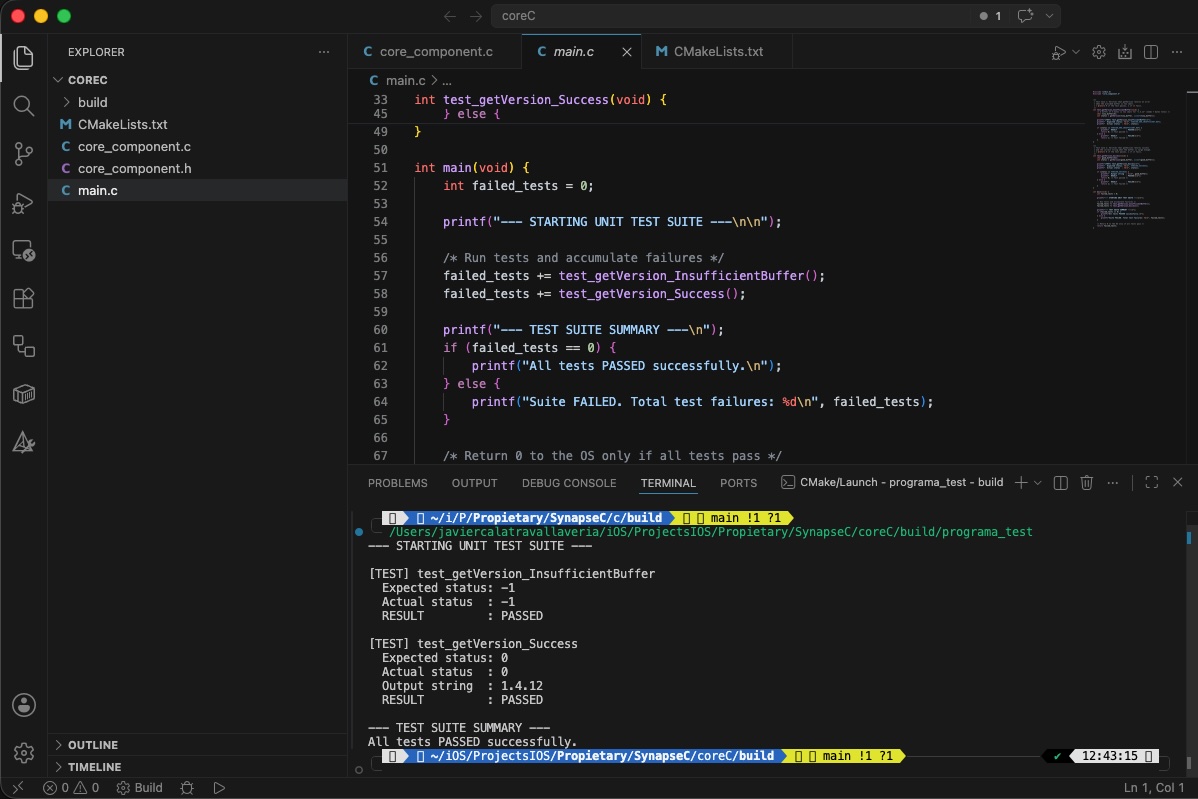
    Our main.c entry point will handle running some unit tests. Granted, this isn’t the ideal architecture for a growing project—as it would quickly become unbearable to maintain—but for this post, it gets the job done perfectly.

    Screenshot

    Now, let’s run the code to ensure the syntax is correct and our unit tests pass successfully.

    Generate SPM component

    Once we have assured that component code sanity. Next step is generate the SPM, for make it simplier we have created following script:

    #!/bin/bash
    set -e
    
    # 0. Assure script is run from its own directory (robustly)
    SCRIPT_DIR="$(cd "$(dirname "${BASH_SOURCE[0]}")" && pwd)"
    cd "$SCRIPT_DIR"
    
    # 1. Clean up previous artifacts
    echo "🧹 Cleaning up previous builds..."
    rm -rf "$SCRIPT_DIR/build_ios" \
           "$SCRIPT_DIR/build_sim_arm" \
           "$SCRIPT_DIR/build_sim_x86" \
           "$SCRIPT_DIR/build_xcf" \
           "$SCRIPT_DIR/CoreC.xcframework" \
           "$SCRIPT_DIR/Package.swift"
    
    # 2. Compile for Physical Device (iOS arm64) using native Makefiles
    echo "📱 Compiling for iOS device (arm64)..."
    cmake -B "$SCRIPT_DIR/build_ios" \
      -G "Unix Makefiles" \
      -DCMAKE_SYSTEM_NAME=iOS \
      -DCMAKE_OSX_ARCHITECTURES=arm64 \
      -DCMAKE_BUILD_TYPE=Release > /dev/null 2>&1
    
    cmake --build "$SCRIPT_DIR/build_ios" --target core_c_lib --config Release
    echo "✅ iOS device built successfully!"
    
    # 3. Compile for Simulator (arm64)
    echo "💻 Compiling for iOS Simulator (arm64)..."
    cmake -B "$SCRIPT_DIR/build_sim_arm" \
      -G "Unix Makefiles" \
      -DCMAKE_SYSTEM_NAME=iOS \
      -DCMAKE_OSX_SYSROOT=iphonesimulator \
      -DCMAKE_OSX_ARCHITECTURES=arm64 \
      -DCMAKE_BUILD_TYPE=Release > /dev/null 2>&1
    
    cmake --build "$SCRIPT_DIR/build_sim_arm" --target core_c_lib --config Release > /dev/null 2>&1
    
    # 4. Compile for Simulator (x86_64)
    echo "💻 Compiling for iOS Simulator (x86_64)..."
    cmake -B "$SCRIPT_DIR/build_sim_x86" \
      -G "Unix Makefiles" \
      -DCMAKE_SYSTEM_NAME=iOS \
      -DCMAKE_OSX_SYSROOT=iphonesimulator \
      -DCMAKE_OSX_ARCHITECTURES=x86_64 \
      -DCMAKE_BUILD_TYPE=Release > /dev/null 2>&1
    
    cmake --build "$SCRIPT_DIR/build_sim_x86" --target core_c_lib --config Release > /dev/null 2>&1
    echo "✅ iOS Simulators built successfully!"
    
    # 5. Merge simulator architectures and prepare environments
    echo "🔍 Processing and merging simulator architectures..."
    mkdir -p "$SCRIPT_DIR/build_xcf/products/ios" \
             "$SCRIPT_DIR/build_xcf/products/sim" \
             "$SCRIPT_DIR/build_xcf/headers"
    
    # With "Unix Makefiles", CMake outputs .a files EXACTLY at the root of each build folder.
    LIB_IOS="$SCRIPT_DIR/build_ios/libcore_c_lib.a"
    LIB_SIM_ARM="$SCRIPT_DIR/build_sim_arm/libcore_c_lib.a"
    LIB_SIM_X86="$SCRIPT_DIR/build_sim_x86/libcore_c_lib.a"
    
    # Ensure physical device library is copied
    cp "$LIB_IOS" "$SCRIPT_DIR/build_xcf/products/ios/libcore_c_lib.a"
    
    # Create the universal binary for the simulator
    lipo -create "$LIB_SIM_ARM" "$LIB_SIM_X86" -output "$SCRIPT_DIR/build_xcf/products/sim/libcore_c_lib.a"
    
    # Copy the public header
    cp "$SCRIPT_DIR/core_component.h" "$SCRIPT_DIR/build_xcf/headers/"
    
    # Crear el mapa de módulo para que Swift reconozca la librería C
    cat << 'EOF' > "$SCRIPT_DIR/build_xcf/headers/module.modulemap"
    module CoreC {
        header "core_component.h"
        export *
    }
    EOF
    
    # 6. Create the temporary XCFramework in the build directory
    echo "🚀 Packaging into CoreC.xcframework..."
    xcodebuild -create-xcframework \
      -library "$SCRIPT_DIR/build_xcf/products/ios/libcore_c_lib.a" -headers "$SCRIPT_DIR/build_xcf/headers" \
      -library "$SCRIPT_DIR/build_xcf/products/sim/libcore_c_lib.a" -headers "$SCRIPT_DIR/build_xcf/headers" \
      -output "$SCRIPT_DIR/build_xcf/CoreC.xcframework"
    
    # 7. Organize the definitive isolated SPM environment (Isolate from source code)
    echo "📦 Organizing isolated Swift Package Manager environment..."
    SPM_DIR="$SCRIPT_DIR/build_xcf/spm"
    mkdir -p "$SPM_DIR"
    
    # Move the generated .xcframework into the spm directory
    mv "$SCRIPT_DIR/build_xcf/CoreC.xcframework" "$SPM_DIR/"
    
    # Dynamically generate the Package.swift DIRECTLY inside the spm directory
    cat << 'EOF' > "$SPM_DIR/Package.swift"
    // swift-tools-version: 5.10
    import PackageDescription
    
    let package = Package(
        name: "CoreC",
        products: [
            .library(name: "CoreC", targets: ["CoreC"])
        ],
        targets: [
            .binaryTarget(
                name: "CoreC",
                path: "CoreC.xcframework" // Path relative to Package.swift
            )
        ]
    )
    EOF
    
    echo "🎉 ABSOLUTE VICTORY! Your isolated SPM is ready at: $SPM_DIR"

    This Bash script automates the compilation and packaging of a native C library (core_c_lib) into an isolated Swift Package Manager (SPM) dependency for Apple platforms. After establishing its execution directory and clearing out old build artifacts, the script uses CMake to compile the source code into static libraries (.a) across three distinct target architectures. It generates binaries for physical iOS devices (arm64), M-series Mac iOS Simulators (arm64), and Intel-based Mac iOS Simulators (x86_64).

    Once the compilation is complete, the script merges the two simulator binaries into a single universal library using the lipo tool and groups it alongside the physical device library. Crucially, it injects a custom module.modulemap file next to the public C header file to ensure Swift can seamlessly read the native C interfaces. Finally, it uses xcodebuild to package these components into a unified CoreC.xcframework bundle, places it into a dedicated folder, and automatically writes a Package.swift manifest file, delivering a turnkey binary Swift package ready to be imported into any Xcode project.

    SPM integration into an iOS App

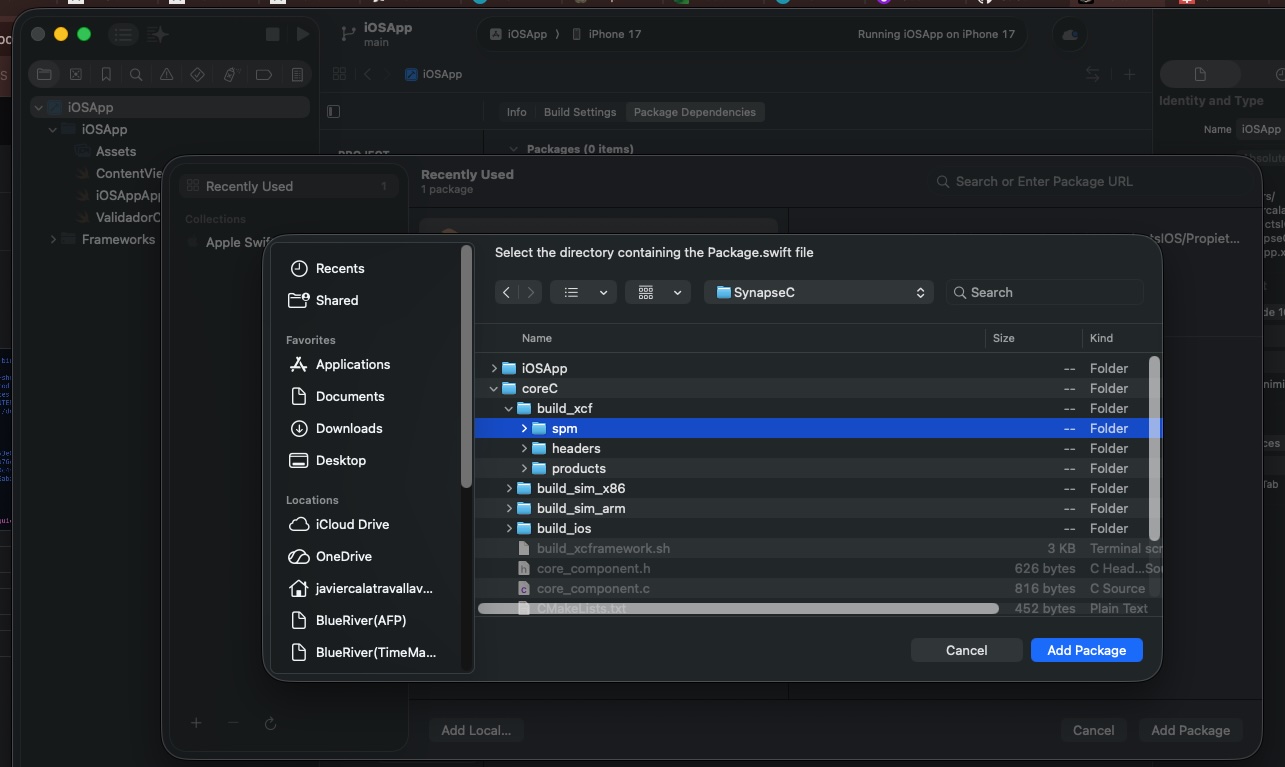
    The final stage involves integrating the newly minted Swift Package into a production environment. To demonstrate this, we will initialize a clean iOS Application project and import the local SPM dependency we just generated.

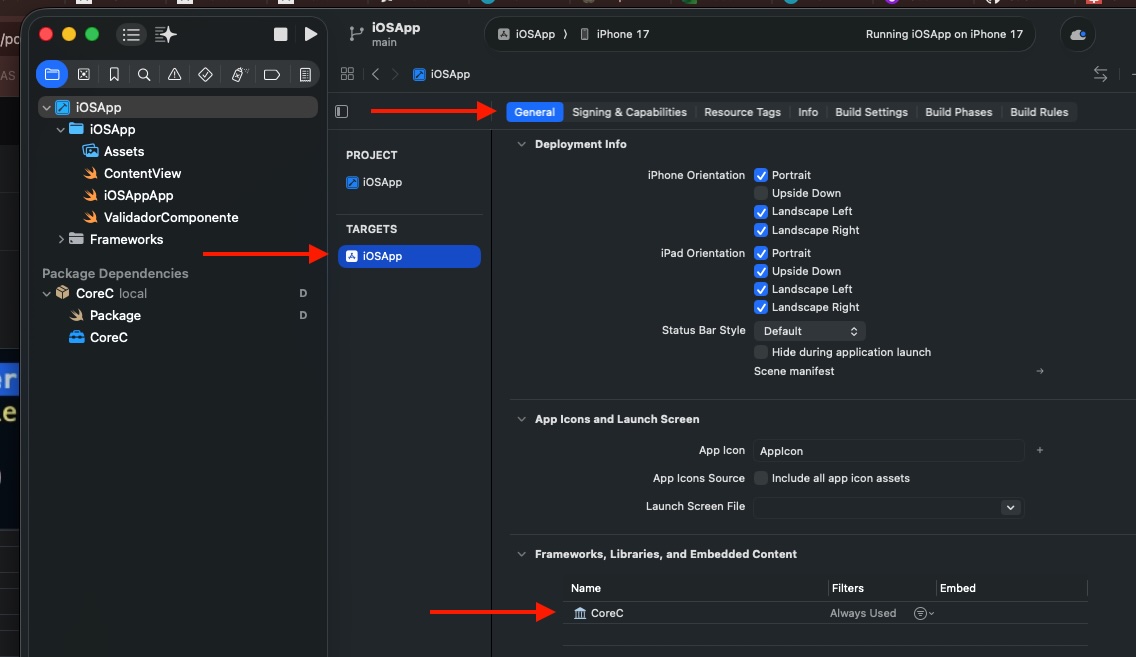
    Be sure that in target appears the new imported framework:

    Next step we will create a wrapper for the SPM package:

    import Foundation
    import CoreC
    
    struct CoreCWrapper {
    
        
        /// Safe Swift wrapper for the ANSI C function 'getVersion'
            /// Renamed to 'fetchVersion()' to avoid shadowing the global C function name.
            static func fetchVersion() -> String {
                // 1. Allocate a byte array with enough space for an "X.Y.Z" string
                let bufferSize = 32
                var outputBuffer = [Int8](repeating: 0, count: bufferSize)
                
                // 2. Call the global ANSI C function safely without naming conflicts
                let statusCode = getVersion(&outputBuffer, bufferSize)
                
                // 3. Evaluate the status code matching the C macro logic
                switch statusCode {
                case 0: // VERSION_SUCCESS
                    if let versionSwiftString = String(cString: outputBuffer, encoding: .utf8) {
                        return versionSwiftString
                    } else {
                        return "Error: Could not decode version string from C."
                    }
                case -1: // VERSION_ERR_INSUFFICIENT_BUF
                    return "Error from C: Insufficient buffer size."
                default:
                    return "Unknown error in native getVersion component."
                }
            }
    }

    This wrapper approach is highly valuable because it abstracts the low-level, error-prone complexities of inter-language communication, presenting a clean, «Swifty» API to the rest of the application. Instead of forcing consumer code to manually manage C-style memory allocations ([Int8] buffers), handle unsafe pointers, or decipher cryptic integer status codes (like 0 or -1), the wrapper centralizes this dangerous boilerplate in one isolated place. By safely evaluating the execution status and converting raw C-strings into native Swift String types, it guarantees type-safety and robust error handling at the boundary, ensuring that the main application remains idiomatic, safe, and entirely decoupled from the underlying C implementation details.

    Finally use the wrapper:

    import SwiftUI
    
    struct ContentView: View {
        var body: some View {
            VStack {
                Image(systemName: "globe")
                    .imageScale(.large)
                    .foregroundStyle(.tint)
                    Text("Version: \(CoreCWrapper.fetchVersion())")
                    .font(.title)
                    .bold()
            }
            .padding()
        }
    }

    Deploy in the simulator for watching results:

    Conclusions

    In this opening installment, we explored the complete lifecycle of integrating an isolated, native C component directly into an iOS application using modern Swift Package Manager workflows. However, this is only the first step toward building a truly unified, multi-platform ecosystem. In the upcoming parts of this series, we will leverage this exact same C core across entirely different environments—reusing the component to power a native Android application and embedding it inside a containerized Vapor Backend server running on Docker.

    You can find source code used for writing this post in following repository