In our previous post, we explained how to run an ANSI C component on iOS. In this second part, we will walk through the exact same process for an Android app.
Building on that foundation, this post covers the necessary add-ons for the ANSI C code, how to configure Android Studio, and how to implement an Android app that seamlessly utilizes the ANSI C component.
The Core ANSI C Functionality
Here is the function we exported to iOS:
#include "core_component.h"
#include <stdio.h>

/**
 * Gets the version in X.Y.Z format.
 * * @param out_version Pointer to the buffer where the version string will be stored.
 * @param max_len     Maximum size of the buffer.
 * @return            0 if successful, or -1 if the buffer is too small.
 */
int getVersion(char *out_version, size_t max_len) {
    /* Simulated version numbers */
    int major = 1;
    int minor = 4;
    int patch = 12;

    /* Safely format the string and prevent buffer overflows */
    int written = snprintf(out_version, max_len, "%d.%d.%d", major, minor, patch);

    /* Check if the string was truncated or if an encoding error occurred */
    if (written < 0 || (size_t)written >= max_len) {
        return VERSION_ERR_INSUFFICIENT_BUF;
    }

    return VERSION_SUCCESS;
}
Configuring Android Studio for a New App
As an iOS developer, this is my first post exploring Android technology. We will be using Android Studio as our IDE. Once you download it, a bit of extra configuration is required: specifically, you will need to install the NDK and CMake SDK tools within Android Studio.
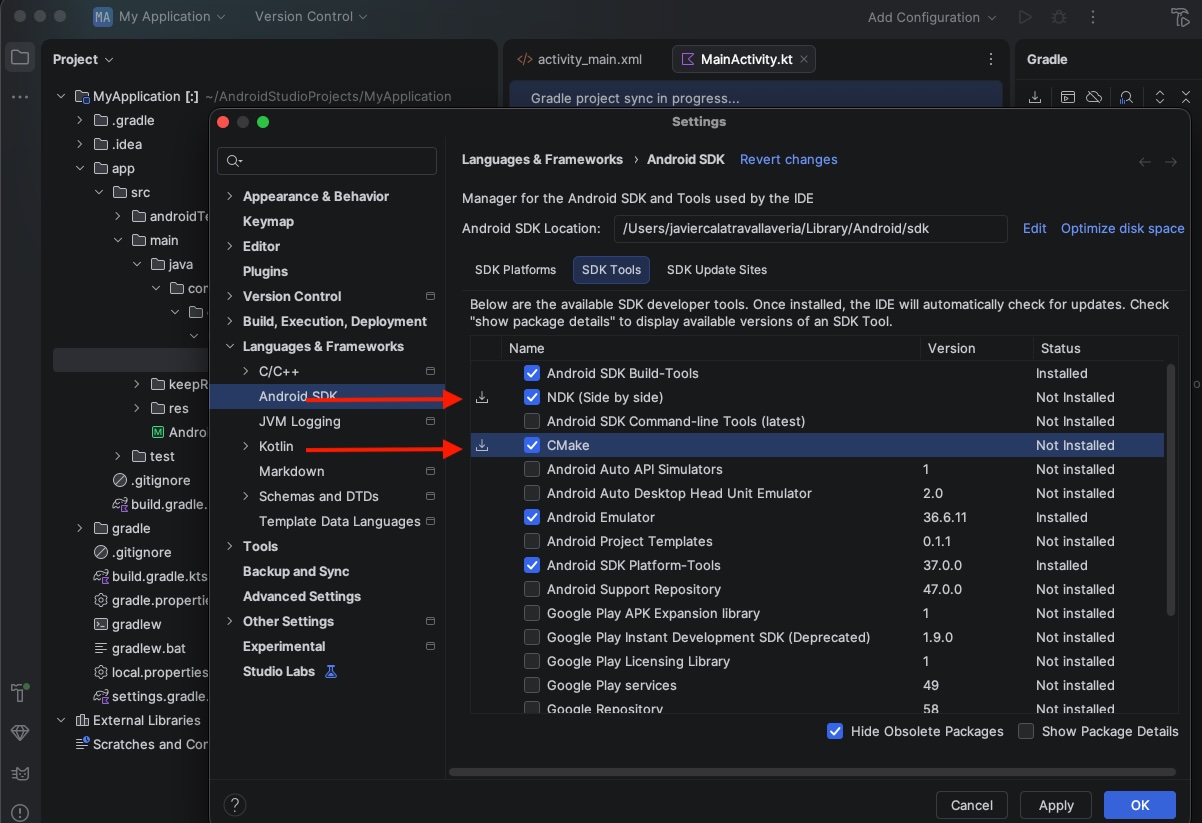
These tools are not utilized directly by Android Studio, but are required by the build script to compile the ANSI C code for the Android application.
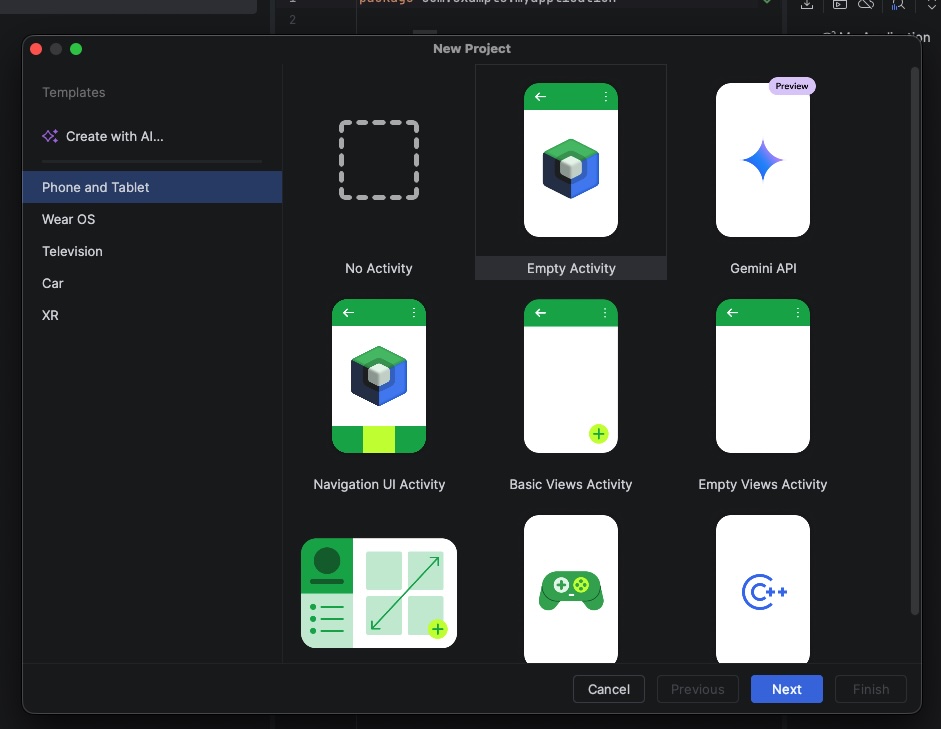
Next, create a new project and choose the Empty Activity template:
Next are the project settings:
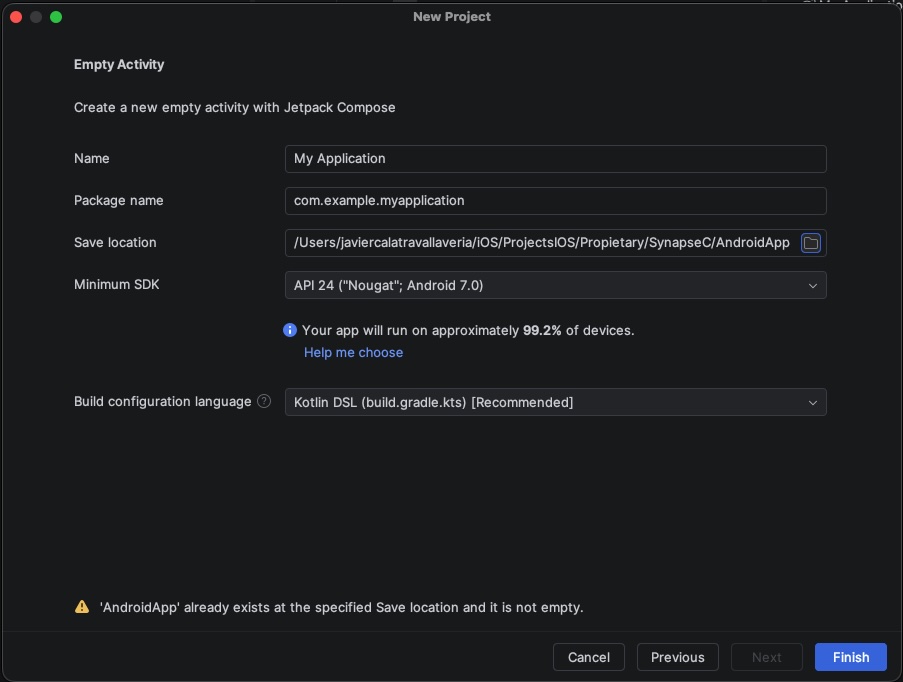
Make sure to pay close attention to the Package name—our upcoming code and scripts are going to depend on it!
Because the Android ecosystem is so huge, you won’t see any devices listed the first time you try to run your app. To get a device set up, just head over to Tools -> Device Manager:
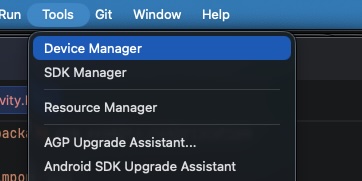
For this case I have selected ‘Pixel 8’:
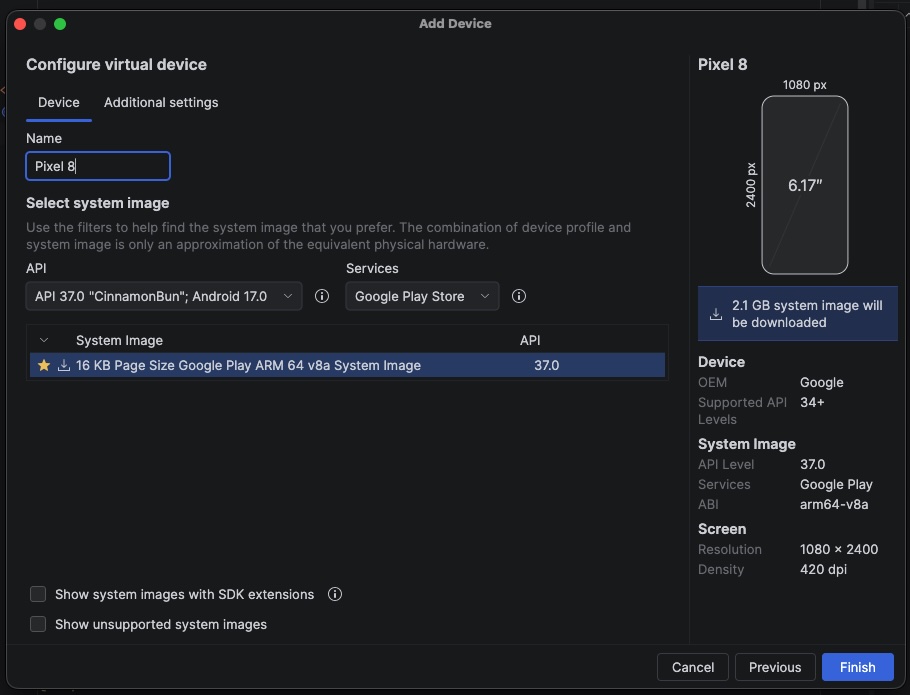
Now, you should have no problem running the app on the emulator.
Setting Up the ANSI C Component for Android
First, we will implement the bridge file between the two technologies. This file is called core_component_jni.c and should be placed alongside the rest of your .c files:
#include <jni.h>
#include <stdlib.h>
#include "core_component.h"

// Replace "com_example_myapp" with your Android app's actual package (using underscores)
JNIEXPORT jstring JNICALL
Java_com_example_myapplication_NativeCore_getNativeVersion(JNIEnv *env, jobject thiz) {

    char buffer[32]; // Buffer to store "X.Y.Z"

    // We call your original ANSI C function
    int result = getVersion(buffer, sizeof(buffer));

    if (result == VERSION_SUCCESS) {
        // We convert the C char* to a Java/Kotlin jstring
        return (*env)->NewStringUTF(env, buffer);
    } else {
        return (*env)->NewStringUTF(env, "Error: Insufficient buffer");
    }
}
This C code acts as a JNI (Java Native Interface) bridge that allows an Android application written in Kotlin or Java to safely communicate with your underlying ANSI C library. Specifically, it defines a native function named getNativeVersion mapped to the NativeCore object inside the com.example.myapplication package. When invoked from the Android side, the function allocates a local 32-byte character buffer and executes your core C function, getVersion(), to write the software’s version numbers into it. Finally, it evaluates the operation’s success: if successful, it safely converts the standard C string (char*) into a Java-compatible string object (jstring) using the JNI environment pointer (*env), and if it fails, it gracefully returns an error message string back to Kotlin.
Next, we have the build_android.sh script, which compiles and packages the ANSI C component so it can be consumed by Android:
#!/bin/bash
set -e

# 1. Define the base path of the Android SDK on your Mac
SDK_PATH="$HOME/Library/Android/sdk"

# 2. Automatically detect the highest installed NDK version
if [ -d "$SDK_PATH/ndk" ]; then
    NDK_VERSION=$(ls -1 "$SDK_PATH/ndk" | sort -V | tail -n 1)
    NDK_PATH="$SDK_PATH/ndk/$NDK_VERSION"
else
    echo "❌ Error: 'ndk' folder not found at $SDK_PATH/ndk"
    exit 1
fi

TOOLCHAIN="$NDK_PATH/build/cmake/android.toolchain.cmake"

echo "🤖 NDK Automatically detected at: $NDK_PATH"
echo "📄 Toolchain: $TOOLCHAIN"

# 3. Path configuration for the Multiplatform Project
# Since the script runs from 'common/', we go up one level and enter AndroidApp
ANDROID_APP_JNI_DIR="../AndroidApp/app/src/main/jniLibs"

ARCHS=("armeabi-v7a" "arm64-v8a" "x86" "x86_64")
ANDROID_API=21

echo "🧹 Cleaning up previous local builds and target directories in AndroidApp..."
rm -rf build_android jniLibs
rm -rf "$ANDROID_APP_JNI_DIR"

# Ensure target folders exist
mkdir -p jniLibs
mkdir -p "$ANDROID_APP_JNI_DIR"

for ARCH in "${ARCHS[@]}"
do
    echo "------------------------------------------------"
    echo "🤖 Generating environment for: $ARCH..."
    mkdir -p "build_android/$ARCH"

    cmake -B "build_android/$ARCH" \
          -DCMAKE_TOOLCHAIN_FILE="$TOOLCHAIN" \
          -DANDROID_ABI="$ARCH" \
          -DANDROID_PLATFORM=android-$ANDROID_API \
          -DCMAKE_BUILD_TYPE=Release > /dev/null 2>&1

    echo "🛠️ Compiling private binary ($ARCH)..."
    cmake --build "build_android/$ARCH" --target core_component_c_shared --config Release > /dev/null 2>&1

    # Locate the newly created .so file
    SO_FILE=$(find "build_android/$ARCH" -name "libcore_component_c_shared.so" | head -n 1)

    if [ -z "$SO_FILE" ]; then
        echo "❌ Error: The .so file was not generated for $ARCH"
        exit 1
    fi

    # Copy 1: Local backup in the 'coreC/jniLibs' folder
    mkdir -p "jniLibs/$ARCH"
    cp "$SO_FILE" "jniLibs/$ARCH/"

    # Copy 2: Direct deployment into the AndroidApp directory structure
    mkdir -p "$ANDROID_APP_JNI_DIR/$ARCH"
    cp "$SO_FILE" "$ANDROID_APP_JNI_DIR/$ARCH/"

    echo "✅ Binary for $ARCH successfully copied to AndroidApp."
done

echo "------------------------------------------------"
echo "🎉 ABSOLUTE VICTORY! Process completed."
echo "🚀 The private binaries are ready at: $ANDROID_APP_JNI_DIR"
This Bash script automates the multi-architecture compilation and deployment of your native C library so it can be consumed by an Android application. It begins by locating your Mac’s Android SDK path, dynamically detecting the highest installed Android NDK version to extract the required CMake toolchain file, and cleaning up any legacy build directories. Then, it loops through a predefined array of target CPU architectures (armeabi-v7a, arm64-v8a, x86, and x86_64), invoking CMake for each one to configure and compile the Release binary (libcore_component_c_shared.so) specifically tailored to Android API level 21. Finally, it locates each freshly generated .so file and copies it to two destinations: a local backup directory (jniLibs) and directly into the Android project’s source tree (app/src/main/jniLibs), ensuring that the Android app has all the native binaries it needs for cross-platform hardware compatibility.
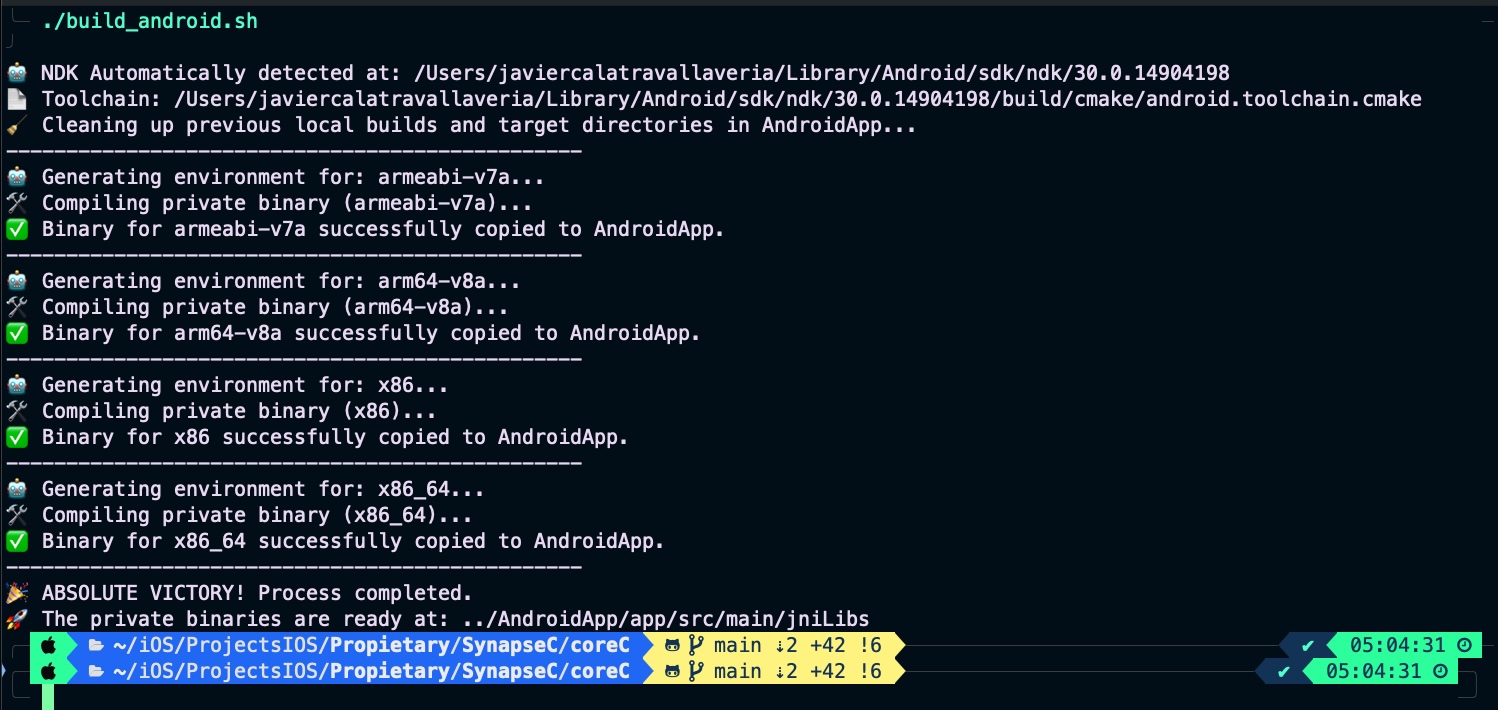
Run the script to verify that everything is working correctly:
Consuming the ANSI C Component in Android
Now, let’s make the final adjustments to run the component inside our Android app. To ensure that Android Studio correctly packages the .so files your script copied into jniLibs, open the app-level build.gradle.kts file and verify that the source path is mapped inside the android block:
android {
    ...

    sourceSets {
        getByName("main") {
            // Le dice a Gradle que busque los .so en la carpeta que llenó tu script
            jniLibs.srcDirs("src/main/jniLibs")
        }
    }
}
Just as we did in the iOS tutorial (Part 1), we will create a Kotlin wrapper for the ANSI C functionality. Create a file named NativeCore.kt under the com.example.myapp package:
package com.example.myapplication

object NativeCore {
    init {
        // Loads the .so library. Note that the "lib" prefix and the ".so" extension are omitted
        System.loadLibrary("core_component_c_shared")
    }

    /**
     * Declares the native method. The 'external' keyword indicates
     * to Kotlin that the implementation is in native code (C/C++).
     */
    external fun getNativeVersion(): String
}
The final step is to update the MainActivity to call the exported function and display the version:
package com.example.myapplication

import android.app.Activity
import android.os.Bundle
import android.widget.TextView

class MainActivity : Activity() {
    override fun onCreate(savedInstanceState: Bundle?) {
        super.onCreate(savedInstanceState)
        setContentView(R.layout.activity_main)

        val versionDesdeC = NativeCore.getNativeVersion()

        findViewById<TextView>(R.id.myTextView).text = "Version CoreC: $versionDesdeC"
    }
}
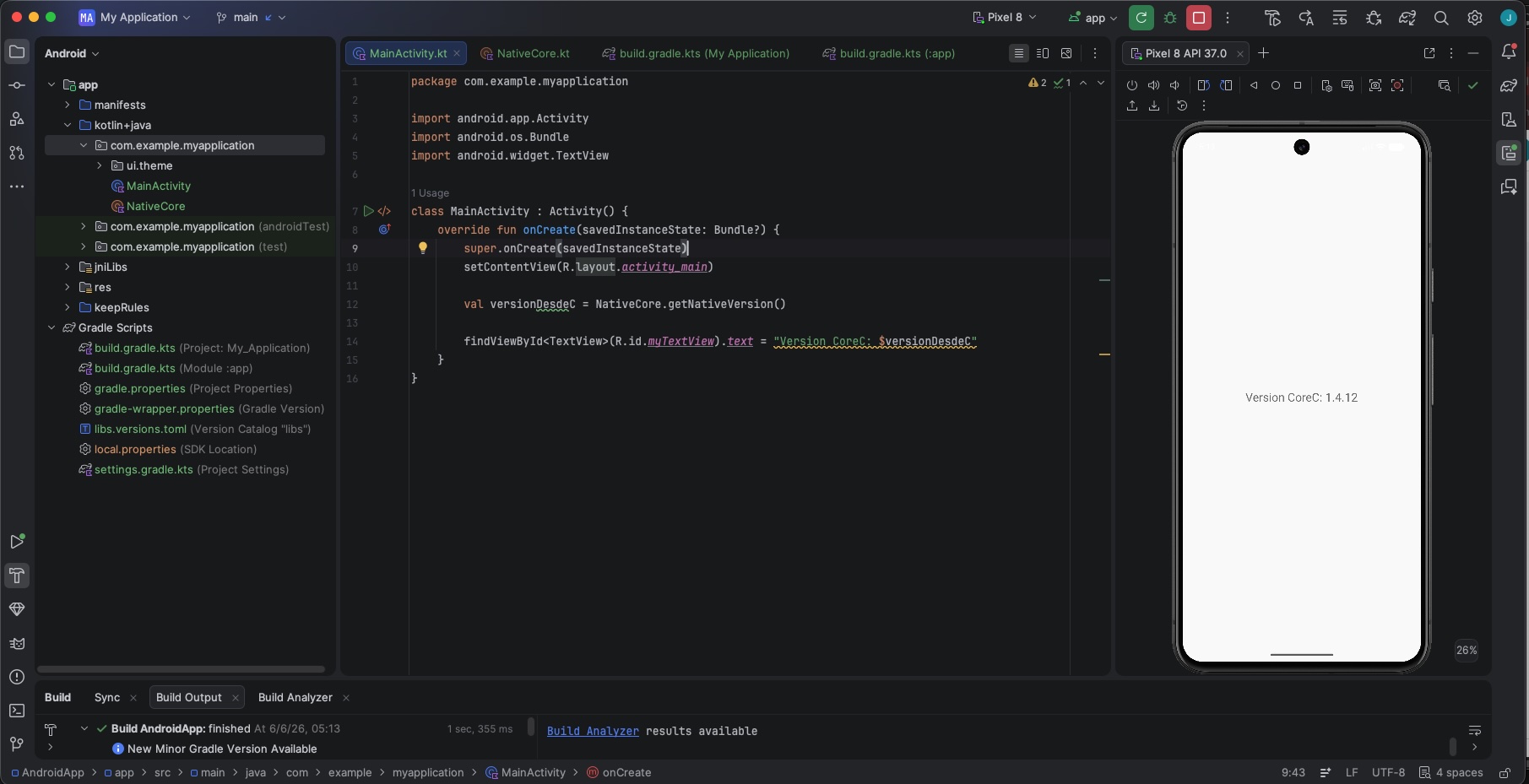
Deploy app on simulator:
Conclusions
Now, our cross-platform architecture is truly taking form! We officially have a shared ANSI C core powering both our iOS and Android apps. Frameworks like Flutter, React Native, or Kotlin Multiplatform are fantastic for building user interfaces and high-level business logic, but ANSI C is still King when it comes to raw performance, heavy lifting, and total portability.
Implementing a common ANSI C component is incredibly valuable for scenarios like:
High-Performance Computation & Math
Protecting Proprietary Algorithms
Low-Level Audio & Video Processing
Reusing Massive, Pre-Existing Open Source Libraries
Establishing a Single Source of Truth
In our next and final post of this series, we’re going to take this a step further. We will move this exact same ANSI C component to the backend and deploy it inside a dockerized Vapor application!
You can find source code used for writing this post in following repository
References
- Multiplatform ANSI C on iOS
JaviOS Blog
- Dockerizing a C Component with Vapor
JaviOS Blog